Note
Access to this page requires authorization. You can try signing in or changing directories.
Access to this page requires authorization. You can try changing directories.
Azure IoT Hub automatic device management streamlines the process of managing large fleets of devices by automating repetitive and complex tasks. With automatic device and module configurations, you can target devices based on their properties, specify desired settings, and let IoT Hub apply updates as devices meet the defined criteria. This approach enables you to monitor configuration status, resolve conflicts, and roll out changes in phases for greater control and compliance.
Note
The features described in this article are available only in the standard tier of IoT Hub. For more information about the basic and standard/free IoT Hub tiers, see Choose the right IoT Hub tier and size for your solution.
Overview of automatic device management
Automatic device management operates by applying desired properties to groups of device twins or module twins and summarizing results using reported properties. This process uses a specialized JSON document called a Configuration, which consists of three main components:
The target condition defines the scope of device twins or module twins to be updated. The target condition is specified as a query on twin tags and/or reported properties.
The target content defines the desired properties to be added or updated in the targeted device twins or module twins. The content includes a path to the section of desired properties to be changed.
The metrics component provides summary counts for configuration states like Success, In Progress, and Error. You can define custom metrics using queries on twin reported properties, while system metrics automatically track update status, including how many twins are targeted and how many are successfully updated.
Automatic configurations run for the first time shortly after the configuration is created and then at five minute intervals. Metrics queries run each time the automatic configuration runs. A maximum of 100 automatic configurations is supported on standard tier IoT hubs; ten on free tier IoT hubs. Throttling limits also apply. To learn more, see Quotas and Throttling.
Prerequisites
An active Azure subscription. If you don't have an Azure subscription, create a free account before you begin.
An IoT hub in your Azure subscription. If you don't have a hub yet, you can follow the steps in Create an IoT hub.
Implement twins
Automatic device configurations require the use of device twins to synchronize state between the cloud and devices. For more information, see Understand and use device twins in IoT Hub.
Automatic module configurations require the use of module twins to synchronize state between the cloud and modules. For more information, see Understand and use module twins in IoT Hub.
Use tags to target twins
Before you create a configuration, you must specify which devices or modules you want to affect. Azure IoT Hub identifies devices using tags in the device twin, and identifies modules using tags in the module twin. Each device or modules can have multiple tags, and you can define them any way that makes sense for your solution. For example, if you manage devices in different locations, add the following tags to a device twin:
"tags": {
    "location": {
        "state": "Washington",
        "city": "Tacoma"
    }
},
Create a configuration
You can create a maximum of 100 automatic configurations on standard tier IoT hubs; ten on free tier IoT hubs. To learn more, see Quotas and Throttling.
In the Azure portal, go to your IoT hub.
Select Configurations + Deployments in the left navigation pane.
Select Add and choose Device twin configuration or Module twin configuration from the drop-down list.
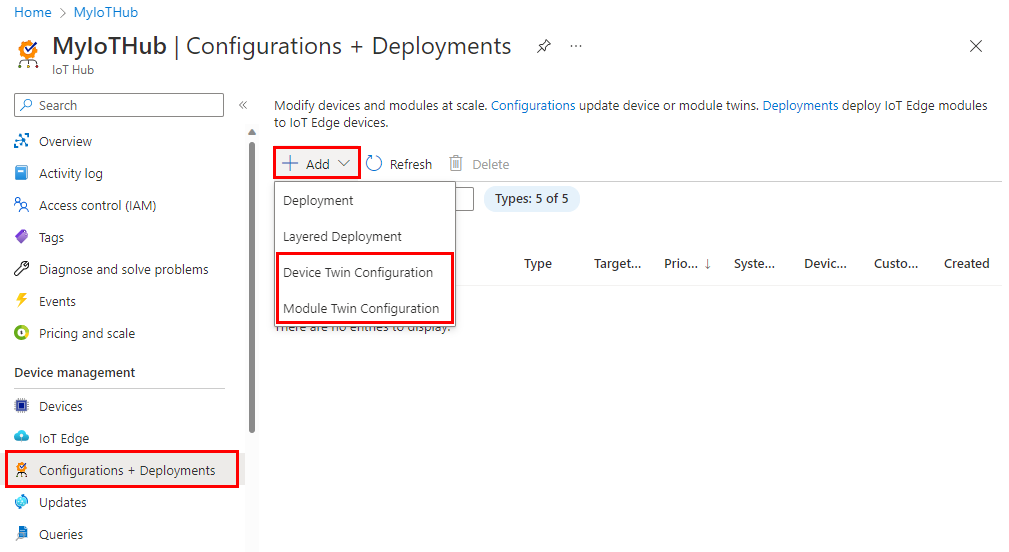
There are five steps to create a configuration. The following sections walk through each one.
Name and label
- Enter a unique name for your configuration. The name can be up to 128 characters and may include lowercase letters and the following special characters:
-+%_*!'. Spaces aren't allowed. - Add labels to organize and describe your configuration. Labels are key-value pairs, such as
HostPlatform, LinuxorVersion, 3.0.1. - Select Next to continue.
Twin settings
Set the content in the targeted device twin or module twin desired properties by providing two inputs for each setting. First, specify the twin path, which points to the JSON section within the twin desired properties to update. Next, enter the JSON content to insert at that location.
For example, you could set the twin path to properties.desired.chiller-water and then provide the following JSON content:
{
  "temperature": 66,
  "pressure": 28
}
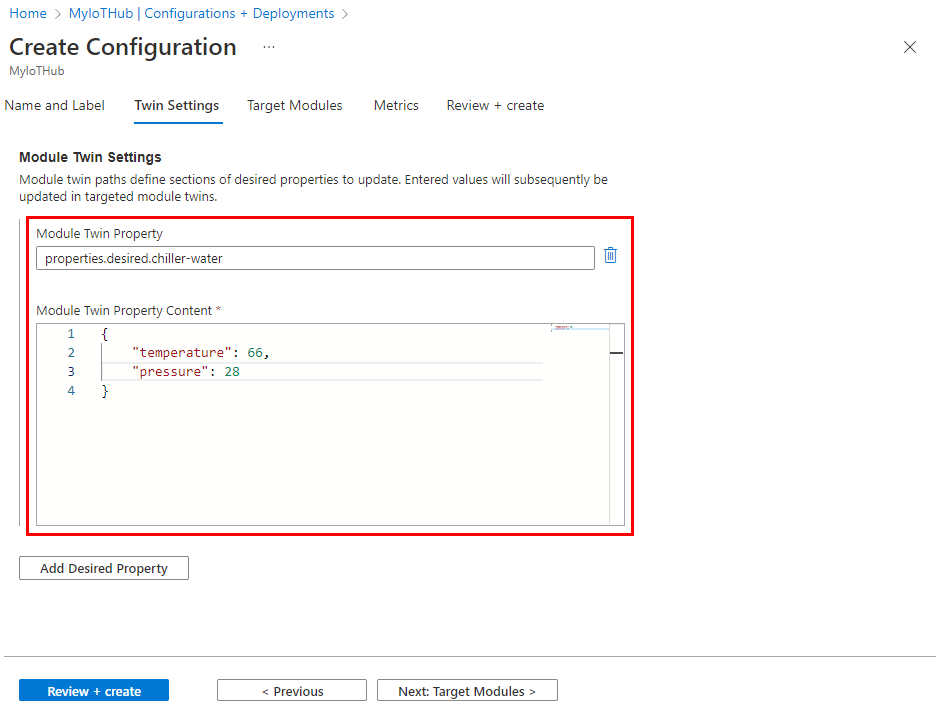
You can also set individual settings by specifying the entire twin path and providing the value with no brackets. For example, with the twin path properties.desired.chiller-water.temperature, set the content to 66. Then create a new twin setting for the pressure property.
If two or more configurations target the same twin path, the content from the highest priority configuration applies (priority is defined in step 4).
If you wish to remove an existing property, specify the property value to null.
You can add additional settings by selecting Add Device Twin Setting or Add Module Twin Setting.
Target devices or modules
Use the tags property from your twins to target the specific devices or modules that should receive this configuration. You can also target twin reported properties.
Automatic device configurations can only target device twin tags, and automatic module configurations can only target module twin tags.
Since multiple configurations may target the same device or module, each configuration needs a priority number. If there's ever a conflict, the configuration with the highest priority wins.
Enter a positive integer for the configuration Priority. The highest numerical value is considered the highest priority. If two configurations have the same priority number, the one created most recently wins.
Enter a Target condition to determine which devices or modules are targeted with this configuration. The condition is based on twin tags or twin reported properties and should match the expression format.
For automatic device configuration, you can specify just the tag or reported property to target. For example,
tags.environment='test'orproperties.reported.chillerProperties.model='4000x'. You can specify*to target all devices.For automatic module configuration, use a query to specify tags or reported properties from the modules registered to the IoT hub. For example,
from devices.modules where tags.environment='test'orfrom devices.modules where properties.reported.chillerProperties.model='4000x'. The wildcard can't be used to target all modules.
Metrics
Metrics provide summary counts of the various states that a device or module may report back after applying configuration content. For example, you may create a metric for pending settings changes, a metric for errors, and a metric for successful settings changes.
Each configuration can have up to five custom metrics.
Enter a name for Metric Name.
Enter a query for Metric Criteria. The query is based on device twin reported properties. The metric represents the number of rows returned by the query.
For example:
SELECT deviceId FROM devices
  WHERE properties.reported.chillerWaterSettings.status='pending'
You can include a clause that the configuration was applied, for example:
/* Include the double brackets. */
SELECT deviceId FROM devices
  WHERE configurations.[[yourconfigname]].status='Applied'
If you're building a metric to report on configured modules, select
moduleIdfromdevices.modules. For example:SELECT deviceId, moduleId FROM devices.modules WHERE properties.reported.lastDesiredStatus.code = 200
Review Configuration
Review your configuration information, then select Submit.
Monitor a configuration
To view the details of a configuration and monitor the devices running it, use the following steps:
In the Azure portal, go to your IoT hub.
Select Configurations in Device management.
Inspect the configuration list. For each configuration, you can view the following details:
ID - the name of the configuration.
Target condition - the query used to define targeted devices or modules.
Priority - the priority number assigned to the configuration.
Creation time - the timestamp from when the configuration was created. This timestamp is used to break ties when two configurations have the same priority.
System metrics - metrics that are calculated by IoT Hub and cannot be customized by developers. Targeted specifies the number of device twins that match the target condition. Applies specified the number of device twins that have been modified by the configuration, which can include partial modifications in the event that a separate, higher priority configuration also made changes.
Custom metrics - metrics that have been specified by the developer as queries against twin reported properties. Up to five custom metrics can be defined per configuration.
Select the configuration that you want to monitor.
Inspect the configuration details. You can use tabs to view specific details about the devices that received the configuration.
Target Devices or Target Modules - the devices or modules that match the target condition.
Metrics - a list of system metrics and custom metrics. You can view a list of devices or modules that are counted for each metric by selecting the metric in the drop-down and then selecting View Devices or View Modules.
Labels - key-value pairs used to describe a configuration. Labels have no impact on functionality.
Device Twin Settings or Module Twin Settings - the twin settings that are set by the configuration, if any.
Modify a configuration
When you modify a configuration, the changes immediately replicate to all targeted devices or modules.
If you update the target condition, the following updates occur:
If a twin didn't meet the old target condition, but meets the new target condition and this configuration is the highest priority for that twin, then this configuration is applied.
If a twin currently running this configuration no longer meets the target condition, the settings from the configuration will be removed and the twin will be modified by the next highest priority configuration.
If a twin currently running this configuration no longer meets the target condition and doesn't meet the target condition of any other configurations, then the settings from the configuration will be removed and no other changes will be made on the twin.
To modify a configuration, use the following steps:
- In the Azure portal, go to your IoT hub.
- Select Configurations + Deployments in Device management.
- Select the configuration that you want to modify.
- You can make updates to the following fields: priority, metrics, target condition, and labels.
- Select Save.
- Follow the steps in Monitor a configuration to watch the changes roll out.
Delete a configuration
When you delete a configuration, any device twins take on their next highest priority configuration. If device twins don't meet the target condition of any other configuration, then no other settings are applied.
- In the Azure portal, go to your IoT hub.
- Select Configurations + Deployments in Device management.
- Use the checkbox to select the configuration that you want to delete.
- Select Delete.
- A prompt will ask you to confirm.
Prerequisites
An active Azure subscription. If you don't have an Azure subscription, create a free account before you begin.
An IoT hub in your Azure subscription. If you don't have a hub yet, you can follow the steps in Create an IoT hub.
Azure CLI in your environment. At a minimum, your Azure CLI version must be 2.0.70 or later. Use
az –-versionto validate. This version supports az extension commands and introduces the Knack command framework.
Note
This article uses the newest version of the Azure IoT extension, called azure-iot. The legacy version is called azure-cli-iot-ext. You should only have one version installed at a time. You can use the command az extension list to validate the currently installed extensions.
Use az extension remove --name azure-cli-iot-ext to remove the legacy version of the extension.
Use az extension add --name azure-iot to add the new version of the extension.
To see what extensions are currently installed, use az extension list.
Implement twins
Automatic device configurations require the use of device twins to synchronize state between the cloud and devices. For more information, see Understand and use device twins in IoT Hub.
Automatic module configurations require the use of module twins to synchronize state between the cloud and modules. For more information, see Understand and use module twins in IoT Hub.
Use tags to target twins
Before you create a configuration, you must specify which devices or modules you want to affect. Azure IoT Hub identifies devices and using tags in the device twin, and identifies modules using tags in the module twin. Each device or module can have multiple tags, and you can define them any way that makes sense for your solution. For example, if you manage devices in different locations, add the following tags to a device twin:
"tags": {
	"location": {
		"state": "Washington",
		"city": "Tacoma"
    }
},
Define the target content and metrics
The target content and metric queries are specified as JSON documents that describe the device twin or module twin desired properties to set and reported properties to measure. To create an automatic configuration using Azure CLI, save the target content and metrics locally as .txt files. You use the file paths in a later section when you run the command to apply the configuration to your device.
Here's a basic target content sample for an automatic device configuration:
{
  "content": {
    "deviceContent": {
      "properties.desired.chillerWaterSettings": {
        "temperature": 38,
        "pressure": 78
      }
    }
  }
}
Automatic module configurations behave similarly, but you target moduleContent instead of deviceContent.
{
  "content": {
    "moduleContent": {
      "properties.desired.chillerWaterSettings": {
        "temperature": 38,
        "pressure": 78
      }
    }
  }
}
Here are examples of metric queries:
{
  "queries": {
    "Compliant": "select deviceId from devices where configurations.[[chillerdevicesettingswashington]].status = 'Applied' AND properties.reported.chillerWaterSettings.status='current'",
    "Error": "select deviceId from devices where configurations.[[chillerdevicesettingswashington]].status = 'Applied' AND properties.reported.chillerWaterSettings.status='error'",
    "Pending": "select deviceId from devices where configurations.[[chillerdevicesettingswashington]].status = 'Applied' AND properties.reported.chillerWaterSettings.status='pending'"
  }
}
Metric queries for modules are also similar to queries for devices, but you select for moduleId from devices.modules. For example:
{
  "queries": {
    "Compliant": "select deviceId, moduleId from devices.module where configurations.[[chillermodulesettingswashington]].status = 'Applied' AND properties.reported.chillerWaterSettings.status='current'"
  }
}
Create a configuration
You can create a maximum of 100 automatic configurations on standard tier IoT hubs; ten on free tier IoT hubs. To learn more, see Quotas and Throttling.
You configure target devices by creating a configuration that consists of the target content and metrics. Use the following command to create a configuration:
   az iot hub configuration create --config-id [configuration id] \
     --labels [labels] --content [file path] --hub-name [hub name] \
     --target-condition [target query] --priority [int] \
     --metrics [metric queries]
--config-id - The name of the configuration created in the IoT hub. Give your configuration a unique name that is up to 128 characters long. Lowercase letters and the following special characters are allowed:
-+%_*!'. Spaces aren't allowed.--labels - Add labels to help track your configuration. Labels are Name, Value pairs that describe your deployment. For example,
HostPlatform, LinuxorVersion, 3.0.1--content - Inline JSON or file path to the target content to be set as twin desired properties.
--hub-name - Name of the IoT hub in which the configuration is created. The hub must be in the current subscription. Switch to the desired subscription with the command
az account set -s [subscription name]--target-condition - Enter a target condition to determine which devices or modules will be targeted with this configuration. For automatic device configuration, the condition is based on device twin tags or device twin desired properties and should match the expression format. For example,
tags.environment='test'orproperties.desired.devicemodel='4000x'. For automatic module configuration, the condition is based on module twin tags or module twin desired properties. For example,from devices.modules where tags.environment='test'orfrom devices.modules where properties.reported.chillerProperties.model='4000x'.--priority - A positive integer. In the event that two or more configurations are targeted at the same device or module, the configuration with the highest numerical value for Priority applies.
--metrics - Filepath to the metric queries. Metrics provide summary counts of the various states that a device or module may report back after applying configuration content. For example, you may create a metric for pending settings changes, a metric for errors, and a metric for successful settings changes.
Monitor a configuration
Use the following command to display the contents of a configuration:
az iot hub configuration show --config-id [configuration id] \
  --hub-name [hub name]
--config-id - The name of the configuration that exists in the IoT hub.
--hub-name - Name of the IoT hub in which the configuration exists. The hub must be in the current subscription. Switch to the desired subscription with the command
az account set -s [subscription name].
Inspect the configuration in the command window. The metrics property lists a count for each metric that is evaluated by each hub:
targetedCount - A system metric that specifies the number of device twins or module twins in IoT Hub that match the targeting condition.
appliedCount - A system metric specifies the number of devices or modules that have had the target content applied.
Your custom metric - Any metrics you defined are user metrics.
You can show a list of device IDs, module IDs, or objects for each of the metrics by using the following command:
az iot hub configuration show-metric --config-id [configuration id] \
   --metric-id [metric id] --hub-name [hub name] --metric-type [type]
--config-id - The name of the deployment that exists in the IoT hub.
--metric-id - The name of the metric for which you want to see the list of device IDs or module IDs, for example
appliedCount.--hub-name - Name of the IoT hub in which the deployment exists. The hub must be in the current subscription. Switch to the desired subscription with the command
az account set -s [subscription name].--metric-type - Metric type can be
systemoruser. System metrics aretargetedCountandappliedCount. All other metrics are user metrics.
Modify a configuration
When you modify a configuration, the changes immediately replicate to all targeted devices.
If you update the target condition, the following updates occur:
If a twin didn't meet the old target condition, but meets the new target condition and this configuration is the highest priority for that twin, then this configuration is applied.
If a twin currently running this configuration no longer meets the target condition, the settings from the configuration will be removed and the twin will be modified by the next highest priority configuration.
If a twin currently running this configuration no longer meets the target condition and doesn't meet the target condition of any other configurations, then the settings from the configuration will be removed and no other changes will be made on the twin.
Use the following command to update a configuration:
az iot hub configuration update --config-id [configuration id] \
   --hub-name [hub name] --set [property1.property2='value']
--config-id - The name of the configuration that exists in the IoT hub.
--hub-name - Name of the IoT hub in which the configuration exists. The hub must be in the current subscription. Switch to the desired subscription with the command
az account set -s [subscription name].--set - Update a property in the configuration. You can update the following properties:
targetCondition - for example
targetCondition=tags.location.state='Oregon'labels
priority
Delete a configuration
When you delete a configuration, any device twins or module twins take on their next highest priority configuration. If twins don't meet the target condition of any other configuration, then no other settings are applied.
Use the following command to delete a configuration:
az iot hub configuration delete --config-id [configuration id] \
   --hub-name [hub name]
--config-id - The name of the configuration that exists in the IoT hub.
--hub-name - Name of the IoT hub in which the configuration exists. The hub must be in the current subscription. Switch to the desired subscription with the command
az account set -s [subscription name].
Next steps
In this article, you learned how to configure and monitor IoT devices at scale.
To learn how to manage IoT Hub device identities in bulk, see Import and export IoT Hub device identities in bulk