Note
Access to this page requires authorization. You can try signing in or changing directories.
Access to this page requires authorization. You can try changing directories.
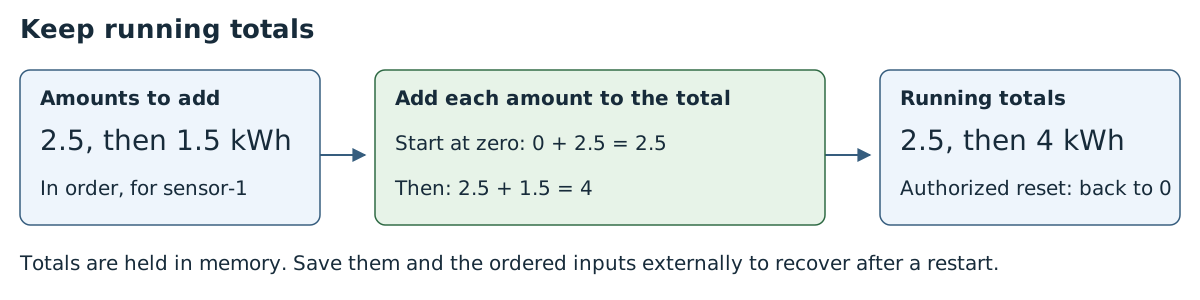
Add each new reading to the previous total. For example, a machine uses 2.5 kWh, then another 1.5 kWh. The graph reports 2.5 kWh, then 4 kWh.
Each reading must contain the amount since the previous reading, not the meter's lifetime total. The graph keeps a separate total for each sensor.
Prerequisites
Start with an existing Azure IoT Operations deployment and MQTT broker access. Follow Create a data flow graph to configure a data flow profile and MQTT endpoint.
Complete the Azure Samples deployment instructions for registry setup and single-instance deployment, then use the standalone sample setup. The examples use namespace azure-iot-operations. Arrange durable checkpoints and an ordered input log for continuity across restarts.
The default data flow profile must already exist with one instance. The examples reuse the existing factory-mqtt MQTT endpoint and factory-artifacts registry endpoint for ghcr.io; they don't create profiles or endpoints.
The Azure CLI installed on your development machine. Check Available Azure CLI extensions for the minimum required version to use the azure-iot-ops extension. Use
az --versionto check your version andaz upgradeto update if necessary. For more information, see Install the Azure CLI.The Azure IoT Operations extension for the Azure CLI. Use the following command to add the extension or update it to the latest version:
az extension add --upgrade --name azure-iot-ops
The Azure CLI examples in this article use environment variables so that you can set each value once and then copy and paste the commands as-is. If you're using the Azure IoT Operations Codespaces environment from the quickstart, these variables are already set for you and you can skip this step. Otherwise, set the following environment variables in your shell before you run the commands.
The following scripts set the most commonly used environment variables:
| Environment variable | Description |
|---|---|
SUBSCRIPTION_ID |
The ID of the subscription that contains your Azure IoT Operations instance. |
RESOURCE_GROUP |
The name of the resource group that contains your Azure IoT Operations instance. |
AIO_INSTANCE_NAME |
The name of your Azure IoT Operations instance. To list your instances, run az iot ops list -o table. |
CLUSTER_NAME |
The name of the Azure Arc-enabled Kubernetes cluster that hosts your instance. |
LOCATION |
The Azure region to use for new resources, for example eastus. |
SUBSCRIPTION_ID=<subscription-id>
RESOURCE_GROUP=<resource-group-name>
AIO_INSTANCE_NAME=<instance-name>
CLUSTER_NAME=<cluster-name>
LOCATION=<region>
You only need to set the variables that this article uses. This article might use additional environment variables for resource names that you choose. The article explains how to set them where they're introduced.
Deploy the complete graph
This sample uses a custom artifact from ghcr.io. The operations experience supports custom artifacts from Azure Container Registry (ACR), not GHCR. Use the Azure CLI or Bicep tab to deploy this example unchanged.
To use the operations experience, first copy the graph and its referenced WASM modules to ACR and configure a registry endpoint. Then follow Deploy custom WASM transforms for the supported UI workflow. The graph configuration in the Azure CLI tab shows the required topics and settings.
The source subscribes to factory/total-readings and factory/total-resets; the destination is factory/totals. Allow sensor publishers to publish readings, but allow only authorized operators to publish on factory/total-resets.
The sample starts sensor-1 at zero. To add another sensor, add its starting values to the manifest's initialStates. Readings and resets for sensors missing from initialStates are rejected.
Add readings
Publish each line separately on factory/total-readings:
{"kind":"reading","assetId":"sensor-1","messageId":"r1","sequence":1,"epoch":0,"value":2.5,"units":"kWh"}
{"kind":"reading","assetId":"sensor-1","messageId":"r2","sequence":2,"epoch":0,"value":1.5,"units":"kWh"}
The total is now 4 kWh. For each sensor, use a new messageId and increase sequence with every message, starting at 1 for this zero starting state. Retry a message only with its original ID, sequence, and unchanged content. Keep epoch at 0 until you reset the total.
The second output looks like this:
{"kind":"total","assetId":"sensor-1","messageId":"r2","sequence":2,"epoch":0,"value":1.5,"units":"kWh","total":4,"stateVersion":2,"lastSequence":2,"emittedAtMs":400}
total is the updated sum. The other added fields track the last processed message and support resets and recovery. The graph fills in emittedAtMs; 400 is an illustrative time, not a value to supply.
Reset the total
To start counting from zero again, publish this message on factory/total-resets using an identity authorized to reset totals:
{"kind":"reset","assetId":"sensor-1","resetId":"reset-1","sequence":3,"expectedStateVersion":2,"operator":"synthetic"}
Use the latest output's stateVersion as expectedStateVersion, and increase sequence. This prevents a reset based on an outdated total. The result is:
{"kind":"totalReset","assetId":"sensor-1","resetId":"reset-1","sequence":3,"expectedStateVersion":2,"operator":"synthetic","total":0,"epoch":1,"stateVersion":3,"lastSequence":3,"emittedAtMs":600}
The next reading uses epoch 1 and continues the sequence:
{"kind":"reading","assetId":"sensor-1","messageId":"r3","sequence":4,"epoch":1,"value":3}
The total is now 3. After a reset, use the new epoch so delayed readings from before the reset aren't counted. Give each new reset a unique resetId; retry it only with its original, unchanged content.
Advanced: keep totals across restarts
The graph holds totals in memory and doesn't automatically save them across restarts. For each assetId, your application must save total, epoch, stateVersion, lastSequence, and lastSampledAt when present, along with an ordered record of inputs. Output messages provide these values but don't save them durably.
To recover, pause incoming messages, restore the saved values in initialStates, and replay later inputs in order. Keep message and reset IDs unique across restarts, and ensure downstream consumers don't count replayed outputs twice. Use the sample's zero starting values only for a new total.