Note
Access to this page requires authorization. You can try signing in or changing directories.
Access to this page requires authorization. You can try changing directories.
Azure IoT Operations uses Azure Key Vault as the managed vault solution on the cloud, and uses Azure Key Vault Secret Store extension for Kubernetes to sync the secrets down from the cloud and store them on the edge as Kubernetes secrets. Edge resources like connectors and dataflows can then use these secrets for authentication when connecting to external systems.
Prerequisites
An Azure IoT Operations instance deployed with secure settings. If you deployed Azure IoT Operations with test settings and now want to use secrets, you need to first enable secure settings.
Configure Azure Key Vault permissions
To use the operations experience to create secrets in the key vault, the user requires Key Vault Secrets Officer permissions at the resource level in Azure.
In a test or development environment, use the following steps to assign the Key Vault Secrets Officer role to your user at the resource group level where the Azure IoT Operations instance and Azure Key Vault instance are deployed:
To find the name of the resource group, go to the operations experience web UI, go to the Instances page and find your Azure IoT Operations instance. The resource group name is shown in the Resource group field.
Go to the Azure portal and then go to the resource group where your Azure IoT Operations instance and Azure Key Vault instance are deployed.
Tip
Use the search box at the top of the Azure portal to quickly find the resource group by typing in the name.
Select Access control (IAM) from the left-hand menu. Then select + Add > Add role assignment.
On the Role tab, select Key Vault Secrets Officer from the list of roles, and then select Next.
On the Members tab, select User, group, or service principal, select Select members, select the user you want to assign the Key Vault Secrets Officer role to, and then select Next.
Select Review + assign to complete the role assignment.
In a production environment, follow best practices to secure the Azure Key Vault you use with Azure IoT Operations. For more information, see Best practices for using Azure Key Vault.
Add and use secrets
Secrets management for Azure IoT Operations uses Secret Store extension to sync the secrets from an Azure Key Vault and store them on the edge as Kubernetes secrets. When you enabled secure settings during deployment, you selected an Azure Key Vault for secret management. It is in this Key Vault where all secrets to be used within Azure IoT Operations are stored.
Note
Azure IoT Operations instances work with only one Azure Key Vault, multiple key vaults per instance isn't supported.
Once the set up secrets management steps are completed, you can start adding secrets to Azure Key Vault, and sync them to the Kubernetes cluster to be used in Devices or Data flow endpoints using the operations experience web UI.
Secrets are used in devices and data flow endpoints for authentication. This section uses devices as an example. The same process can be applied to data flow endpoints. You have the option to directly create the secret in Azure Key Vault and have it automatically synchronized down to the cluster, or use an existing secret reference from the key vault:
Go to the Devices page in the operations experience web UI.
To add a new secret reference, select Add reference when creating a new device:
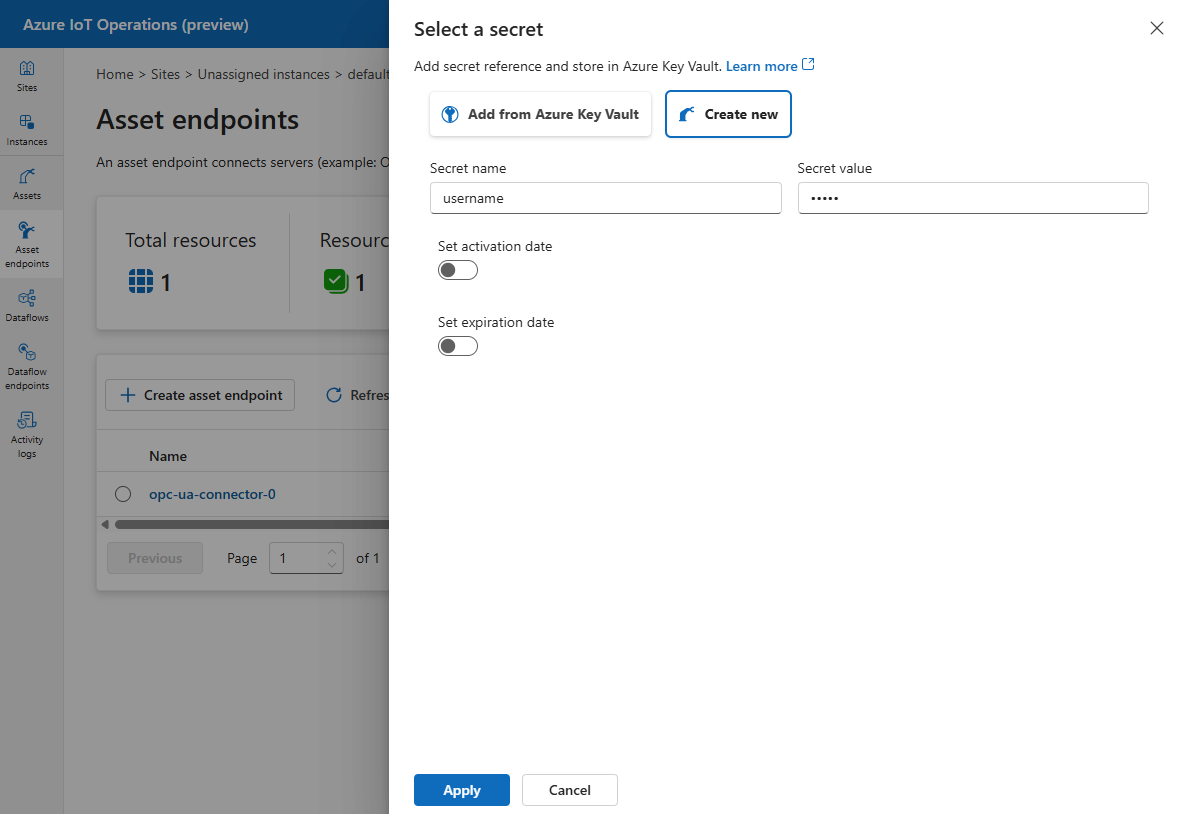
Create a new secret: creates a secret reference in the Azure Key Vault and also automatically synchronizes the secret down to the cluster using Secret Store extension. Use this option if you didn't create the secret you require for this scenario in the key vault beforehand.
Add from Azure Key Vault: synchronizes an existing secret in key vault down to the cluster if it wasn't synchronized before. Selecting this option shows you the list of secret references in the selected key vault. Use this option if you created the secret in the key vault beforehand. Only the latest version of the secret is synced to the cluster.
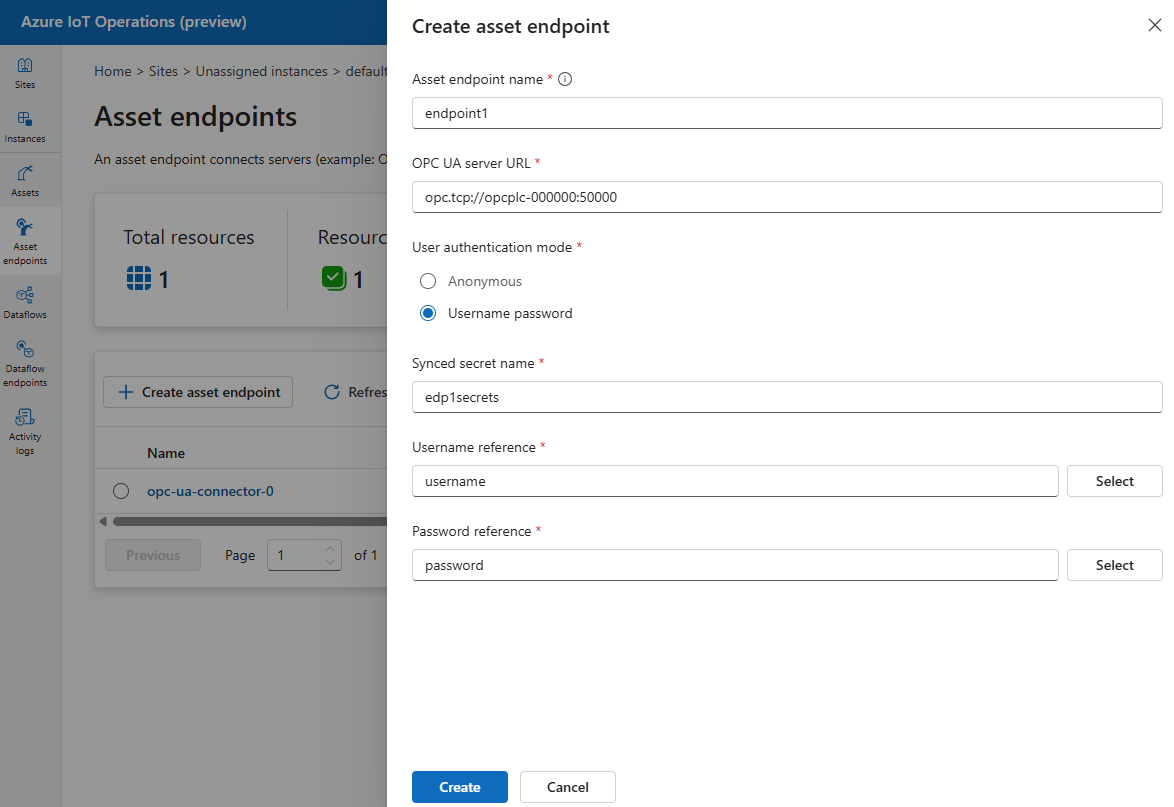
When you add the username and password references to the devices or data flow endpoints, you then need to give the synchronized secret a name. The secret references are saved in the cluster with this given name as one secret sync resource. In the example from the screenshot below, the username and password references are saved to the cluster as edp1secrets.
Manage synced secrets
This section uses devices as an example. The same process can be applied to data flow endpoints:
Go to the Devices page in the operations experience web UI.
To view the secrets list, select Manage certificates and secrets and then Secrets:


You can use the Secrets page to view synchronized secrets in your devices and data flow endpoints. Secrets page shows the list of all current synchronized secrets at the edge for the resource you're viewing. A synced secret represents one or multiple secret references, depending on the resource using it. Any operation applied to a synced secret will be applied to all secret references contained within the synced secret.
You can delete synced secrets as well in the Secrets page. When you delete a synced secret, it only deletes the synced secret from the Kubernetes cluster, and doesn't delete the contained secret reference from Azure Key Vault. You must delete the certificate secret manually from the key vault.
Warning
Directly editing SecretProviderClass and SecretSync custom resources in your Kubernetes cluster can break the secrets flow in Azure IoT Operations. For any operations related to secrets, use the operations experience web UI.
Before deleting a synced secret, make sure that all references to the secret from Azure IoT Operations components are removed.