Note
Access to this page requires authorization. You can try signing in or changing directories.
Access to this page requires authorization. You can try changing directories.
Disable a device in Azure Device Registry (ADR) to block its access to Azure IoT Hub without deleting its registry resource. A disabled device can't send messages or reprovision. Enable the device again when you're ready to allow it to reconnect.
Important
Azure IoT Hub with Azure Device Registry integration and Microsoft-backed X.509 certificate management is in public preview and isn't recommended for production workloads. For more information, see FAQ: What is new in IoT Hub?.
Disabling a device can interrupt data collection and dependent workflows. Confirm that it's safe to take the device offline before you begin. The change is asynchronous: wait for the operation to succeed before you consider it complete.
Enabling a device doesn't restore revoked certificates. If you also revoked its operational certificates, enable the device first, then reprovision it to obtain a new certificate. For more information, see Certificate revocation (preview).
Prerequisites
- An active Azure subscription. If you don't have one, create a free account.
- An IoT hub linked to an ADR namespace. For setup steps, see Get started with Azure Device Registry for Azure IoT Hub.
- An existing IoT Hub device in that ADR namespace, represented by a
Microsoft.DeviceRegistry/namespaces/registryDevicesresource. - The Azure Device Registry Contributor role, or equivalent permissions, on the ADR namespace.
Disable a device
Sign in to the Azure portal.
Search for and select Azure Device Registry.
Select Devices.
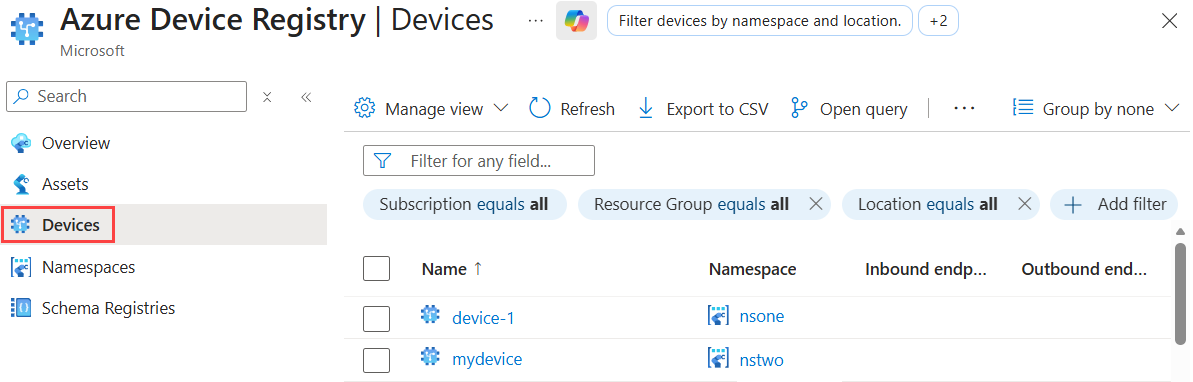
Select the IoT Hub device that you want to disable. Check that it belongs to the ADR namespace you intend to manage.
On the device page, select edit next to Device status.

For Device status, select Disable.
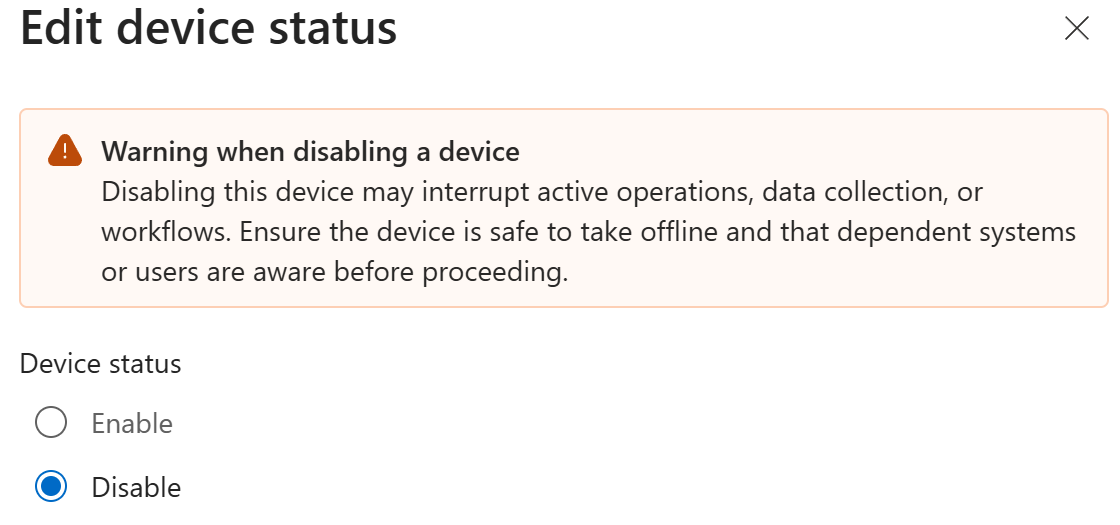
Select Save.
Wait for the Disable device notification to report success. Select Refresh on the device page and verify that Device status shows Disabled. If the operation fails, review the error in the notification before retrying.
Enable a device
Before you enable the device, confirm that its configuration and security settings are ready for it to reconnect.
Sign in to the Azure portal.
Search for and select Azure Device Registry.
Select Devices.
Select the disabled IoT Hub device that you want to enable. Check that it belongs to the ADR namespace you intend to manage.
On the device page, select edit next to Device status.
For Device status, select Enable.
Select Save.
Wait for the Enable device notification to report success. Select Refresh on the device page and verify that Device status shows Enabled. If the operation fails, review the error in the notification before retrying.