Note
Access to this page requires authorization. You can try signing in or changing directories.
Access to this page requires authorization. You can try changing directories.
The certificate policy defines the issuance characteristics of an intermediate certificate authority. Use a certificate policy to set the validity period for device certificates that the intermediate CA issues. Each intermediate certificate authority can have up to one certificate policy.
Enrollments in Device Provisioning Service (DPS) reference certificate policies to determine which intermediate CA should issue the certificate and how the certificate is issued.
Important
Azure IoT Hub with Azure Device Registry integration and Microsoft-backed X.509 certificate management is in public preview and isn't recommended for production workloads. For more information, see FAQ: What is new in IoT Hub?.
Prerequisites
Before you begin, ensure you have the required setup and permissions so you can create an intermediate CA and sign it with an external CA.
- An active Azure subscription. If you don't have one, create a free account.
- An existing Device Registry namespace. For setup steps, see Deploy Azure IoT Hub with ADR integration.
- Permissions to manage policies in the Device Registry namespace, such as the Azure Device Registry Credentials Contributor role.
Create a certificate policy
- On the Certificate Authorities page, select the intermediate certificate authority that you want to create a policy for.
- Select Create Policy.
- Enter a name for the policy.
- Define the validity period for certificates issued by the intermediate certificate authority.
- Select Save.
Select a certificate policy in your DPS enrollment
Go to the Device Provisioning Service instance linked to this namespace.
Under Settings, select Manage enrollments.
Select your enrollment.
Under Certificate policies, select your intermediate certificate authority and then select your certificate policy.
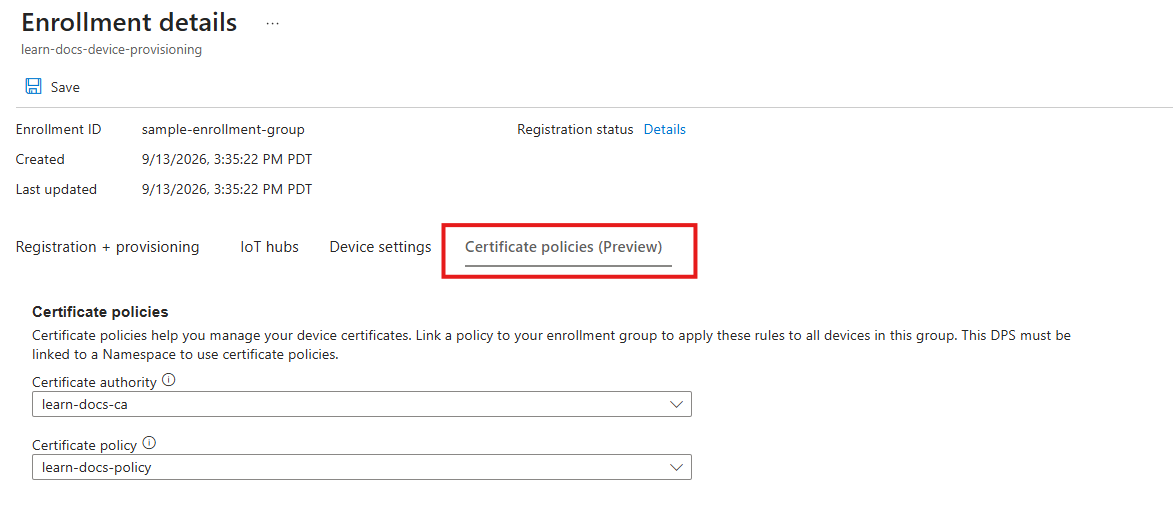
Review the changes and then select Save.
Edit the policy validity period
On the Certificate Authorities page, select the intermediate certificate authority you want.
Under Certificate Policies, select the certificate policy you want.
Select edit next to Validity period.
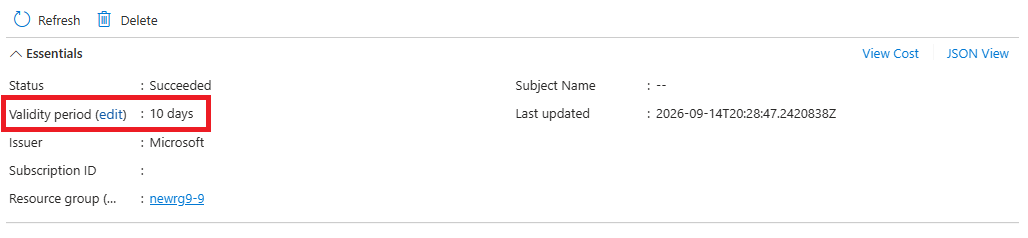
Change the validity period, and then select Save.
Refresh the page and verify that the new validity period appears.