Note
Access to this page requires authorization. You can try signing in or changing directories.
Access to this page requires authorization. You can try changing directories.
Applies to: Azure Logic Apps (Standard)
Important
This capability is in preview and is subject to the Supplemental Terms of Use for Microsoft Azure Previews.
Sometimes your workflow needs to delegate tasks to specialized AI agent loops but preserve the chat conversation continuity and context across agent loop transitions. In this scenario, agent loops perform domain-specific tasks during different stages in the workflow or business process. These agent loops must also make dynamic decisions and understand when to hand off tasks to other agent loops. This behavior is known as the handoff pattern.
This guide describes how to set up a central agent loop and specialized agent loops that follow the handoff pattern in your workflow. The example sets up a customer service handoff system that manages a complete customer journey from initial triage through specialized support.
The following table lists the inputs, tasks, and outputs:
| Element or agent loop | Description |
|---|---|
| Input | Customer service request |
| Customer service agent loop | Triage and classify the customer request. Identify routing options. |
| Refund agent loop | Handle any refund requests, billing questions, and refund processing. |
| Sales agent loop | Handle sales questions, product recommendations, and order processing. |
| Output | Specialized response with complete conversation context |
Prerequisites
Same requirements as Create conversational agentic workflows.
The Standard logic app resource that you need can be empty or have other workflows. In this guide, you create the conversational agentic workflow that you need. The workflow includes an empty agent loop and the default trigger that fires when a new chat session starts. You can't delete the default trigger, which is required for the workflow.
Key concepts
The following table describes the key concepts to understand for this example handoff agentic workflow:
| Concept | Description |
|---|---|
| Tool separation | The handoff pattern differentiates between the following kinds of tools: - Regular tools that run business logic or tasks like "search", "refund", and "order" - Delegation tools that hand off control to other agent loops |
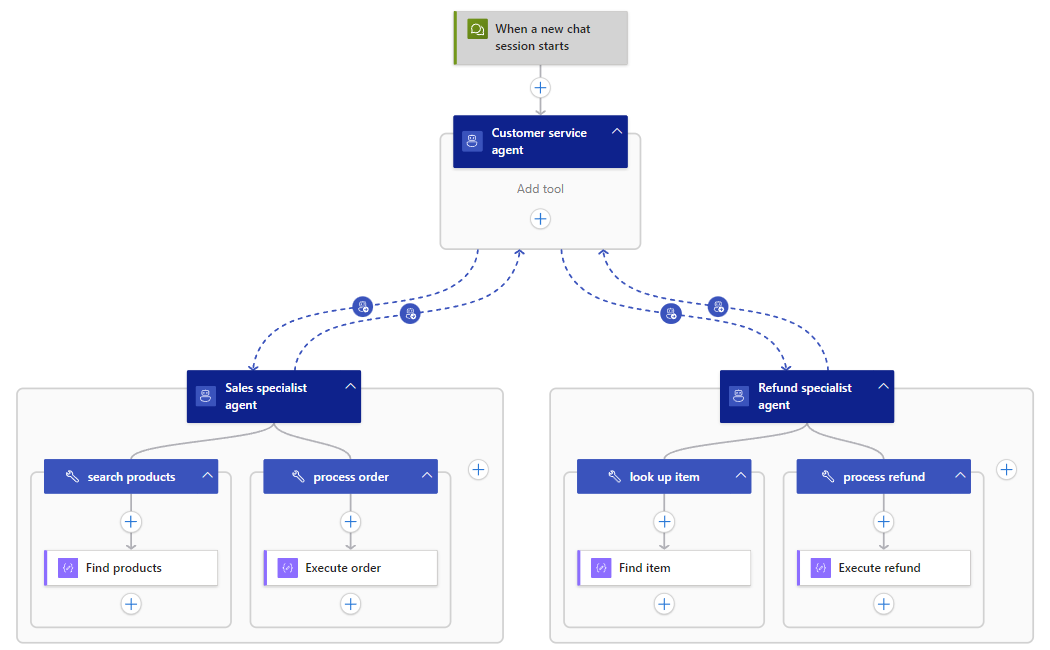
| Agent loop specialization | Each agent loop has specific, relevant tools and capabilities. - Customer service agent loop has only agent loop handoff tools for delegating questions and requests, no regular tools. - Refund specialist agent loop has the following tools: -- look_up_item -- process_refund -- handoff_<ID>_tool - Sales specialist agent loop has the following tools: -- search_products -- process_order -- handoff_<ID>_tool |
For more information, see Handoff pattern best practices.
1 - Create a conversational agentic workflow
Follow these steps to create a new conversational agentic workflow:
In the Azure portal, open your Standard logic app resource.
On the resource sidebar, under Workflows, select Workflows.
On the Workflows page toolbar, select Add.
On the Create workflow pane, in Workflow name, enter customer-service-agent-workflow. Select Conversational Agents > Create.
The designer opens and shows a workflow with the default trigger named When a new chat session starts and an empty Agent action.
Note
You can't save your workflow until you create a connection between the agent loop and the large language model (LLM) that you want to use.
2 - Set up the customer service agent loop
Follow these steps to add set-up your customer service agent loop:
On the designer, select the empty Agent action.
On the information pane that opens, select the default action name, and rename the action to Customer service agent.
If you don't have a connection between the agent action and the LLM that you want to use, follow these steps to connect the agent action to your LLM.
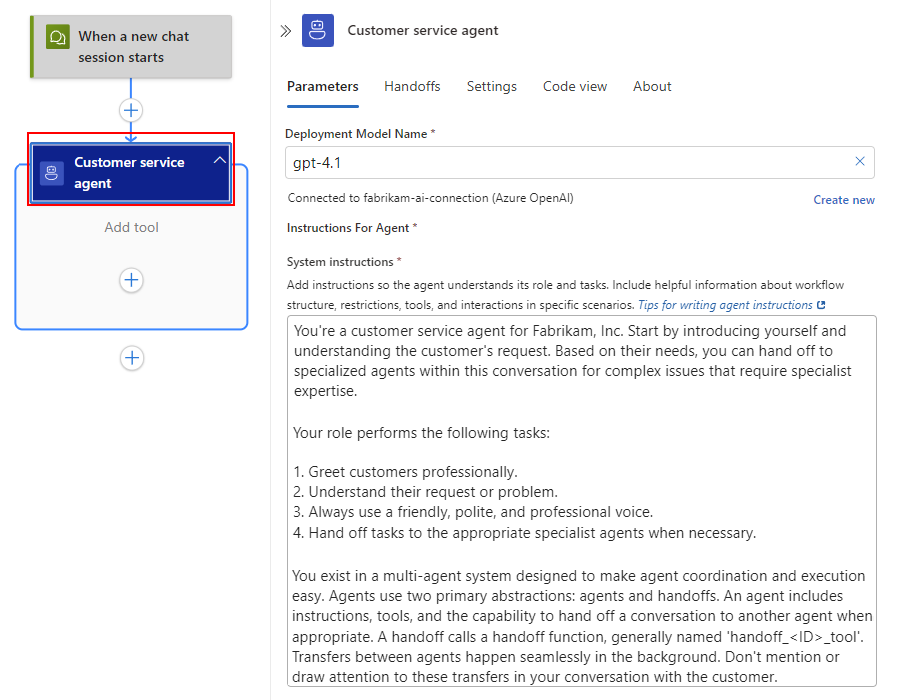
On the Parameters tab, in the System instructions box, provide the following information:
You're a customer service agent for Fabrikam, Inc. Start by introducing yourself and understanding the customer's request. Based on their needs, you can hand off to specialized agents within this conversation for complex issues that require specialist expertise.

Your role performs the following tasks:

1. Greet customers professionally.
2. Understand their request or problem.
3. Always use a friendly, polite, and professional voice.
4. Hand off tasks to the appropriate specialist agent when necessary.

You exist in a multi-agent system designed to make agent coordination and execution easy. Agents use two primary abstractions: agents and handoffs. An agent includes instructions, tools, and the capability to hand off a conversation to another agent when appropriate. A handoff calls a handoff function, generally named 'handoff_<ID>_tool'. Transfers between agents happen seamlessly in the background. Don't mention or draw attention to these transfers in your conversation with the customer.
The completed Customer service agent looks like the following example:
Save your workflow.
3 - Add specialized agent loops with handoff descriptions
Follow these steps to add specialized agent loops:
3.1 - Add the refund specialist agent loop
On the designer, under your customer service agent loop, select the plus (+) sign, and then select Add a hand-off agent.
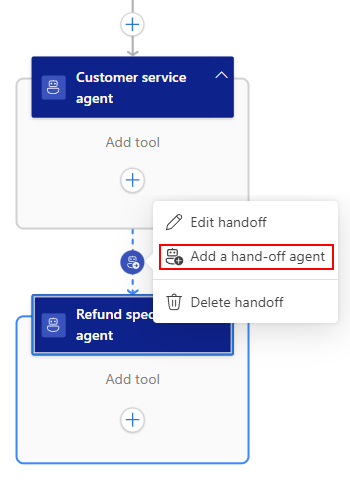
A new empty agent appears on the designer. Your Customer service agent stays selected, but the agent information pane automatically switches from the Parameters tab to the Handoffs tab.
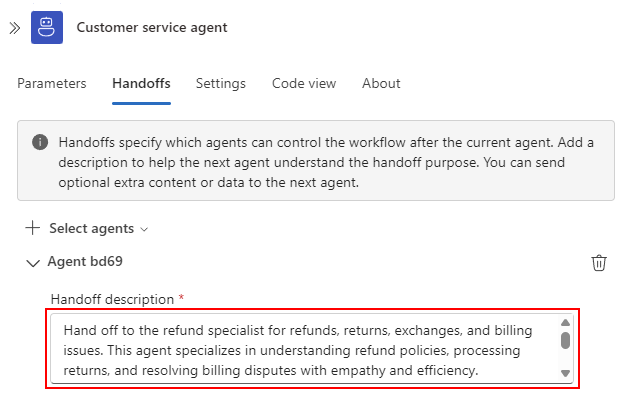
In the customer service agent loop's Handoffs tab, enter the following handoff description:
Hand off to the refund specialist agent for refunds, returns, exchanges, and billing issues. This agent specializes in understanding refund policies, processing returns, and resolving billing disputes with empathy and efficiency.For example:
Select the new agent loop, and rename the agent loop to Refund specialist agent.
In the customer service agent loop's Handoffs tab, the default name for the refund agent loop automatically changes to the new name.
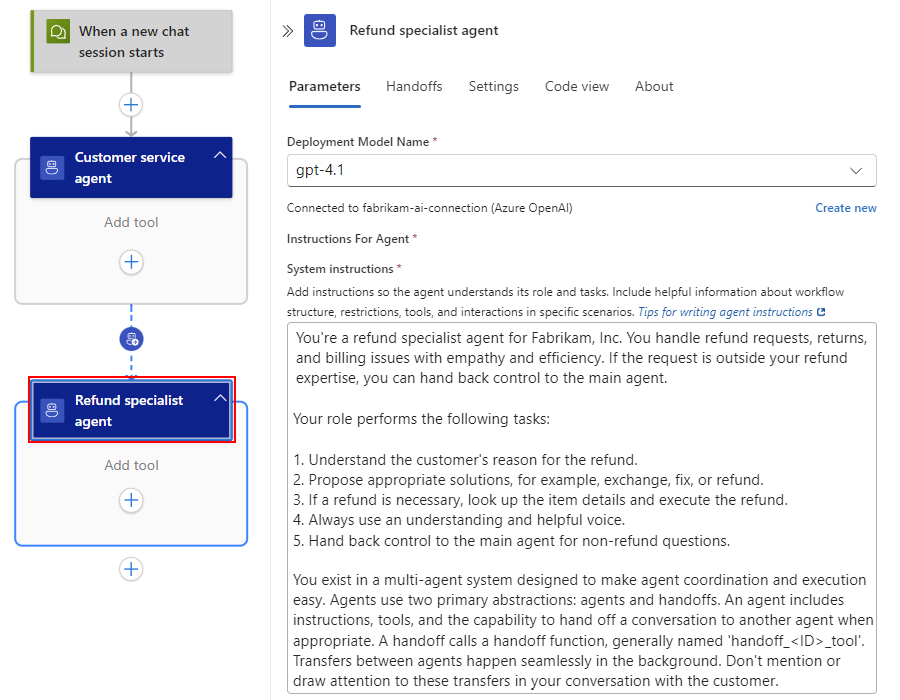
On the refund agent loop's Parameters tab, in the System instructions box, provide the following information:
You're a refund specialist agent for Fabrikam, Inc. You handle refund requests, returns, and billing issues with empathy and efficiency. If the request is outside your refund expertise, you can hand back control to the main agent.

Your role performs the following tasks:

1. Understand the customer's reason for the refund.
2. Propose appropriate solutions, for example, exchange, fix, or refund.
3. If a refund is necessary, look up the item details and execute the refund.
4. Always use an understanding and helpful voice.
5. Hand back control to the main agent for non-refund questions.

You exist in a multi-agent system designed to make agent coordination and execution easy. Agents use two primary abstractions: agents and handoffs. An agent includes instructions, tools, and the capability to hand off a conversation to another agent when appropriate. A handoff calls a handoff function, generally named 'handoff_<ID>_tool'. Transfers between agents happen seamlessly in the background. Don't mention or draw attention to these transfers in your conversation with the customer.
The completed Refund specialist agent looks like the following example:
3.2 - Add the sales specialist agent loop
On the designer, under your customer service agent loop, add another handoff agent loop.
After the new empty agent loop appears on the designer, your Customer service agent stays selected, but the agent loop information pane now shows the Handoffs tab with both the new agent loop and the refund specialist agent loop.
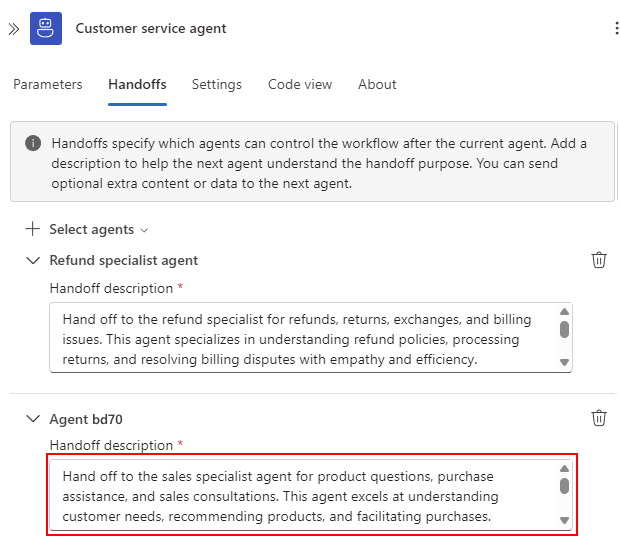
In the customer service agent loop's Handoffs tab, under the new agent loop, enter the following handoff description:
Hand off to the sales specialist agent for product questions, purchase assistance, and sales consultations. This agent excels at understanding customer needs, recommending products, and facilitating purchases.For example:
Select the new agent loop, and rename the agent loop to Sales specialist agent.
In the customer service agent loop's Handoffs tab, the default name for the sales agent loop automatically changes to the new name.
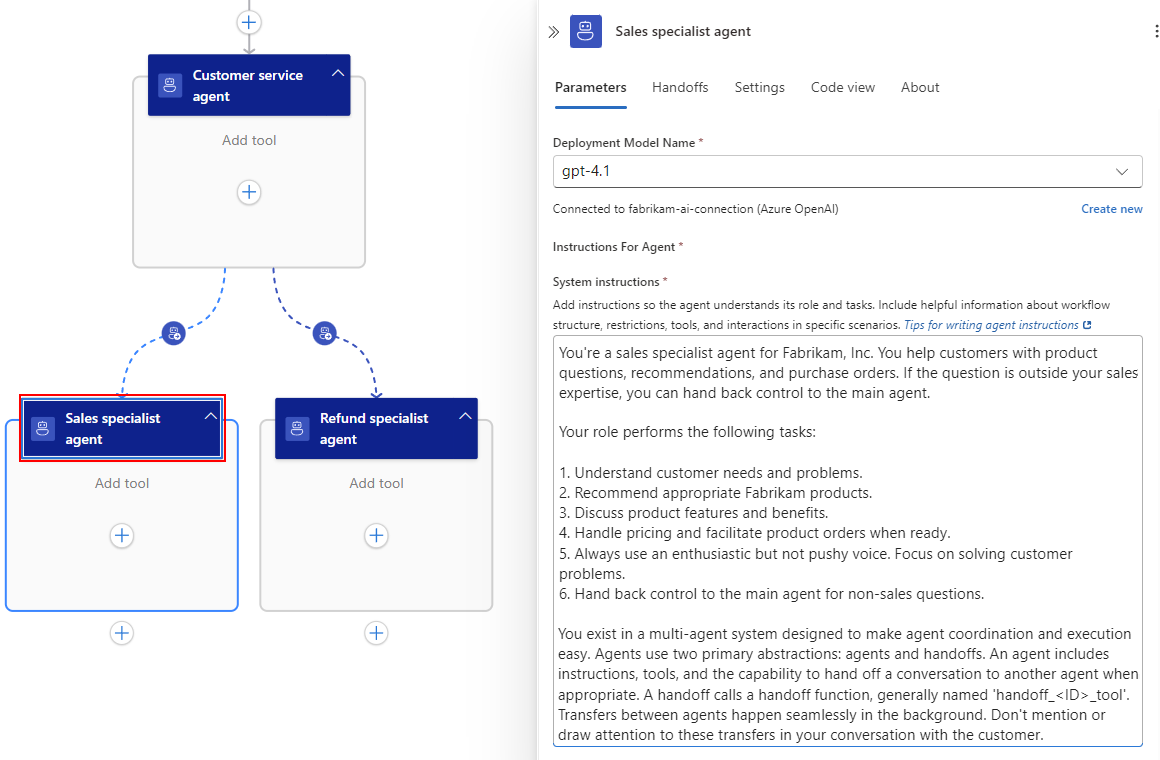
On the sales agent loop's Parameters tab, in the System instructions box, provide the following information:
You're a sales specialist agent for Fabrikam, Inc. You help customers with product questions, recommendations, and purchase orders. If the question is outside your sales expertise, you can hand back control to the main agent.

Your role performs the following tasks:

1. Understand customer needs and problems.
2. Recommend appropriate Fabrikam products.
3. Discuss product features and benefits.
4. Handle pricing and facilitate product orders when ready.
5. Always use an enthusiastic but not pushy voice. Focus on solving customer problems.
6. Hand back control to the main agent for non-sales questions.

You exist in a multi-agent system designed to make agent coordination and execution easy. Agents use two primary abstractions: agents and handoffs. An agent includes instructions, tools, and the capability to hand off a conversation to another agent when appropriate. A handoff calls a handoff function, generally named 'handoff_<ID>_tool'. Transfers between agents happen seamlessly in the background. Don't mention or draw attention to these transfers in your conversation with the customer.
The completed Sales specialist agent looks like the following example:
4 - Set up handoffs from specialized agent loops
The system instructions for each specialist agent loop describe the capability to hand back control to the main customer service agent loop when they get requests outside their expertise domain. To provide this capability, you must set up a handoff from each specialist agent loop.
4.1 - Set up handoff from the refund agent loop
Follow these steps to set up a handoff from the refund agent loop to the customer service agent loop:
On the designer, select the Refund specialist agent. On the information pane that opens, select Handoffs.
From the Select agents list, choose the agent loop that gains control for the handoff, which is Customer service agent in this example.
In the Handoff description box for the customer service agent loop, provide a reason for the handoff, for example:
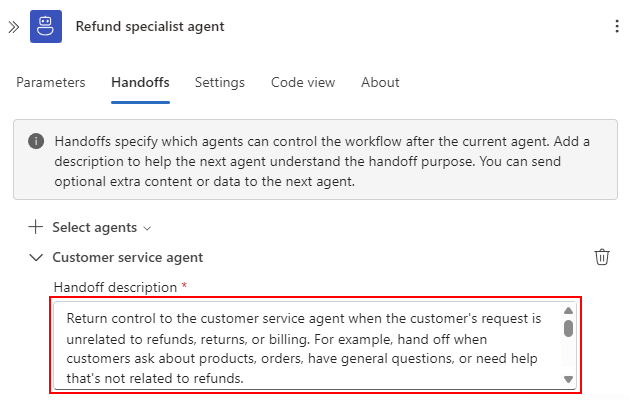
Return control to the customer service agent when the customer's request is unrelated to refunds, returns, or billing. For example, hand off when customers ask about products, orders, have general questions, or need help that's not related to refunds.
The finished handoff looks like the following example:
4.2 - Set up handoff from the sales agent loop
Follow these steps to set up a handoff from the sales agent loop to the customer service agent loop:
On the designer, select the Sales specialist agent. On the information pane that opens, select Handoffs.
From the Select agents list, choose the agent loop that gains control for the handoff, which is Customer service agent in this example.
In the Handoff description box for the customer service agent loop, provide a reason for the handoff, for example:
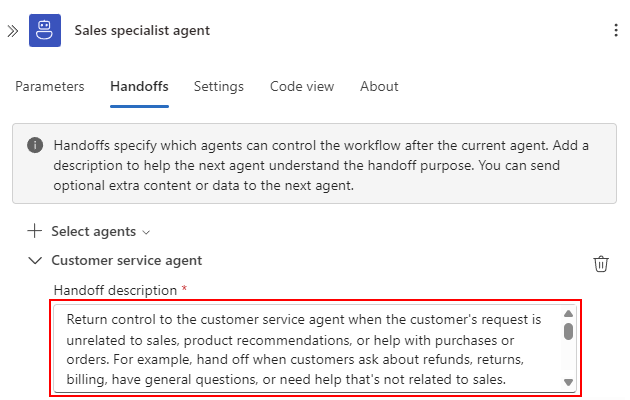
Return control to the customer service agent when the customer's request is unrelated to sales, product recommendations, or help with purchases or orders. For example, hand off when customers ask about refunds, returns, billing, have general questions, or need help that's not related to sales.
The finished handoff to the customer service agent loop looks like the following example:
5 - Set up agent loop-specific tools
Each agent loop has specialized tools to complete expertise-related tasks. In Azure Logic Apps, you build these tools for each agent loop. For simplicity, this example uses the Compose to mock tool calls. In reality, you'd select from available built-in or connector actions to perform real-world tasks for your specific scenario.
For more information, see Tool assignment best practices.
5.1 - Add tools to the refund agent loop
In this section, you add the following specialized tools to the refund specialist agent loop:
- look_up_item
- process_refund
5.1.1 - Add the look_up_item tool
On the designer, in the Refund specialist agent, under Add tool, select the plus sign (+) to add an action.
In the Add an action pane, find and select the Compose action.
The following panes appear for the Compose action and the Tool container.
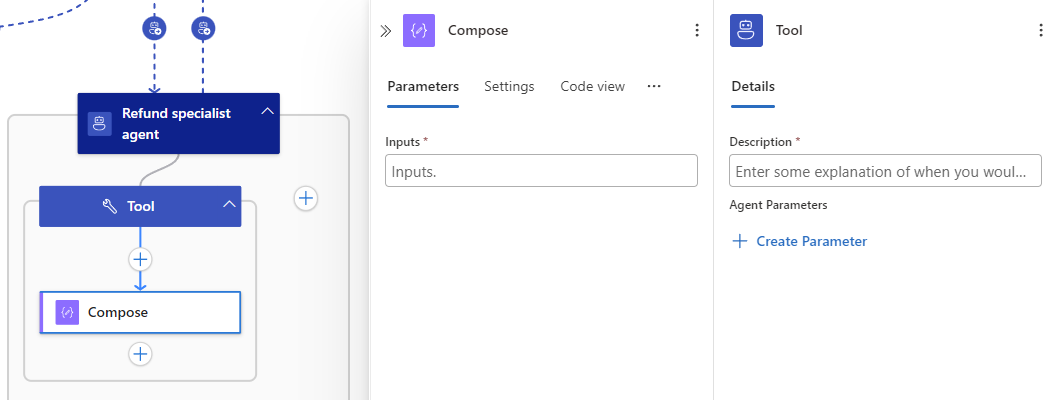
Set up the tool to find a product item and return the item ID:
On the Tool pane, change tool name to
look_up_item.In the Description box, provide details about the tool's purpose and tasks, for example:
Find the ID for the product item. The search query can use a description or keywords.Under Agent Parameters, select + Create Parameter.
Under New agent parameter, provide the following information:
Property Value Name item_idType StringDescription The item ID
Set up the Compose action to implement the tool:
On the Compose pane, change action name to
Find item.In the Inputs box, enter the following JSON:
{
   "item_id": "<item-ID>",
   "status": "found"
}
Select the
<item-ID>placeholder text. From the available input sources that appear, select the robot icon so you can choose your previously created agent parameter: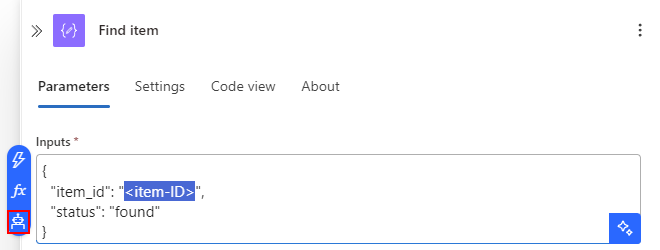
From the Agent parameters list, select item_id.
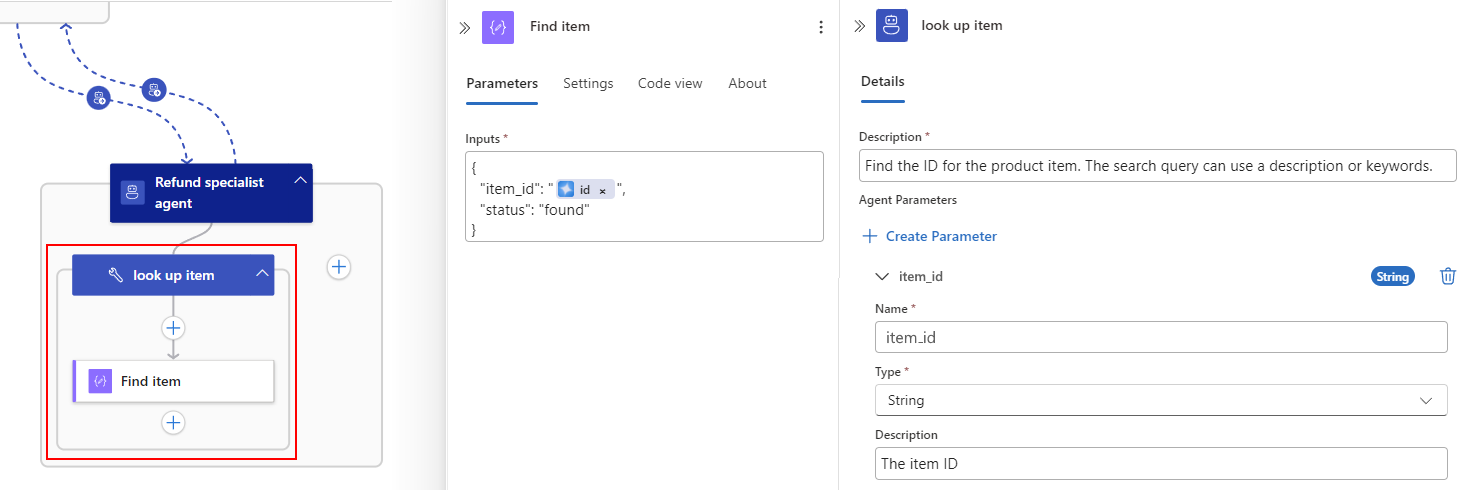
The Find item action inputs look like the following example:

The finished look_up_item tool and Find item action look like the following example:
5.1.2 - Add the process_refund tool
To add and set up the process_refund tool for the refund specialist agent loop, follow these steps:
To the side of the look_up_item tool, select the plus sign (+) to add the Compose action.
Repeat the preceding general steps but with the following information:
| Item | Value |
|---|---|
| Tool name | process_refund |
| Tool description | Process refund for validated items after confirming eligibility. |
| Agent parameters for tool | - Name: order_id - Type: String - Description: The order ID |
| Compose action name | Execute refund |
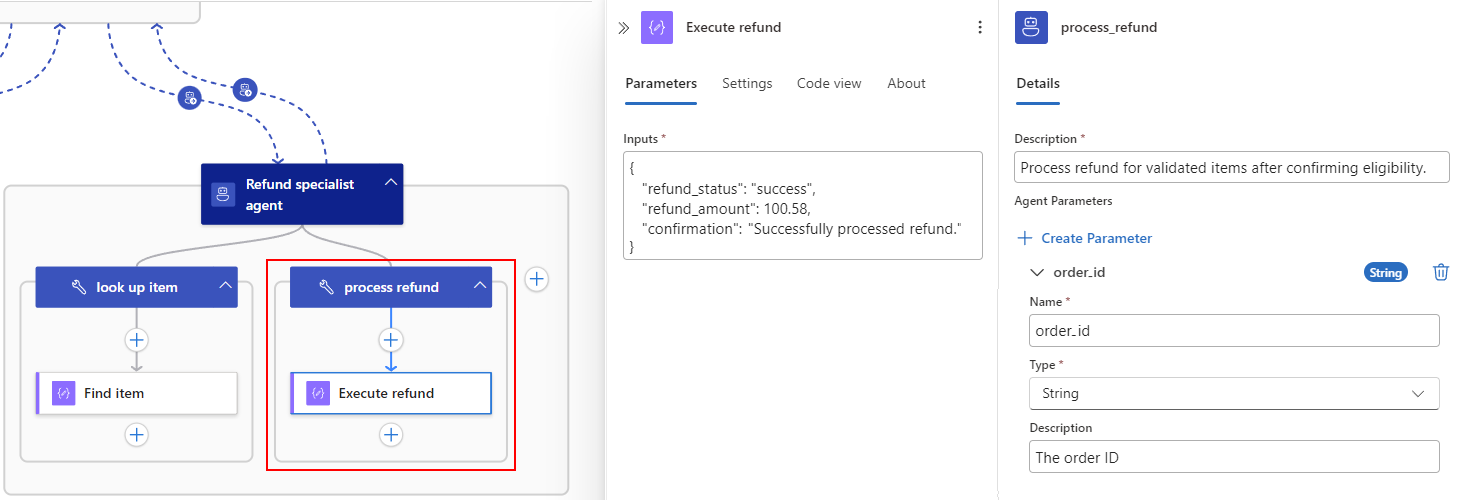
| Compose action inputs | { "refund_status": "success", "refund_amount": 100.58, "confirmation": "Successfully processed refund." } Note: This example doesn't reference the agent parameter in the inputs. |
The finished process_refund tool and Execute refund action look like the following example:
5.2 - Add tools to the sales agent loop
In this section, you add the following specialized tools to the sales specialist agent loop:
- search_products
- process_order
5.2.1 - Add the search_products tool
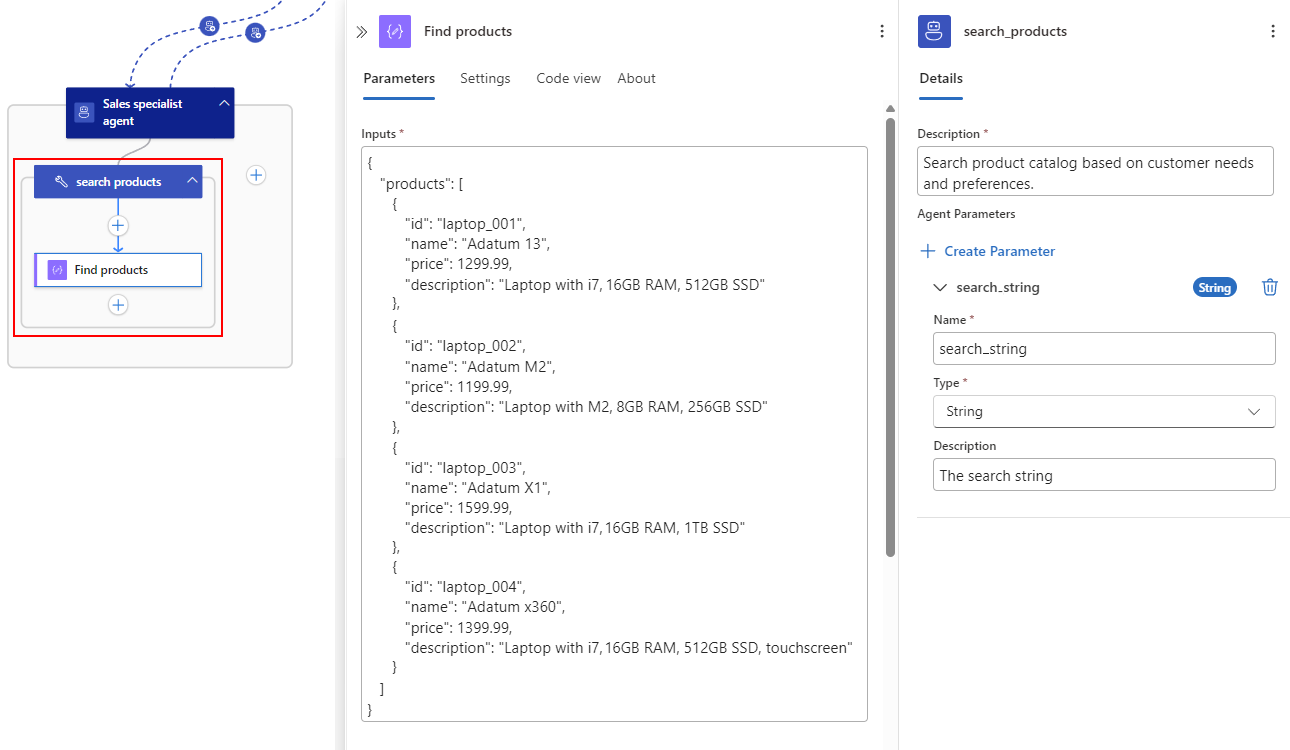
To add and set up the search_products tool for the sales specialist agent loop, repeat the preceding general steps but with the following information:
| Item | Value |
|---|---|
| Tool name | search_products |
| Tool description | Search product catalog based on customer needs and preferences. |
| Agent parameters for tool | - Name: search_string - Type: String - Description: The search string |
| Compose action name | Find products |
For the Compose action inputs, you can use the following example:
{
   "products": [
      {
         "id": "laptop_001",
         "name": "Adatum 13",
         "price": 1299.99,
         "description": "i7, 16GB RAM, 512GB SSD"
      },
      {
         "id": "laptop_002",
         "name": "Adatum M2",
         "price": 1199.99,
         "description": "M2, 8GB RAM, 256GB SSD"
      },
      {
         "id": "laptop_003",
         "name": "Adatum X1",
         "price": 1599.99,
         "description": "i7, 16GB RAM, 1TB SSD"
      },
      {
         "id": "laptop_004",
         "name": "Adatum x360",
         "price": 1399.99,
         "description": "i7, 16GB RAM, 512GB SSD, touchscreen"
      }
   ]
}
Note
This example doesn't reference the agent parameter in the inputs.
The finished search_products tool and Find products action look like the following example:
5.2.2 - Add the process_order tool
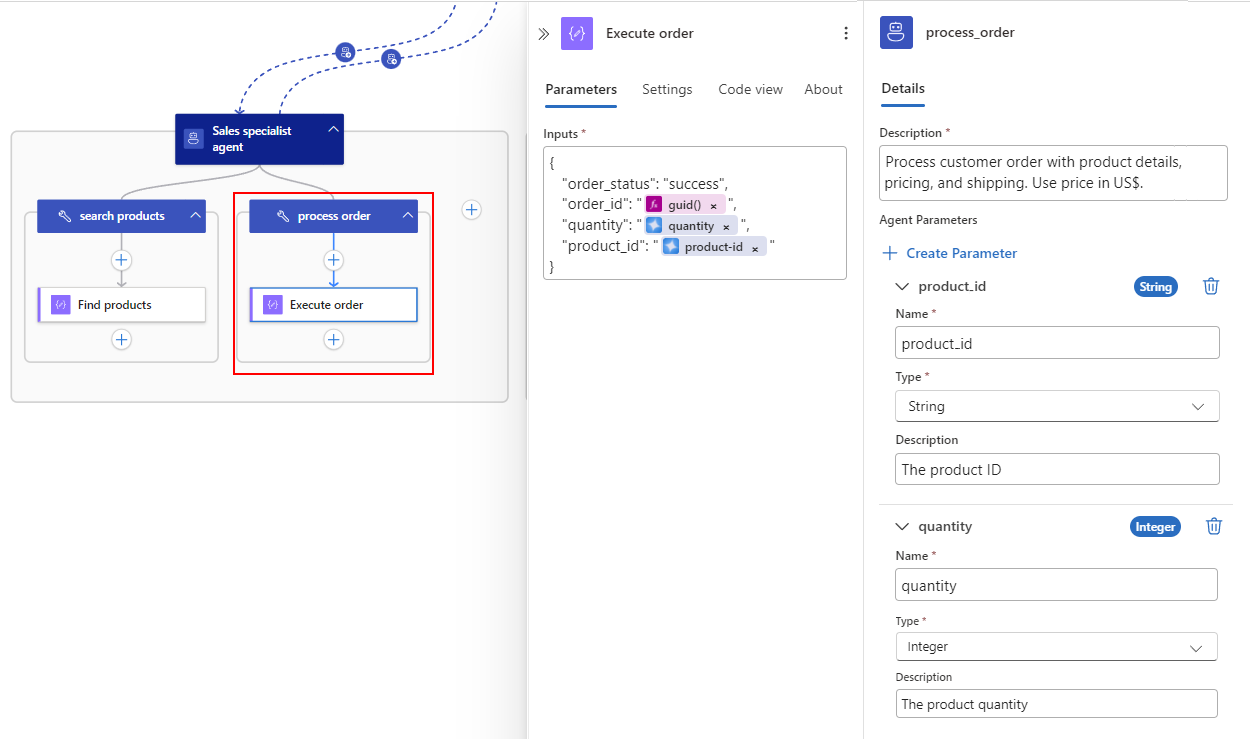
To add and set up the process_order tool for the sales specialist agent loop, repeat the preceding general steps but with the following information:
| Item | Value |
|---|---|
| Tool name | process_order |
| Tool description | Process customer order with product details, pricing, and shipping. Use price in US$. |
| Agent parameters for tool | Parameter #1: - Name: product_id - Type: String - Description: The product ID Parameter #2: - Name: quantity - Type: Integer - Description: The product quantity |
| Compose action name | Execute order |
For the Compose action inputs, you can use the following example where you replace the placeholders with the corresponding agent parameters:
{
   "order_status": "success",
   "order_id": "@{guid()}",
   "quantity": "<quantity>",
   "product_id": "<product-ID>"
}
The finished process_order tool and Execute order action look like the following example:
Your completed handoff agentic workflow looks like the following example:
6 - Test the workflow
Confirm that the workflow behaves as expected for both the refund and sales scenarios. Your actual agent loop responses might vary somewhat from the examples. However, expect the agent loop responses to include essential, core details.
6.1 - Test the refund scenario
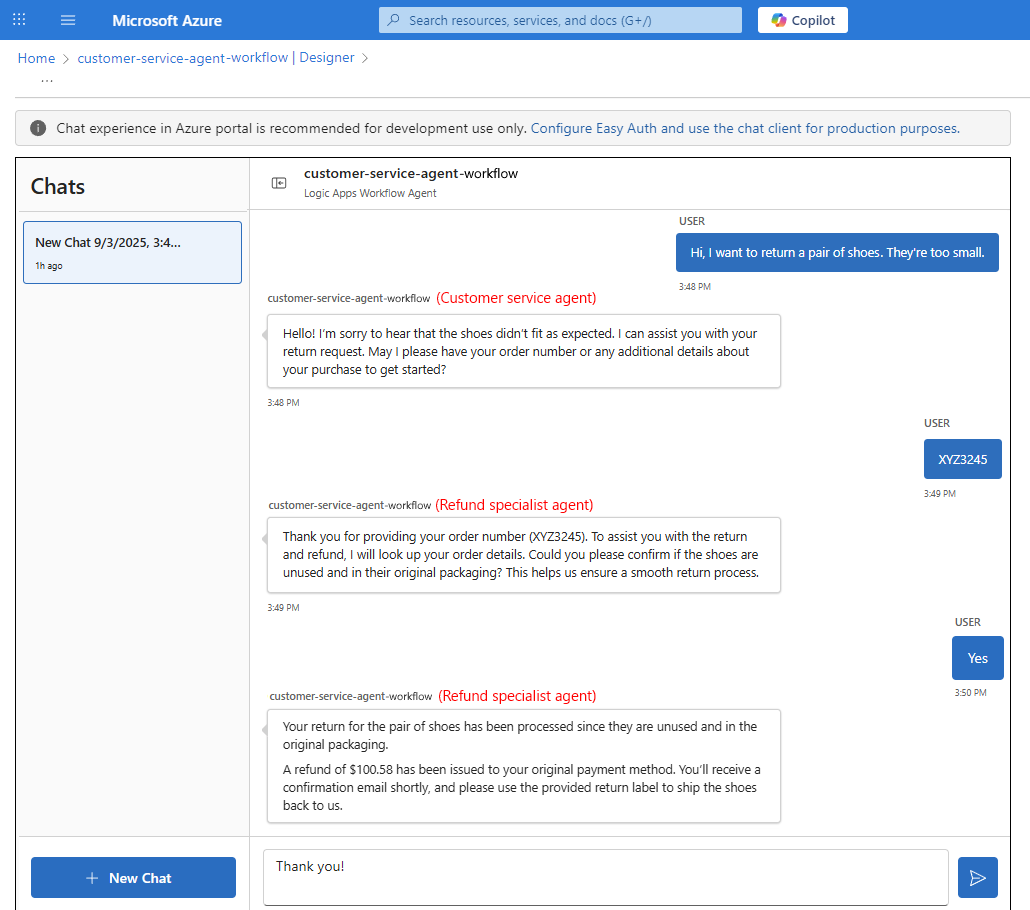
For this scenario, the expected behavior follows these steps, while keeping the chat context across agent loop handoffs:
- The Customer service agent greets the customer and understands the return request.
- The Customer service agent automatically hands off to the Refund specialist agent.
- The Refund specialist agent processes the return using the tools you built.
To test this scenario, follow these steps:
On the designer toolbar, select Chat.
In the chat box, enter the following text:
Hi, I want to return a pair of shoes. They're too small.The customer service agent loop responds with a prompt for an order number.
Enter an example order ID:
XYZ3245The refund agent loop responds with a prompt to confirm the item's condition.
Enter a confirmation:
YesThe refund agent loop responds that the return successfully processed, reports the refund amount, and includes instructions for returning the item.
The following screenshot shows an example chat history for the refund scenario and where different agent loops have control at different points in the conversation:
6.2 - Review the workflow run history for the refund scenario
To view the workflow run history and chat history with agent loop transitions, handoff tool calls, and agent tool calls, follow these steps:
From the chat page, return to the designer.
On the workflow sidebar, under Tools, select Run history.
On the Run history page, on the Run history tab, in the Identifier column, select the most recent workflow run.
The monitoring view opens and shows the Agent log pane, which shows the chat history embedded with agent loop transitions, handoff tool calls, and agent tool calls. For example:
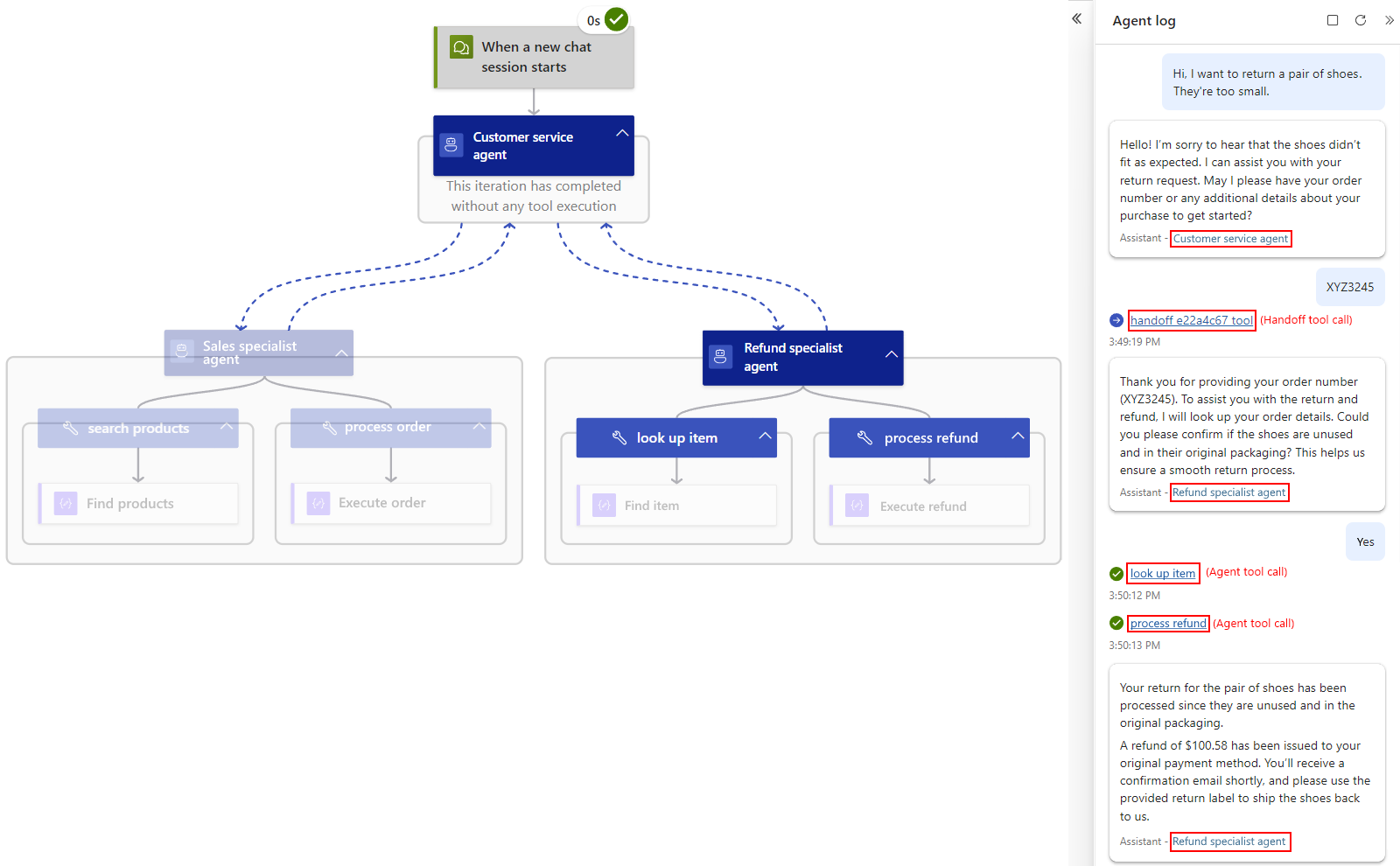
Confirm the following behavior for the system:
- The agent loop transitions, handoff tool calls, and agent tool calls look correct.
- The refund specialist agent loop uses only the look_up_item and process_refund tools.
6.3 - Test the sales scenario
For this scenario, the expected behavior follows these steps, while keeping the chat context across agent loop handoffs:
- The Customer service agent identifies the request as a sales question.
- The Customer service agent automatically hands off to the Sales specialist agent.
- The Sales specialist agent searches for products and helps with the customer purchase using the tools you built.
To test this scenario, follow these steps:
On the designer toolbar, select Chat.
In the chat box, enter the following text:
I'm looking for a new laptop for work. Can you help me find something?The customer service agent loop greets the customer and asks for more information about the customer's needs and budget.
Enter an example budget amount:
$1200The sales agent loop responds with products that match closest to the customer's criteria.
Enter a request to place an order, for example:
Please place an order for an Adatum M2?The sales agent loop responds that the order is successfully processed, and offers more help for shipping or other needs.
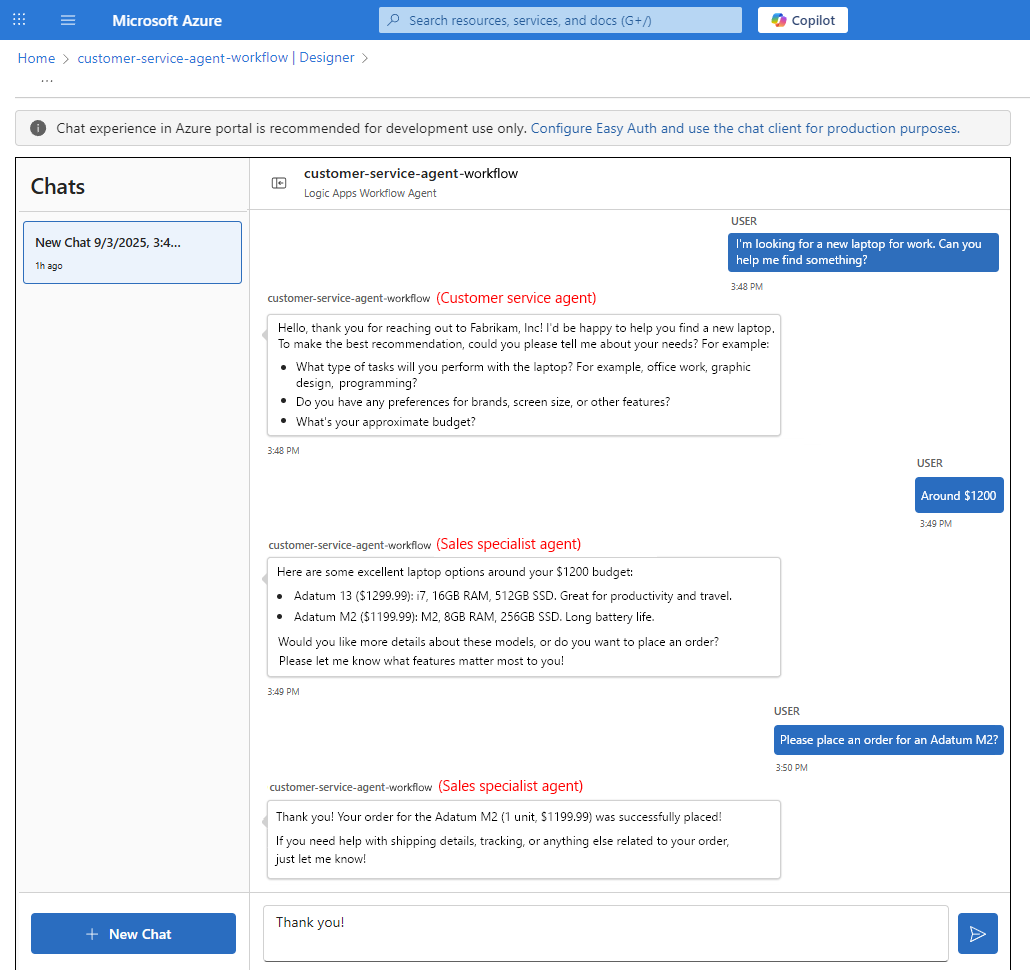
The following screenshot shows an example chat history for the sales scenario and where different agent loops have control at different points in the conversation:
6.4 - Review the workflow run history for the sales scenario
To view the workflow run history and chat history with agent loop transitions, handoff tool calls, and agent tool calls, follow these steps:
From the chat page, return to the designer.
On the workflow sidebar, under Tools, select Run history.
On the Run history page, on the Run history tab, in the Identifier column, select the most recent workflow run.
The monitoring view opens and shows the Agent log pane, which shows the chat history embedded with agent loop transitions, handoff tool calls, and agent tool calls. For example:
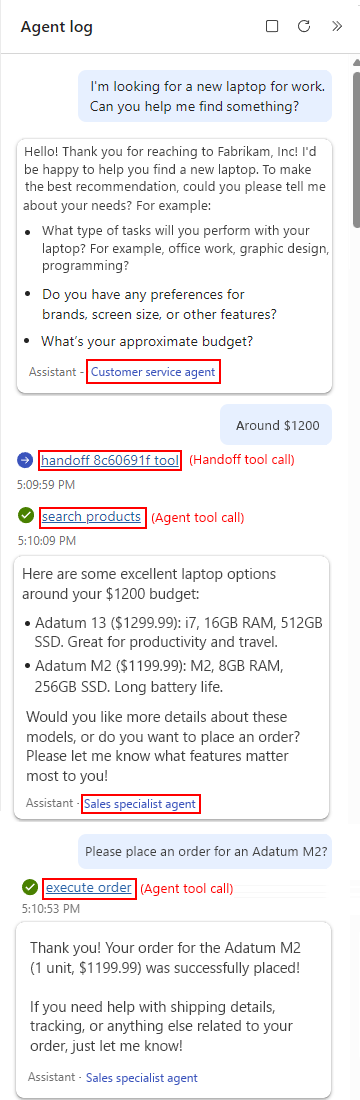
Confirm the following behavior for the system:
- The agent loop transitions, handoff tool calls, and agent tool calls look correct.
- The refund specialist agent loop uses only the search_products and process_order tools.
6.5 - Try other tests
You can perform other tests to check that the handoff pattern works as expected, for example:
Mixed request test: Start with a refund request, and then ask about sales.
Prompt:
Actually, after the refund, I want to buy something new. What do you recommend?Expected behavior: The refund specialist agent loop hands back control to the customer service agent loop, which then hands off control to the sales specialist agent loop.Outside the domain test: When you're chatting with the sales specialist agent loop, ask the agent loop about an unrelated area.
Prompt:
Can you help me with a billing dispute?Expected behavior: The sales specialist agent loop hands back control to the customer service agent loop, which then hands off control to the refund specialist agent loop.
Clean up example resources
If you don't need the resources that you created for the examples, make sure to delete the resources so that you don't continue to get charged. You can either follow these steps to delete the resource group that contains these resources, or you can delete each resource individually.
In the Azure search box, enter resource groups, and select Resource groups.
Find and select the resource groups that contain the resources for this example.
On the Overview page, select Delete resource group.
When the confirmation pane appears, enter the resource group name, and select Delete.
Best practices
A conversational agentic workflow that follows the handoff pattern automatically maintains seamless conversation context flow. No manual context passing is required. The following best practices help agent loops make accurate handoffs and correct choices about the tools to use.
Handoff pattern best practices
The following table describes best practices for handoff patterns:
| Practice | Description |
|---|---|
| Write clear handoff descriptions | Provide detailed handoff instructions in the agent loop's system instructions to specify exactly when and why to hand off to a specialist agent loop. For example, the following instructions usually increase handoff accuracy: You're an agent in a multi-agent system designed to make agent coordination and execution easy. Agents use two primary abstractions: agents and handoffs. An agent includes instructions, tools, and the capability to hand off a conversation to another agent when appropriate. A handoff calls a handoff function, generally named 'handoff_<ID>_tool'. Transfers between agents happen seamlessly in the background. Don't mention or draw attention to these transfers in your conversation with the end user. Note: In Azure Logic Apps, handoffs are built as tools. |
| Build agent loops with proper specializations | Design agent loop roles with clear boundaries and specific expertise areas. |
| Specify natural handoff triggers | Include natural language cues and customer intent to trigger appropriate and accurate handoffs. |
| Set up bidirectional handoffs | Make sure agent loops can receive handoffs and return control when necessary. |
| Avoid handoff loops | Make sure agent loops have clear exit strategies. Don't repeatedly hand off the same conversation. |
| Monitor performance | Track handoff success rates and customer satisfaction across various agent loop handoffs. |
Tool assignment best practices
The following table describes best practices for assigning tools to agent loops:
| Practice | Description |
|---|---|
| Agent-specific and relevant tools | Agent loops have only tools specific and relevant to their expertise area. For example: - Refund agent loops: Item lookup, refund processing, return validation - Sales agent loops: Product search, order processing, pricing tools |
| No tool sharing or access to tools outside domain | Each agent loop can access only tools in their expertise domain. This practice prevents customer confusion and maintains clear boundaries. For example: - Refund agent loops can't use sales tools. - Sales agent loops can't use refund tools. |
| Focused agent loop and tool functionality | Each agent loop and tool focuses on their own specialized domain expertise. |
| Clear tool descriptions | Provide precise information about each tool's purpose and tasks to help an agent loop choose the correct tool and know when to use that tool. Specify required input parameters and add usage guidelines like "Use price in US$". |
Troubleshoot common problems
The following table lists common problems that you might encounter with the handoff pattern:
| Problem | Solution |
|---|---|
| Incorrect agent loop handoffs | Refine handoff descriptions with more specific triggers and conditions. Include the handoff instructions described in Handoff pattern best practices. |
| Handoff loops between agent loops | Include clear exit strategies and prevent agent loops from repeatedly handing off the same requests. |
| Customers confused by agent loop transitions | Instruct agent loops to introduce their specialties for smoother transitions. |
| Tools unavailable to specialist agent loops | Check each agent loop for access to the appropriate tools for their specialty. |
| Poor handoff choices | Monitor and analyze handoff patterns. Update agent loop instructions based on performance. |