Note
Access to this page requires authorization. You can try signing in or changing directories.
Access to this page requires authorization. You can try changing directories.
APPLIES TO:  Python SDK azure-ai-ml v2 (current)
In this article, you learn how to build an Azure Machine Learning pipeline to complete an image classification task. This example uses the Azure Machine Learning Python SDK v2. Machine Learning pipelines optimize your workflow with speed, portability, and reuse, so you can focus on machine learning instead of infrastructure and automation.
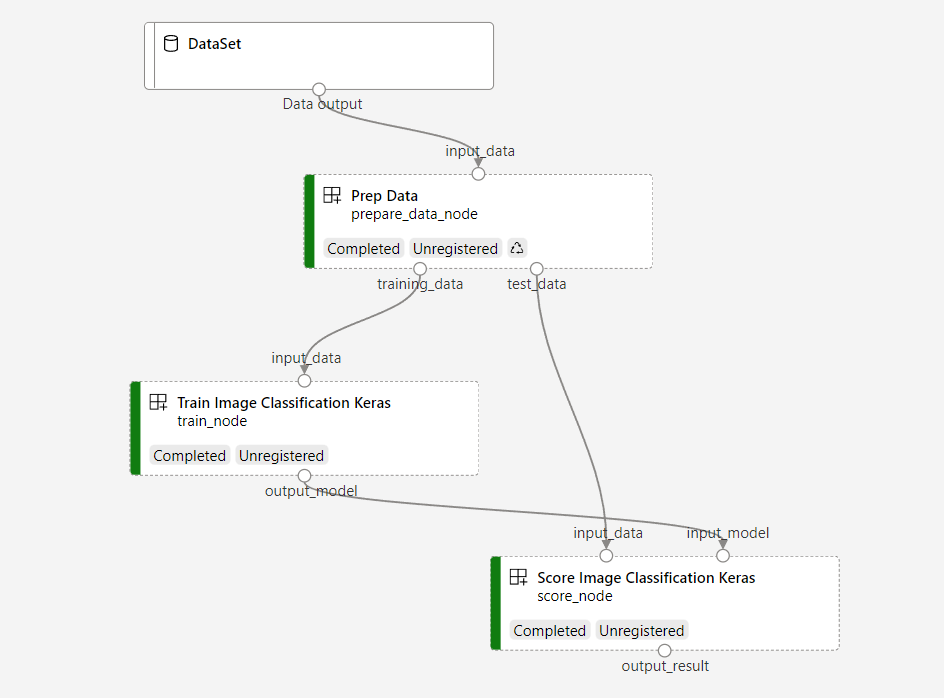
The pipeline contains three steps: prepare data, train an image classification model, and score the model. The example pipeline trains a small Keras convolutional neural network to classify images in the Fashion MNIST dataset. The pipeline looks like this:
In this article, you complete the following tasks:
- Prepare input data for the pipeline job
- Create three components to prepare data, train a model, and score the model
- Build a pipeline from the components
- Get access to a workspace that has compute
- Submit the pipeline job
- Review the output of the components and the trained neural network
- (Optional) Register the component for further reuse and sharing in the workspace
If you don't have an Azure subscription, create a free account before you begin. Try the free or paid version of Azure Machine Learning today.
Prerequisites
- An Azure Machine Learning workspace. If you don't have one, complete the Create resources tutorial.
- A Python environment with Azure Machine Learning Python SDK v2 installed. For installation instructions, see Getting started. This environment is for defining and controlling your Azure Machine Learning resources. It's separate from the environment used at runtime for training.
- A clone of the examples repository.
To run the training examples, first clone the examples repository and navigate to the sdk directory:
git clone --depth 1 https://github.com/Azure/azureml-examples
cd azureml-examples/sdk
Start an interactive Python session
This article uses the Azure Machine Learning Python SDK to create and control an Azure Machine Learning pipeline. The article assumes you're running the code snippets interactively in either a Python REPL environment or a Jupyter notebook.
This article is based on the image_classification_keras_minist_convnet.ipynb notebook in the sdk/python/jobs/pipelines/2e_image_classification_keras_minist_convnet directory of the Azure Machine Learning examples repository.
Import required libraries
Import all the Azure Machine Learning libraries that you need for this article:
# import required libraries
from azure.identity import DefaultAzureCredential, InteractiveBrowserCredential

from azure.ai.ml import MLClient
from azure.ai.ml.dsl import pipeline
from azure.ai.ml import load_component
Prepare input data for your pipeline job
You need to prepare the input data for the image classification pipeline.
Fashion MNIST is a dataset of fashion images divided into 10 classes. Each image is a 28 x 28 grayscale image. There are 60,000 training images and 10,000 test images.
import urllib3
import shutil
import gzip
import os
from pathlib import Path
from azure.ai.ml import Input

base_url = "https://azureopendatastorage.blob.core.windows.net/mnist/"
base_dir = Path("mnist")
if not base_dir.exists():
    base_dir.mkdir(parents=True)

c = urllib3.PoolManager()
for target_file in [
    "train-images-idx3-ubyte.gz",
    "train-labels-idx1-ubyte.gz",
    "t10k-images-idx3-ubyte.gz",
    "t10k-labels-idx1-ubyte.gz",
]:
    if (base_dir / target_file[:-3]).exists():
        continue
    with c.request("GET", base_url + target_file, preload_content=False) as resp, open(
        base_dir / target_file, "wb"
    ) as out_file:
        shutil.copyfileobj(resp, out_file)
        resp.release_conn()
    with gzip.open(base_dir / target_file, "rb") as f_in, open(
        base_dir / target_file[:-3], "wb"
    ) as f_out:
        shutil.copyfileobj(f_in, f_out)
    os.unlink(base_dir / target_file)

mnist_ds = Input(path=base_dir.as_posix())
By defining an Input, you create a reference to the data source location. The data remains in its existing location, so no extra storage cost is incurred.
Create components for building the pipeline
The image classification task can be split into three steps: prepare data, train the model, and score the model.
An Azure Machine Learning component is a self-contained piece of code that completes one step in a machine learning pipeline. In this article, you create three components for the image classification task:
- Prepare data for training and testing
- Train a neural network for image classification using training data
- Score the model using test data
For each component, you complete these steps:
- Prepare the Python script that contains the execution logic.
- Define the interface of the component.
- Add other metadata of the component, including the runtime environment and the command to run the component.
The next sections show how to create the components in two ways. For the first two components, you use a Python function. For the third component, you use YAML definition.
Create the data preparation component
The first component in this pipeline converts the compressed data files of fashion_ds into two .csv files, one for training and the other for scoring. You use a Python function to define this component.
If you're following along with the example in the Azure Machine Learning examples repo, the source files are already available in the prep folder. This folder contains two files to construct the component: prep_component.py, which defines the component, and conda.yaml, which defines the runtime environment of the component.
Define component using a Python function
In this section, you prepare all source files for the Prep Data component.
Using the command_component() function as a decorator, you can define the component's interface, its metadata, and the code to run from a Python function. Each decorated Python function is transformed into a single static specification (YAML) that the pipeline service can process.
# Converts MNIST-formatted files at the passed-in input path to training data output path and test data output path
import os
from pathlib import Path
from mldesigner import command_component, Input, Output


@command_component(
    name="prep_data",
    version="1",
    display_name="Prep Data",
    description="Convert data to CSV file, and split to training and test data",
    environment=dict(
        conda_file=Path(__file__).parent / "conda.yaml",
        image="mcr.microsoft.com/azureml/openmpi5.0-ubuntu24.04",
    ),
)
def prepare_data_component(
    input_data: Input(type="uri_folder"),
    training_data: Output(type="uri_folder"),
    test_data: Output(type="uri_folder"),
):
    convert(
        os.path.join(input_data, "train-images-idx3-ubyte"),
        os.path.join(input_data, "train-labels-idx1-ubyte"),
        os.path.join(training_data, "mnist_train.csv"),
        60000,
    )
    convert(
        os.path.join(input_data, "t10k-images-idx3-ubyte"),
        os.path.join(input_data, "t10k-labels-idx1-ubyte"),
        os.path.join(test_data, "mnist_test.csv"),
        10000,
    )


def convert(imgf, labelf, outf, n):
    f = open(imgf, "rb")
    l = open(labelf, "rb")
    o = open(outf, "w")

    f.read(16)
    l.read(8)
    images = []

    for i in range(n):
        image = [ord(l.read(1))]
        for j in range(28 * 28):
            image.append(ord(f.read(1)))
        images.append(image)

    for image in images:
        o.write(",".join(str(pix) for pix in image) + "\n")
    f.close()
    o.close()
    l.close()
The preceding code defines a component with display name Prep Data using the @command_component decorator:
nameis the unique identifier of the componentversionis the current version of the component; a component can have multiple versionsdisplay_nameis a friendly display name of the component for the UIdescriptiondescribes the task the component can completeenvironmentspecifies the runtime environment for the component using aconda.yamlfile
The conda.yaml file contains all packages used for the component:
name: imagekeras_prep_conda_env
channels:
  - defaults
dependencies:
  - python=3.7.11
  - pip=20.0
  - pip:
    - mldesigner==0.1.0b4
The
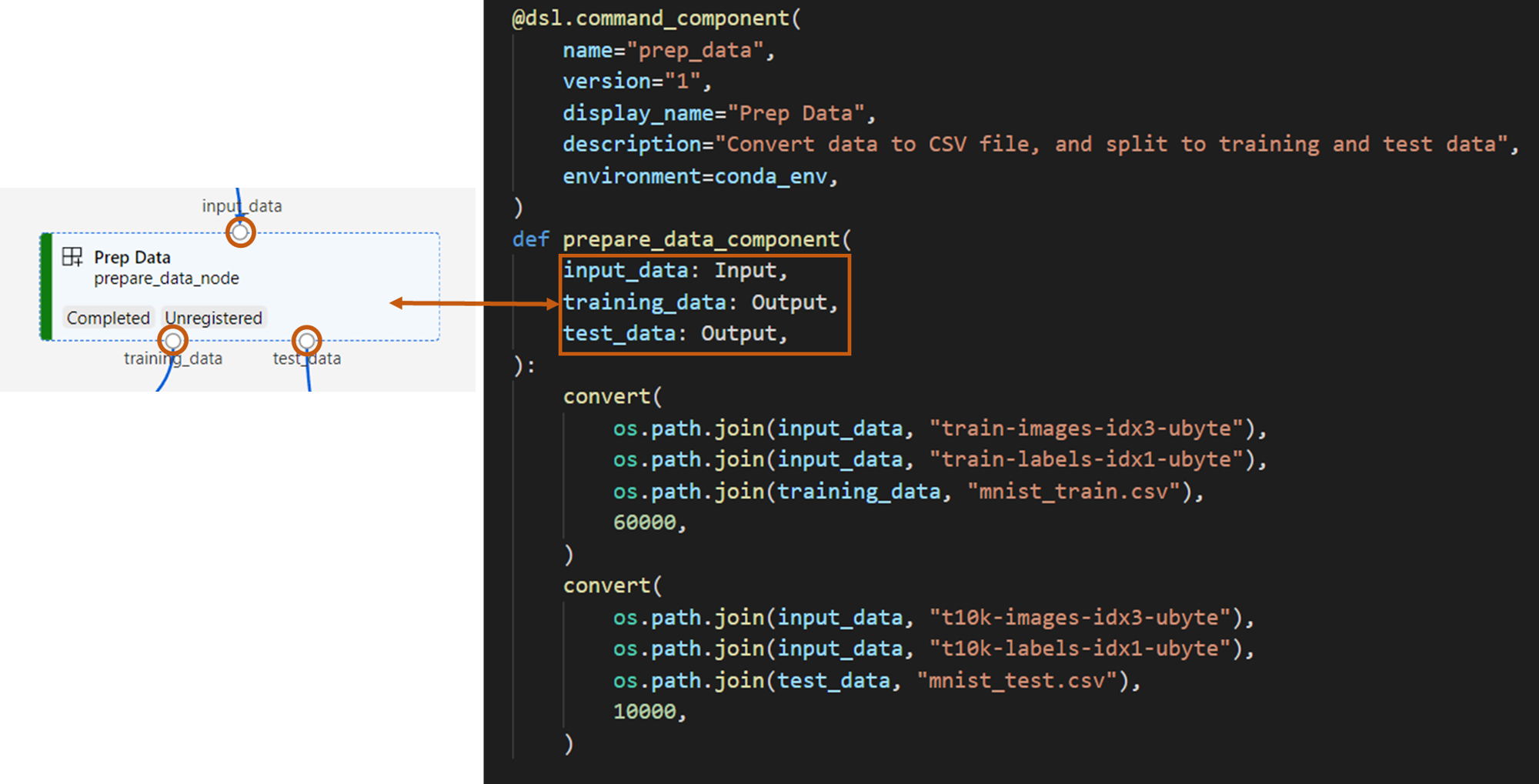
prepare_data_componentfunction defines one input forinput_dataand two outputs fortraining_dataandtest_datainput_datais the input data pathtraining_dataandtest_dataare output data paths for training data and test data
The component converts the data from
input_datainto atraining_data.csv file for training data and atest_data.csv file for test data
In the studio UI, a component appears as:
- A block in a pipeline graph
input_data,training_data, andtest_dataare ports of the component, which connect to other components for data streaming
Create the model training component
In this section, you create a component for training the image classification model using a Python function, as you did with the Prep Data component.
Because the training logic is more complex, put the training code in a separate Python file.
The source files for this component are in the train folder in the Azure Machine Learning examples repo. This folder contains three files to construct the component:
train.pycontains the logic to train the modeltrain_component.pydefines the interface of the component and imports the function fromtrain.pyconda.yamldefines the runtime environment of the component
Get a script that contains the logic
In this section, you prepare all the source files for the Train Image Classification Keras component.
The train.py file contains a normal Python function that performs the logic for training a Keras neural network for image classification. To view the code, see the train.py file on GitHub.
Define the component using a Python function
After you define the training function, you can use @command_component in the Azure Machine Learning SDK v2 to wrap your function as a component for use in Azure Machine Learning pipelines:
import os
from pathlib import Path
from mldesigner import command_component, Input, Output


@command_component(
    name="train_image_classification_keras",
    version="1",
    display_name="Train Image Classification Keras",
    description="train image classification with keras",
    environment=dict(
        conda_file=Path(__file__).parent / "conda.yaml",
        image="mcr.microsoft.com/azureml/openmpi5.0-ubuntu24.04",
    ),
)
def keras_train_component(
    input_data: Input(type="uri_folder"),
    output_model: Output(type="uri_folder"),
    epochs=10,
):
    # avoid dependency issue, execution logic is in train() func in train.py file
    from train import train

    train(input_data, output_model, epochs)
The preceding code defines a component with display name Train Image Classification Keras using @command_component.
The keras_train_component function defines:
- One input,
input_data, for source training data - One input,
epochs, which specifies the number of epochs to use during training - One output,
output_model, which specifies the output path for the model file
The default value of epochs is 10. The logic of this component comes from the train() function in train.py.
The train model component has a more complex configuration than the prepare data component. The conda.yaml looks like this:
name: imagekeras_train_conda_env
channels:
  - defaults
dependencies:
  - python=3.8
  - pip=20.2
  - pip:
    - mldesigner==0.1.0b12
    - azureml-mlflow==1.50.0
    - tensorflow==2.7.0
    - numpy==1.21.4
    - scikit-learn==1.0.1
    - pandas==1.3.4
    - matplotlib==3.2.2
    - protobuf==3.20.0
Create the model scoring component
In this section, you create a component to score the trained model using YAML specification and script.
If you're following along with the example in the Azure Machine Learning examples repo, the source files are already available in the score folder. This folder contains three files to construct the component:
score.pycontains the source code of the componentscore.yamldefines the interface and other details of the componentconda.yamldefines the runtime environment of the component
Get a script that contains the logic
The score.py file contains a normal Python function that performs the model scoring logic:
from tensorflow import keras
from keras.models import Sequential
from keras.layers import Dense, Dropout, Flatten
from keras.layers import Conv2D, MaxPooling2D
from tensorflow.keras.layers import BatchNormalization
from tensorflow.keras.utils import to_categorical
from keras.callbacks import Callback
from keras.models import load_model

import argparse
from pathlib import Path
import numpy as np
import pandas as pd
import os
import matplotlib.pyplot as plt
import mlflow


def get_file(f):

    f = Path(f)
    if f.is_file():
        return f
    else:
        files = list(f.iterdir())
        if len(files) == 1:
            return files[0]
        else:
            raise Exception("********This path contains more than one file*******")


def parse_args():
    # setup argparse
    parser = argparse.ArgumentParser()

    # add arguments
    parser.add_argument(
        "--input_data", type=str, help="path containing data for scoring"
    )
    parser.add_argument(
        "--input_model", type=str, default="./", help="input path for model"
    )

    parser.add_argument(
        "--output_result", type=str, default="./", help="output path for model"
    )

    # parse args
    args = parser.parse_args()

    # return args
    return args


def score(input_data, input_model, output_result):

    test_file = get_file(input_data)
    data_test = pd.read_csv(test_file, header=None)

    img_rows, img_cols = 28, 28
    input_shape = (img_rows, img_cols, 1)

    # Read test data
    X_test = np.array(data_test.iloc[:, 1:])
    y_test = to_categorical(np.array(data_test.iloc[:, 0]))
    X_test = (
        X_test.reshape(X_test.shape[0], img_rows, img_cols, 1).astype("float32") / 255
    )

    # Load model
    files = [f for f in os.listdir(input_model) if f.endswith(".h5")]
    model = load_model(input_model + "/" + files[0])

    # Log metrics of the model
    eval = model.evaluate(X_test, y_test, verbose=0)

    mlflow.log_metric("Final test loss", eval[0])
    print("Test loss:", eval[0])

    mlflow.log_metric("Final test accuracy", eval[1])
    print("Test accuracy:", eval[1])

    # Score model using test data
    y_predict = model.predict(X_test)
    y_result = np.argmax(y_predict, axis=1)

    # Output result
    np.savetxt(output_result + "/predict_result.csv", y_result, delimiter=",")


def main(args):
    score(args.input_data, args.input_model, args.output_result)


# run script
if __name__ == "__main__":
    # parse args
    args = parse_args()

    # call main function
    main(args)
The code in score.py takes three command-line arguments: input_data, input_model, and output_result. The program scores the input model using input data and then outputs the result.
Define the component using YAML
In this section, you learn how to create a component specification in the valid YAML component specification format. This file specifies the following information:
- Metadata: Name, display name, version, type, and so on
- Interface: Inputs and outputs
- Command, code, and environment: The command, code, and environment used to run the component
$schema: https://azuremlschemas.azureedge.net/latest/commandComponent.schema.json
type: command

name: score_image_classification_keras
display_name: Score Image Classification Keras
inputs:
  input_data:
    type: uri_folder
  input_model:
    type: uri_folder
outputs:
  output_result:
    type: uri_folder
code: ./
command: python score.py --input_data ${{inputs.input_data}} --input_model ${{inputs.input_model}} --output_result ${{outputs.output_result}}
environment:
  conda_file: ./conda.yaml
  image: mcr.microsoft.com/azureml/openmpi5.0-ubuntu24.04
nameis the unique identifier of the component. Its display name isScore Image Classification Keras- This component has two inputs and one output
- The source code path is defined in the
codesection. When the component runs in the cloud, all files from that path are uploaded as the snapshot of the component - The
commandsection specifies the command to run when the component runs - The
environmentsection contains a Docker image and a conda YAML file. The source file is in the sample repository
You now have all the source files for the model scoring component.
Load the components to build a pipeline
You can import the data preparation component and the model training component, which are defined by Python functions, just like other Python functions.
The following code imports the prepare_data_component() and keras_train_component() functions from the prep_component.py file in the prep folder and the train_component file in the train folder, respectively.
%load_ext autoreload
%autoreload 2

# load component function from component python file
from prep.prep_component import prepare_data_component
from train.train_component import keras_train_component

# print hint of components
help(prepare_data_component)
help(keras_train_component)
You can use the load_component() function to load the score component. It loads a YAML file that defines the component.
# load component function from yaml
keras_score_component = load_component(source="./score/score.yaml")
Load registered components from the workspace
Note
To load registered components from your workspace, first configure your workspace connection as described in the Get access to your workspace section. The ml_client object is required for the following operations.
If you have components that are already registered in your workspace, you can load them directly using the ml_client.components.get() method. This approach is useful when you want to reuse components that you previously registered or that other team members shared.
# Load a registered component by name and version
registered_component = ml_client.components.get(
    name="my_registered_component",
    version="1.0.0"
)

# Load the latest version of a registered component
latest_component = ml_client.components.get(
    name="my_registered_component"
)
You can list all available components in your workspace to find the ones you need:
# List all components in the workspace
components = ml_client.components.list()
for component in components:
    print(f"Name: {component.name}, Version: {component.version}")
After you load them, you can use registered components in your pipeline exactly like components loaded from local files or Python functions.
Build your pipeline
You created and loaded all the components and input data to build the pipeline. You can now compose them into a pipeline:
Note
To use serverless compute, add from azure.ai.ml.entities import ResourceConfiguration to the top of the file. Then replace:
default_compute=cpu_compute_targetwithdefault_compute="serverless"train_node.compute = gpu_compute_targetwithtrain_node.resources = ResourceConfiguration(instance_type="Standard_NC6s_v3", instance_count=2)
# define a pipeline containing 3 nodes: Prepare data node, train node, and score node
@pipeline(
    default_compute=cpu_compute_target,
)
def image_classification_keras_minist_convnet(pipeline_input_data):
    """E2E image classification pipeline with keras using python sdk."""
    prepare_data_node = prepare_data_component(input_data=pipeline_input_data)

    train_node = keras_train_component(
        input_data=prepare_data_node.outputs.training_data
    )
    train_node.compute = gpu_compute_target

    score_node = keras_score_component(
        input_data=prepare_data_node.outputs.test_data,
        input_model=train_node.outputs.output_model,
    )


# create a pipeline
pipeline_job = image_classification_keras_minist_convnet(pipeline_input_data=mnist_ds)
The pipeline has a default compute cpu_compute_target. If you don't specify compute for a specific node, that node runs on the default compute.
The pipeline has a pipeline-level input, pipeline_input_data. You can assign a value to pipeline input when you submit a pipeline job.
The pipeline contains three nodes: prepare_data_node, train_node, and score_node:
- The
input_dataofprepare_data_nodeuses the value ofpipeline_input_data - The
input_dataoftrain_nodeis thetraining_dataoutput ofprepare_data_node - The
input_dataofscore_nodeis thetest_dataoutput ofprepare_data_node, and theinput_modelis theoutput_modeloftrain_node - Because
train_nodetrains a CNN model, you can specify its compute as thegpu_compute_targetto improve training performance
Submit your pipeline job
After you construct the pipeline, you can submit the job to your workspace. To submit a job, you first need to connect to a workspace.
Get access to your workspace
Configure credentials
You use DefaultAzureCredential to get access to the workspace. DefaultAzureCredential should be capable of handling most Azure SDK authentication scenarios.
If DefaultAzureCredential doesn't work for you, see the configure credential example and identity Package.
try:
    credential = DefaultAzureCredential()
    # Check if given credential can get token successfully.
    credential.get_token("https://management.azure.com/.default")
except Exception as ex:
    # Fall back to InteractiveBrowserCredential in case DefaultAzureCredential not work
    credential = InteractiveBrowserCredential()
Get a handle to a workspace that has compute
Create an MLClient object to manage Azure Machine Learning services. If you use serverless compute, you don't need to create these computes.
# Get a handle to workspace
ml_client = MLClient.from_config(credential=credential)

# Retrieve an already attached Azure Machine Learning Compute.
cpu_compute_target = "cpu-cluster"
print(ml_client.compute.get(cpu_compute_target))
gpu_compute_target = "gpu-cluster"
print(ml_client.compute.get(gpu_compute_target))
Important
This code snippet expects the workspace configuration JSON file to be saved in the current directory or its parent. For more information on creating a workspace, see Create workspace resources. For more information on saving the configuration to a file, see Create a workspace configuration file.
Submit the pipeline job to the workspace
Now that you have a handle to your workspace, you can submit your pipeline job:
pipeline_job = ml_client.jobs.create_or_update(
    pipeline_job, experiment_name="pipeline_samples"
)
pipeline_job
The preceding code submits this image classification pipeline job to an experiment called pipeline_samples. It automatically creates the experiment if it doesn't exist. pipeline_input_data uses fashion_ds.
The call to submit the experiment completes quickly and produces output similar to this example:
| Experiment | Name | Type | Status | Details page |
|---|---|---|---|---|
pipeline_samples |
sharp_pipe_4gvqx6h1fb | pipeline | Preparing | Link to Azure Machine Learning studio |
You can monitor the pipeline run by selecting the link. Or you can wait for it to complete by running this code:
# wait until the job completes
ml_client.jobs.stream(pipeline_job.name)
Important
The first pipeline run takes about 15 minutes. All dependencies are downloaded, a Docker image is created, and the Python environment is provisioned and created. Running the pipeline again takes less time because those resources are reused instead of created. However, total runtime for the pipeline depends on the workload of your scripts and the processes that run in each pipeline step.
Check outputs and debug your pipeline in the UI
You can select the Link to Azure Machine Learning studio, which is the job detail page of your pipeline. You see the pipeline graph:
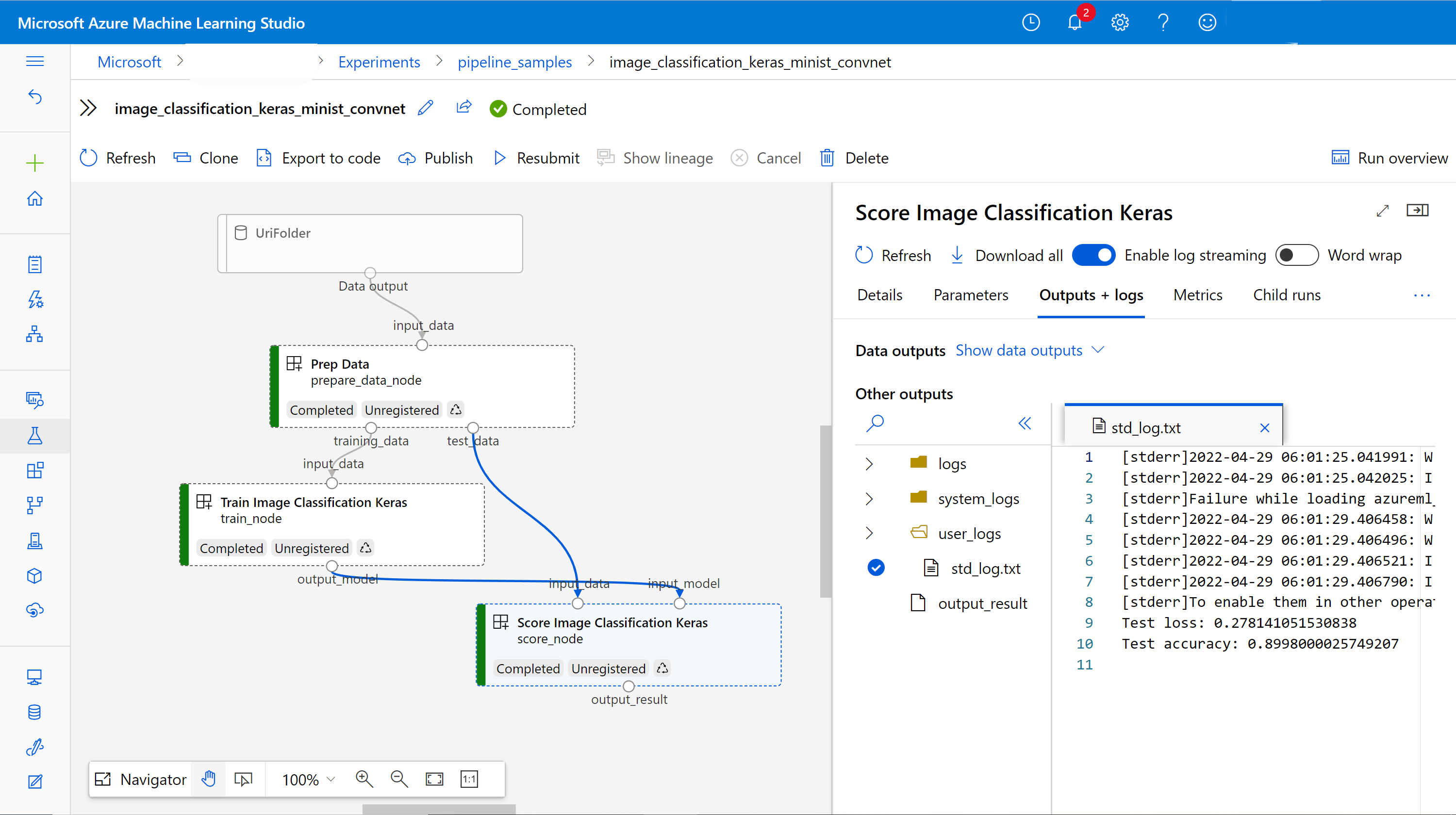
You can check the logs and outputs of each component by right-clicking the component, or select the component to open its detail pane. To learn more about how to debug your pipeline in the UI, see Use Azure Machine Learning studio to debug pipeline failures.
(Optional) Register components to the workspace
In the previous sections, you built a pipeline using three components to complete an image classification task. You can also register components to your workspace so they can be shared and reused in the workspace. The following example shows how to register the data preparation component:
try:
    # try get back the component
    prep = ml_client.components.get(name="prep_data", version="1")
except:
    # if not exists, register component using following code
    prep = ml_client.components.create_or_update(prepare_data_component)

# list all components registered in workspace
for c in ml_client.components.list():
    print(c)
You can use ml_client.components.get() to get a registered component by name and version. You can use ml_client.components.create_or_update() to register a component that was previously loaded from a Python function or YAML.
Related content
- For more examples of how to build pipelines using the machine learning SDK, see the example repository.
- For information about using the studio UI to submit and debug a pipeline, see Create and run machine learning pipelines using components with the Azure Machine Learning studio.
- For information about using the Azure Machine Learning CLI to create components and pipelines, see Create and run machine learning pipelines using components with the Azure Machine Learning CLI.
- For information about deploying pipelines into production using batch endpoints, see How to deploy pipelines with batch endpoints.