Note
Access to this page requires authorization. You can try signing in or changing directories.
Access to this page requires authorization. You can try changing directories.
Summary
The Azure Resource Manager Activity Log provides information about resource modifications and helps trace request flows between services. Each operation has a unique Correlation ID that aids in troubleshooting issues by correlating it with other signals across multiple services. This guide shows you how to get the correlation ID from the Activity Log.
Prerequisites
- Access to a resource group in the Azure portal.
Get operation correlation ID
Sign in to the Azure portal.
Go to the resource group in the Azure portal. Select Activity log from the left menu.
On Activity log, apply filters to narrow down the results. For example, filter by operation type, resource type, or date/time range to show activities for a specific resource. By default, the Activity Log shows all activities for the resource group. Select the timespan as appropriate.

Select an activity log entry to view its details.
Select the JSON view and locate the Correlation ID in the activity log entry.
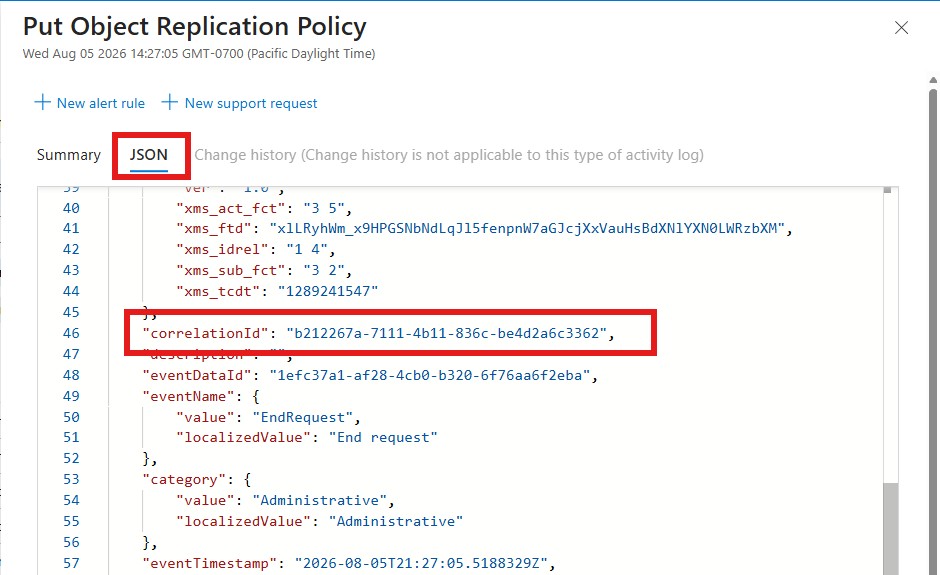
Use the Find feature in your browser to quickly search for the correlation ID. Note this correlation ID for your support request submission.

Next steps
- File a support request with the correlation ID to help troubleshoot your issue. For more information, see How to create an Azure support request.