Note
Access to this page requires authorization. You can try signing in or changing directories.
Access to this page requires authorization. You can try changing directories.
Classic waves are waves you created before November 11, 2026. They use a task-based workflow to configure migration targets, prepare prerequisites, run migrations, and track progress across applications and workloads, including work outside Azure Migrate.
Prerequisites
- An Azure Migrate project with a classic wave that contains the applications and workloads you want to migrate.
- Discovery and assessment information for the workloads, where available, to help select Azure targets and migration tools.
Note
The wave's creation date determines its execution experience. Waves you create on or after November 11, 2026, use the new wave execution experience (preview).
There's no conversion mechanism for classic waves. Before execution starts, you can delete the classic wave and create a new wave on or after November 11, 2026, to use the new experience. After execution starts, continue with the classic experience.
Configure migration targets and tasks
Classic waves have two broad stages. During configuration, you define migration targets, select tools, and identify tasks and prerequisites. During execution, you carry out that migration work and track its progress.
For each application and workload, review the target Azure service, migration tool, and tasks needed for migration. Assessments provide target recommendations.
Note
Linking an assessment provides an Azure target recommendation for each workload. You can view detailed configurations, such as storage or compute SKUs, only for integrated server migrations.
Open the wave's Azure Targets page and select Configure in the Target Settings tile.
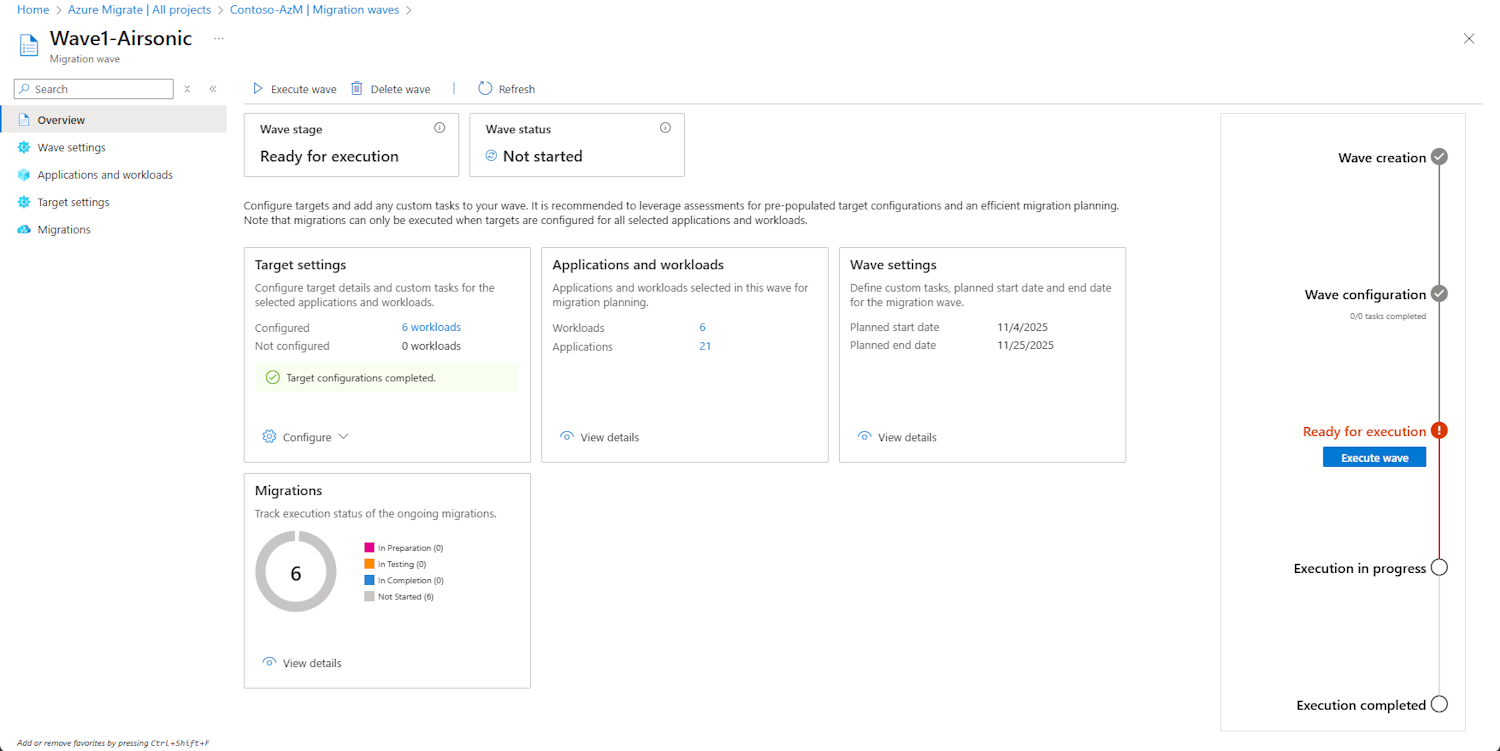
Configure application targets and tasks
Use application target settings to link an assessment and add tasks beyond the individual workload migrations.
Important
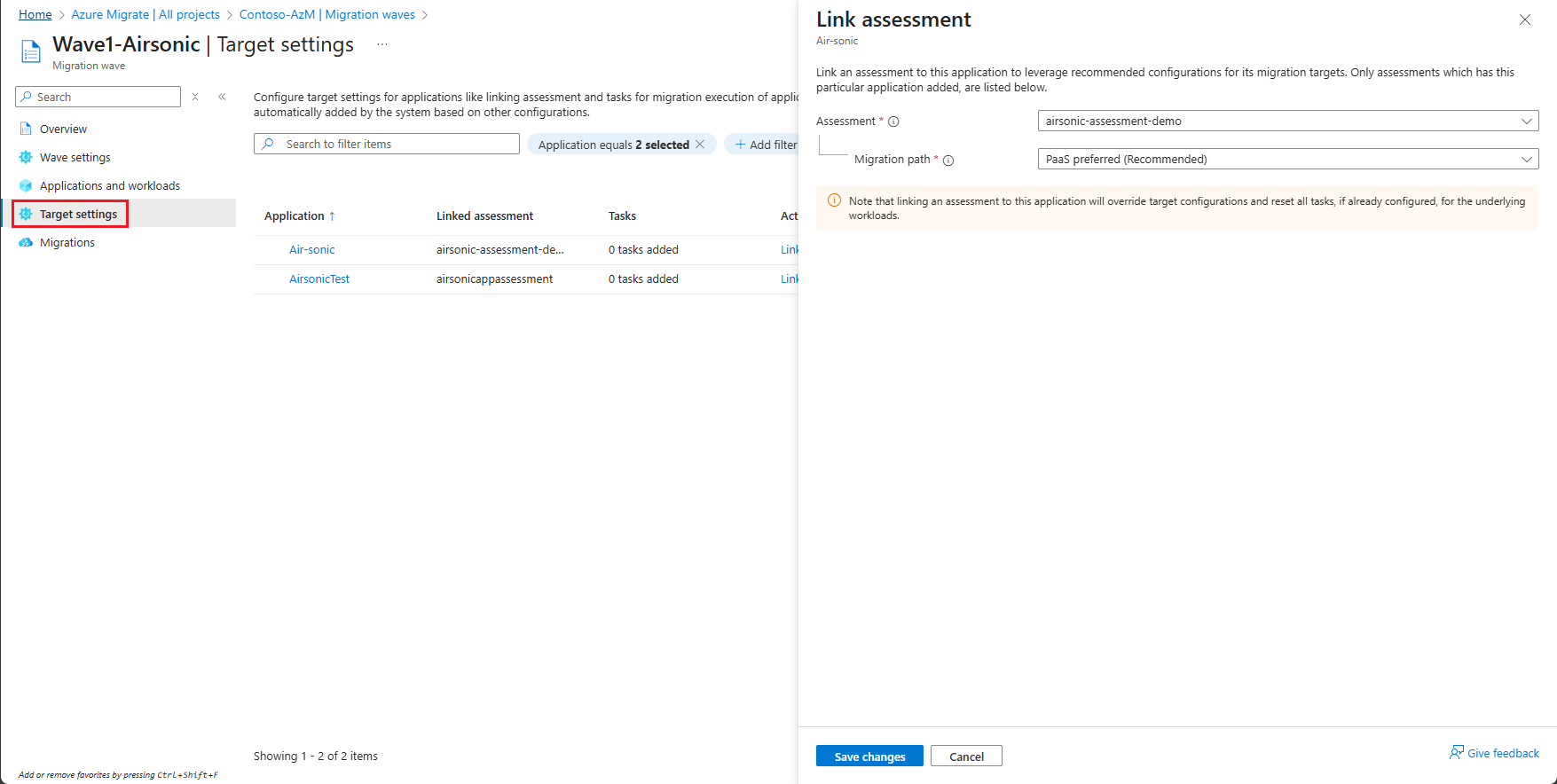
Linking an assessment to an application associates it with all workloads in that application across all waves and resets the related tasks. Review the impact before changing the linked assessment.
In Target Setting, select Link assessment to review or change the linked assessment, or link one if none is linked.
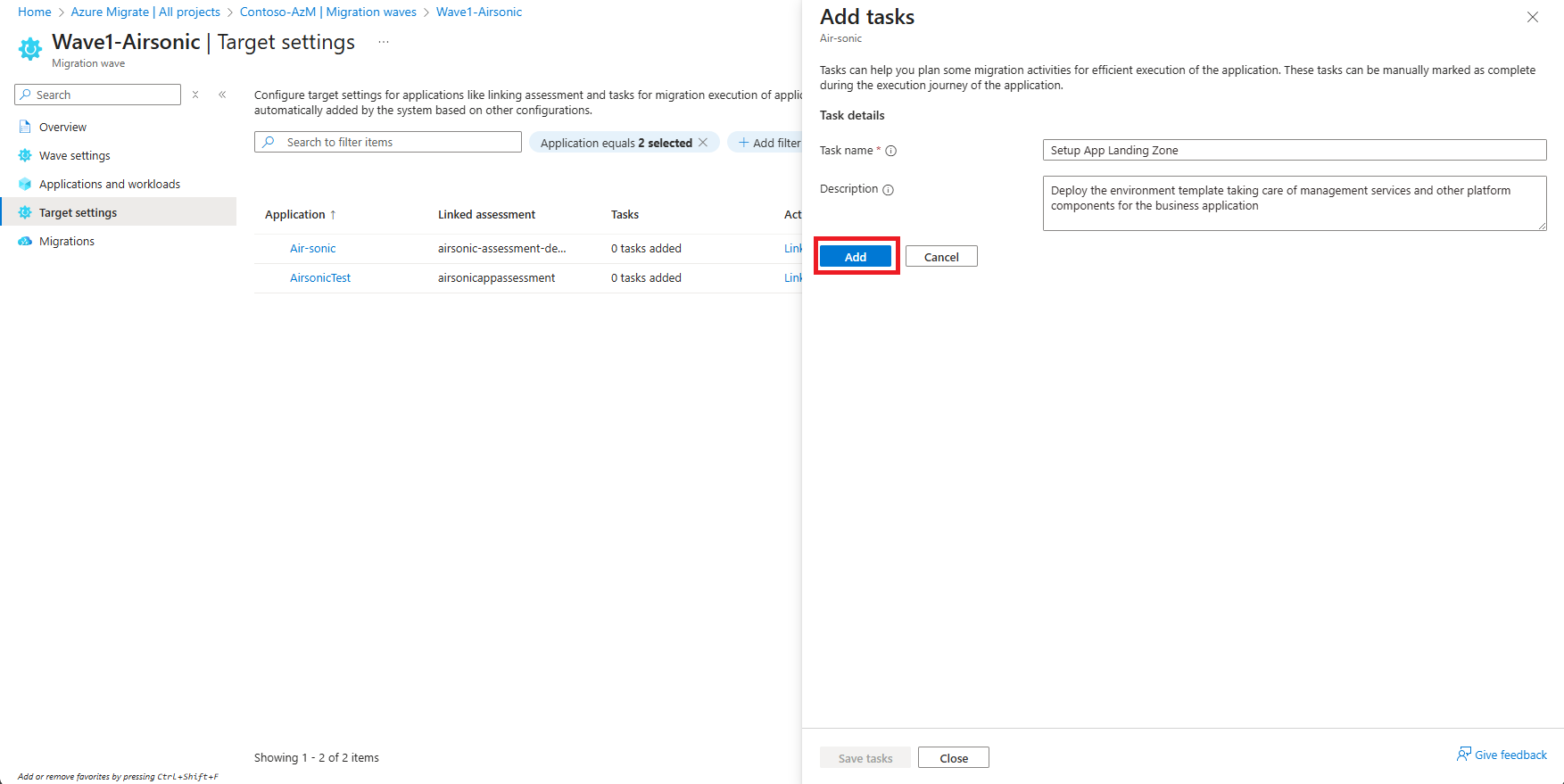
Select Add tasks to add application-specific migration work. You track these tasks manually.
Configure workload targets and tasks
Set each workload's target and migration tool, and then review the tasks needed for its migration.
Migration and modernization tasks describe the activities needed to migrate a workload. Azure Migrate can recommend tasks based on the selected migration approach, and you can add tasks for work specific to your organization.
Select Configure target to review the Azure target. If you linked an assessment, the target is populated from that assessment.
Select None for workloads that you plan to retire rather than migrate.
In Migration tool, select the tool that determines the migration path and tasks. Select Other for workloads that you plan to migrate outside Azure Migrate.
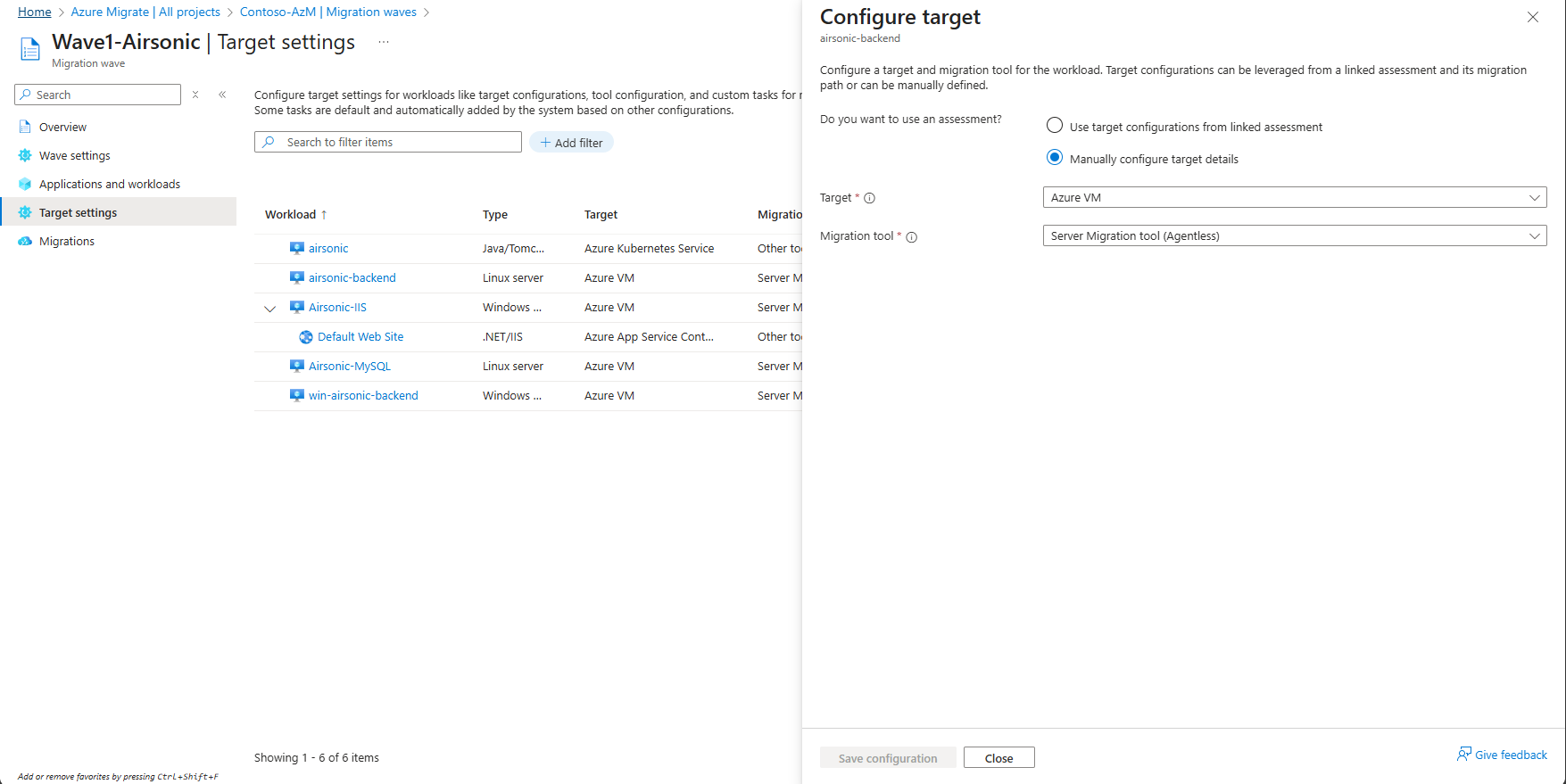
Select Save configuration.
Review the migration tasks and use Add tasks to add any other work you need to track.
Select Save tasks.
Prepare the wave for execution
Azure Migrate identifies prerequisites based on the targets, tools, and tasks you configure. Review these prerequisites and add organization-specific preparation work before starting migration.
The wave's planned start and end dates record the intended migration window. Use them to coordinate the work with your teams and review progress against the planned timeline.
In the Wave settings tile, select View details.
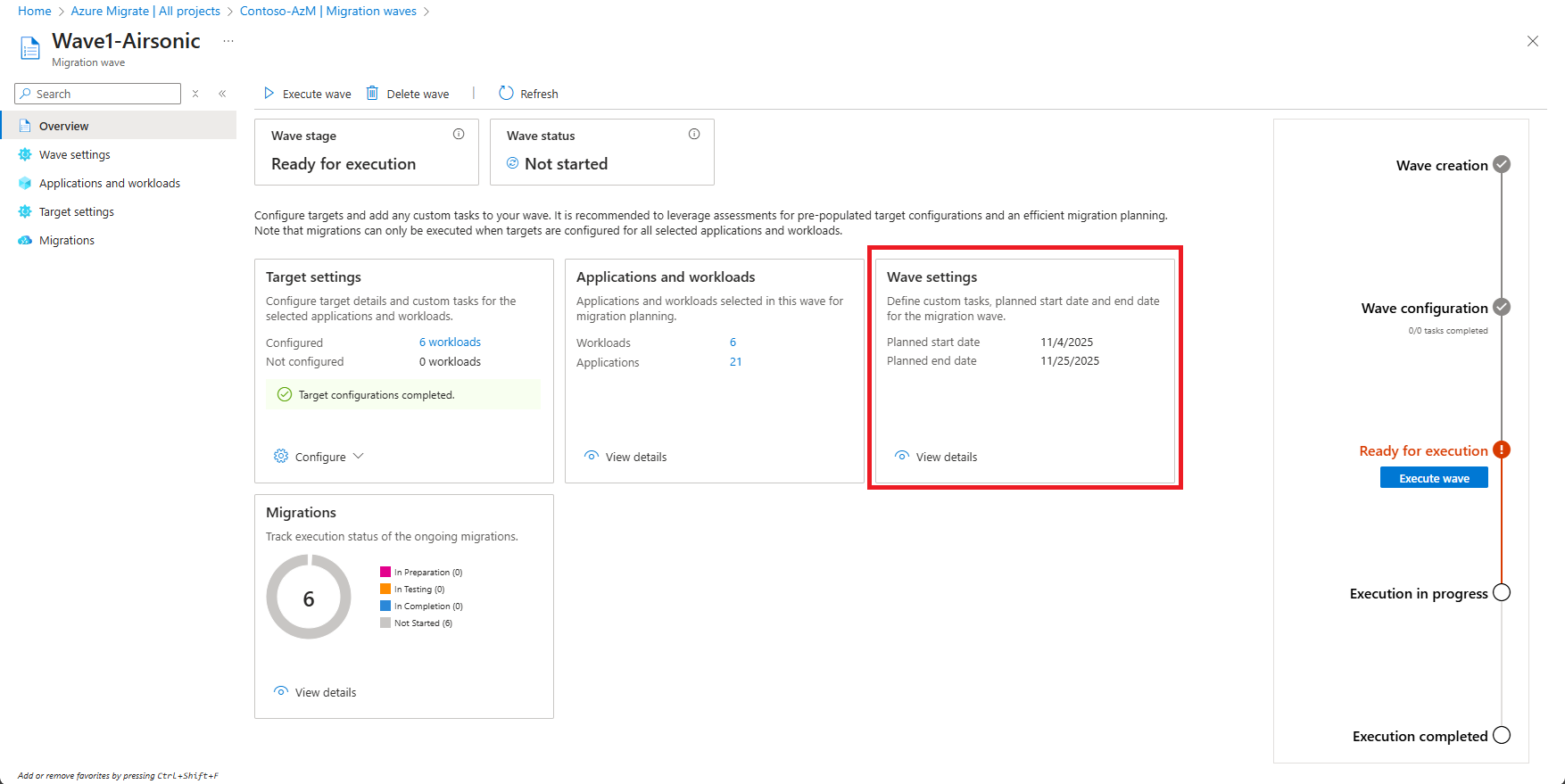
Review the prerequisites. To track extra preparation work, select Add Task.
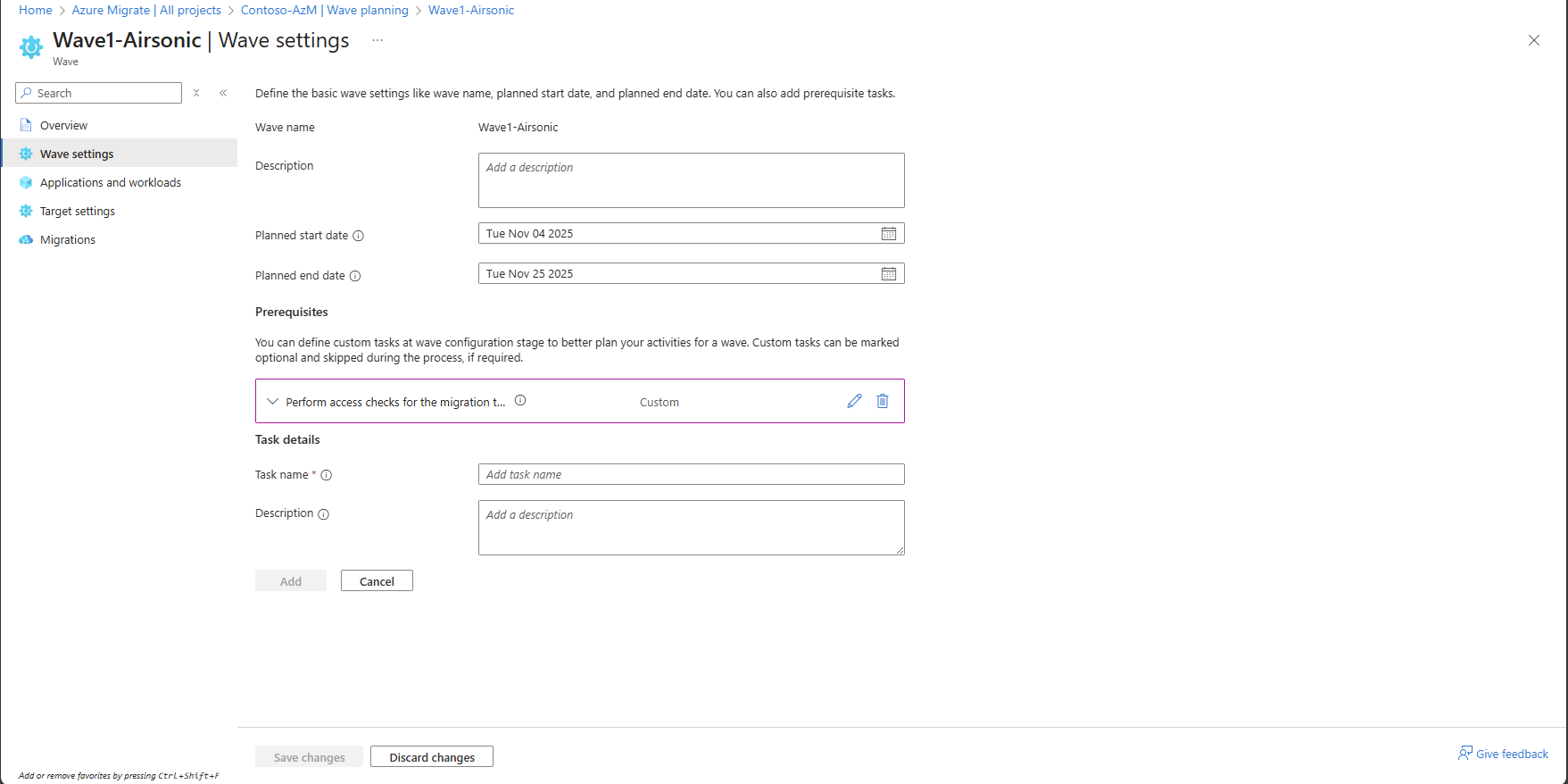
Enter a task name and Description.
Note
Don't include personal, sensitive, or confidential information in wave or task descriptions.
Select Add, and then select Save changes.
Complete the prerequisite tasks shown in the wave configuration stage.
Review and update the planned start and end dates in Wave Settings.
After you configure the migration targets and activities and complete the prerequisites, the wave transitions to Ready for Execution.
Execute the wave
When the wave is ready and you reach its planned migration window, open it from Execute > Waves, then select its Overview to start execution. Start from the individual classic wave, not the Waves list page.
How you execute and track work depends on whether Azure Migrate supports the migration activity:
- Supported activities: Start the migration flow from the wave and track its progress automatically. For example, supported server migrations provide replication, test migration, and cutover actions.
- Activities outside Azure Migrate: Complete the migration or modernization work in the appropriate tool, then update the tracked tasks manually in Azure Migrate.
Execute application migration tasks
Review the migration flows and any additional tasks for each application.
Select the application name. Workloads are grouped by source-to-target combinations that share a migration journey.
For each combination, select Review and Execute. If the migration is supported, Azure Migrate opens the workload execution flow.
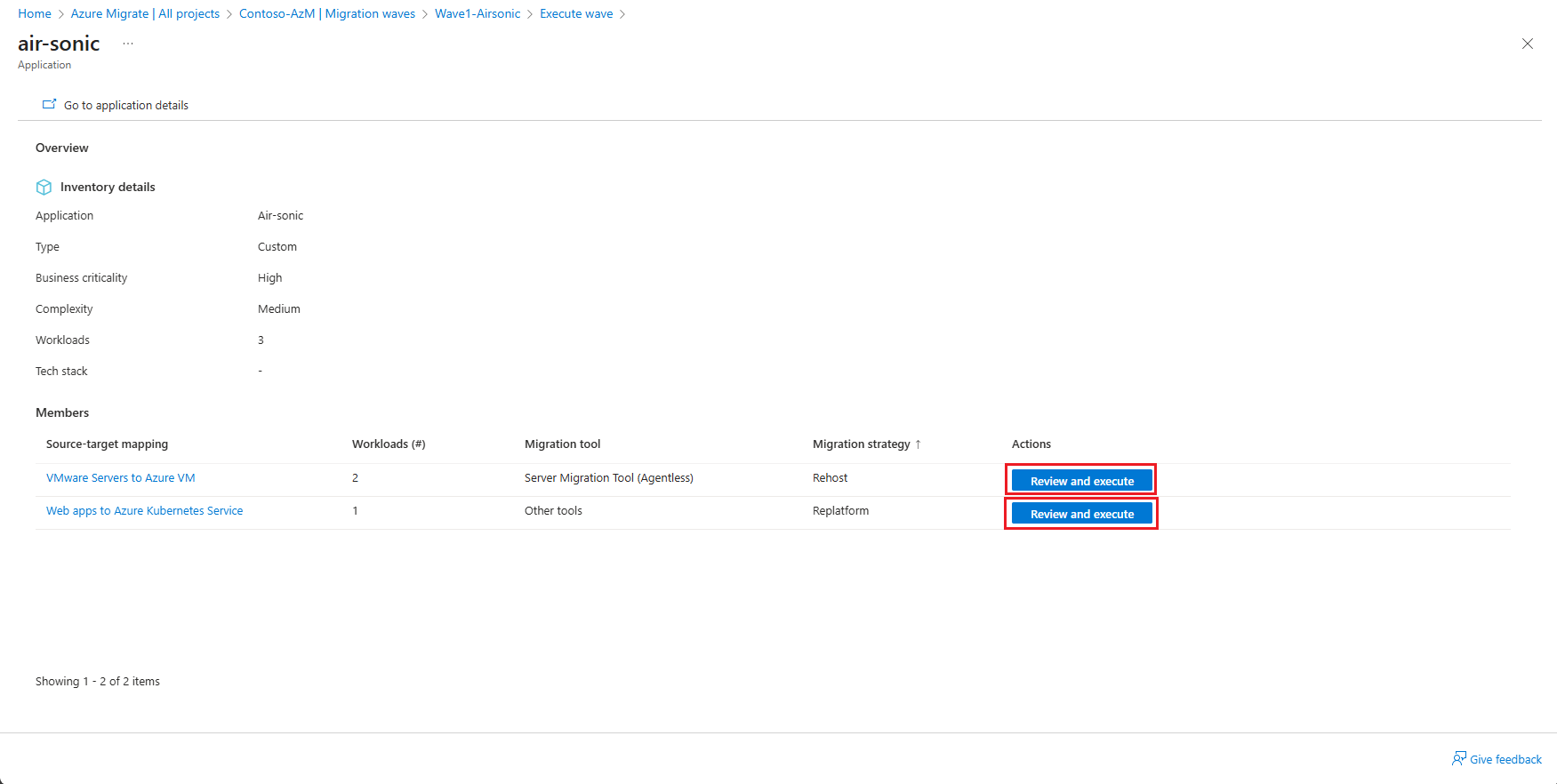
If the application has additional tracked tasks, select the number under Tasks.
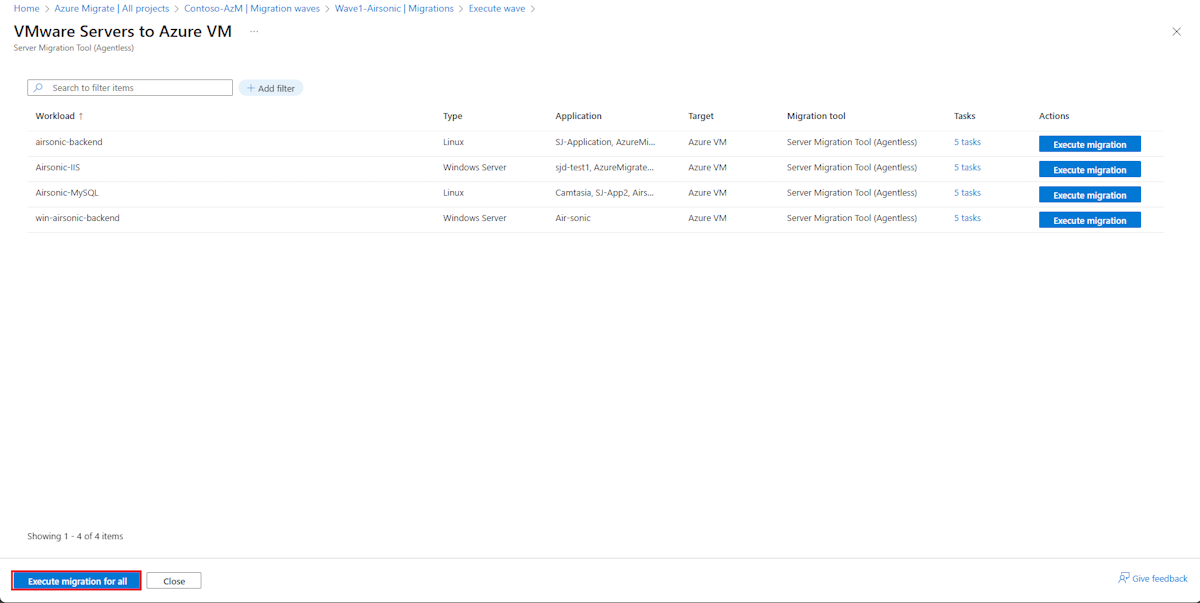
Complete each task outside Azure Migrate, then select Mark as Complete for the completed task.
Execute workload migration flows
Start supported migration flows or record progress for work performed outside Azure Migrate.
- Select Review and Execute for each source-to-target combination.
- Select Execute to start the migration flow for the workloads that support migration.
- Complete the work outside Azure Migrate for activities that aren't supported. Select View Execution Details to update the tracked tasks.
Track the wave's migration progress
Use the wave's Migrations view to review application and workload migration progress.
Classic workload migrations are organized into three execution stages. The activities in each stage vary by workload and migration method:
- Preparation: Prepare the Azure environment and complete the required data and configuration transfers.
- Testing: Test the workload before production use, including deployment to an isolated test environment where applicable.
- Completion: Finalize the migration and complete any required setup or optimization in the target environment.
Each stage contains one or more migration and modernization tasks. Completing those tasks marks the stage complete. These workload stages are separate from the wave's configuration and execution stages: they organize the work for each workload, rather than describe the state of the whole wave.
Review the applications and workloads in the wave.
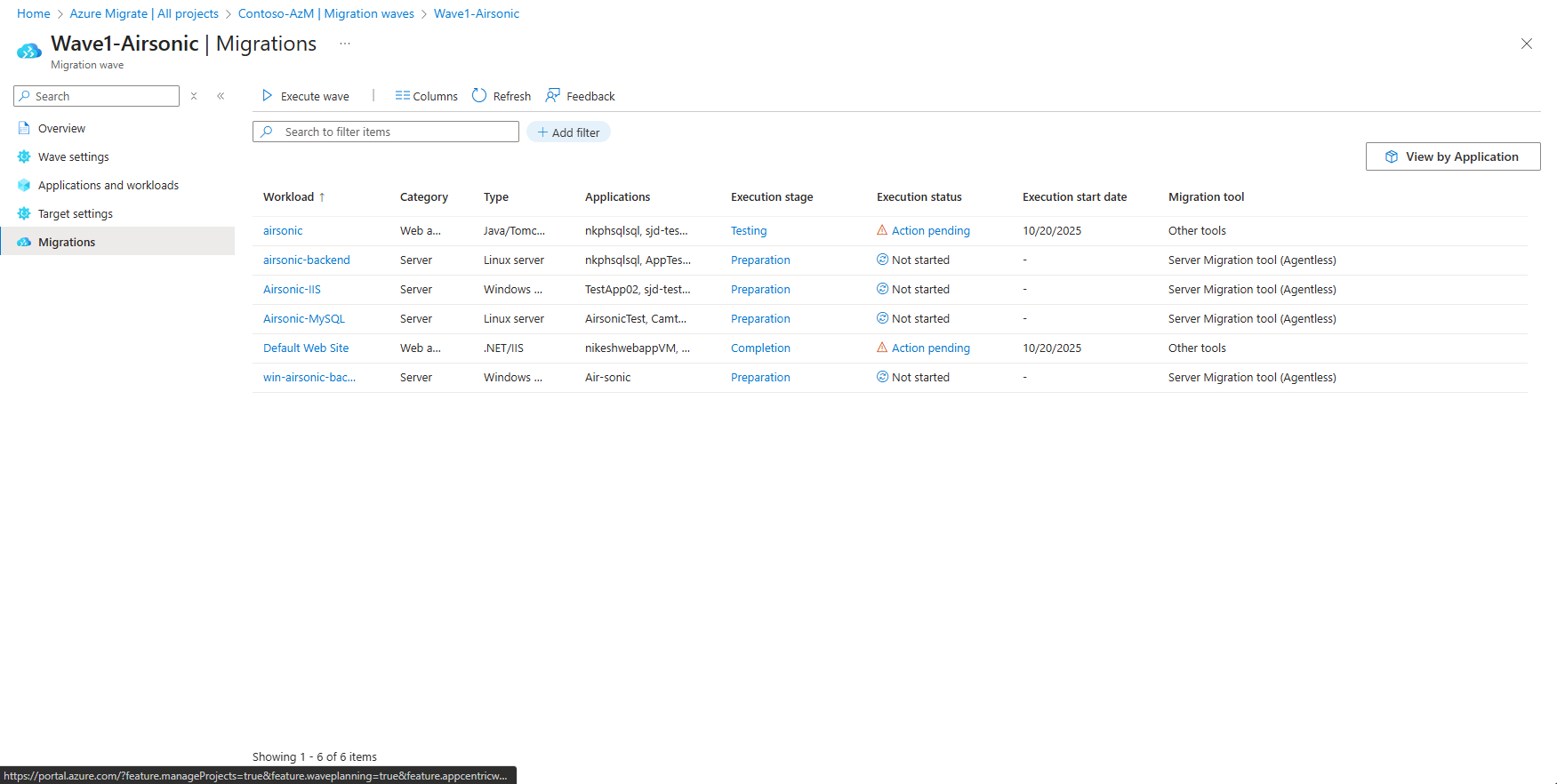
Select Execution Stage to review the tasks in each migration and modernization stage.
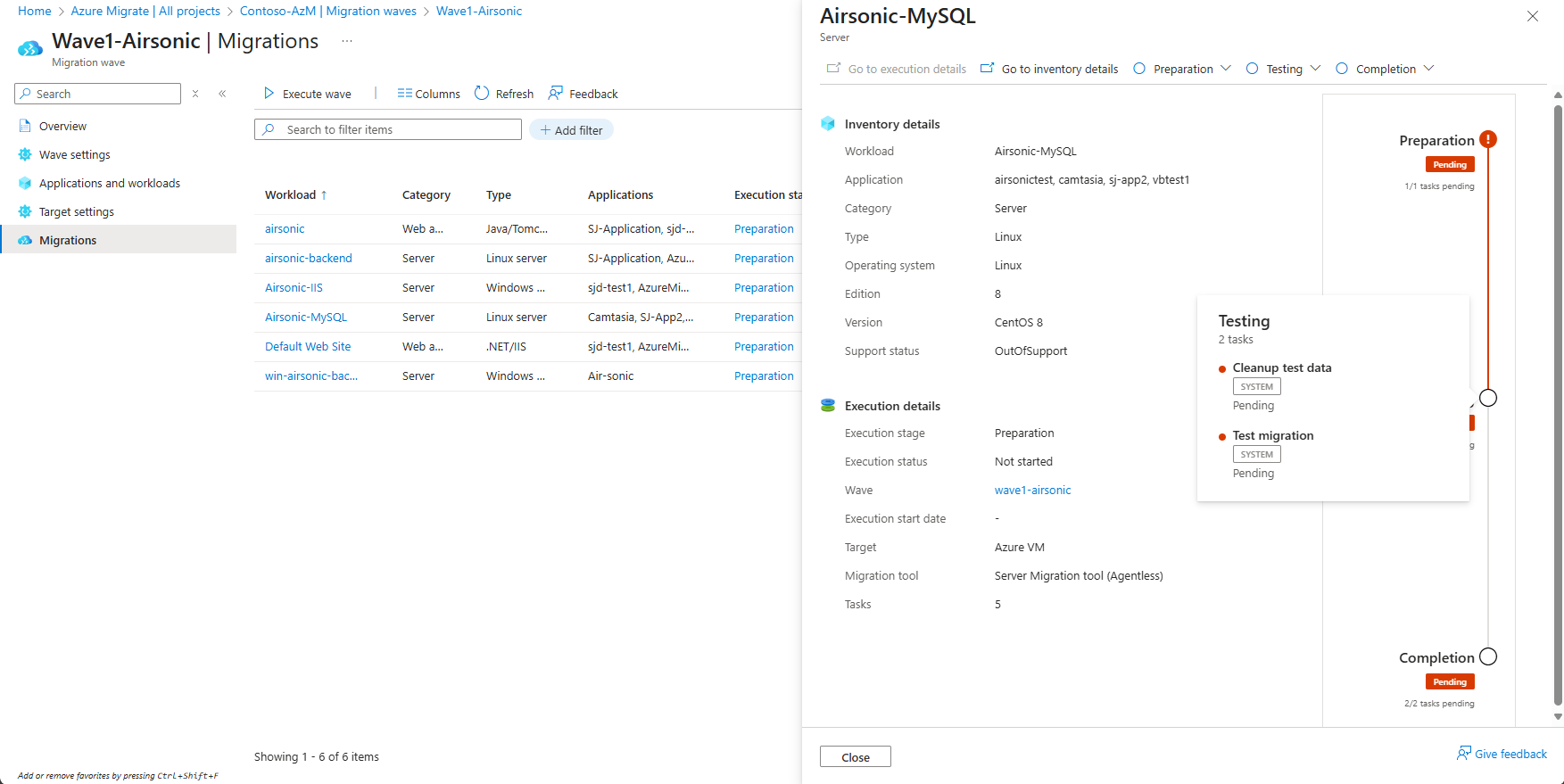
Perform available migration actions or update manually tracked tasks as the work progresses. Supported migration flows update progress automatically.
Review application progress alongside the individual workload results.
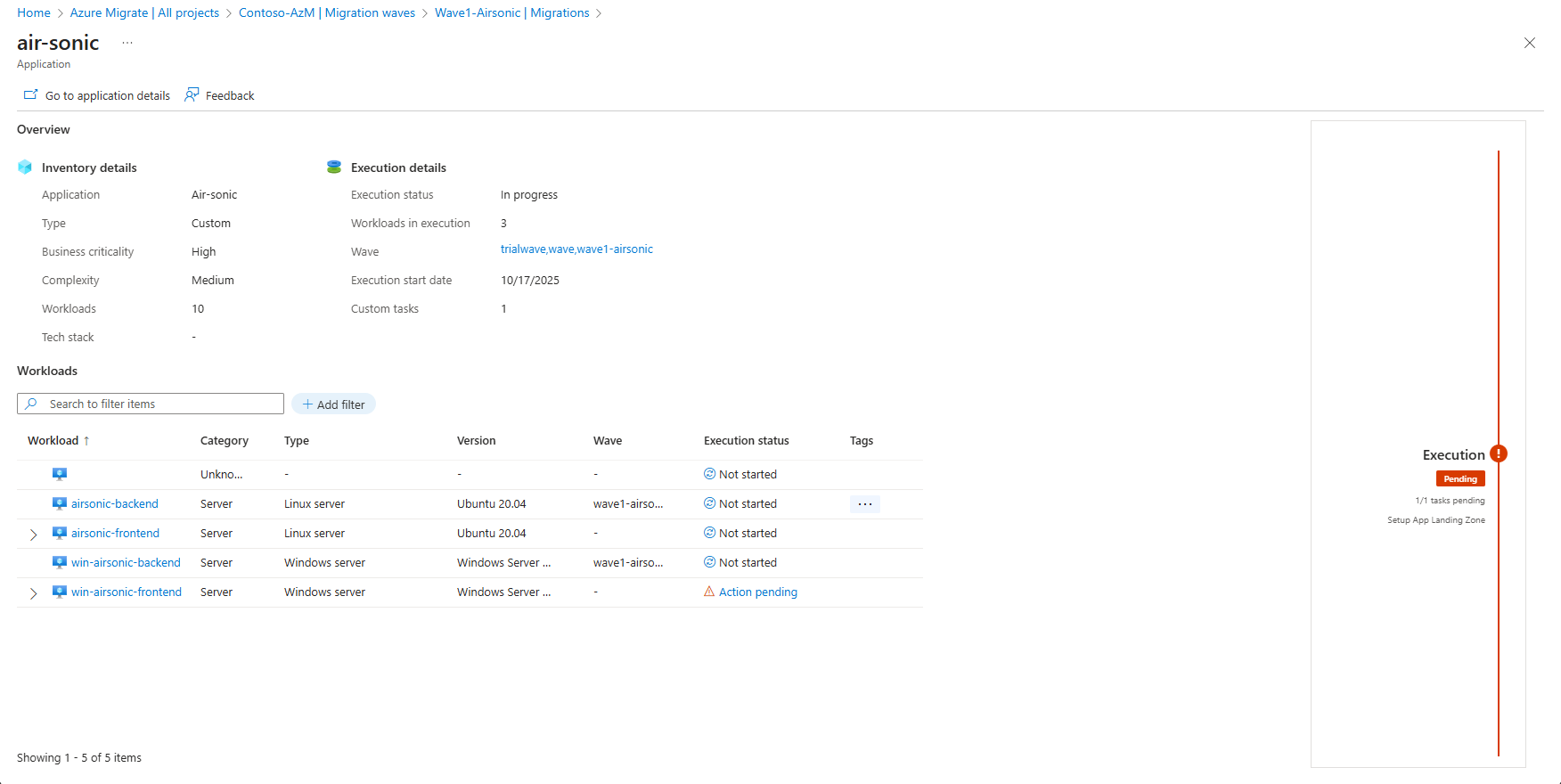
For project-level application and workload tracking, see Track workload and application migration progress.