Note
Access to this page requires authorization. You can try signing in or changing directories.
Access to this page requires authorization. You can try changing directories.
Azure Migrate supports network assessments for VMware and NSX-T environments. Network assessment in Azure Migrate evaluates discovered on-premises network resources and recommends equivalent Azure networking components to help plan migration to Azure. The assessment analyzes VMware and NSX-T inventory, maps associated network resources to selected applications or workloads, and provides Azure network recommendations, estimated costs, and sustainability insights.
The assessment currently supports VMware and NSX-T environments. Hyper-V and physical server network assessments aren't currently supported.
This article explains how network assessment is automatically included when you create an Azure Migrate assessment for supported VMware and NSX-T environments. This article describes the resulting network recommendations and planning outputs.
Note
- Assessment results represent a point-in-time snapshot and can change as discovery data, assessment settings, or the source environment change.
- Network recommendations are available only for lift-and-shift migrations to Azure Virtual Machines. Other migration strategies aren't currently supported.
- You don't need to create a separate network assessment. When discovery collects network inventory, Azure Migrate automatically evaluates networking requirements and provides network recommendations in the assessment.
Assessment scenarios
Single application
For a single application assessment:
- The Lift and shift view includes network cost and emissions.
- Network resources contribute to the target resource count.
- The application cost estimate includes network costs.
- The Network tab displays Azure network recommendations.
Independent workloads
Use this scenario when you assess independent workloads. When you enable Use WAF and CAF for network design, the design uses one unified virtual network and subnets based on workload category.
Multiple applications
Use this scenario when you assess multiple applications together. The Lift and shift tab includes network targets and network cost, while shared component cost is counted only once in the total cost.
Prerequisites
Before you create a network assessment, ensure that:
- You discovered your VMware data, including vCenter inventory such as VMs, port groups, and switches.
- You discovered your NSX-T data, including segments, Tier-1 gateways, distributed firewall rules, gateway firewall rules, and L4 load balancers.
- The applications or workloads you want to assess are available in the discovered inventory. During assessment creation, Azure Migrate automatically includes associated network resources such as load balancers, firewall rules, and segments in the assessment scope.
- Created assessments before network integration was enabled. Assessments aren't in scope for this experience. Learn more assessment prerequisites.
Create an assessment
Create a network assessment to evaluate discovered network resources and identify equivalent Azure networking components for migration. To create a network assessment, follow these steps:
In the Azure Migrate portal, go to Decide and plan > Assessments, and select Create assessment.

Enter a name for the assessment.
Select the applications or workloads that you want to include in the assessment scope. When you select an application, the associated network workloads are automatically considered as part of the network assessment flow.
Review the General assessment settings.
Note
Some general settings, such as currency and pricing-related settings, are common across all assessment types.
On the Advanced tab, open Network settings. When the selected scope includes network workloads, network-specific settings are displayed.

Configure network design settings:
- For application-based assessment, select Use WAF and CAF for network design to decide whether the output should follow Well-Architected Framework and Cloud Adoption Framework design principles.
- For independent workload assessments, this setting can influence whether the assessment uses a more unified Azure network design or mimics the on-premises network topology.
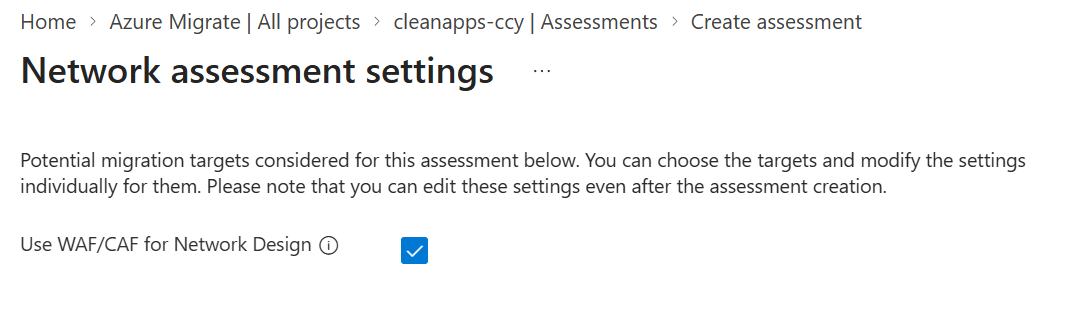
Review the assessment summary and select Create assessment. Assessment generation can take longer when firewall-related workloads are present because firewall rule conversion is part of the process.
After the assessment is created, view it under Decide and plan > Assessments > Workloads.


Business case integration
You can use network assessment results in business case analyses. In the Current on-premises vs Future cost view, the future cost shown in the network row reflects the actual assessment cost, and savings are recalculated based on the updated network cost.
Limitations
- Network assessment recommendations currently support only lift-and-shift migrations to Azure Virtual Machines. Other migration strategies don't include network resources in the current scope.
- Some NSX firewall rules aren't migrated if NS group information is missing or if unsupported layer 2 protocols are used. The assessment lists these rules in migration issues and warnings.
Next steps
- Learn how to create a fileshare assessment.
- Learn how to create an Azure VM assessment.
- Review prerequisites for assessments.