Note
Access to this page requires authorization. You can try signing in or changing directories.
Access to this page requires authorization. You can try changing directories.
In this tutorial, you learn how to integrate a NAT gateway with a public load balancer.
By default, an Azure Standard Load Balancer is secure. Outbound connectivity is explicitly defined by enabling outbound SNAT (Source Network Address Translation). SNAT is enabled in a load-balancing rule or outbound rules.
The NAT gateway integration replaces the need for outbound rules for backend pool outbound SNAT.
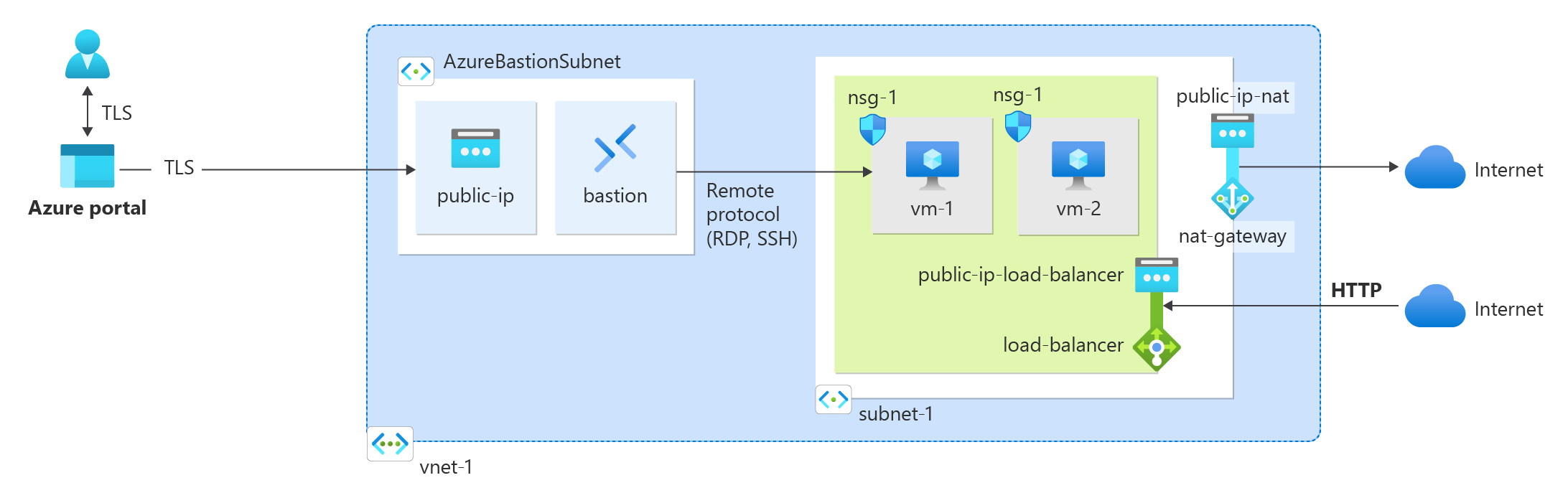
In this tutorial, you learn how to:
- Create a NAT gateway
- Create an Azure Load Balancer
- Create two virtual machines for the backend pool of the Azure Load Balancer
- Validate outbound connectivity of the virtual machines in the load balancer backend pool
Prerequisites
An Azure account with an active subscription. Create an account for free.
Create a resource group
Create a resource group to contain all resources for this quickstart.
Sign in to the Azure portal.
In the search box at the top of the portal enter Resource group. Select Resource groups in the search results.
Select + Create.
In the Basics tab of Create a resource group, enter, or select the following information.
Setting Value Subscription Select your subscription Resource group test-rg Region East US 2 Select Review + create.
Select Create.
Create the virtual network
In the search box at the top of the Azure portal, enter Virtual network. Select Virtual networks in the search results.
Select Create.
Enter or select the following information in the Basics tab of Create virtual network.
Setting Value Project details Subscription Select your subscription. Resource group Select test-rg or your resource group. Instance details Name Enter vnet-1. Region Select your region. This example uses East US 2. Select the IP Addresses tab, or select Next: Security, then Next: IP Addresses.
In Subnets select the default subnet.
Enter or select the following information in Edit subnet.
Setting Value Subnet purpose Leave the default. Name Enter subnet-1. Leave the rest of the settings as default, then select Save.
Select + Add a subnet.
In Add a subnet enter or select the following information.
Setting Value Subnet purpose Select Azure Bastion. Leave the rest of the settings as default, then select Add.
Select Review + create, then select Create.
Create Azure Bastion host
Create an Azure Bastion host to securely connect to the virtual machine.
In the search box at the top of the Azure portal, enter Bastion. Select Bastions in the search results.
Select Create.
Enter or select the following information in the Basics tab of Create a Bastion.
Setting Value Project details Subscription Select your subscription. Resource group Select test-rg or your resource group. Instance details Name Enter bastion. Region Select your region. This example uses East US 2. Tier Select Developer. Virtual network Select vnet-1. Subnet Select AzureBastionSubnet. Select Review + create, then select Create.
Create a NAT gateway
In the search box at the top of the Azure portal, enter Public IP address. Select Public IP addresses in the search results.
Select Create.
Enter the following information in Create public IP address.
Setting Value Subscription Select your subscription. Resource group Select your resource group. The example uses test-rg. Region Select a region. This example uses East US 2. Name Enter public-ip-nat. IP version Select IPv4. SKU Select Standard. Availability zone Select Zone-redundant. Tier Select Regional. Select Review + create and then select Create.
In the search box at the top of the Azure portal, enter NAT gateway. Select NAT gateways in the search results.
Select Create.
Enter or select the following information in the Basics tab of Create network address translation (NAT) gateway.
Setting Value Project details Subscription Select your subscription. Resource group Select test-rg or your resource group. Instance details NAT gateway name Enter nat-gateway. Region Select your region. This example uses East US 2. SKU Select Standard. TCP idle timeout (minutes) Leave the default of 4. Select Next.
In the Outbound IP tab, select + Add public IP addresses or prefixes.
In Add public IP addresses or prefixes, select Public IP addresses. Select the public IP address you created earlier, public-ip-nat.
Select Next.
In the Networking tab, in Virtual network, select vnet-1.
Leave the checkbox for Default to all subnets unchecked.
In Select specific subnets, select subnet-1.
Select Review + create, then select Create.
Create load balancer
In this section, you create a zone redundant load balancer that load balances virtual machines. With zone-redundancy, one or more availability zones can fail and the data path survives as long as one zone in the region remains healthy.
During the creation of the load balancer, you configure:
- Frontend IP address
- Backend pool
- Inbound load-balancing rules
In the search box at the top of the portal, enter Load balancer. Select Load balancers in the search results.
In the Load balancer page, select Create.
In the Basics tab of the Create load balancer page, enter, or select the following information:
Setting Value Project details Subscription Select your subscription. Resource group Select test-rg. Instance details Name Enter load-balancer Region Select (US) East US 2. SKU Leave the default Standard. Type Select Public. Tier Leave the default Regional. Select Next: Frontend IP configuration at the bottom of the page.
In Frontend IP configuration, select + Add a frontend IP configuration.
Enter frontend in Name.
Select IPv4 or IPv6 for the IP version.
Note
IPv6 isn't currently supported with Routing Preference or Cross-region load-balancing (Global Tier).
Select IP address for the IP type.
Note
For more information on IP prefixes, see Azure Public IP address prefix.
Select Create new in Public IP address.
In Add a public IP address, enter public-ip-load-balancer for Name.
Select Zone-redundant in Availability zone.
Note
In regions with Availability Zones, you have the option to select no-zone (default option), a specific zone, or zone-redundant. The choice will depend on your specific domain failure requirements. In regions without Availability Zones, this field won't appear.
For more information on availability zones, see Availability zones overview.Leave the default of Microsoft Network for Routing preference.
Select OK.
Select Add.
Select Next: Backend pools at the bottom of the page.
In the Backend pools tab, select + Add a backend pool.
Enter backend-pool for Name in Add backend pool.
Select vnet-1 (test-rg) in Virtual network.
Select NIC or IP Address for Backend Pool Configuration.
Select Save.
Select the Next: Inbound rules button at the bottom of the page.
In Load balancing rule in the Inbound rules tab, select + Add a load balancing rule.
In Add load balancing rule, enter or select the following information:
Setting Value Name Enter http-rule IP Version Select IPv4 or IPv6 depending on your requirements. Frontend IP address Select front-end. Backend pool Select backend-pool. Protocol Select TCP. Port Enter 80. Backend port Enter 80. Health probe Select Create new.
In Name, enter health-probe.
Select TCP in Protocol.
Leave the rest of the defaults, and select OK.Session persistence Select None. Idle timeout (minutes) Enter or select 15. TCP reset Select Enabled. Floating IP Select Disabled. Outbound source network address translation (SNAT) Leave the default of (Recommended) Use outbound rules to provide backend pool members access to the internet. Select Save.
Select the blue Review + create button at the bottom of the page.
Select Create.
Create virtual machines
In this section, you create two VMs (vm-1 and vm-2) in two different zones (Zone 1 and Zone 2).
These VMs are added to the backend pool of the load balancer that was created earlier.
In the search box at the top of the portal, enter Virtual machine. Select Virtual machines in the search results.
Select + Create then Azure virtual machine.
In Create a virtual machine, type or select the values in the Basics tab:
Setting Value Project details Subscription Select your subscription. Resource group Select test-rg. Instance details Virtual machine name Enter vm-1. Region Select East US 2. Availability options Select Zone 1. Security type Select Standard. Image Select Ubuntu Server 22.04 LTS - x64 Gen2. VM architecture Leave the default of x64. Size Select a size. Administrator account Authentication type Select Password. Username Enter azureuser. Password Enter a password. Confirm password Reenter the password. Inbound port rules Public inbound ports Select None. Select the Networking tab, or select Next: Disks, then Next: Networking.
In the Networking tab, enter or select the following information:
Setting Value Network interface Virtual network Select vnet-1. Subnet Select subnet-1 (10.0.0.0/24) Public IP Select None. NIC network security group Select Advanced Configure network security group Select Create new.
In the Create network security group, enter nsg-1 in Name.
Under Inbound rules, select +Add an inbound rule.
In Service, select HTTP.
Select Add
Select OKLoad balancing Place this virtual machine behind an existing load-balancing solution? Select the check box. Load balancing settings Load-balancing options Select Azure load balancer Select a load balancer Select load-balancer Select a backend pool Select backend-pool Select Review + create.
Review the settings, and then select Create.
Follow the previous steps to create a VM with the following values and all the other settings the same as vm-1:
Setting VM 2 Name vm-2 Availability zone 2 Network security group Select the existing nsg-1 Load-balancing options Select Azure load balancer Select a load balancer Select load-balancer Select a backend pool Select backend-pool
Test NAT gateway
In this section, you test the NAT gateway. You first discover the public IP of the NAT gateway. You then connect to the test virtual machine and verify the outbound connection through the NAT gateway.
In the search box at the top of the portal, enter Public IP. Select Public IP addresses in the search results.
Select public-ip-nat.
Make note of the public IP address:
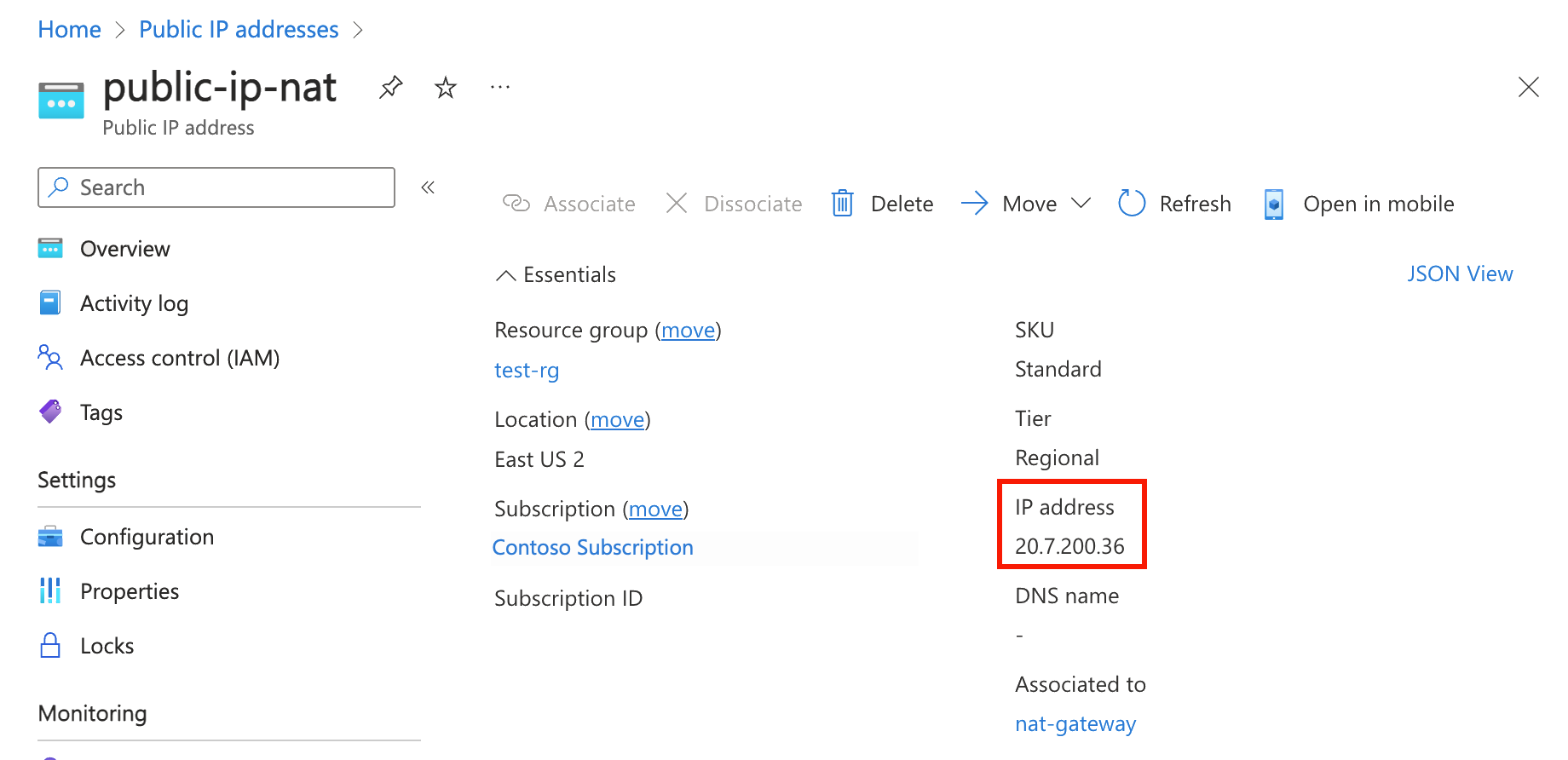
In the search box at the top of the portal, enter Virtual machine. Select Virtual machines in the search results.
Select vm-1.
On the Overview page, select Connect, then select the Bastion tab.
Select Use Bastion.
Enter the username and password entered during VM creation. Select Connect.
In the bash prompt, enter the following command:
curl ifconfig.meVerify the IP address returned by the command matches the public IP address of the NAT gateway.
azureuser@vm-1:~$ curl ifconfig.me
203.0.113.25
Close the bastion connection to vm-1.
When you finish using the resources that you created, you can delete the resource group and all its resources.
In the Azure portal, search for and select Resource groups.
On the Resource groups page, select the test-rg resource group.
On the test-rg page, select Delete resource group.
Enter test-rg in Enter resource group name to confirm deletion, and then select Delete.
Next steps
For more information on Azure NAT Gateway, see: