Note
Access to this page requires authorization. You can try signing in or changing directories.
Access to this page requires authorization. You can try changing directories.
Use impact analysis to troubleshoot an Oracle workload when its Azure virtual machines are impacted, such as by a restart or a migration for repair. The Azure Copilot Run Oracle Agent checks the events of the Azure virtual machines that are mapped to the Workload Virtual Instance (WVI). It shows which resources were impacted, why, and which components were affected.
Note
Impact analysis covers impacts on Azure virtual machines in the WVI. It doesn't yet show how an issue in another resource, such as a database, affects other resources.
Prerequisites
Enroll the Oracle system as a WVI. Impact analysis works only for Azure virtual machines that are mapped to a component.
On the top bar of the Azure portal, select Copilot.

- Select the arrow next to New chat, and then select Run Oracle under Agents.

Use Azure Copilot Run Oracle Agent for impact analysis
You can ask the agent to:
Find the reason that an Azure virtual machine of a WVI was impacted
List the Azure virtual machines and components that an issue affected
Show the impact of an issue on Azure virtual machines across WVIs in a region
Include the WVI name or the region, and the date and time of the impact, in your prompt.
What the answer contains
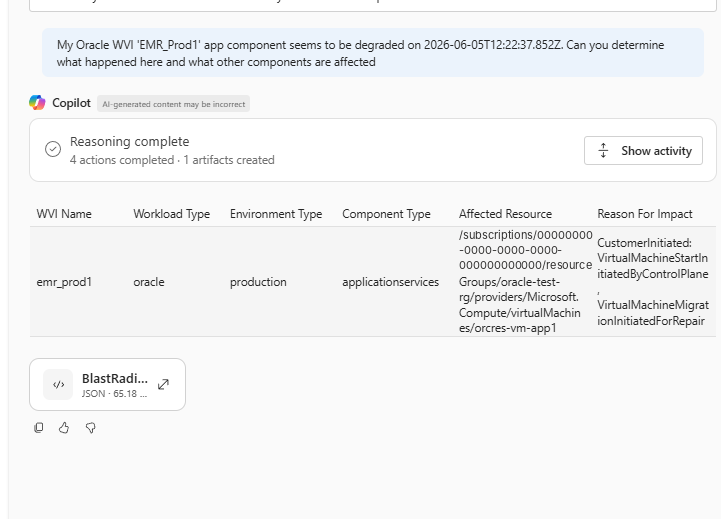
When the agent finishes, it shows a summary of the impact and a list of impacted resources. Select Show activity to see each step.
The answer has a table with one row for each impacted resource. The table has these columns:
WVI Name: the WVI that contains the resource
Workload Type: the workload type, such as
oracleEnvironment Type: the environment, such as production
Component Type: the component that contains the resource, such as applicationservices
Affected Resource: the resource ID of the impacted Azure virtual machine
Reason For Impact: why the Azure virtual machine was impacted, such as VirtualMachineMigrationInitiatedForRepair
The agent also creates a JSON file with the full blast radius of the impact. You can open or download it.
Example prompts
My Oracle WVI <WVI name> app component seems to be degraded on <timestamp>. Can you determine what happened and what other components are affected?
What was the reason for impact in WVI <WVI name> on <timestamp>?
The Azure virtual machine <virtual machine name> was impacted in <Azure region> on <timestamp>. What is the complete blast radius of the impact?
List all impacted non-production WVIs and their affected Azure virtual machines in <Azure region> on <timestamp>.
List all my impacted workloads in the last hour.
Test impact analysis
To test impact analysis, use a recent platform issue, or create a controlled impact on a non-production Azure virtual machine.
Option 1: Use a recent Azure platform issue
Find a recent issue that affected an Azure virtual machine of a WVI.
Note the time of the issue.
Run an impact analysis prompt for that time.
Option 2: Create an impact on an Azure virtual machine
Stop or restart an Azure virtual machine of a non-production WVI.
Note the time and the virtual machine name.
Wait for 5 to 15 minutes for telemetry to arrive.
Run an impact analysis prompt with the WVI name and the time.