Note
Access to this page requires authorization. You can try signing in or changing directories.
Access to this page requires authorization. You can try changing directories.
After you enroll an Oracle system, you can manage the components and resources of its Workload Virtual Instance (WVI). You can:
Add a workload component
Update a workload component to add or remove mapped resources
Delete one or more workload components
Delete the WVI
View a WVI
In the Azure portal, go to Azure Workload Center for Oracle.
Select Workload Virtual Instances, and then select the WVI.
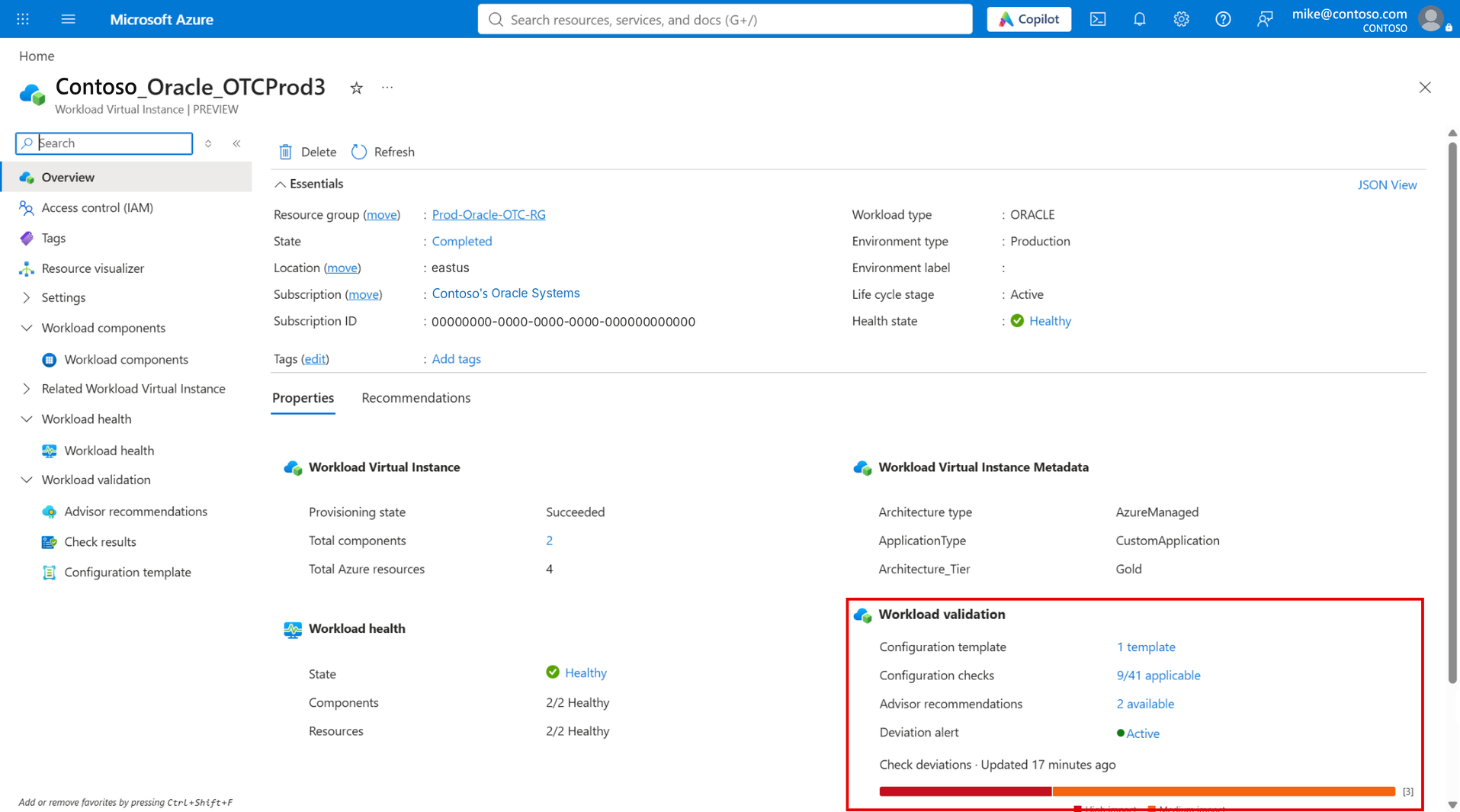
The Overview page shows the essentials of the WVI, the number of components and resources, and the health state. The Workload validation summary shows the configuration template, the applicable checks, Advisor recommendations, and the deviation alert status.
Add a workload component
Open the WVI.
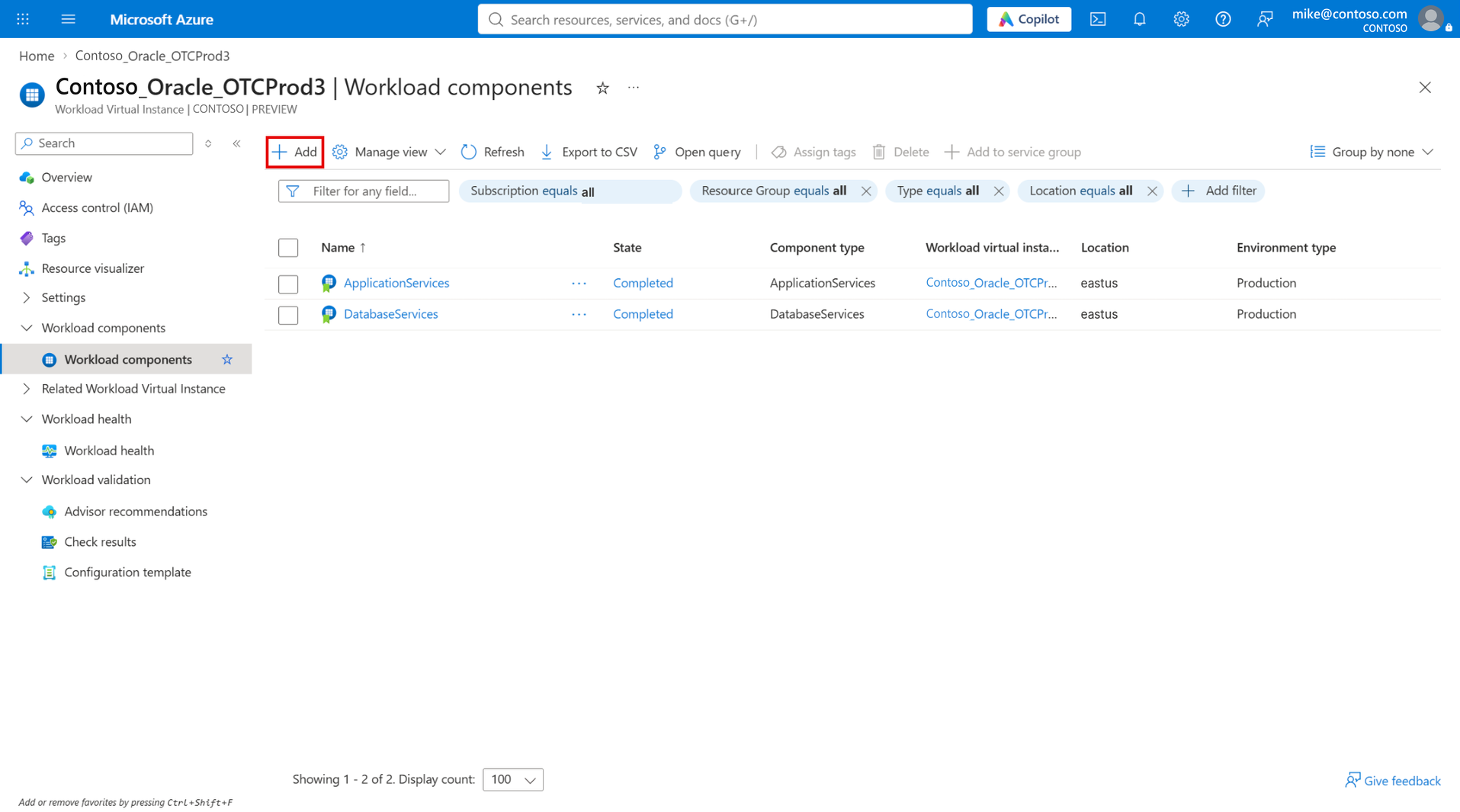
Select Workload components.
Select Add.
Select the Component type and the Component role, and enter a Component name.
Map resources by using Azure Resource Graph (ARG) query-based discovery or by manual selection. For the steps, see Enroll an Oracle system.
Optionally, add resources by resource ID in Additional resources.
Select Add.
Update a workload component
You can add or remove the resources of a component, and change how you add resources. You can't change the component type, the component role, or the component name.
Open the WVI and select Workload components.
Select the component.
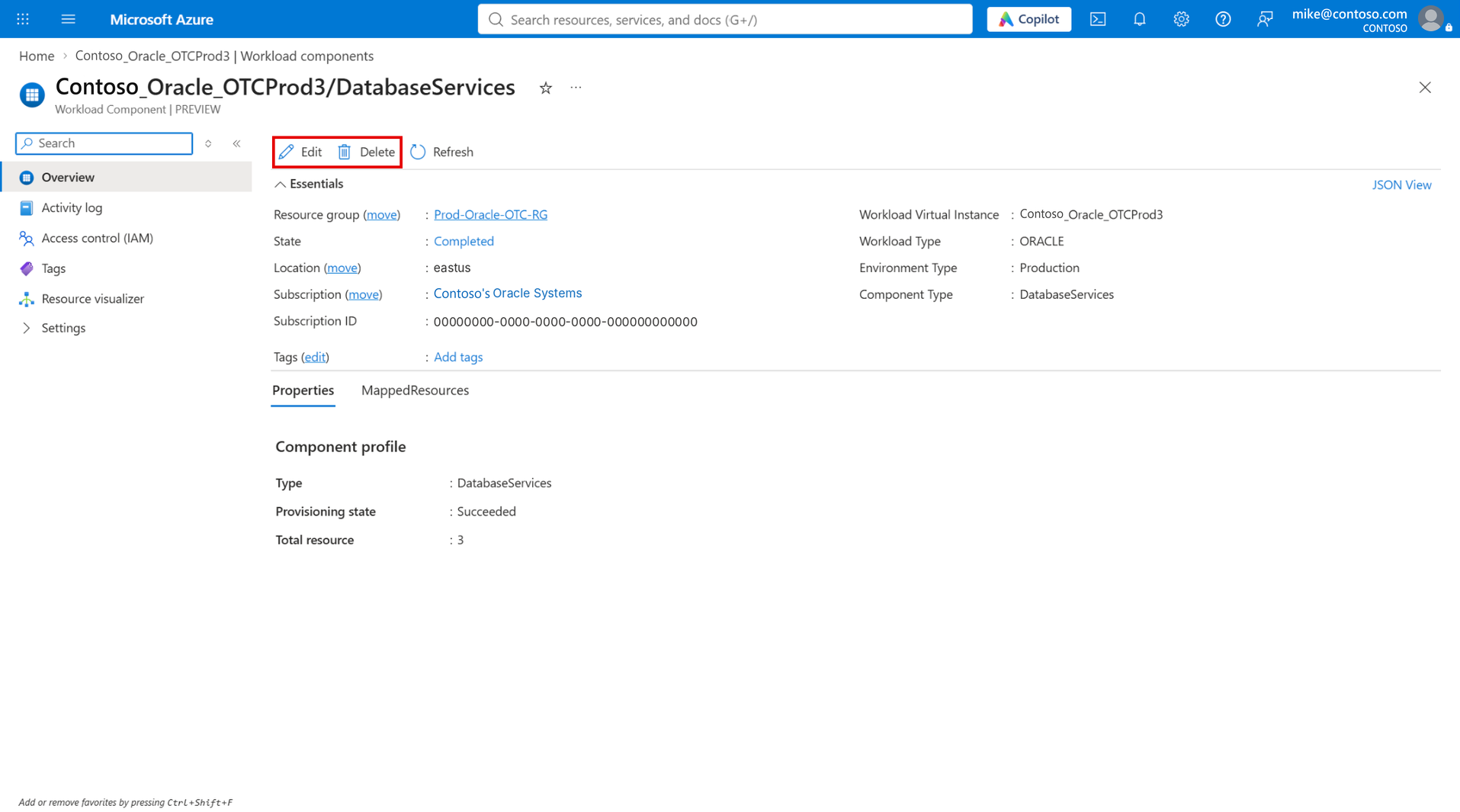
On the component Overview page, select Edit.
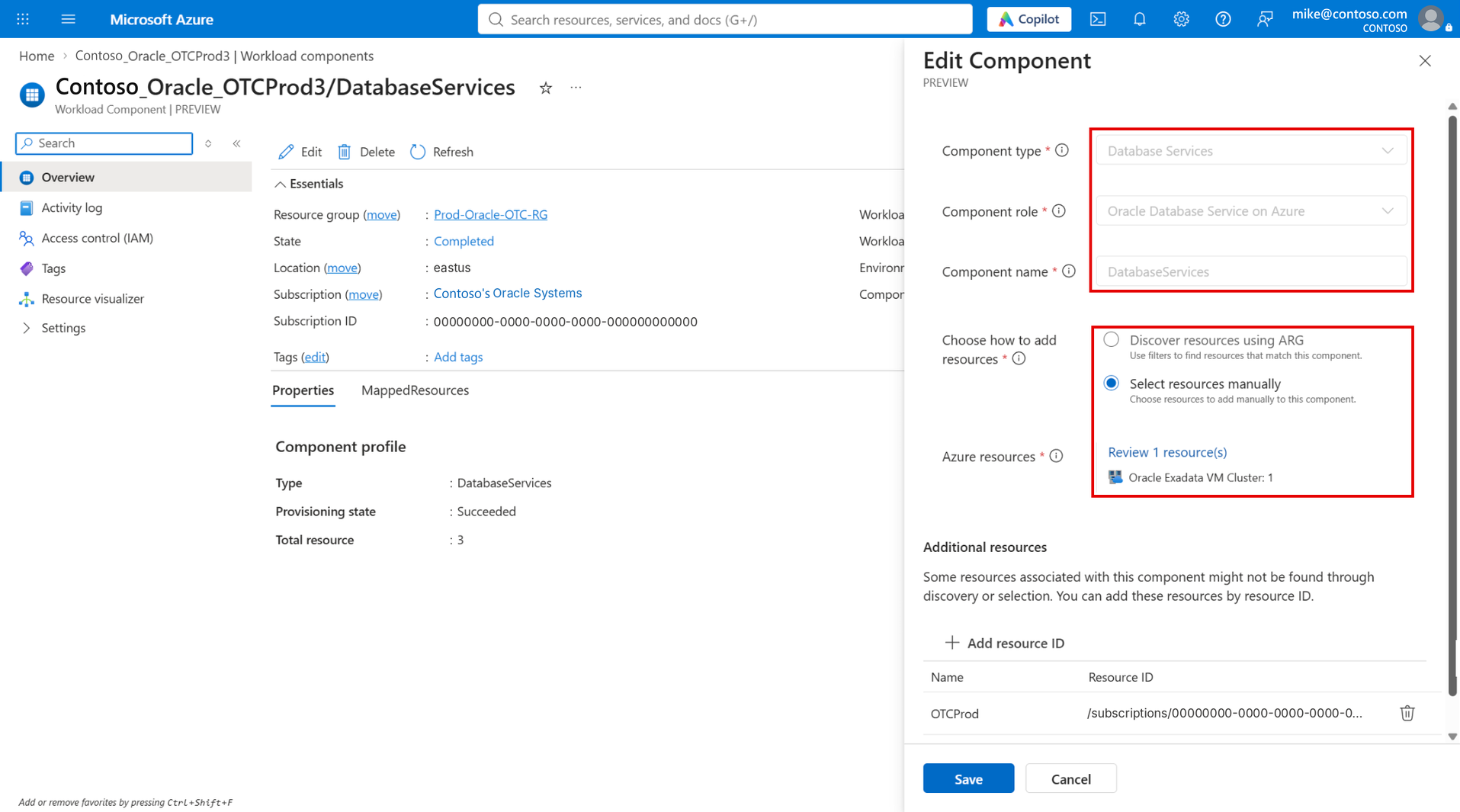
In the Edit Component pane, review the resources that are mapped to the component. The type, role, and name are read-only.
Change how you add resources, select resources, or add resources by resource ID. To remove a resource that you added by ID, select the delete icon next to it.
- Select Save.
Removing a resource removes it from the component. It doesn't delete the Azure resource.
Delete a workload component
Caution
You can't create another component with the same name for 48 hours after you delete a component.
Open the component that you want to delete.
Select Delete.
Review the information in the Delete a workload component pane, and then select Delete.
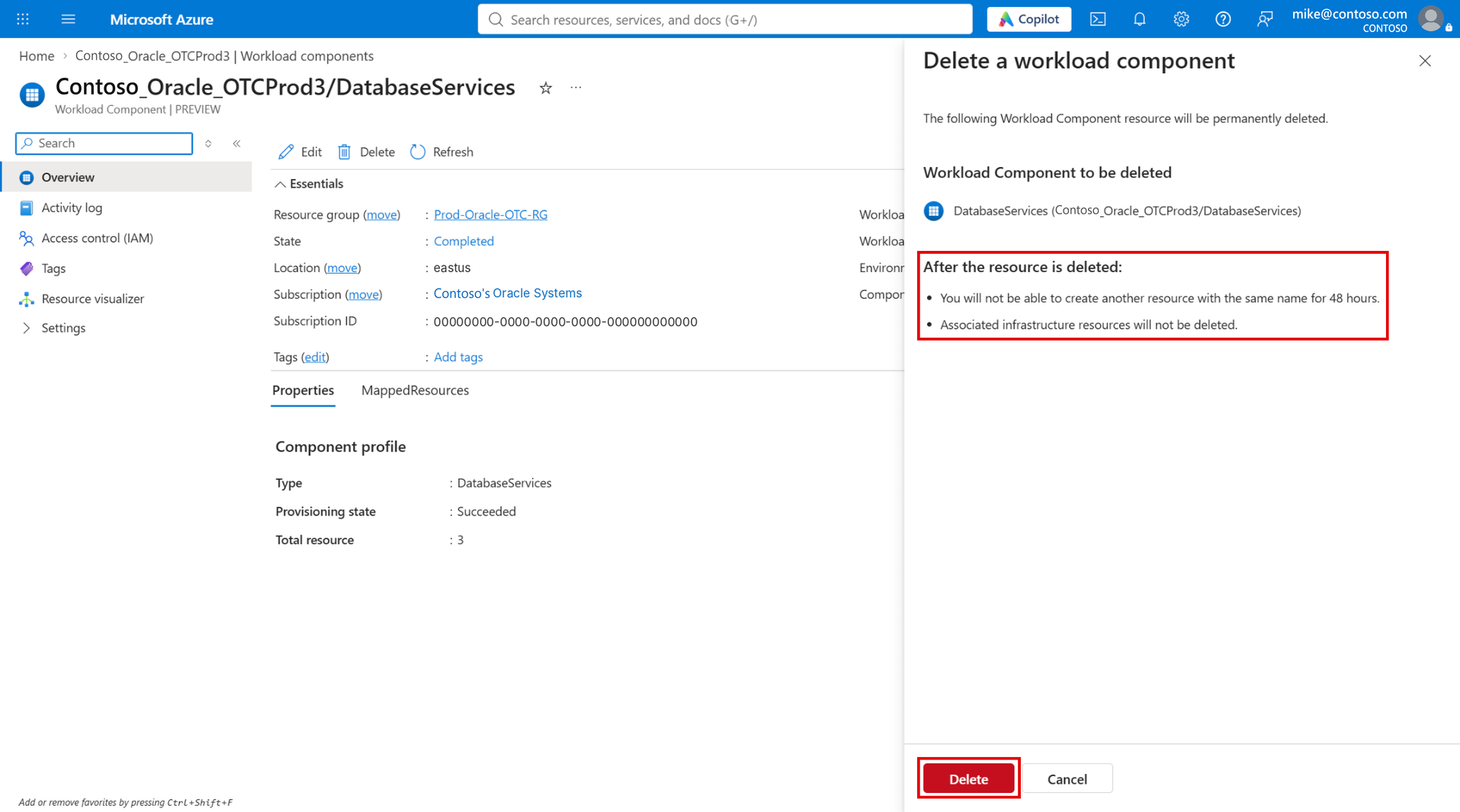
The Azure resources that are mapped to the component aren't deleted.
To delete several components at once, open the WVI, select Workload components, select the components, and then select Delete. When prompted, enter delete to confirm.
Delete a workload virtual instance
Caution
Deleting a WVI removes the workload representation and its health model from Azure Workload Center for Oracle. It doesn't delete the Oracle databases or other Azure resources that were mapped to it.
Open the WVI that you want to delete.
On the Overview page, select Delete.
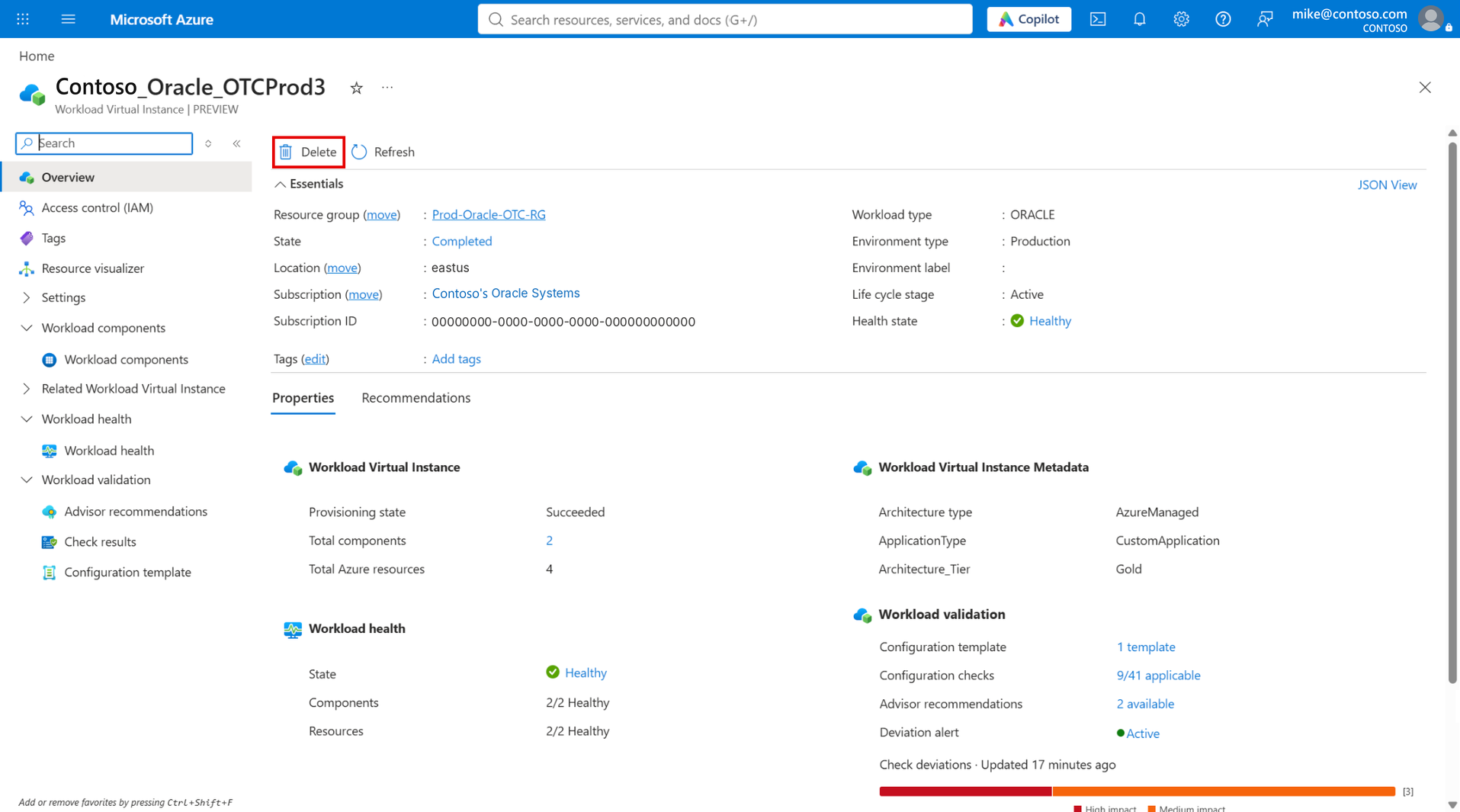
Review the information in the deletion pane.
Enter the WVI name to confirm, and then select Delete.