Note
Access to this page requires authorization. You can try signing in or changing directories.
Access to this page requires authorization. You can try changing directories.
This article describes how to manage the settings for your Napster Companion API resource in the Azure portal. You learn how to navigate the resource overview, use single sign-on to access the Companion API Dashboard, and delete a resource.
Resource overview
Begin by signing in to the Azure portal.
In the Azure portal search bar, enter All resources and select All resources from the results.
From the Resources list, select your resource.
The Azure portal shows the resource with the Overview page open, by default.
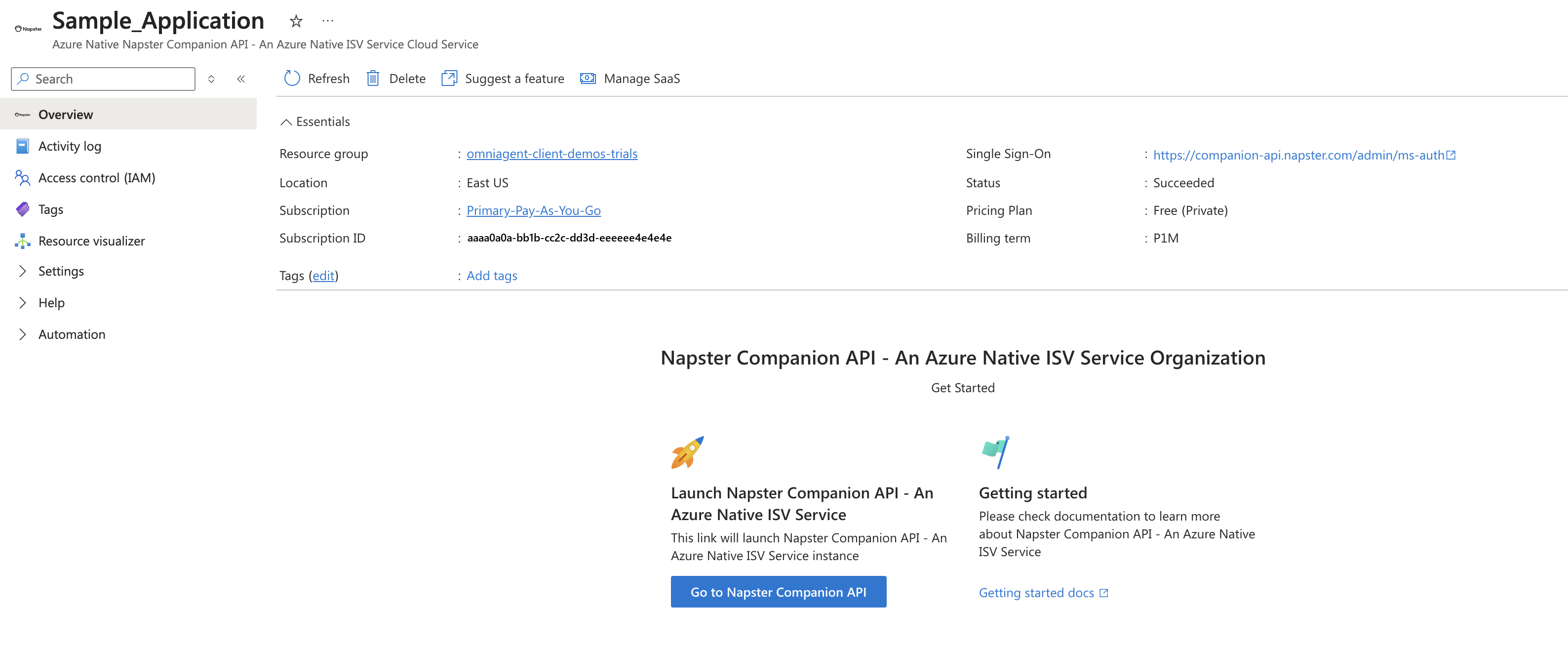
The Essentials details include:
- Resource group
- Location
- Subscription
- Subscription ID
- Tags
- Plan
- Status
- SSO Url
To manage your resource, select the links next to corresponding details.
Below the essentials, you can navigate to other details about your resource.
Select the Go to Napster Companion API button to create and manage your AI Omniagents.
Select the Getting Started Docs link to read Napster's documentation for more information on how to get started.
Single sign-on
Single sign-on (SSO) is already enabled when you created your Napster Companion API resource.
To access Napster Companion API using single sign-on, select the SSO Url link in the Essentials details from the Resource overview.
Note
- The first time you access this URL, you might see a request to grant permissions and user consent. This step is only needed the first time you access the SSO URL.
- If you're also seeing the Admin consent screen, check your tenant consent settings.
Choose a Microsoft Entra account for the single sign-on. Once consent is provided, you're redirected to the Napster Companion API Dashboard.
Delete a Napster Companion API resource
To delete a resource:
On the command bar, select Delete.
On the Delete Resource pane, optionally select a reason for deleting the resource.
In the Enter resource name to confirm deletion box, enter the name of the resource.
Select Delete.
Select Delete again to confirm deletion.
After the resource is deleted, all billing for that resource through Azure Marketplace stops.
Get support
To contact support about Napster Companion API, select Help + support in the left pane of the Azure portal and select the Napster Companion API service.
Then on the left side of the Napster Companion API service find the Help button, then select Support + Troubleshooting.
Next, select the Contact Napster Companion API - An Azure Native ISV Service Support button.
Alternatively, reach out directly to the Napster help center at help.napster.com.