Note
Access to this page requires authorization. You can try signing in or changing directories.
Access to this page requires authorization. You can try changing directories.
This article provides step-by-step instructions to migrate from Premium SSD to Premium SSDv2 using replication in Azure Database for PostgreSQL flexible server instance.
Steps to migrate or replicate from Premium SSD to Premium SSDv2
Using the Azure portal:
Select your Azure Database for PostgreSQL flexible server instance.
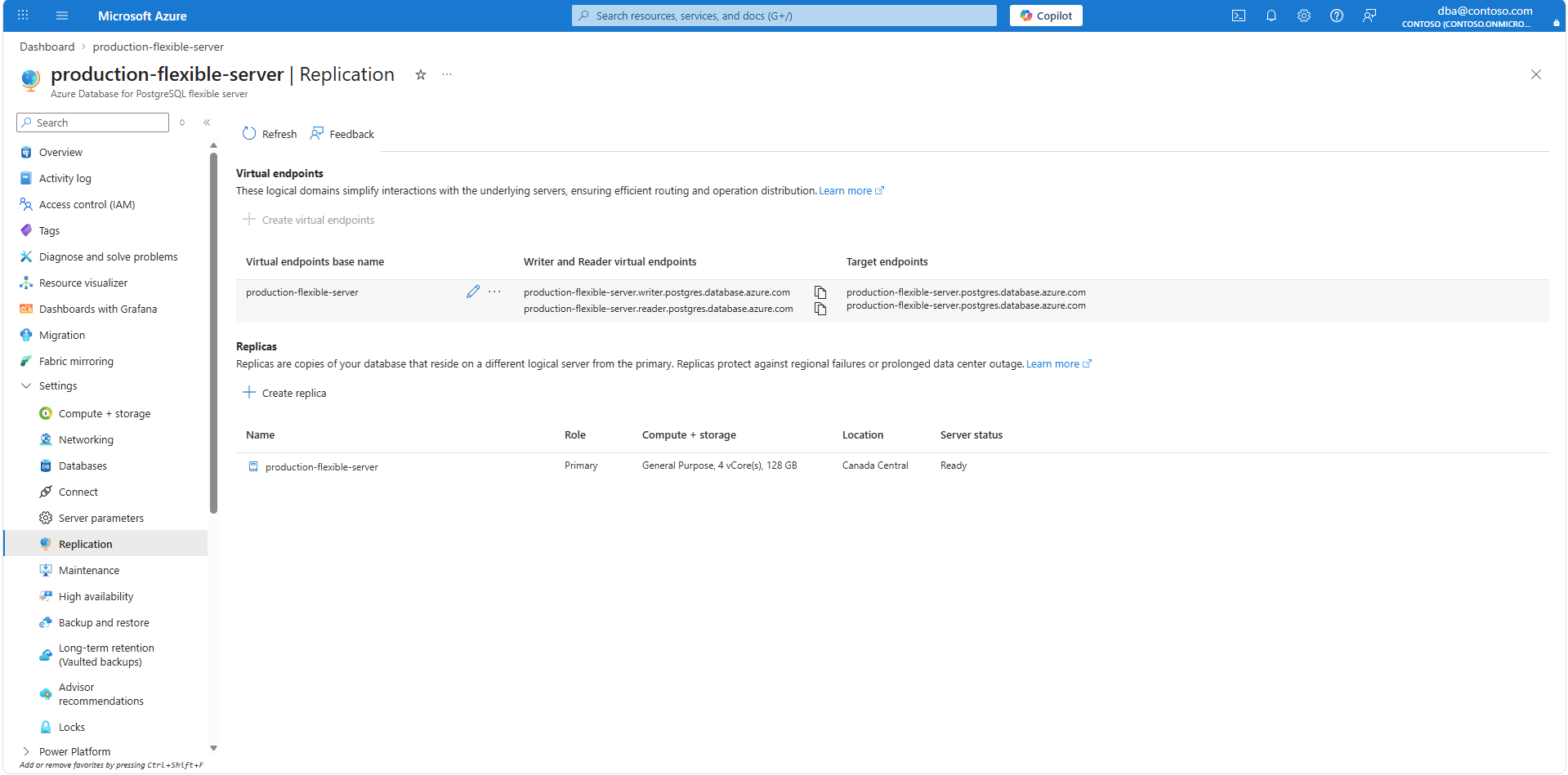
In the resource menu, select Settings go to Replication and select the Create replica button.
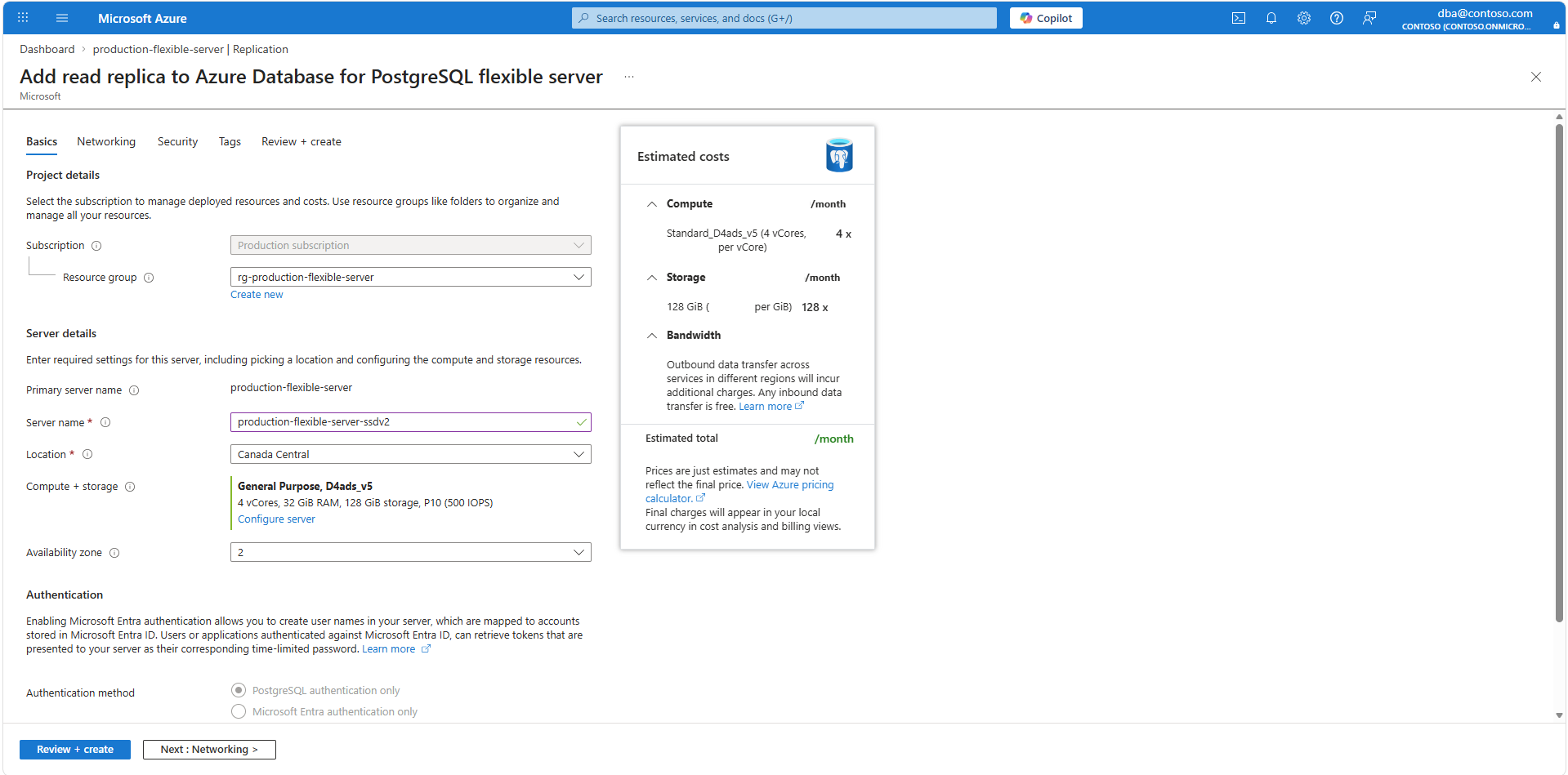
Provide Server name and Select Configure server.
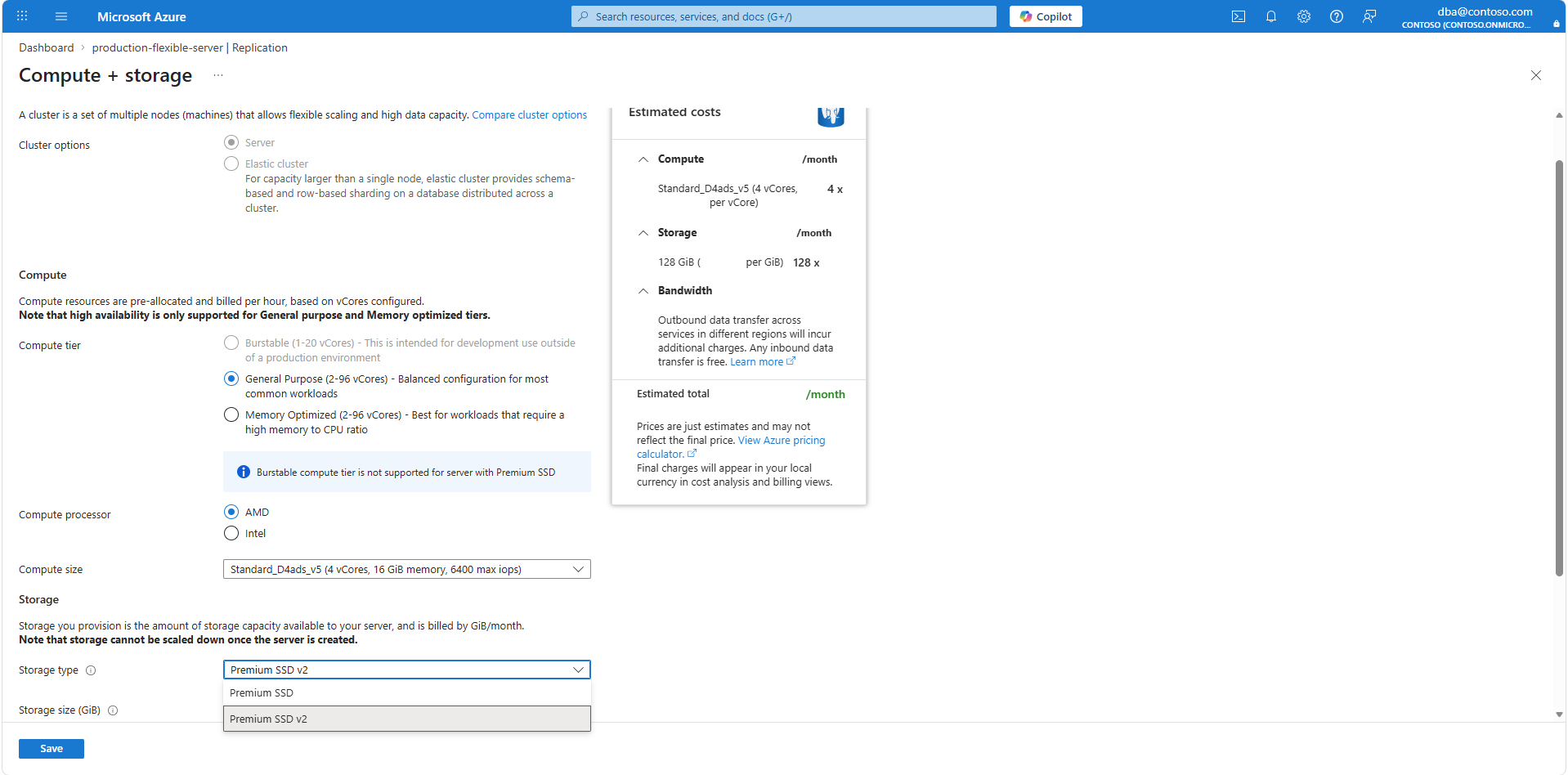
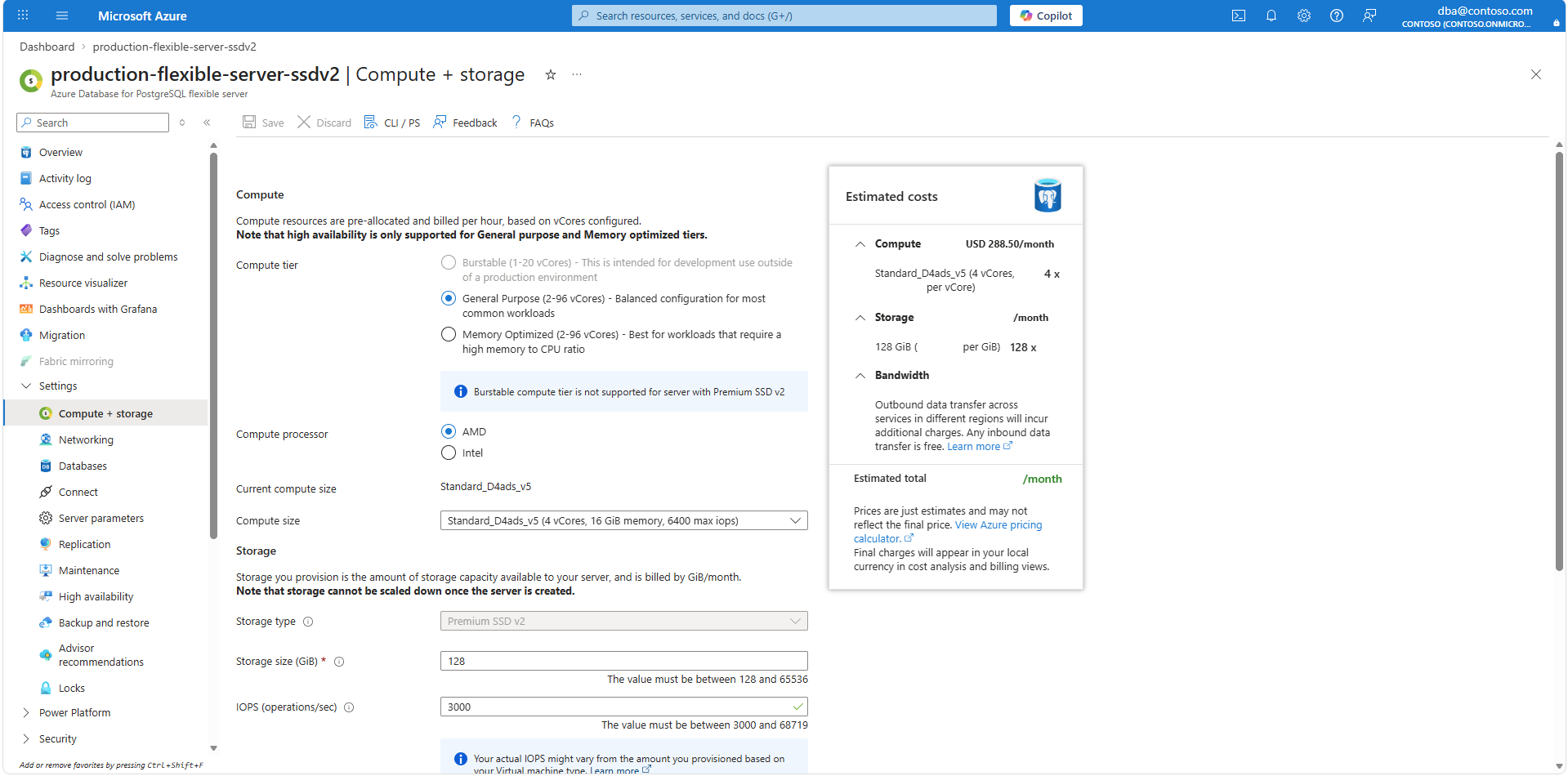
Choose Premium SSD v2 for the Storage type Field.
Once the replica server is configured to your needs, select Review + create.
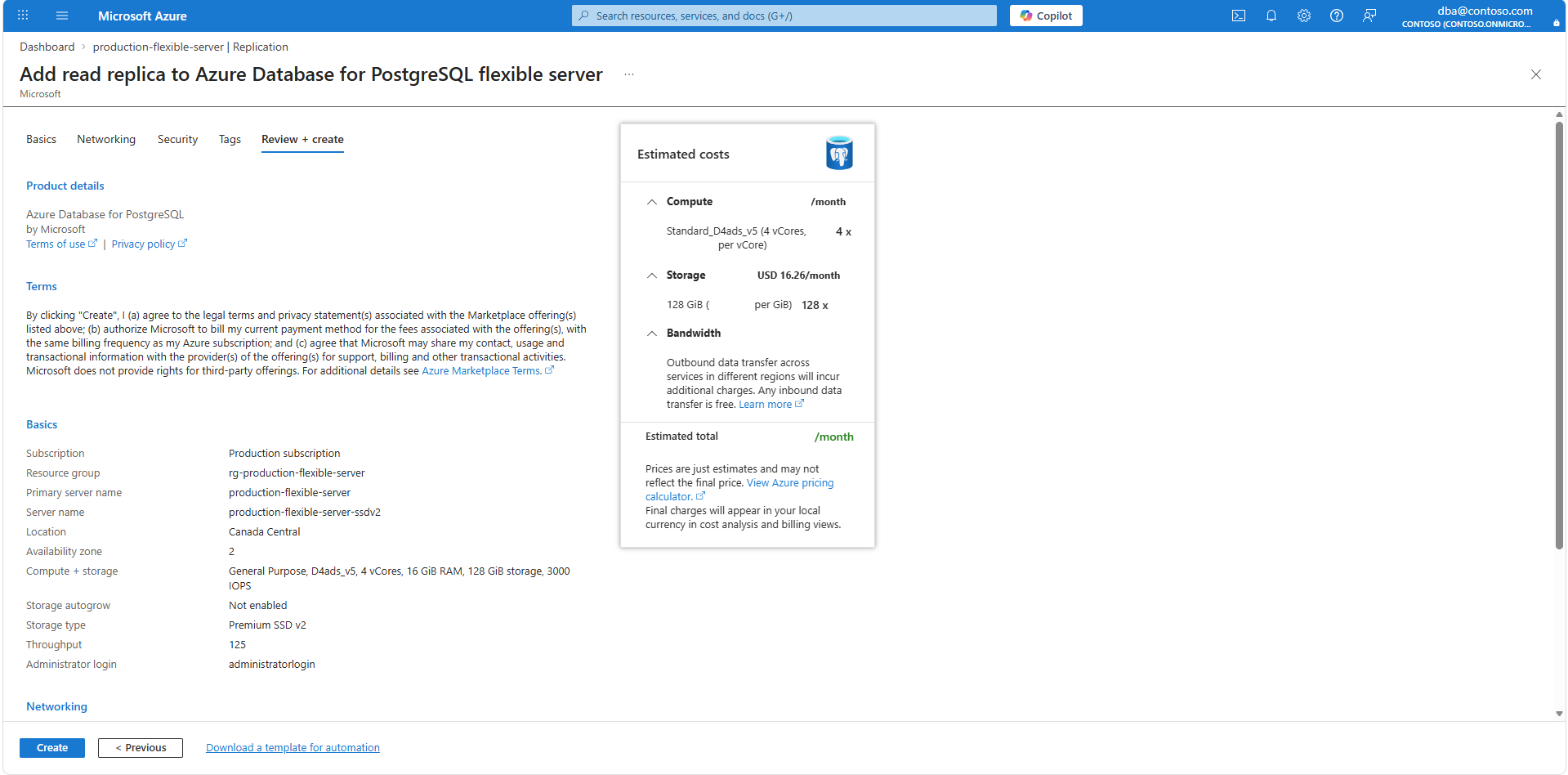
A new deployment is created to provision an Azure Database for PostgreSQL flexible server instance using Premium SSD v2 storage, with the latest data replicated from the source server.
When the deployment completes, go to newly created Premium SSDv2 server and select Compute + Storage button, and validate your Storage type.
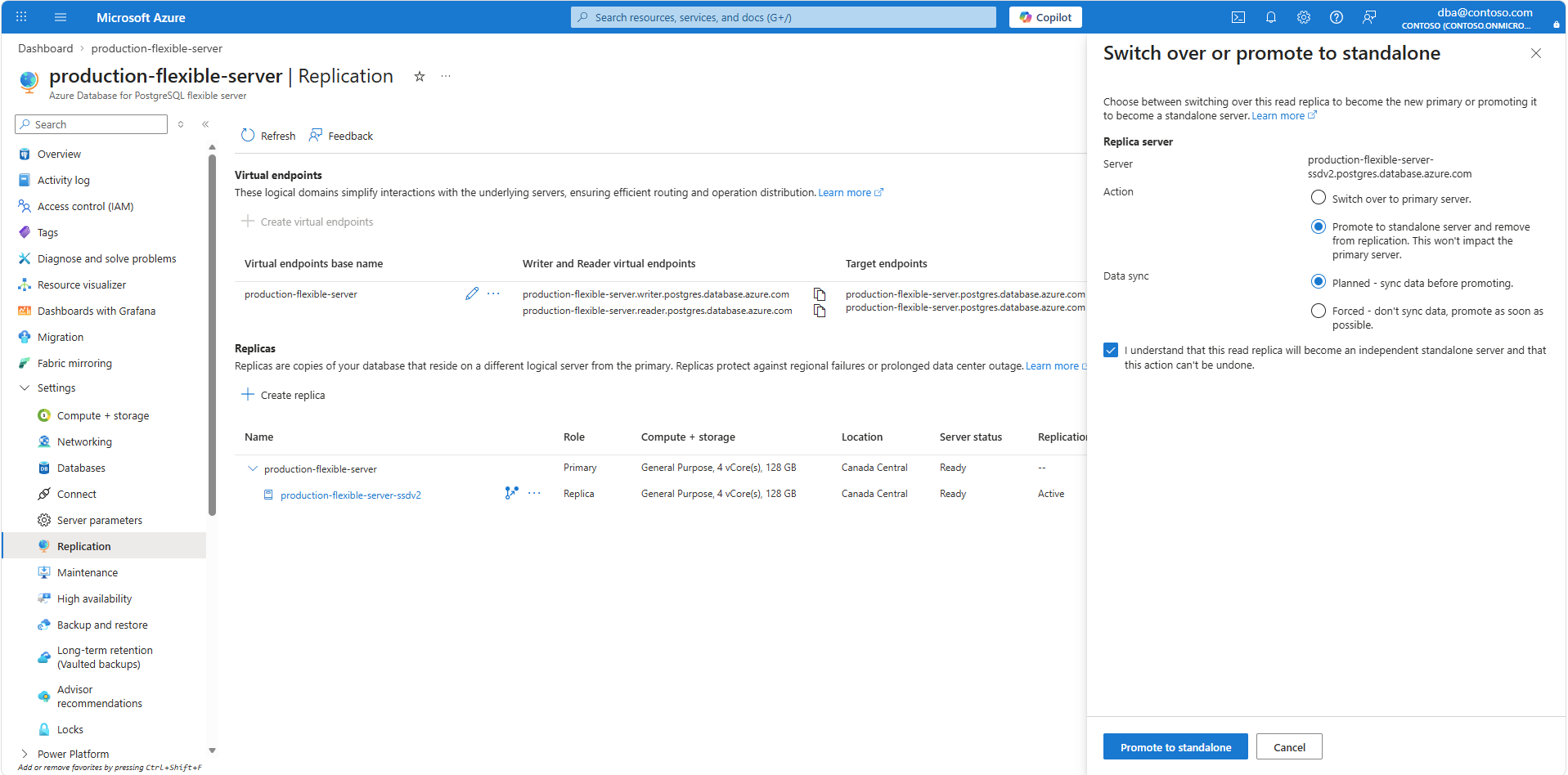
Select Replication and select Switch over or promote to standalone. Select Promote to standalone server and remove from replication. This won't impact primary server for Action. And select Planned - sync data before promoting. You have to mark the I understand that this read replica will become an independent standalone server and this action can't be undone. checkbox to acknowledge. Finally, select Promote to standalone.
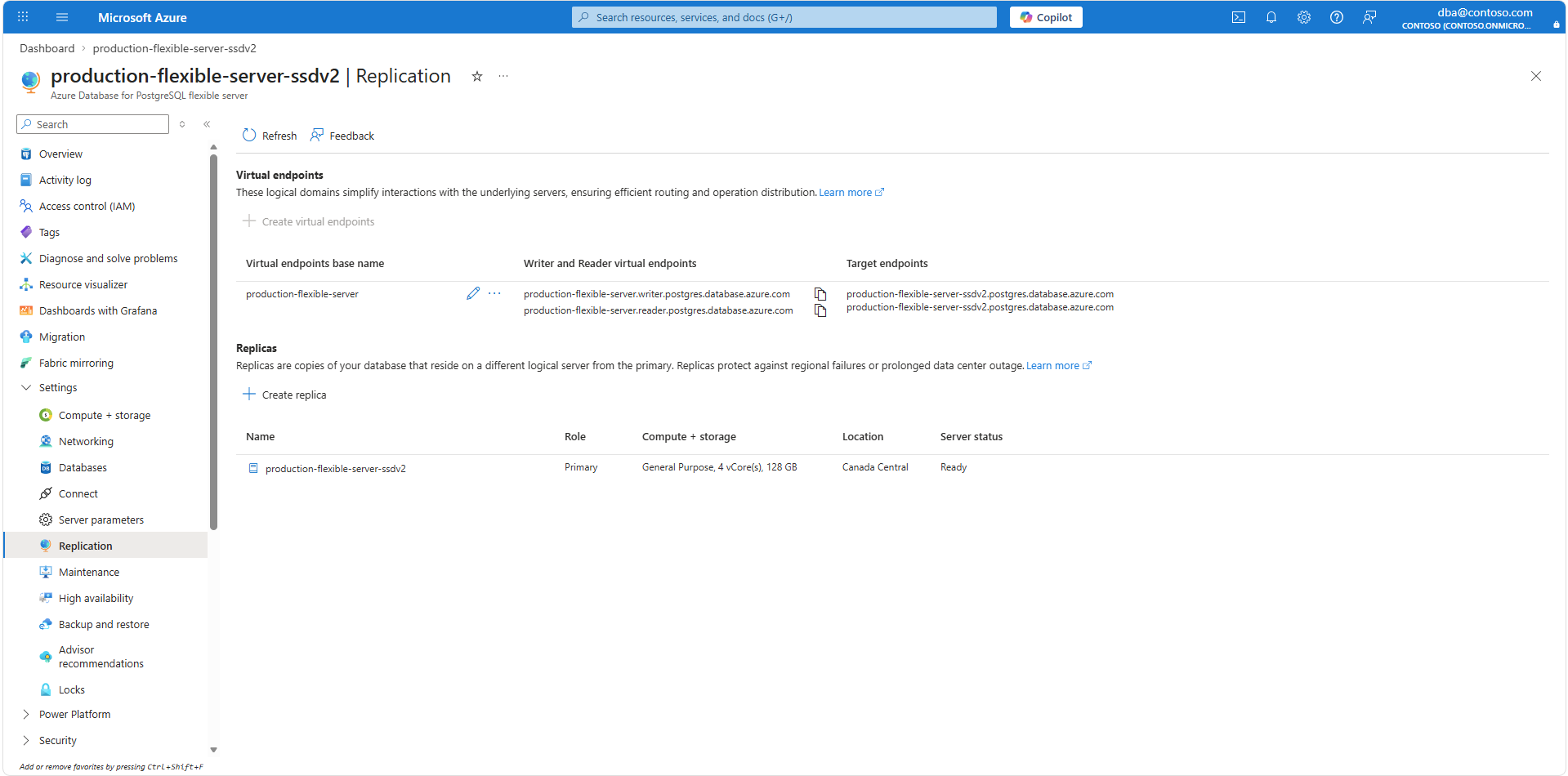
Optionally, once the promotion is complete, you can point your virtual endpoint pairs from the Premium SSD flexible server instance to the new Premium SSD v2 instance.
Note
- Once the migration is complete, you can stop the original server, allow the required backup retention to be satisfied on the new server, and then safely decommission the old server.
- Wait for the first automated backup to complete before configuring in-region replicas, as replica creation depends on an existing backup.