Note
Access to this page requires authorization. You can try signing in or changing directories.
Access to this page requires authorization. You can try changing directories.
The PostgreSQL extension for Visual Studio Code lets you create new PostgreSQL servers without leaving your editor. You can spin up a local Docker container for development and testing, provision a fully managed Azure Database for PostgreSQL flexible server for production workloads, or create an Azure HorizonDB (Preview) cluster for high-scale scenarios.
Prerequisites
- Visual Studio Code with the extension installed.
- For a local Docker server: Docker Desktop is installed and the Docker daemon is running. Verify by running
docker infoin a terminal. - For an Azure server: An Azure account with an active subscription. If you don't have one, create an account for free.
- For an Azure HorizonDB (Preview) cluster: An Azure account with an active subscription and access to Azure HorizonDB (Preview).
Open the Create New Server hub
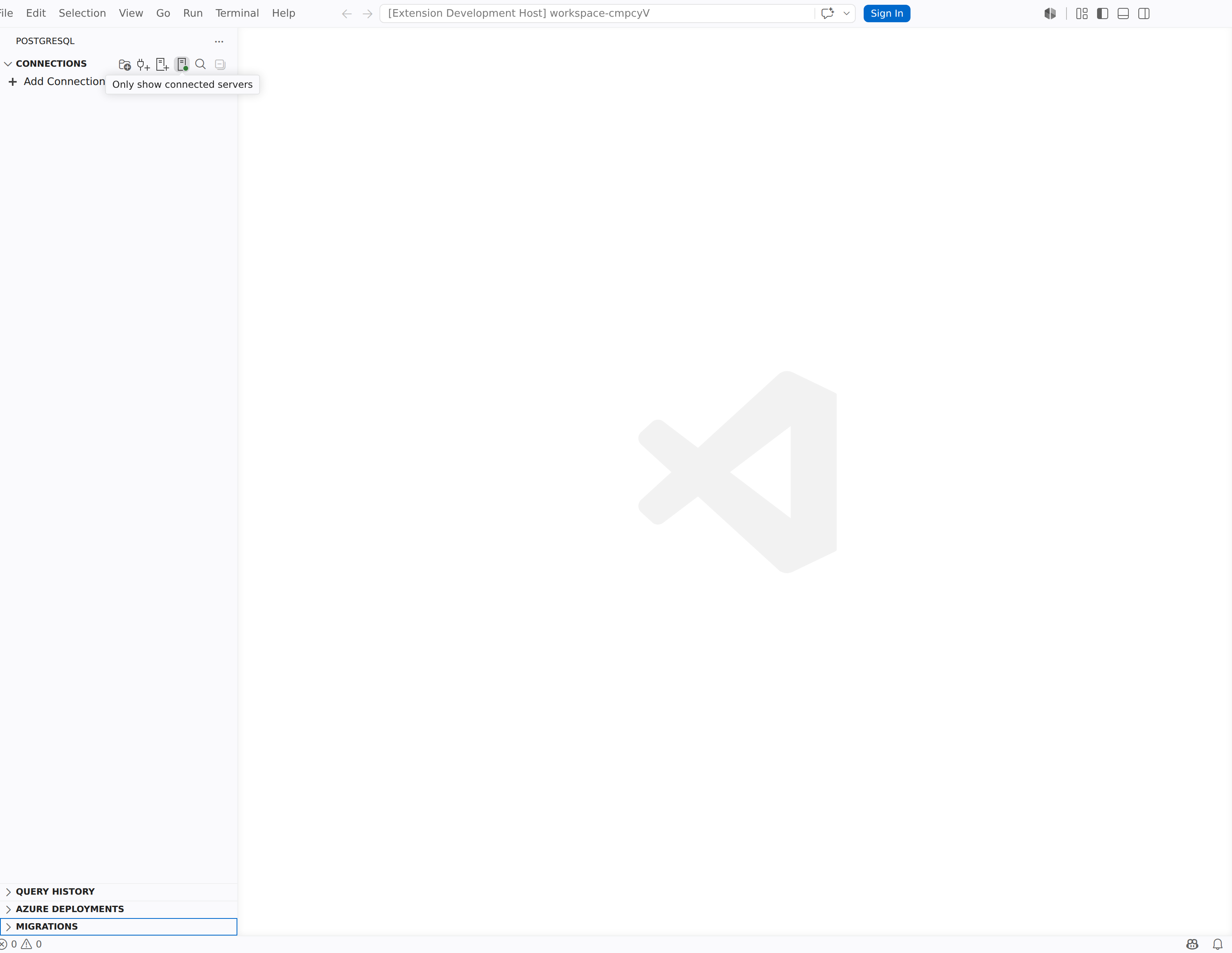
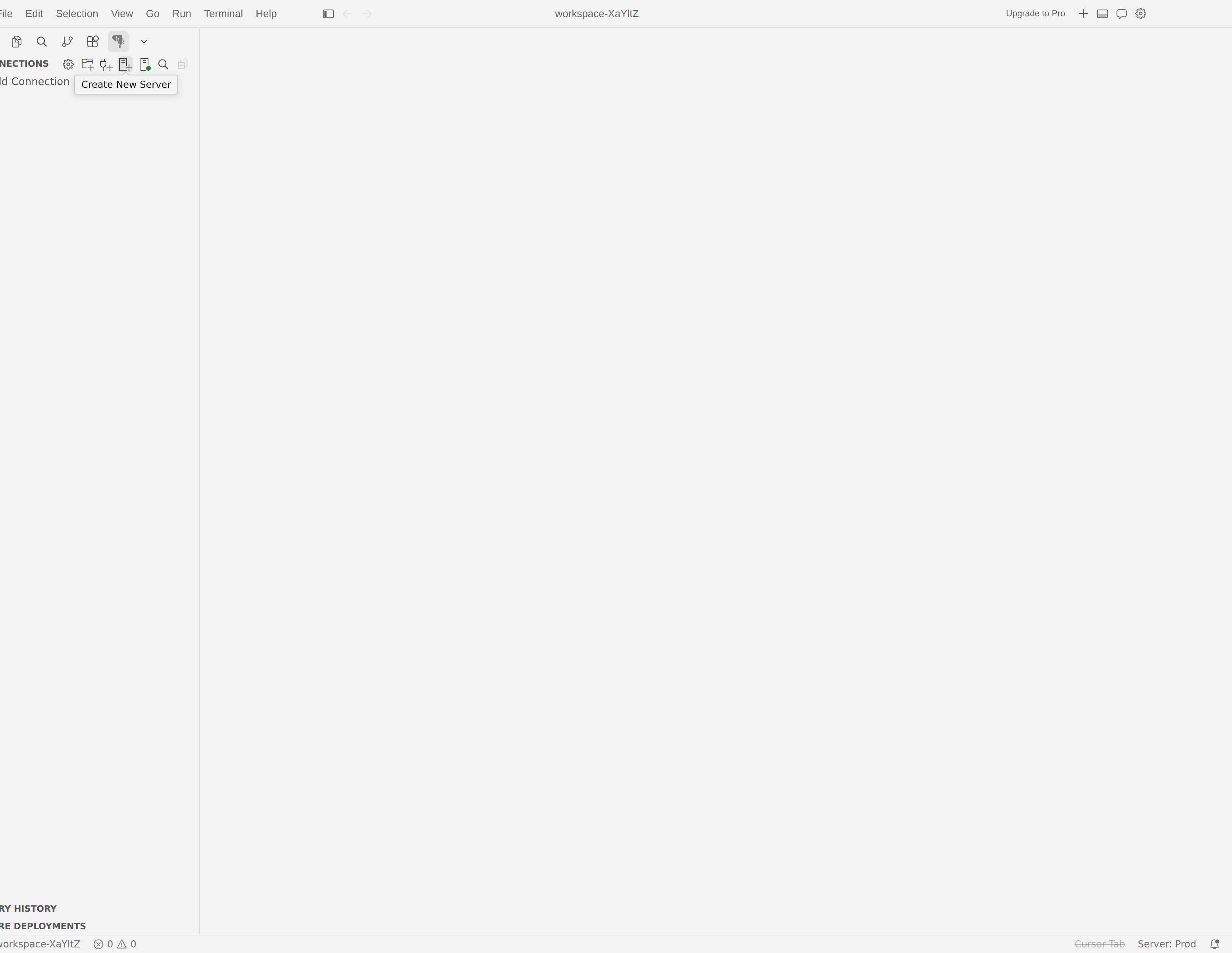
In the PostgreSQL Activity Bar container, locate the Connections tree.
Select the Create New Server button at the top of the Connections tree, or run
pgsql.createNewServerfrom the Command Palette.You can also right-click a server group in the Connections tree and select Create New Server.
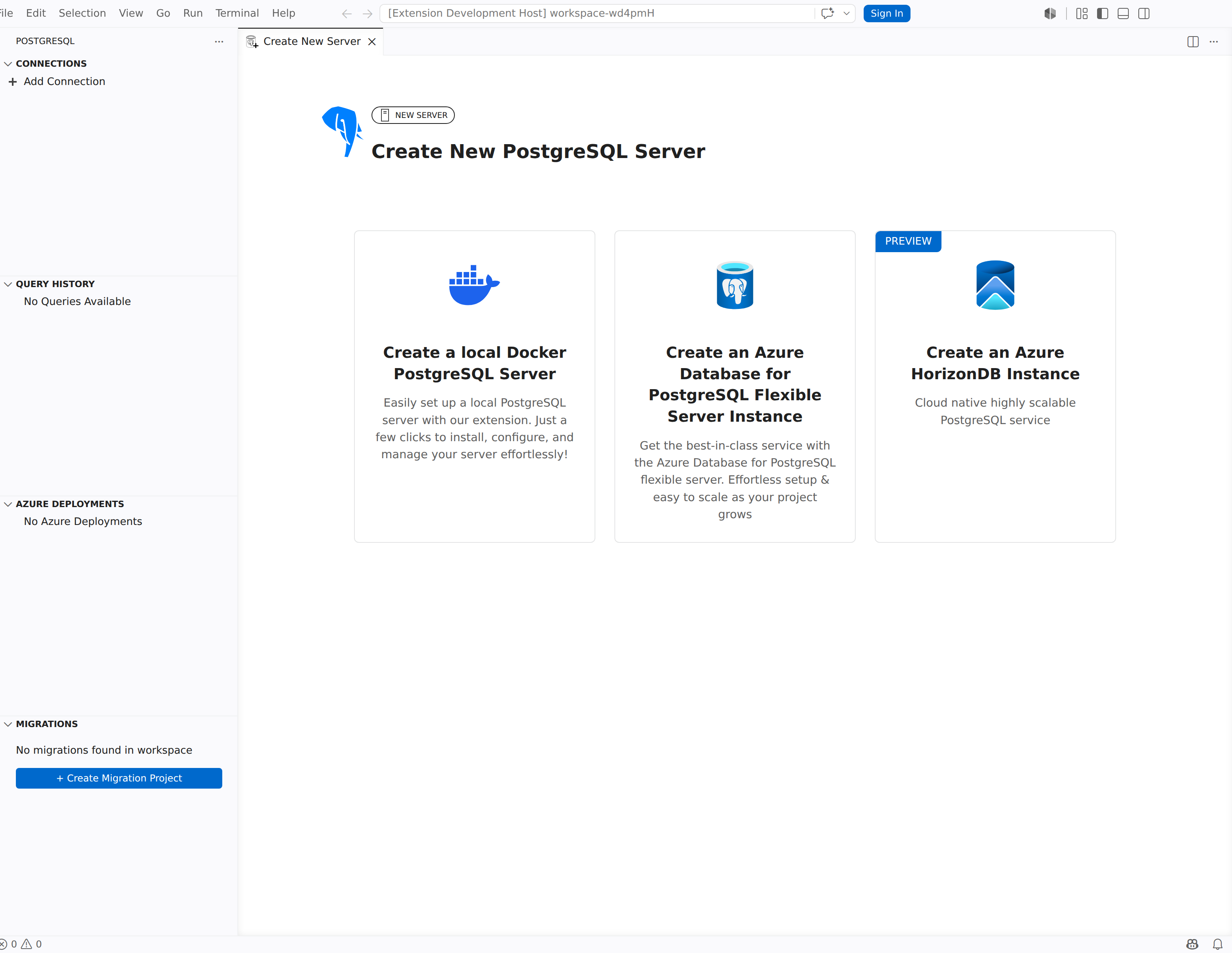
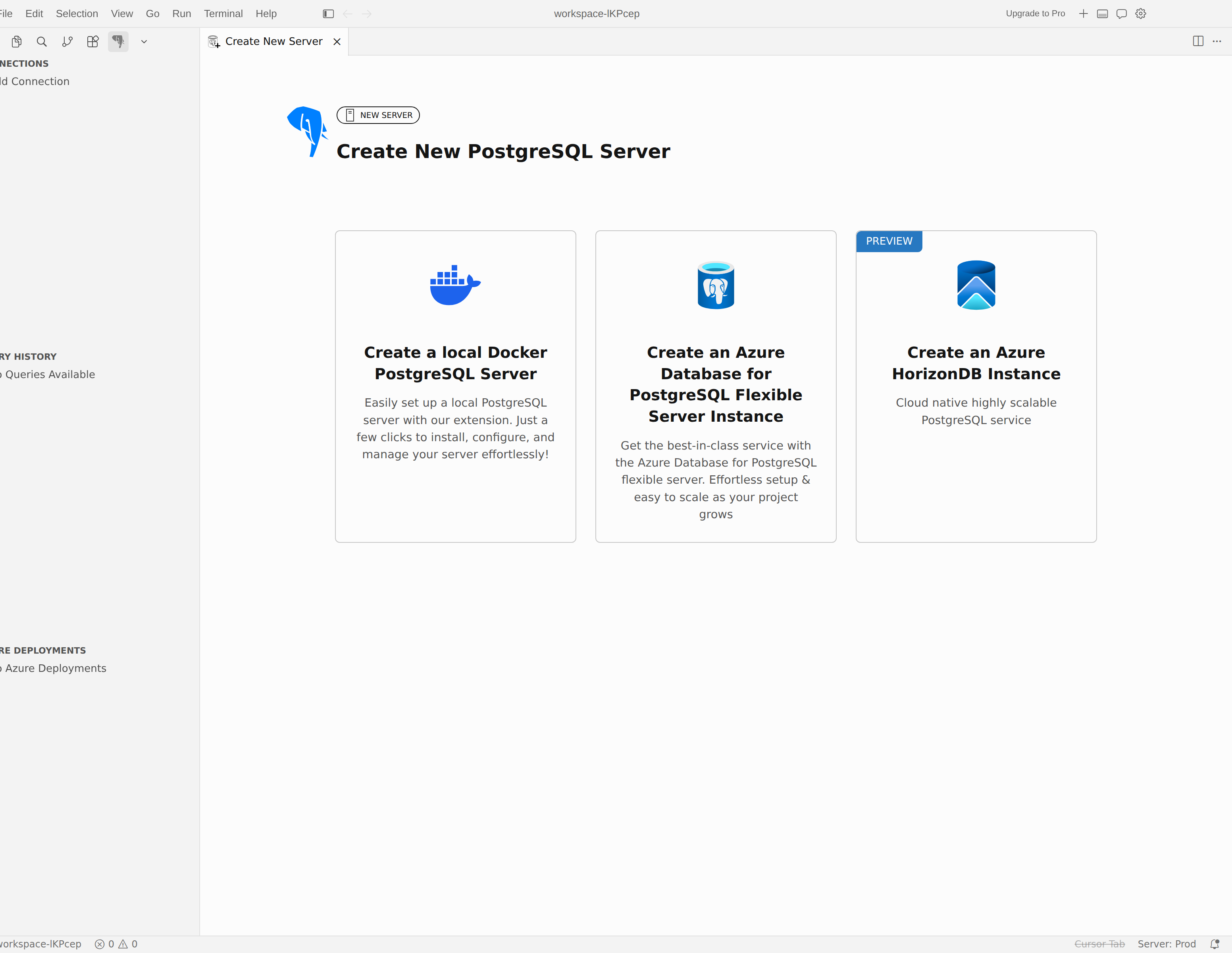
The Create New PostgreSQL Server hub opens in a new editor tab. It presents three options:
| Option | Description |
|---|---|
| Create a local Docker PostgreSQL Server | Creates a PostgreSQL server in a local Docker container. Ideal for development, testing, and learning. |
| Create an Azure Database for PostgreSQL Flexible Server Instance | Provisions a fully managed PostgreSQL server in Azure. Suited for production workloads and team environments. |
| Create an Azure HorizonDB Instance (Preview) | Provisions a cloud-native, highly scalable PostgreSQL cluster in Azure. |
Select the card that matches your scenario.
Create a local server with Docker
Docker containers give you a lightweight, isolated PostgreSQL instance that runs on your machine. Use this option for local development, prototyping, or when you need a disposable database environment.
Step 1: Review the introduction
After you select the Create a local Docker PostgreSQL Server card, the extension shows a landing page titled Seamless PostgreSQL Server on Docker, Right in VS Code!. The page highlights key capabilities:
- One-Click Server Creation: Spin up a PostgreSQL server in seconds with no manual setup.
- Fully Automated Setup: The extension pulls, configures, and runs PostgreSQL in an isolated environment.
- Simple management: Start, stop, or remove your PostgreSQL container anytime.
Select Get Started to continue.
Step 2: Pass the prerequisites check
The extension checks that Docker is installed and running. The Checking pre-requisites screen shows the status of each check:
- Checking if Docker is installed: Verifies the Docker CLI is available on your
PATH. - Checking if Docker is running in the background: Confirms the Docker daemon is active.
If a check fails, follow the on-screen link to install or start Docker, then return to this page. The extension re-runs the checks automatically.
Step 3: Configure the connection
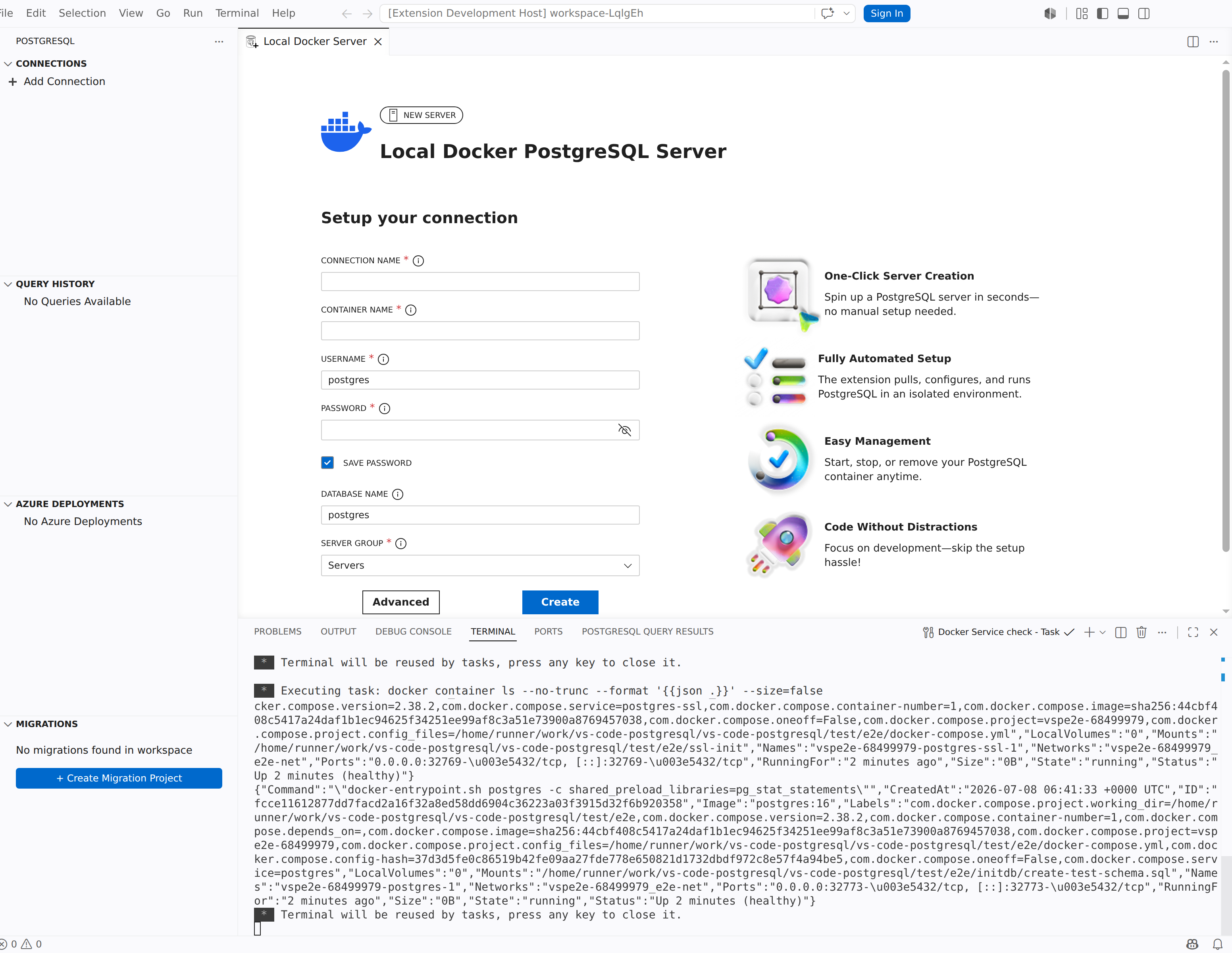
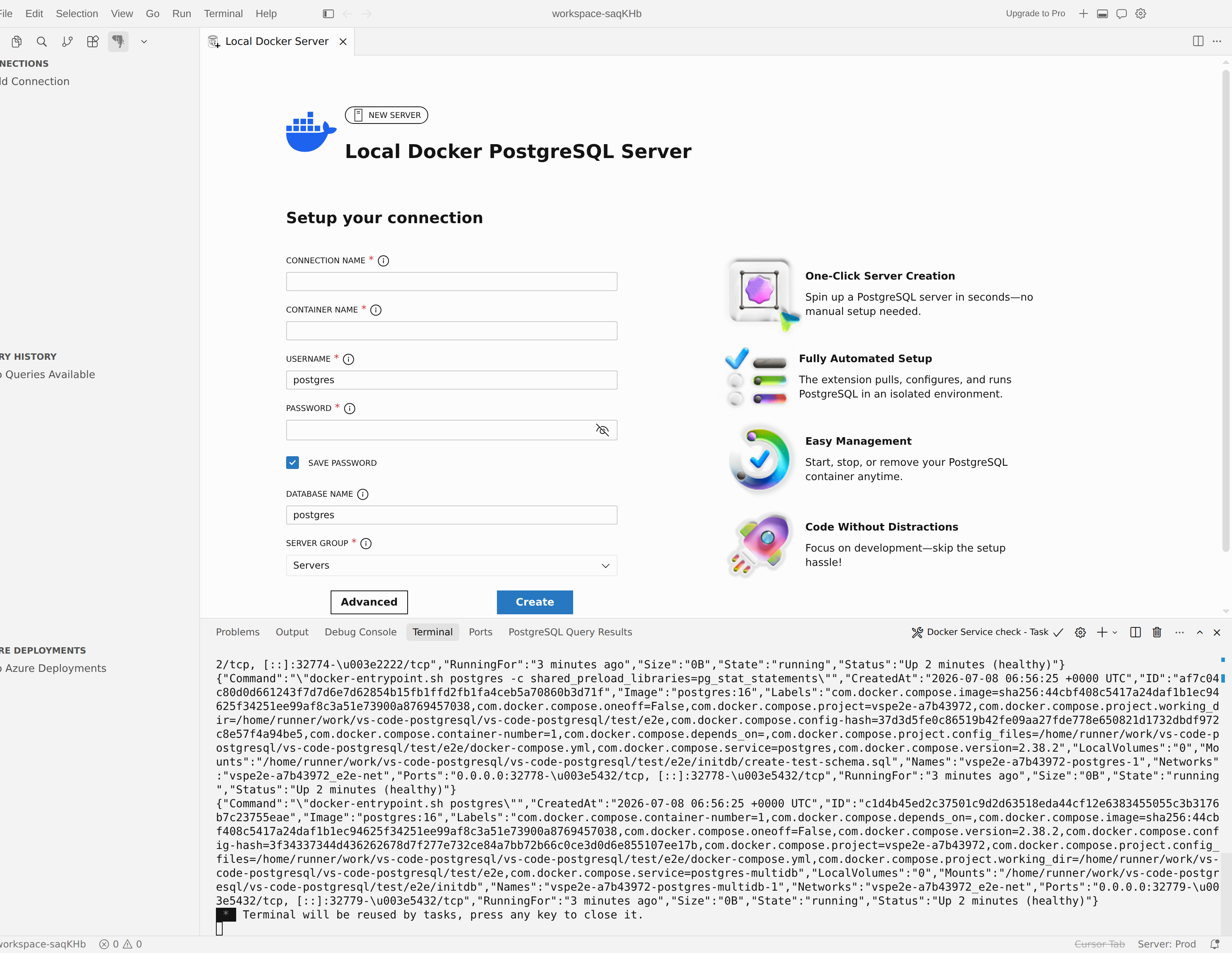
After prerequisites pass, the Setup your connection form appears. Fill in the following fields:
| Setting | Required | Description |
|---|---|---|
| Connection Name | No | A friendly display name for the connection profile. Also serves as the default container name (spaces are replaced with underscores). |
| Container name | Yes | Name of the Docker container. Allowed characters: a-zA-Z0-9_.-. |
| Username | Yes | Superuser name for the PostgreSQL instance. Defaults to postgres. |
| Password | Yes | Password for the superuser account. |
| Save Password | No | When selected, stores the password so you don't have to enter it on each connection. |
| Database name | No | Name of the initial database. Defaults to postgres. |
Select Advanced Options to expand additional settings:
| Setting | Description |
|---|---|
| Bound port | Host port mapped to the container's PostgreSQL port (container port 5432). If left blank, the extension auto-assigns a free port in the range 54500-55000. Valid range: 1-65535. |
| Image version | Docker image tag to pull. Defaults to latest. |
| Image registry | Container registry URL (for example, myregistry.azurecr.io). Defaults to Docker Hub. |
| Image name | Docker image name. Defaults to postgres. |
| Image Platform | Platform target for multi-architecture environments (for example, linux/amd64). |
Step 4: Create and connect
Select Create to start provisioning. The extension:
- Pulls the
postgresDocker image (if not already cached). - Creates and starts the container with the specified settings.
- Waits for PostgreSQL to become ready (using
pg_isready). - Creates a connection profile and connects automatically.
A progress indicator titled Creating a Local Docker Server... appears while the container initializes. When the container is ready, the server appears in the Connections tree and you can start querying immediately.
Tip
The Docker container persists across Visual Studio Code restarts. To stop, start, remove, or inspect the container outside the extension, use the Docker CLI or Docker Desktop.
Create an Azure Database for PostgreSQL flexible server
Azure Database for PostgreSQL flexible server is a fully managed database service that provides high availability, automated backups, and intelligent performance tuning. The extension walks you through a multi-step wizard to provision a new server directly from Visual Studio Code.
Step 1: Review the introduction
After you select the Create an Azure Database for PostgreSQL Flexible Server Instance card, a landing page describes the service capabilities:
- Seamless Azure Integration: Provision servers directly in Visual Studio Code with Entra ID authentication support.
- Flexible Compute & Storage: Choose from preconfigured compute tiers and storage options.
- Streamlined server management: Manage lifecycle, performance, and configuration without leaving the editor.
- Built for Developers: Focus on your application while Azure handles infrastructure.
Select Get Started to continue. Optionally select Don't show this again to skip this page in the future.
Step 2: Sign in to Azure
The extension opens a login page with the message: "Login to your Azure account with Entra ID to create an Azure Database for PostgreSQL flexible server instance."
- If you already have an Azure account signed in to Visual Studio Code, the extension uses those credentials automatically.
- If you have multiple Azure accounts or tenants, use the account switcher and tenant selector to choose the correct identity.
Step 3: Configure server settings
After authentication, the extension displays a configuration form organized into sections. A cost estimation panel on the right updates as you make selections.
Project details
| Setting | Description |
|---|---|
| Subscription | Select the Azure subscription that manages billing and access. All subscriptions for your signed-in account and tenant are listed. |
| Resource Group | Select an existing resource group, or select Create new to create one. The new resource group is deployed in the same region as the server. |
Basics
| Setting | Description |
|---|---|
| Server Name | A globally unique name for the server. The extension checks availability asynchronously and displays an error if the name is taken. The server name becomes part of your connection hostname (<server-name>.postgres.database.azure.com). |
| Region | The Azure region where the server is deployed. The extension validates that your subscription can provision in the selected region. |
| Cluster options | Choose Flexible Server - single node for a single-node server, or Elastic Cluster - shard data across multiple nodes for a multinode distributed (Citus) database. Choosing Elastic Cluster reveals additional settings. |
| Node count | (Elastic Cluster only) Use the Node count slider to choose the number of nodes in the cluster, from 1 to 20. |
| Compute + storage | Select a preconfigured compute and storage tier. The available bundles are: |
| Bundle | vCores | Storage | SKU |
|---|---|---|---|
| Dev/Test (default) | 2 | 128 GB | Standard_D2ds_v4 |
| Standard | 4 | 256 GB | Standard_D4ds_v4 |
| Performance | 8 | 512 GB | Standard_D8ds_v4 |
Tip
You can further customize compute and storage by using the Create in Azure Portal button at the bottom of the form, which opens the full Azure portal creation experience.
| Setting | Description |
|---|---|
| PostgreSQL Version | The major PostgreSQL version to deploy. Available versions: 18, 17, 16, 15, and 14. Defaults to 18. Available versions might vary by region. |
Authentication
The form shows an ADMINISTRATOR ACCESS section. You must enable at least one authentication method.
| Setting | Description |
|---|---|
| Use my Entra ID: <email> | Checkbox that provisions your signed-in Entra ID identity as a server administrator. The email is auto-populated from your Azure login. |
| Create PostgreSQL user and password | Checkbox that enables traditional PostgreSQL authentication. When selected, three additional fields appear. |
When you select Create PostgreSQL user and password, provide the following:
| Setting | Description |
|---|---|
| Administrator username | Login name for the PostgreSQL admin account (for example, pgadmin). Must start with a letter and contain only letters, numbers, and underscores. Can't use reserved names such as admin, root, guest, or names starting with pg_. |
| Administrator password | Password for the admin account. Must be 8-128 characters and include at least three of: uppercase letters, lowercase letters, numbers, and symbols. |
| Confirm administrator password | Re-enter the administrator password. |
Note
You can enable both authentication methods simultaneously. For example, Entra ID for team members and PostgreSQL authentication for application connection strings.
Cost estimation
The Estimated costs panel on the right side of the form breaks down monthly pricing:
- Compute: Based on the selected SKU and vCore count.
- Storage: Based on the selected storage tier.
- Backup: Included backup cost.
- Bandwidth: Outbound data transfer across regions incurs additional charges; inbound transfer is free.
The panel shows an Estimated total and links to the Azure Pricing Calculator for detailed pricing.
Step 4: Accept terms and deploy
At the bottom of the form:
- Select the I acknowledge that creating this server might incur charges checkbox.
- Review the linked Terms of use and Privacy policy.
- Select Create to begin provisioning.
The extension navigates to a progress page that tracks each stage of the deployment:
| Stage | Status values |
|---|---|
| Server provisioning | Pending, In progress, Completed, Failed |
| Firewall rule assignment | Pending, In progress, Completed, Skipped |
| Entra admin assignment | Pending, In progress, Completed, Skipped |
A deployment summary shows the Server name, Subscription, Resource group, Region, and Configuration you selected.
During deployment, you can continue working in Visual Studio Code. The deployment also runs in the background if you close the progress page.
When all stages complete, the header updates to Server created successfully! and displays the message: "Your PostgreSQL Flexible Server is ready." The extension automatically creates a connection profile for the new server. Select Done to close the progress page.
Note
If a stage completes with warnings, the status shows Completed with warnings. Review the details before connecting.
Track Azure deployments
The Azure Deployments view in the PostgreSQL activity bar shows all in-progress and completed Azure server deployments. Each entry displays the server name, deployment status, and timestamp.
Right-click a deployment to access these actions:
| Action | Description |
|---|---|
| Open in Azure Portal | Opens the server's resource page in the Azure portal. |
| Remove Deployment | Removes the deployment entry from the tracker. This action doesn't delete the Azure resource. |
Use the Remove Completed button in the view toolbar to clear all finished deployments from the list.
Tip
If an Azure deployment fails, select Try again on the progress page to restart provisioning, or select Back to Form to adjust your settings.
Create an Azure HorizonDB (Preview) cluster
Azure HorizonDB (Preview) is a cloud-native, highly scalable PostgreSQL cluster in Azure. The extension walks you through a multi-step wizard to provision a new cluster.
Note
Azure HorizonDB (Preview) availability depends on your Azure subscription and region.
Step 1: Review the introduction
After you select the Create an Azure HorizonDB Instance card, a landing page describes the service capabilities:
- Cloud-Native Architecture: A cloud-native PostgreSQL cluster optimized for high throughput.
- Elastic Scale: Scale compute from 2 to 128 vCores.
- Built-in Management: Manage lifecycle and configuration from Visual Studio Code.
- Developer Ready: Focus on your application while Azure handles infrastructure.
Select Get Started to continue. Optionally select Don't show this again to skip this page in the future.
Step 2: Sign in to Azure
The extension opens a login page. If you already have an Azure account signed in to Visual Studio Code, the extension uses those credentials automatically. If you have multiple Azure accounts or tenants, use the account switcher and tenant selector to choose the correct identity.
Step 3: Configure cluster settings
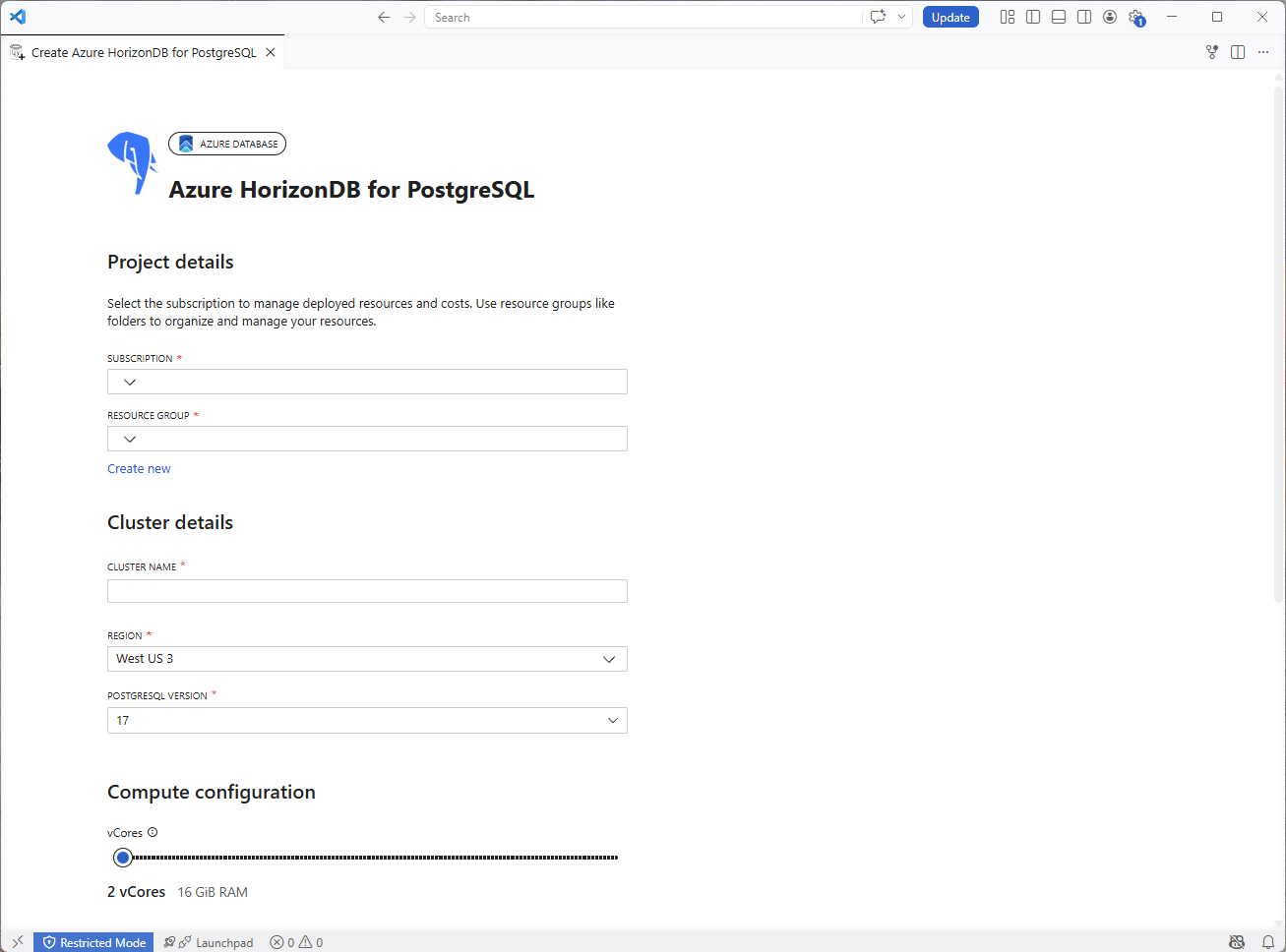
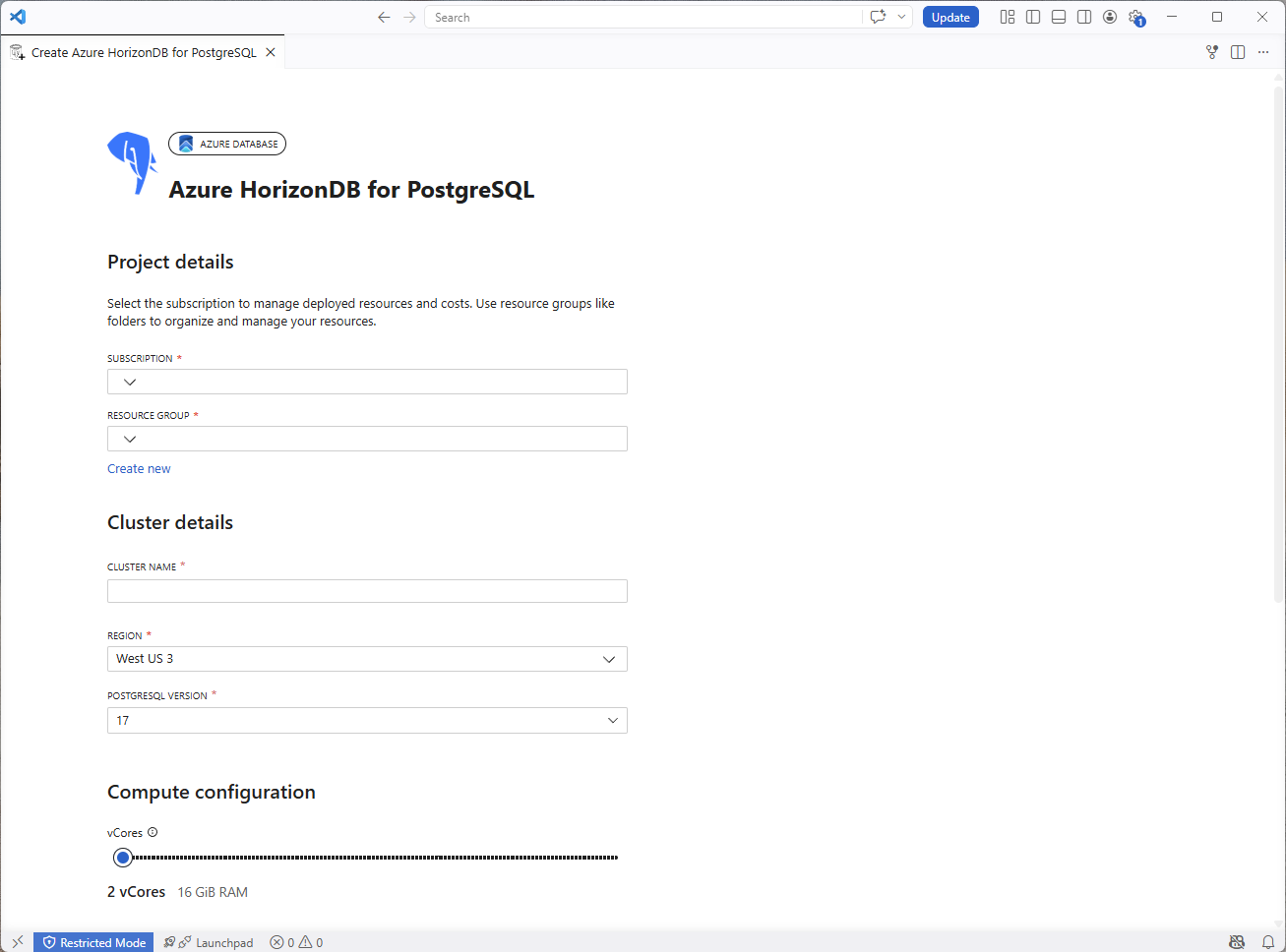
After authentication, the extension displays a configuration form organized into sections.
Project details
| Setting | Description |
|---|---|
| Subscription | Select the Azure subscription that manages billing and access. |
| Resource Group | Select an existing resource group, or select Create new to create one. |
Cluster details
| Setting | Description |
|---|---|
| Cluster Name | A globally unique name for the cluster. The extension checks availability and displays an error if the name is taken. |
| Region | The Azure region where the cluster is deployed. |
| PostgreSQL Version | The major PostgreSQL version to deploy. |
Compute configuration
Use the vCores slider to choose the compute capacity for your cluster. Available options range from 2 to 128 vCores. Memory scales automatically at 8 GiB per vCore.
Authentication
| Setting | Description |
|---|---|
| Administrator username | Login name for the PostgreSQL admin account. |
| Administrator password | Password for the admin account. |
| Confirm administrator password | Re-enter the administrator password. |
AI capabilities
The AI capabilities section lets you enable built-in AI model management features. Select the Enable AI features checkbox to opt in. When AI features are enabled, the cluster provisions with model management support, pgvector, and pg_diskann extensions.
Note
The AI capabilities section is a preview experience and might not appear for every environment or cluster configuration. If the section isn't visible, continue with the standard Azure HorizonDB (Preview) cluster settings and deployment steps.
Step 4: Accept terms and deploy
At the bottom of the form:
- Select the cluster supplemental terms checkbox.
- If you enabled AI features and the AI supplemental terms checkbox is visible, select it.
- Review the linked Terms of use and Privacy policy.
- Select Create to begin provisioning. If the form is incomplete, hover over the disabled Create button to see which fields still need values.
The extension navigates to a progress page that tracks each stage of the deployment. A deployment summary shows the Cluster name, Subscription, Resource group, and Configuration (vCores and memory) you selected.
When all stages complete, the extension creates a connection profile for the new cluster. Select Done to close the progress page.
Note
If you enabled AI features and the AI model management step fails, the cluster is still created and a connection profile is added. The progress page shows a warning and a link to open the cluster in the Azure portal so you can enable AI model management manually.
Tip
Select Configure on Azure Portal at the bottom of the form if you need options beyond what the extension wizard provides.
Verify the server
After the server is created (Docker or Azure):
- Expand the server node in the Connections tree.
- Confirm that the default databases (
postgresand, for Docker, any database you specified) are listed. - Right-click a database and select New Query to open the query editor.
- Run a test query such as
SELECT version();to verify connectivity.