Note
Access to this page requires authorization. You can try signing in or changing directories.
Access to this page requires authorization. You can try changing directories.
The Edit Data feature in the PostgreSQL extension opens a table from Object Explorer into an editable grid. You can change values in place, add or delete rows, review every pending change as SQL, and then save the changes back to the database. Edit Data runs the same way in Visual Studio Code and Cursor.
When to use Edit Data
Use Edit Data when you need to:
- correct or update a small number of rows without hand-writing
UPDATEorINSERTstatements, - inspect a table and make quick, type-aware changes with the right editor for each column, or
- review the SQL that a set of edits generates before you commit it.
Tip
Edit Data is best for small, targeted row changes. For bulk changes, complex filters, or scripted updates, write the SQL in a query editor instead. Use Object explorer to script or open a query for the table.
Prerequisites
Before you edit table data, make sure you have:
- an active connection to the target PostgreSQL database, and
- a table with a primary key. Edit Data needs a primary key to identify each row, so a table without one opens read-only. You can view its rows but not change them.
Open the editor
- In the Connections tree, expand the database, then its schema (for example, public), and then the Tables folder. If you turn off group by schema, the Tables folder appears directly under the database instead.
- Right-click the table you want to change.
- Select Edit Data.
The extension opens a webview titled <schema>.<table> - Edit Data (for example, public.models - Edit Data) and loads the table's rows into the grid. The number of rows it loads is capped by the row limit setting.
Edit a cell
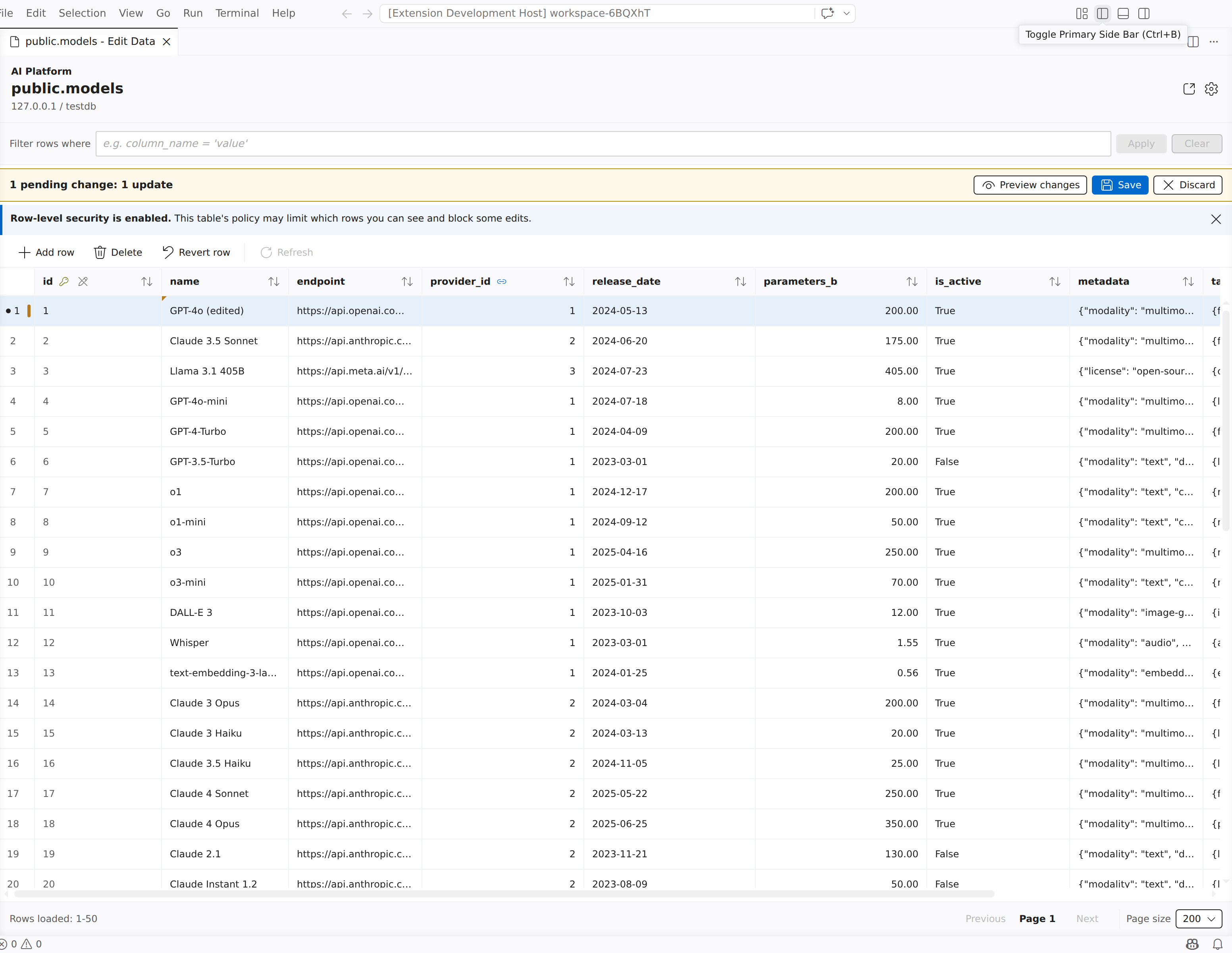
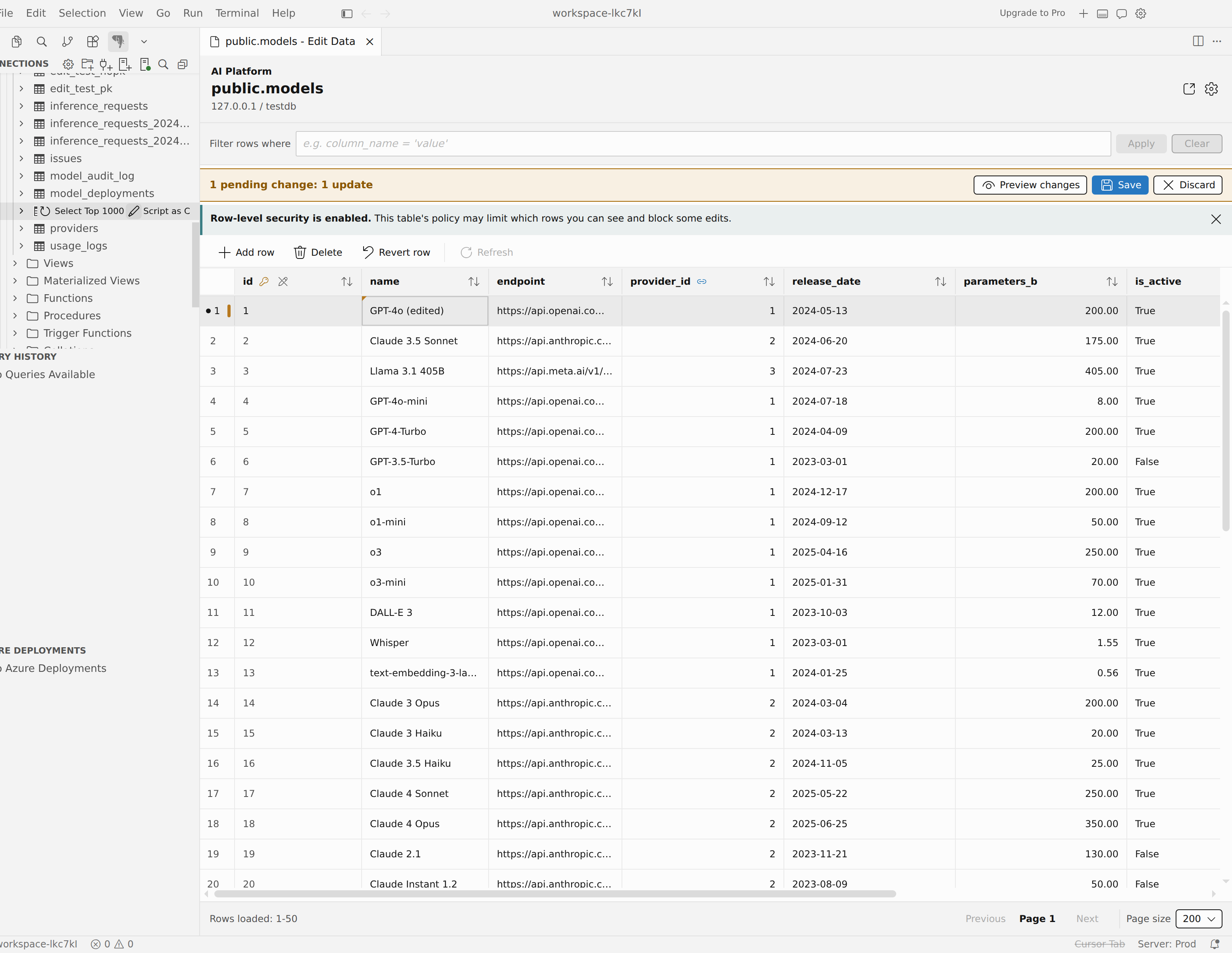
The grid shows the table's rows with a status marker on each row so you can tell clean rows from rows you changed, added, or marked for deletion. Each column uses a type-aware editor, so you get the right control for the data:
- Text and number columns edit like a spreadsheet. Start typing to replace the value, or press Enter or F2 to edit in place.
- Boolean columns show a true/false/NULL toggle. Use the arrow keys to move between the options and Enter to commit.
- Enum columns open a dropdown list of the type's valid values when you press Enter or F2.
- Date and time columns use a native date/time picker or plain text, depending on the date/time editor setting.
- NULL and nullable columns are handled explicitly, so you can set or clear a value without ambiguity.
When you change a cell, the row's status marker switches to a pending (dirty) state and the Save and Discard changes bar appears.
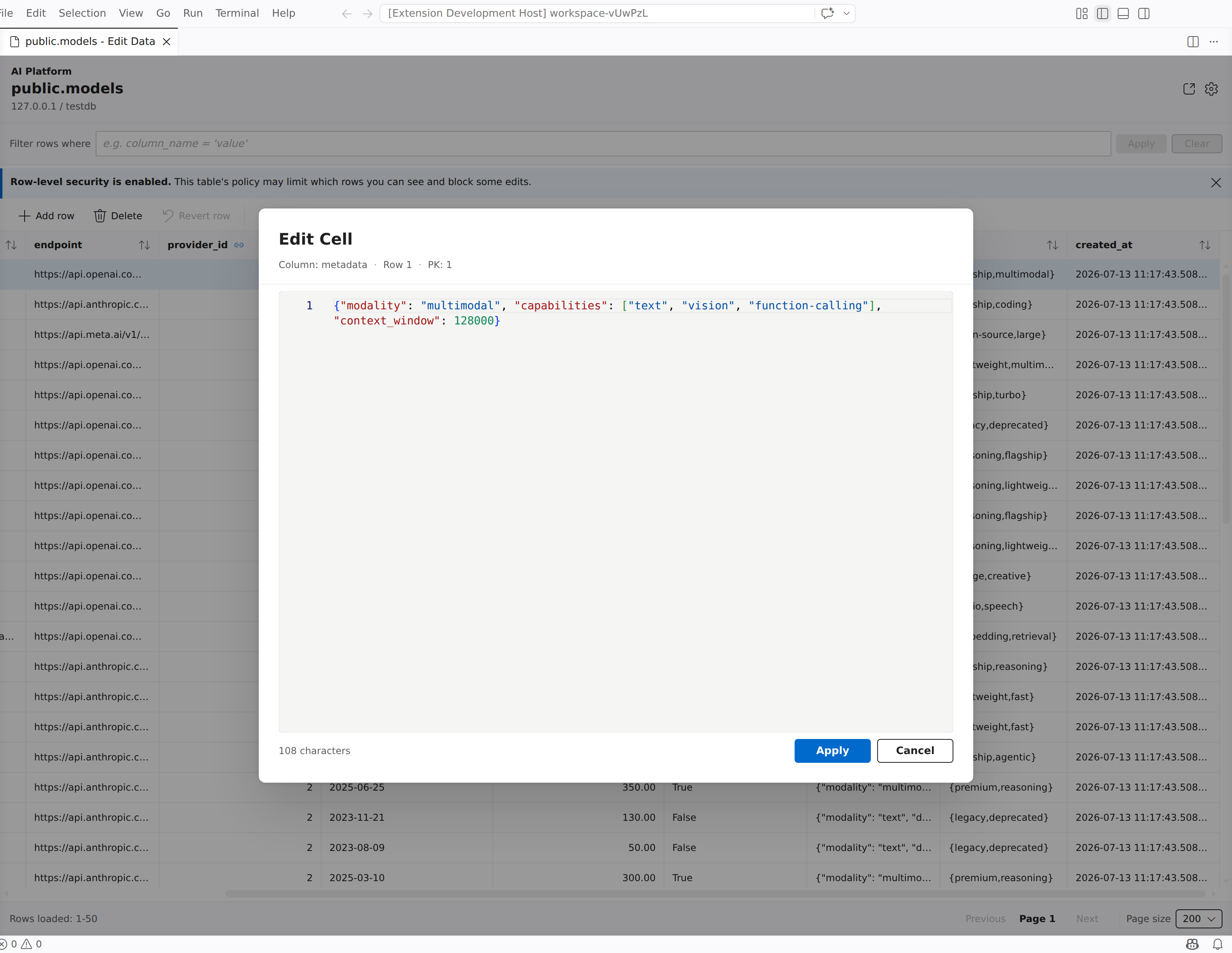
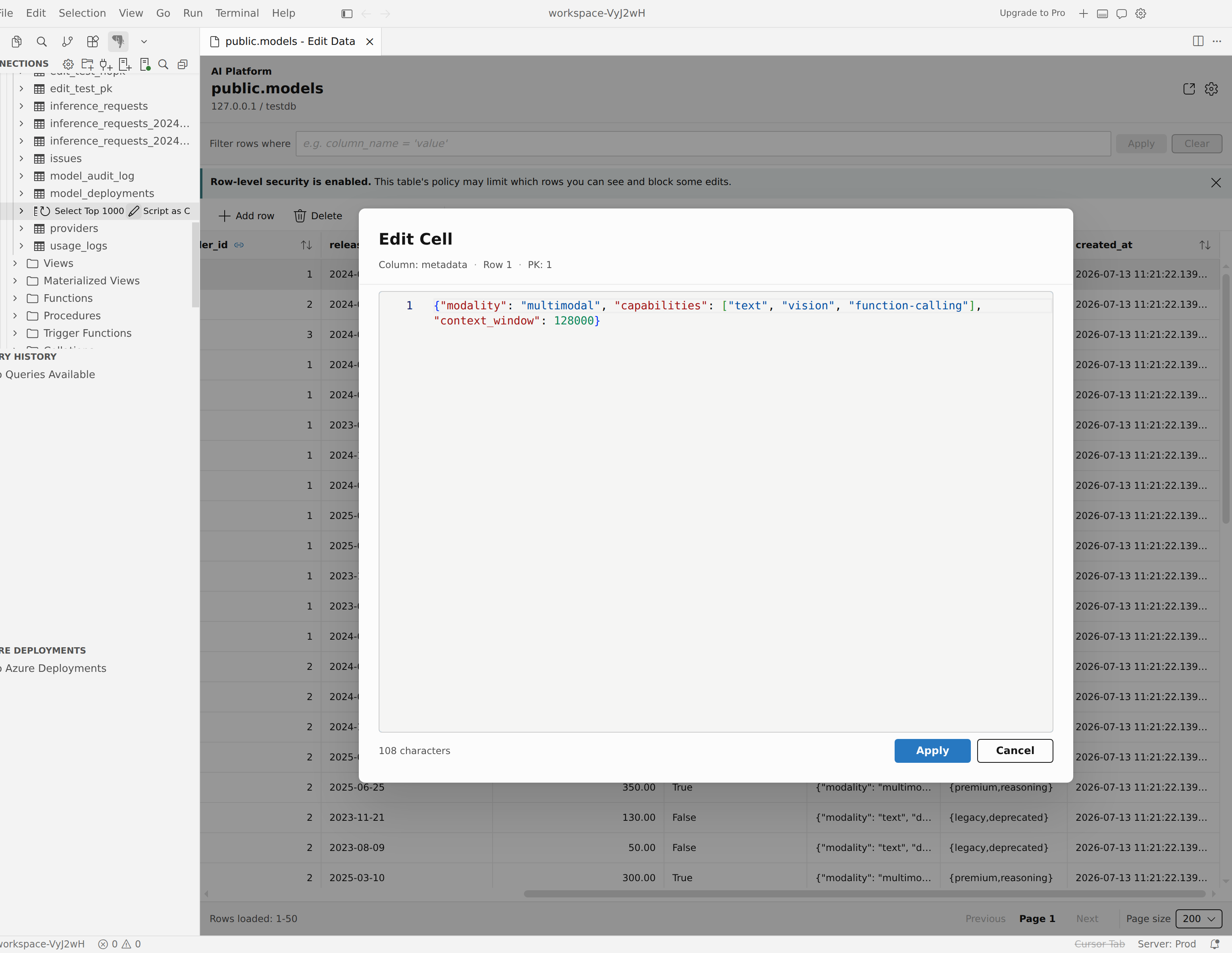
For long text or JSON values, open the expanded editor to get a roomy, language-aware editing surface instead of a single cramped cell. Open the cell's editor, select the expand control to open the value in the larger Edit Cell editor, make your changes, and select Apply.
Add or delete rows
Use the toolbar to change which rows the table has:
- Add row creates a new, unsaved row prefilled with any server-side default values, and moves you into its first editable cell.
- Delete marks the selected existing row for deletion. The row stays visible with a deletion marker until you save. Deleting an unsaved new row removes it immediately.
- Revert row discards the pending changes on the selected row. An edited row returns to its last saved values, and an unsaved new row is removed.
Every action respects the table's permissions. If you can't insert or delete rows on a table, or the table is read-only, the matching actions stay disabled.
Review and save changes
While you have pending changes, the changes bar stays visible with a summary of what's pending and the Preview changes, Save, and Discard actions. Refresh is disabled until there are no pending changes, so a reload never silently drops your edits.
Select Preview changes to open the review pane, which lists the pending INSERT, UPDATE, and DELETE statements grouped by operation. When the connection can render values, the pane shows the exact SQL. Otherwise, it shows parameterized statements with the bound values listed separately. Saving runs the statements in a single transaction. From the pane you can:
- Copy SQL to put the pending statements on the clipboard, or
- Open in Query Editor to open the same SQL as a query editor already connected to the table's server and database, so you can adjust or run it yourself.
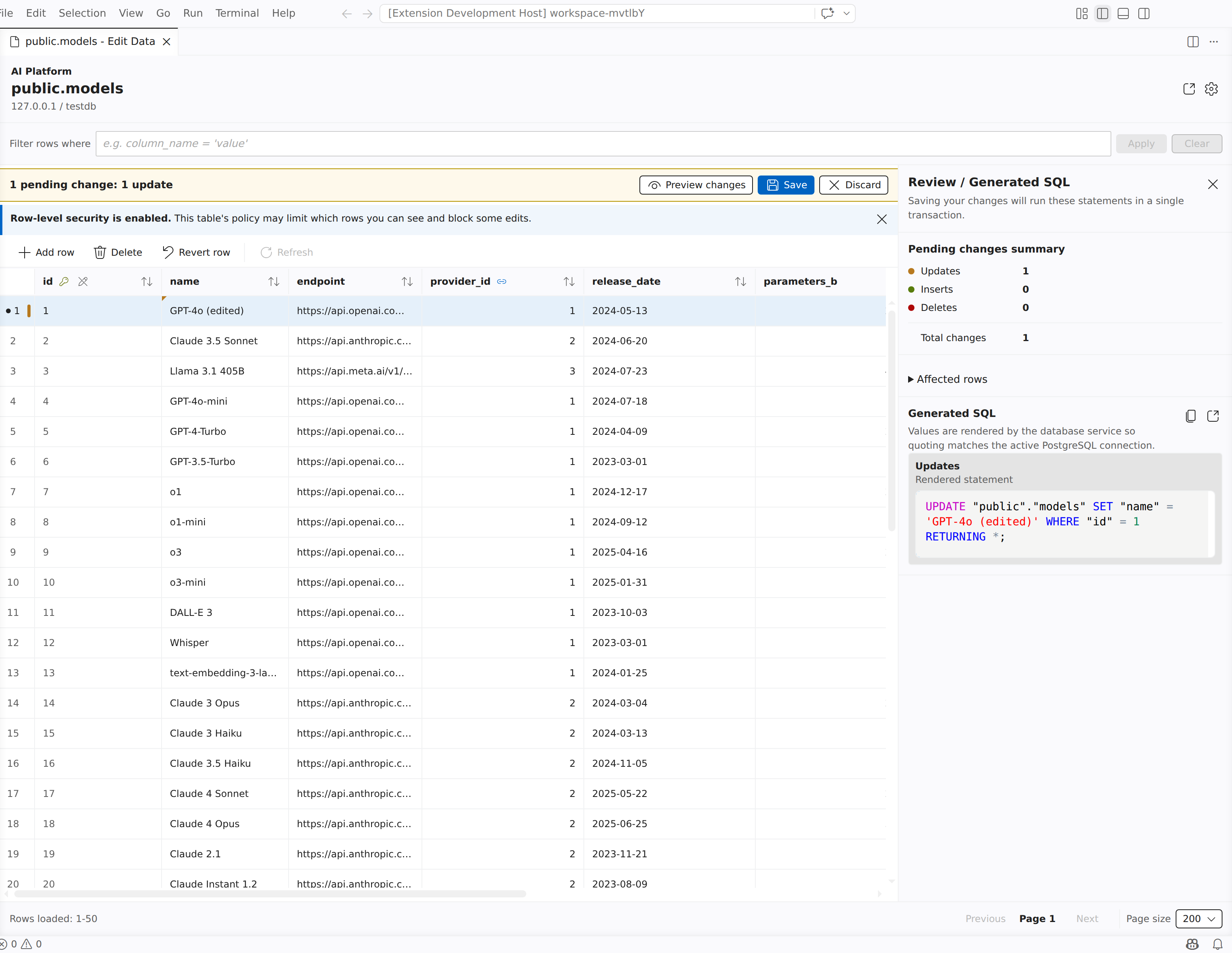
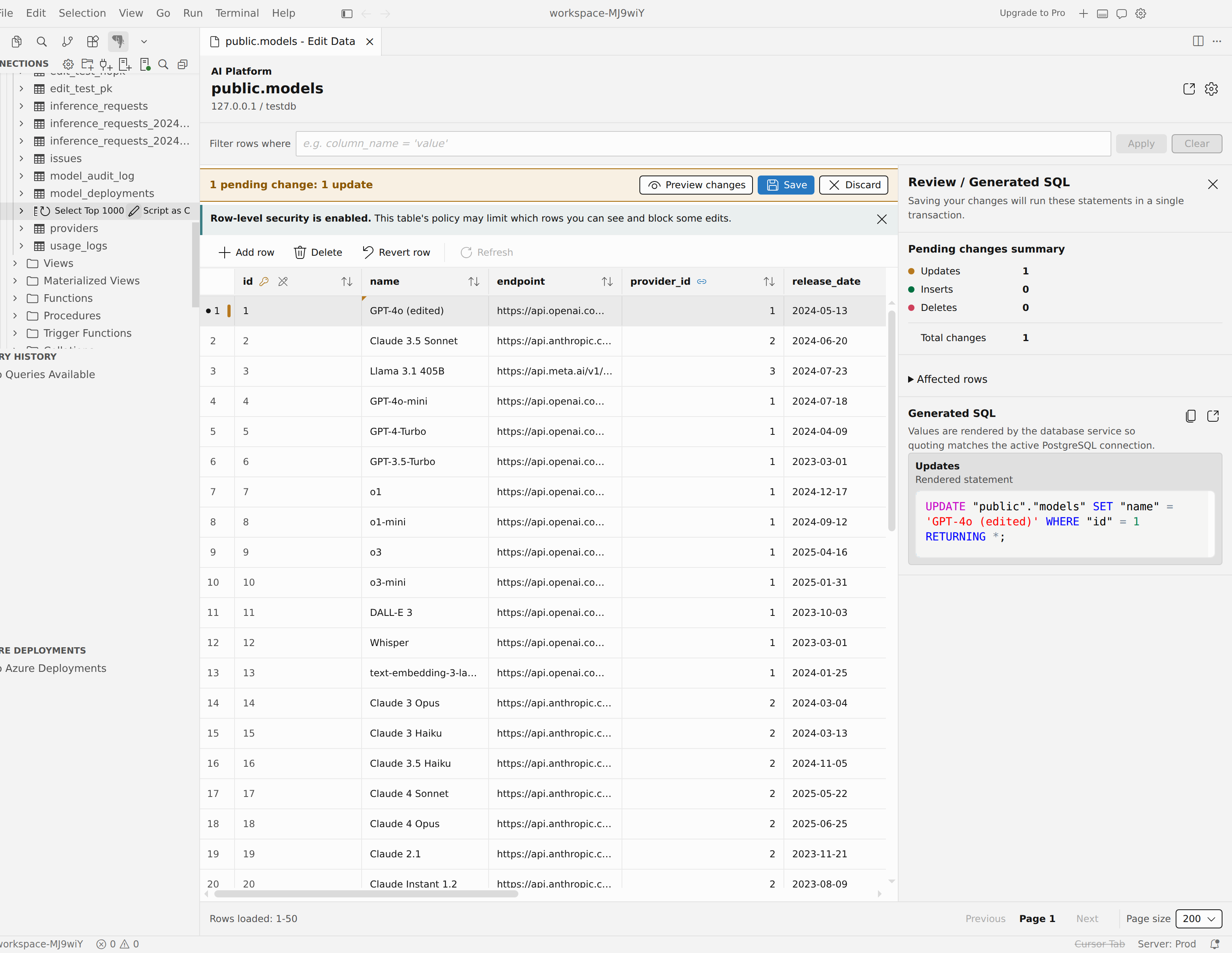
When the changes look right, select Save to commit every pending change to the database, or Discard to revert all of them. Both actions are available only while there are pending changes and the table is writable.
Settings
Edit Data has three settings. Set them in your user or workspace settings - search for pgsql.editData - or edit them directly in settings.json.
| Setting | Default | Description |
|---|---|---|
pgsql.editData.rowLimit |
200 |
Maximum number of rows to load when editing table data. |
pgsql.editData.dateTimeEditor |
native |
Controls whether Edit Data uses native date/time inputs (native) or plain text inputs (text) for date and time cells. With native, timezone-aware timestamps still use plain text. |
pgsql.editData.tabPastLastCell |
addRow |
Controls what happens when you tab forward past the final editable cell: addRow creates a new row and opens its first cell, and stop commits the cell and stops at the end of the grid. |
Permissions and requirements
- Primary key. Editing requires a primary key to identify rows uniquely. A table without one opens read-only. When you change a value in a primary-key column, Edit Data asks you to confirm before it saves.
- Column and table permissions. Edit Data is permission-aware. Read-only columns can't be edited, and the Add row, Delete, and Save actions stay disabled when your role can't perform them on the table.