Note
Access to this page requires authorization. You can try signing in or changing directories.
Access to this page requires authorization. You can try changing directories.
The PostgreSQL extension for Visual Studio Code provides a guided workflow for Oracle schema and application conversion. The wizard walks you through connecting to Oracle, selecting schemas, reviewing discovery, choosing a PostgreSQL scratch database, and configuring Microsoft Foundry. After conversion, review the HTML report and Conversion Object Explorer, then prepare deployment with the Setup Experience. Plan row-data migration separately.
Important
The Oracle to PostgreSQL migration workflow is available in Visual Studio Code only.
How schema and application conversion fit together
The extension converts an Oracle workload in two passes. Schema conversion runs first and produces the PostgreSQL data definition language (DDL) for your database objects. Application conversion runs afterward and updates the code that calls those objects.
Schema conversion
Schema conversion reads the Oracle data dictionary for the selected schemas and uses your Microsoft Foundry deployment to generate PostgreSQL DDL. The tool attempts compilation in the scratch database and uses available static checks to identify issues. These checks don't establish equivalent runtime behavior or production readiness. A run produces:
- Object-level PostgreSQL
.sqlfiles, organized by Oracle schema and object type. - An HTML conversion report with discovery, extraction, and conversion results, conversion rates, and object-level notes.
- Object mappings and notes that you can inspect in Conversion Object Explorer, including objects that need manual changes.
- Setup instructions and scripts for a separate deployment operation.
- Coding notes that describe the Oracle patterns found in the schema and how they map to PostgreSQL.
Application conversion
Application conversion targets the Oracle-specific code that surrounds the database: SQL scripts, stored procedure calls, loader control files, shell scripts, and Java files. It takes the coding notes from schema conversion as input, so the converted application code lines up with the object names, types, and calling conventions that schema conversion actually produced.
You can convert database-related application code inside this extension, or hand the work to the GitHub Copilot app modernization extension for a full modernization pass.
Sequence the two passes
Run schema conversion first. Application conversion uses the coding notes and converted object names from schema conversion. Review the schema and resolve required changes before converting application code. If you later edit a PostgreSQL definition, check its application callers again. Rerunning a completed schema conversion isn't supported.
Prerequisites
Before you begin, ensure you have:
- Visual Studio Code installed.
- The PostgreSQL extension installed.
- Access to an Oracle source database with permissions to read schema metadata and dictionary views. Row-data access isn't required.
- An Azure Database for PostgreSQL flexible server with an empty or dedicated, unused scratch database that contains nothing you need to preserve. The connection user must be able to drop and recreate matching schemas and create validation objects. Schema conversion doesn't support Azure HorizonDB as the scratch database.
- A Microsoft Foundry resource with a deployed
gpt-5.2model and a quota greater than 1,000,000 tokens per minute (TPM). You need the endpoint URL and either an API key or a Microsoft Entra ID account with access.
For operating-system, version, permissions, and connectivity requirements, see the schema conversion tutorial prerequisites.
Verify the migrations feature is enabled
The pgsql.enableMigrations setting controls the Migrations view and all migration commands. This setting is enabled by default.
If the Migrations view doesn't appear in the sidebar, open Visual Studio Code settings (Ctrl+, on Windows/Linux, Cmd+, on macOS) and verify that pgsql.enableMigrations is set to true.
Create a migration project
The migration project wizard collects your source, discovery scope, scratch-database connection, and AI configuration before creating the project workspace.
Step 1: Project setup
Open the Migrations view in the sidebar.
Start a new project in one of these ways:
- If the workspace doesn't contain a migration project yet, select + Create Migration Project in the view.
- Select the + button in the view toolbar.
- Right-click a workspace folder in Explorer and select Open Migration Project.
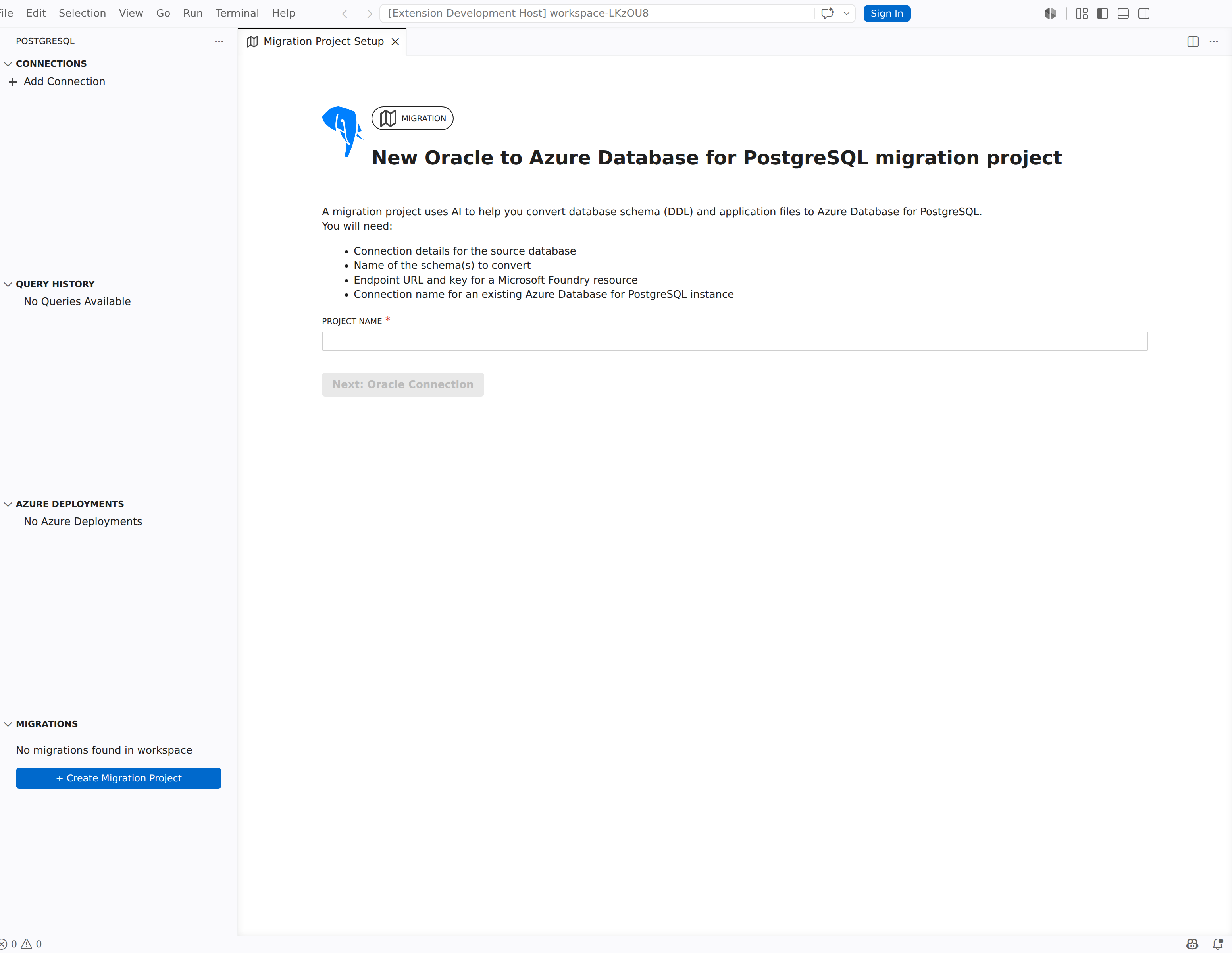
The New Oracle to Azure Database for PostgreSQL migration project page opens, listing what you need:
- Connection details for the source database
- Names of the schemas to convert
- Endpoint URL and key for a Microsoft Foundry resource
- Connection name for an existing Azure Database for PostgreSQL instance
Enter a name in the Project Name field.
Select Next: Oracle Connection.
Step 2: Connect to Oracle
The Connect to Oracle page collects your Oracle source database credentials and lets you load schemas.
Complete the Oracle connection fields:
Field Description Oracle Hostname Hostname or IP address of the Oracle database server. Oracle Port Listener port (default: 1521).Oracle SID or Service Name Oracle SID or service name for the database instance. Oracle Username Database user with access to schema metadata and dictionary views. Oracle Password Password for the Oracle user. Select Load Schemas to connect and retrieve the list of available schemas.
In the Schemas dropdown list, select one or more schemas to migrate.
Select Next: Discovery.
Step 3: Review Discovery
Discovery checks source permissions and inventories the selected schemas before DDL extraction.
- Review the permission checks and resolve any missing source access.
- Review Discovered, To be extracted, Excluded, and Invalid objects, together with object-type details and exclusion reasons.
- Review schema dependencies. Dependent schemas lists referenced schemas that you didn't select; listing a dependency doesn't include that schema in the conversion scope.
- Confirm the source scope. If you change the selection, refresh Discovery before proceeding.
- Acknowledge the reviewed scope and select Next: PostgreSQL Connection.
For the complete Discovery screen and guidance, see Review Discovery results in the tutorial.
Step 4: Choose an Azure Database for PostgreSQL scratch database
The Choose an Azure Database for PostgreSQL scratch database page selects the database used to validate converted DDL.
Warning
Conversion drops schemas that correspond to the selected Oracle schemas by using DROP SCHEMA ... CASCADE and then recreates them. This action deletes existing objects and data in those schemas and can remove dependent objects in other schemas. Use an empty scratch database or a dedicated, unused scratch database that contains no objects or data you need to preserve.
- In the PostgreSQL Connection dropdown list, select an existing connection profile. If the connection you need isn't listed, select Refresh Profiles to reload available profiles, or create a new connection in the Connections and identity view first.
- In the PostgreSQL Database dropdown list, select the target database. Select Load Databases if the list is empty.
- Select Verify Extensions to check the recommended extensions. If any are missing, add the extensions your conversion needs to the server's allow list, then install them. The yellow warning doesn't block continuation, but dependent objects might require manual changes.
- Select the acknowledgment that matching scratch schemas are dropped and recreated during conversion.
- Select Next: Microsoft Foundry Model Configuration.
Step 5: Configure the Microsoft Foundry model
The Choose a Microsoft Foundry Model page configures the Microsoft Foundry deployment that powers schema and code conversion.
Complete the language model fields:
Field Description Model Name gpt-5.2.Microsoft Foundry Endpoint Microsoft Foundry resource endpoint URL (for example, https://<resource>.openai.azure.com/).Authentication Method Choose API Key or Microsoft Entra Id. Microsoft Foundry API Key API key for the Microsoft Foundry resource (shown when Authentication Method is API Key). Azure Account Microsoft account with access to the resource (shown when Authentication Method is Microsoft Entra Id). Tenant Microsoft Entra tenant for the account (shown when Authentication Method is Microsoft Entra Id). Deployment Name Name of the deployed model in your Microsoft Foundry resource. Select Test Microsoft Foundry Connection to verify connectivity.
Select Create Migration Project.
Allocate a deployment quota greater than 1,000,000 TPM. See Configure Microsoft Foundry capacity.
Run schema migration
After you create the project, run conversion and review the results in the migration project.
Extract and convert schemas
- Select Migrate to start extraction and conversion.
- Monitor the extraction and conversion progress.
- When the project shows Schema conversion is complete, select Review conversion summary.
The HTML report opens automatically when conversion finishes. Reopen it by selecting Conversion report on Conversion summary. Review the discovery, extraction, and conversion totals separately; they describe different stages.
Review converted objects
Use Conversion Object Explorer to inspect both Converted and Not converted objects:
- Open an object to compare its Oracle and PostgreSQL definitions, where available, and read its conversion notes.
- Select Ask for an explanation or Fix for Copilot-assisted edits to its PostgreSQL file.
- If the schema is already deployed to a nonproduction database, compile corrections there by confirming the active server and database, selecting complete statements, and executing only that selection. Otherwise, first prepare the deployment described in the next section.
- Confirm that the deployment SQL includes the corrections you intend to deploy. Editing an object file doesn't establish that its database object or generated deployment script has changed.
For filters, package members, and detailed steps, see Conversion Object Explorer.
Prepare deployment
On Conversion summary, select Setup instruction to open the generated deployment instructions and reveal the setup directory. Review the package, run validate-only checks, and then run the generated deployment script against a separate nonproduction destination database. Generating setup files doesn't deploy the schema.
Review deployment reports and independently validate data and application behavior before production use. For prerequisites, database modes, and commands, see Deploy converted schemas with the Setup Experience.
Migrate application code
After schema migration, convert Oracle-specific application code (SQL scripts, stored procedures, loader control files, shell scripts, or Java files) to PostgreSQL-compatible equivalents. Application migration is a preview feature.
Choose a migration method
The extension offers two paths for application code migration:
- Full app modernization: If you install the GitHub Copilot app modernization extension, select Migrate using app modernization to continue the migration with coding notes from the schema conversion. Select View coding notes to review the generated guidance before proceeding.
- Database-only option: To convert only database-related application code within this extension, select Migrate using PostgreSQL extension.
Convert application code within the extension
- On the Application Migration card, select Migrate Data (or Select Method if the app modernization extension is detected).
- In the Convert Application page, select Select Oracle Application to Convert and choose the folder that contains Oracle application code.
- Select a PostgreSQL Connection and PostgreSQL Database for conversion context.
- Select Load Databases if the database list is empty.
- Select Convert Application to start the conversion.
Use Copilot tools for application migration
The extension registers two Copilot language model tools for migration assistance:
Oracle Client Code Application Converter (
pgsql_migration_oracle_app): Converts Oracle client application code to PostgreSQL equivalents by using prompt templates and coding guidance from the schema migration analysis. Accepts the following parameters:- Application Codebase Folder (required): Location of the code to convert.
- Coding Notes Location Path (optional): Path to coding notes from the schema migration.
- Postgres DB Name (optional): Name of the PostgreSQL database for conversion context.
- Postgres DB Connection (optional): Connection name for the PostgreSQL database.
Show Oracle to Postgres Migration Report (
pgsql_migration_show_report): Displays the migration report generated by the schema conversion. Requires a Path to Report File parameter.
For more information on using Copilot tools, see Copilot integration.
Compare converted files
After conversion, review changes side by side using the built-in diff commands.
- In Explorer, right-click a converted SQL file under the
oracleorpostgresfolder in the migration project and select Compare DDL Migration File Pairs. - For converted application code files (
.sql,.ctl,.sh,.load, or.java), right-click the file and select Compare Application Migration File Pairs.
The side-by-side diff view shows the original Oracle source alongside the converted PostgreSQL output, so you can identify any artifacts that require manual adjustment.
The Compare DDL Migration File Pairs command requires the structure folder/oracle|postgres/SCHEMA_NAME/DDL-TYPE/filename.sql to locate a matching pair. For schema conversion output, use Conversion Object Explorer to navigate the source-to-target mappings.
Manage migration projects
Use the Migrations view in the sidebar to manage your projects:
| Action | Description |
|---|---|
| Open Migration Project | Open an existing migration project in the dashboard. |
| Reveal in Explorer | Show the project folder in the Explorer view. |
| Delete | Remove a migration project. You're prompted to confirm before deletion. |
| Refresh | Reload the list of migration projects in the current workspace. |
Related content
- What is Oracle to Azure Database for PostgreSQL flexible server schema conversion?
- Tutorial: Oracle to Azure Database for PostgreSQL flexible server schema conversion
- Best practices for Oracle to Azure Database for PostgreSQL flexible server schema conversion
- Review converted objects in Conversion Object Explorer
- View the HTML conversion report
- Deploy converted schemas with the Setup Experience
- Oracle to Azure Database for PostgreSQL flexible server schema conversion limitations
- Copilot integration
- Connections and identity
- Settings reference
- Copilot tools reference