Note
Access to this page requires authorization. You can try signing in or changing directories.
Access to this page requires authorization. You can try changing directories.
The PostgreSQL extension for Visual Studio Code lets you open psql sessions that are automatically connected to your databases and run .sql files through psql. You get full access to native psql features, including backslash commands, COPY workflows, and interactive scripting, without leaving the editor.
The extension passes connection details (host, port, database, user, and password) to psql automatically, so you can start working immediately after opening a session.
Prerequisites
- The PostgreSQL extension installed from the Visual Studio Marketplace in Visual Studio Code or the Open VSX Registry in Cursor.
- An active connection to a PostgreSQL server. For setup steps, see Quickstart: Connect and query PostgreSQL.
- The
psqlcommand-line client installed on your system. - A workspace folder open in Visual Studio Code or Cursor.
Note
If the extension can't locate psql, it shows an error notification with a Learn More link to the PostgreSQL downloads page. You can also point the extension to a custom install location with the pgsql.pgBinaryDirs setting. See Configure the psql binary path.
Choose between psql and the query editor
Most PostgreSQL workflows use both tools at different times:
| Tool | Best for |
|---|---|
| Query editor and IntelliSense | IntelliSense, graphical results, charts, query history, and exporting results. |
psql terminal |
Backslash commands, native script execution, \copy workflows, and terminal-based troubleshooting. |
Open a connected terminal
Open a psql session that is automatically connected to a specific database. The extension launches psql with -h, -p, -d, and -U flags and sets the PGPASSWORD environment variable, so you don't need to enter connection details manually.
- In the Connections tree, right-click a database node.
- Select Connect with PSQL.
A Visual Studio Code task terminal opens with psql connected to the selected database. The terminal tab is named PSQL: <profile name>.
You can also run this command from the Command Palette (Ctrl+Shift+P / Cmd+Shift+P): search for PGSQL: Connect with PSQL.
Note
For Azure Database for PostgreSQL connections that use Microsoft Entra ID authentication, the extension validates the authentication token before launching psql and passes the token as the password. Your session stays connected without manual reauthentication.
Run a SQL file
Execute a .sql file through psql using the connection from the active editor. Output appears in a Visual Studio Code task terminal.
- Open a
.sqlfile in the editor. - Connect the editor to a database if it isn't connected already.
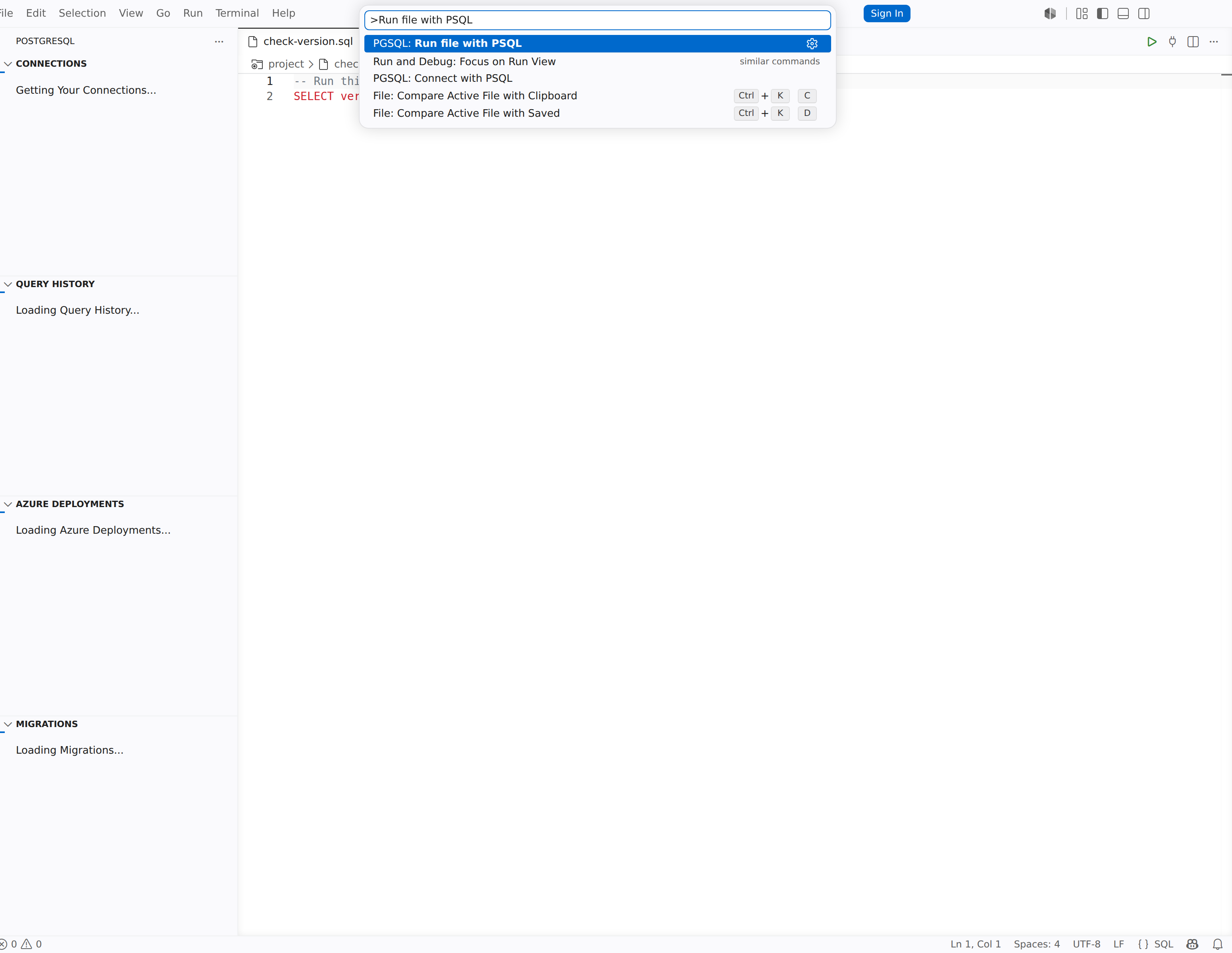
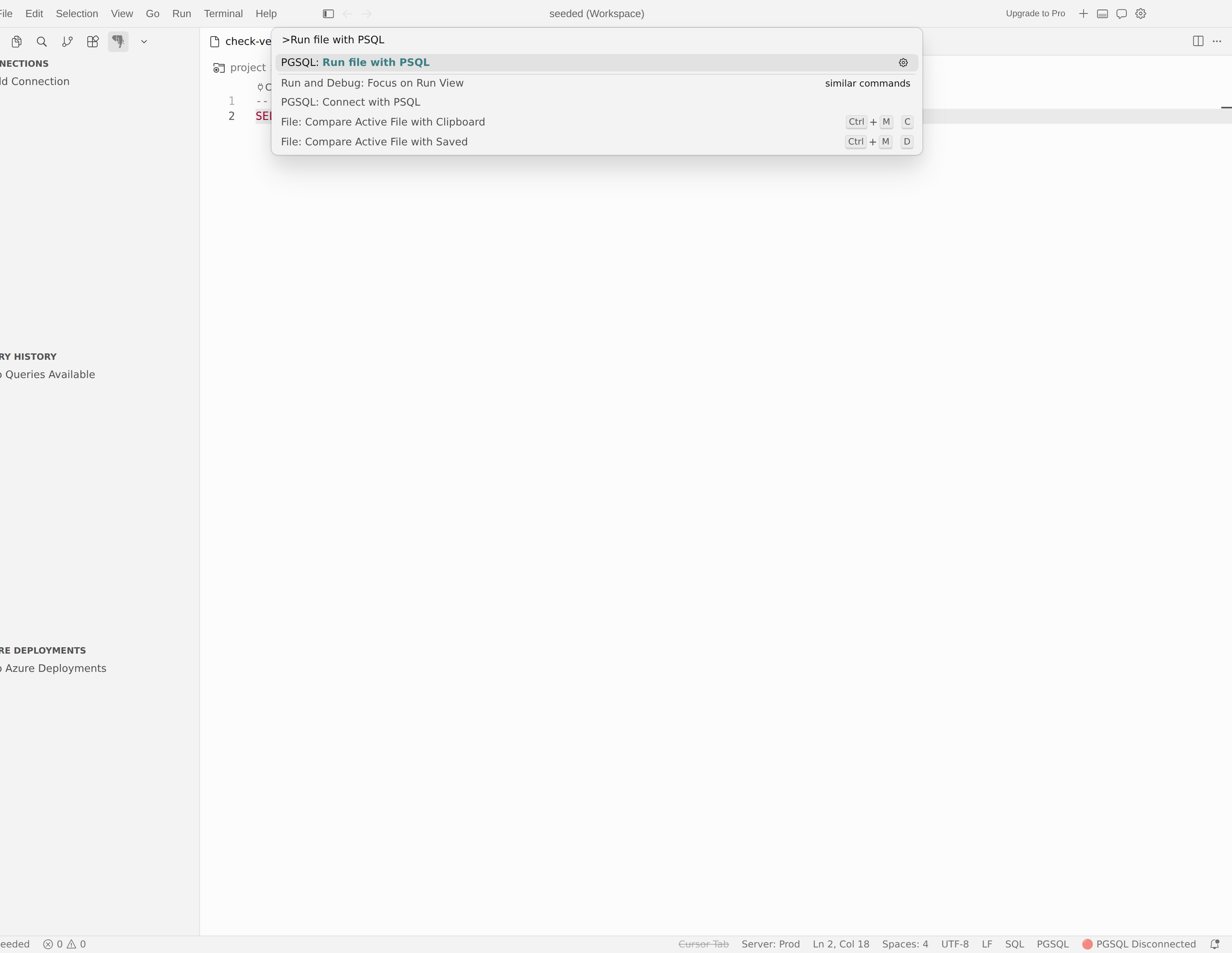
- Right-click in the editor and select Run file with PSQL.
The extension saves the file, then runs psql -f <filepath> against the active connection. A task terminal opens to show the execution output. The working directory is set to the folder that contains the file, so relative paths in your script resolve correctly.
Important
Save the file before execution. If unsaved changes can't be saved, the extension shows a message that says the file must be saved before executing PSQL commands. The operation is canceled.
Configure the psql binary path
The extension searches for psql in three locations, in this order:
- Bundled binaries: PostgreSQL client tools that ship with the extension, organized by version.
- System PATH: directories listed in your operating system's
PATHenvironment variable. - Custom directories: paths you add to the
pgsql.pgBinaryDirssetting.
When multiple versions of psql are found, the extension selects the version that best matches your server's PostgreSQL version. If no exact match exists, it uses the closest available version.
To add a custom binary directory:
- Open Settings (
Ctrl+,/Cmd+,). - Search for
pgsql.pgBinaryDirs. - Select Add Item and enter the absolute path to the directory that contains the
psqlbinary. - Restart Visual Studio Code for the change to take effect.
Tip
On macOS with Homebrew, the typical path is /opt/homebrew/opt/postgresql@17/bin. On Windows, it's usually C:\Program Files\PostgreSQL\17\bin.
How the extension starts psql
When you select Connect with PSQL or Run file with PSQL, the extension assembles the psql invocation as follows:
| Connection detail | How the extension passes it |
|---|---|
Host (-h) |
From the connection profile's server address. |
Port (-p) |
From the connection profile's port. The default is 5432. |
Database (-d) |
The selected database node, or the connection profile's default database |
User (-U) |
The connection profile's username; for Microsoft Entra ID, the Entra username or email address |
| Password | Set through the PGPASSWORD environment variable; for Microsoft Entra ID, the refreshed access token |
| Client encoding | Set through the PGCLIENTENCODING environment variable (defaults to UTF8) |
The extension runs psql as a Visual Studio Code task, which opens in the Terminal panel. The task terminal remains open after psql exits so you can review output.
Use cases
The psql terminal is useful when you need capabilities beyond the built-in query editor:
- Interactive SQL sessions: Run ad hoc commands and inspect results in a familiar
psqlenvironment. - Bulk data import/export: Use
\copyorCOPYcommands for high-performance data loading. - Administrative tasks: Manage roles, permissions, and server configuration with full
psqlaccess. - Script testing: Validate
.sqlscripts in nativepsqlbefore deploying them. - Backslash commands: Use
\dt,\d+,\timing,\x, and other commands that aren't available in the graphical query editor.
Common psql tasks
Inspect database objects
Use psql backslash commands for fast schema inspection:
\dt
\d+ public.orders
\dn
These commands list tables, show detailed object definitions, and list schemas.
Turn on timing and expanded output
\timing on
\x on
SELECT * FROM public.orders LIMIT 5;
\timing displays query duration after each statement. Expanded output (\x) makes wide rows easier to read.
Load or export data with \copy
\copy public.customers FROM '/Users/example/customers.csv' WITH (FORMAT csv, HEADER true)
Use \copy for terminal-oriented bulk import or export while reusing the connection context managed by the extension.
Troubleshoot
psql not found
If the extension shows the error "Could not find psql executable," try these steps:
- Install the PostgreSQL client tools for your operating system from the PostgreSQL downloads page.
- Verify that
psqlis available by runningpsql --versionin a system terminal. - If
psqlis installed in a nonstandard location, add the directory to thepgsql.pgBinaryDirssetting. See Configure the psql binary path. - Restart Visual Studio Code.
Open a workspace folder
The extension requires an open workspace folder to launch psql. If a message says that a workspace folder must be open, open a folder with File > Open Folder, and then try again.
Authentication or connection failures
If psql opens but the connection fails:
- Confirm that the host, port, and database are correct in your connection profile. See Connections and identity.
- For Microsoft Entra ID authentication, verify that your account is still signed in. The extension refreshes tokens automatically, but expired sessions can require reauthentication.
- If you use SSL or an SSH tunnel, retest the same connection from the connection dialog before reopening
psql.
File changes don't run
When you run a file with Run file with PSQL, the extension saves the file to disk before execution. If the save fails, the extension cancels the operation. Save the file successfully before you review output.