Note
Access to this page requires authorization. You can try signing in or changing directories.
Access to this page requires authorization. You can try changing directories.
Use the query plan visualizer in the PostgreSQL extension to inspect PostgreSQL EXPLAIN output without leaving your editor. You can generate a plan from the query editor or the PostgreSQL Query Results panel, or open existing JSON or TEXT plan output from the editor. The visualizer runs the same way in Visual Studio Code and Cursor.
Prerequisites
- The PostgreSQL extension installed from the Visual Studio Marketplace in Visual Studio Code or the Open VSX Registry in Cursor.
- An active connection to a PostgreSQL server if you want to generate a live plan from the query editor or the PostgreSQL Query Results panel.
- Optional AI assistant if you want AI-assisted analysis: install GitHub Copilot in Visual Studio Code, or use the built-in AI in Cursor.
- Optional
EXPLAINoutput already open in the editor if you want to import a saved plan without connecting to a database.
Choose how to open a plan
Use the entry point that matches your workflow:
- Query editor: Select Visualize Query Plan (PostgreSQL) in the editor toolbar. If you don't select text first, the extension uses the current editor contents.
- PostgreSQL Query Results panel: Run a query, then select Visualize Query Plan in the PostgreSQL Query Results panel toolbar to inspect the query that produced that result set.
- Imported plan: Open any editor tab that contains PostgreSQL plan output, then run PGSQL: Visualize Query Plan from Editor from the Command Palette.
Generate a plan from a live query
- Open the SQL file you want to inspect in the query editor.
- Connect to the target database.
- Select the statement you want to analyze. If you leave the selection empty, the extension uses the current editor contents.
- Select Visualize Query Plan (PostgreSQL) in the editor toolbar. You can also run the query first and then select Visualize Query Plan in the PostgreSQL Query Results panel.
- In Configure Query Plan, choose the format and options you want, and then press Enter.
- Review the plan in the visualizer.
Configure query plan options
The Configure Query Plan picker lets you choose the output format and the EXPLAIN options to run.
| Option | What it changes |
|---|---|
| JSON | Returns structured plan output that works best across the visual views. |
| TEXT | Returns PostgreSQL's plain-text EXPLAIN output and preserves that source in Source View. |
| ANALYZE | Executes the query and includes actual run-time statistics. |
| BUFFERS | Adds buffer usage statistics. Selecting it automatically enables ANALYZE. |
| TIMING | Adds actual timing data. Selecting it automatically enables ANALYZE. |
| WAL | Adds WAL usage statistics. Selecting it automatically enables ANALYZE. |
| VERBOSE | Adds extra output details such as schema and column information. |
| COSTS | Includes estimated startup and total cost values. |
| SETTINGS | Includes planner settings that differ from defaults. |
| SERIALIZE | Includes serialization statistics for the query output. Selecting it automatically enables ANALYZE. Available on PostgreSQL 17 and later. |
Caution
EXPLAIN ANALYZE runs the query. If the statement modifies data, such as INSERT, UPDATE, DELETE, or TRUNCATE, the extension shows a confirmation prompt before it continues.
Open a saved plan from the editor
- Open an editor tab that contains PostgreSQL
EXPLAINoutput in JSON or TEXT form. - Open the Command Palette (Ctrl+Shift+P).
- Run PGSQL: Visualize Query Plan from Editor.
- Review the imported plan in the visualizer.
This workflow doesn't require an active database connection. The command reads the current editor contents, so you can use it with copied plan output, saved .json or .txt files, or plan text pasted into a scratch editor.
Switch between views
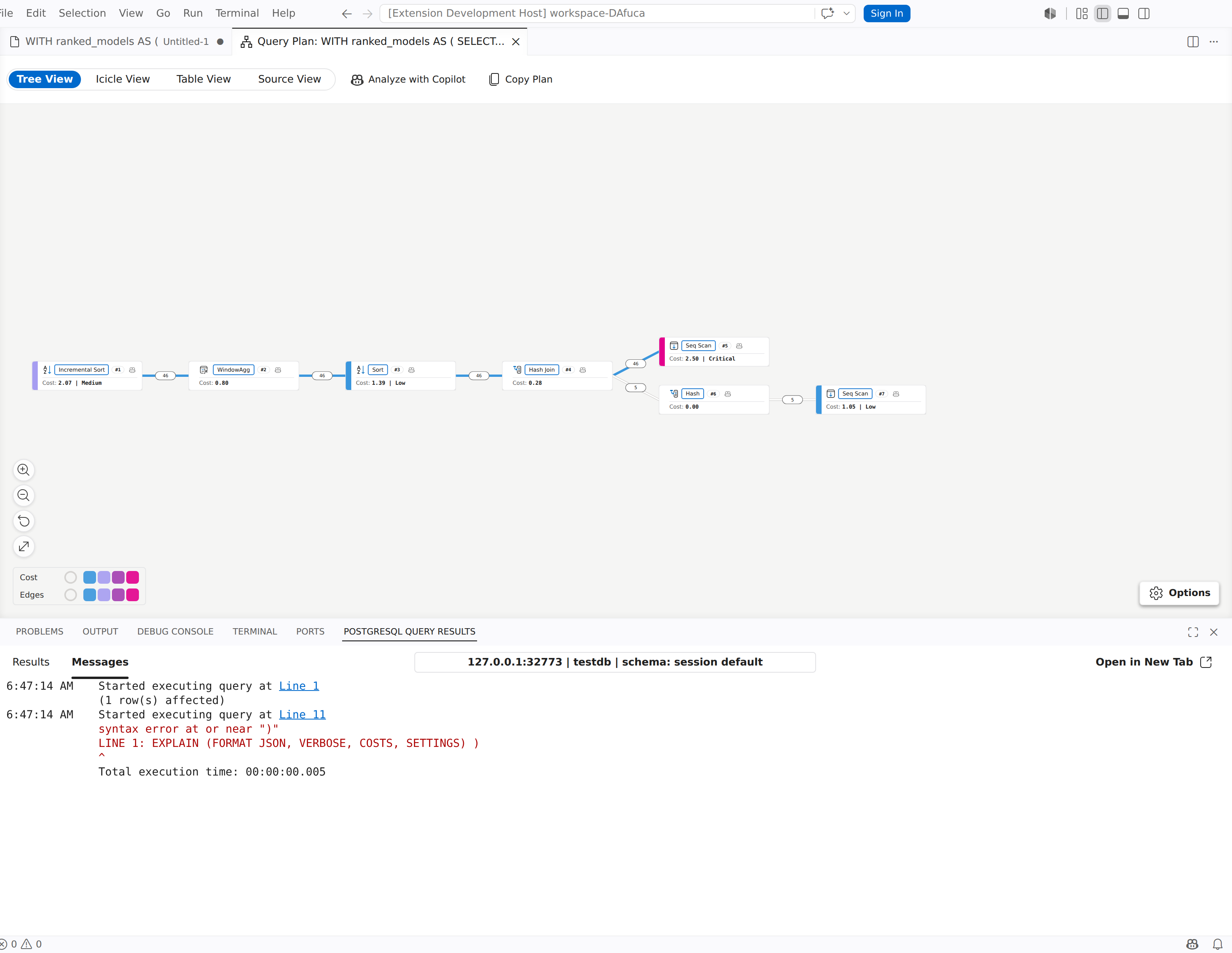
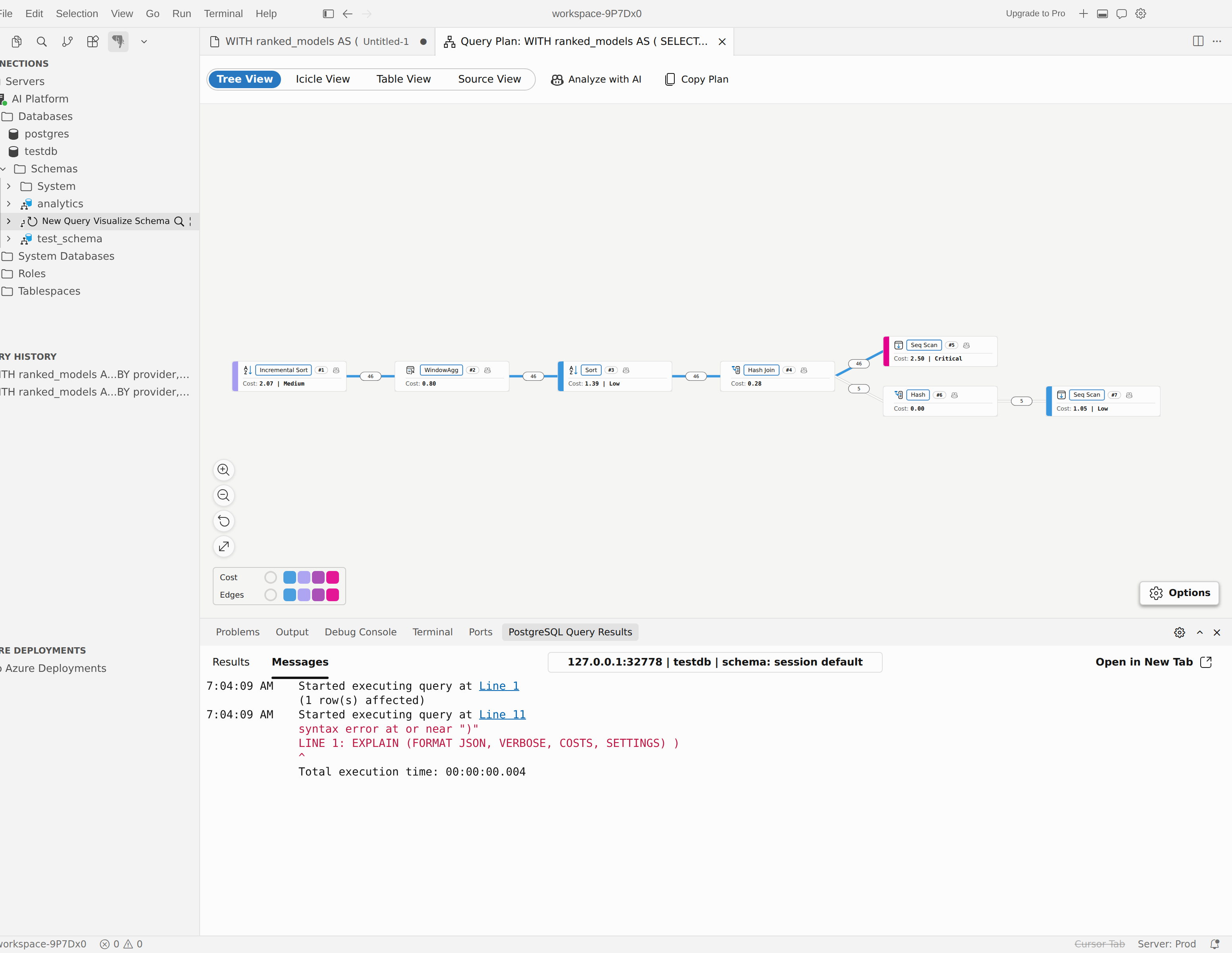
Use the view selector in the toolbar to move between Tree View, Icicle View, Table View, and Source View.
Tree View
Tree View opens by default. Use it when you want a node-by-node diagram of the execution plan.
- Use the zoom controls to zoom in, zoom out, reset the view, or fit the plan to the window.
- Use the options panel to change the layout direction and the color metric that highlights expensive or unusual nodes.
- Select a node to open the details panel.
- Right-click a node to jump to another view or analyze that node with the AI assistant.
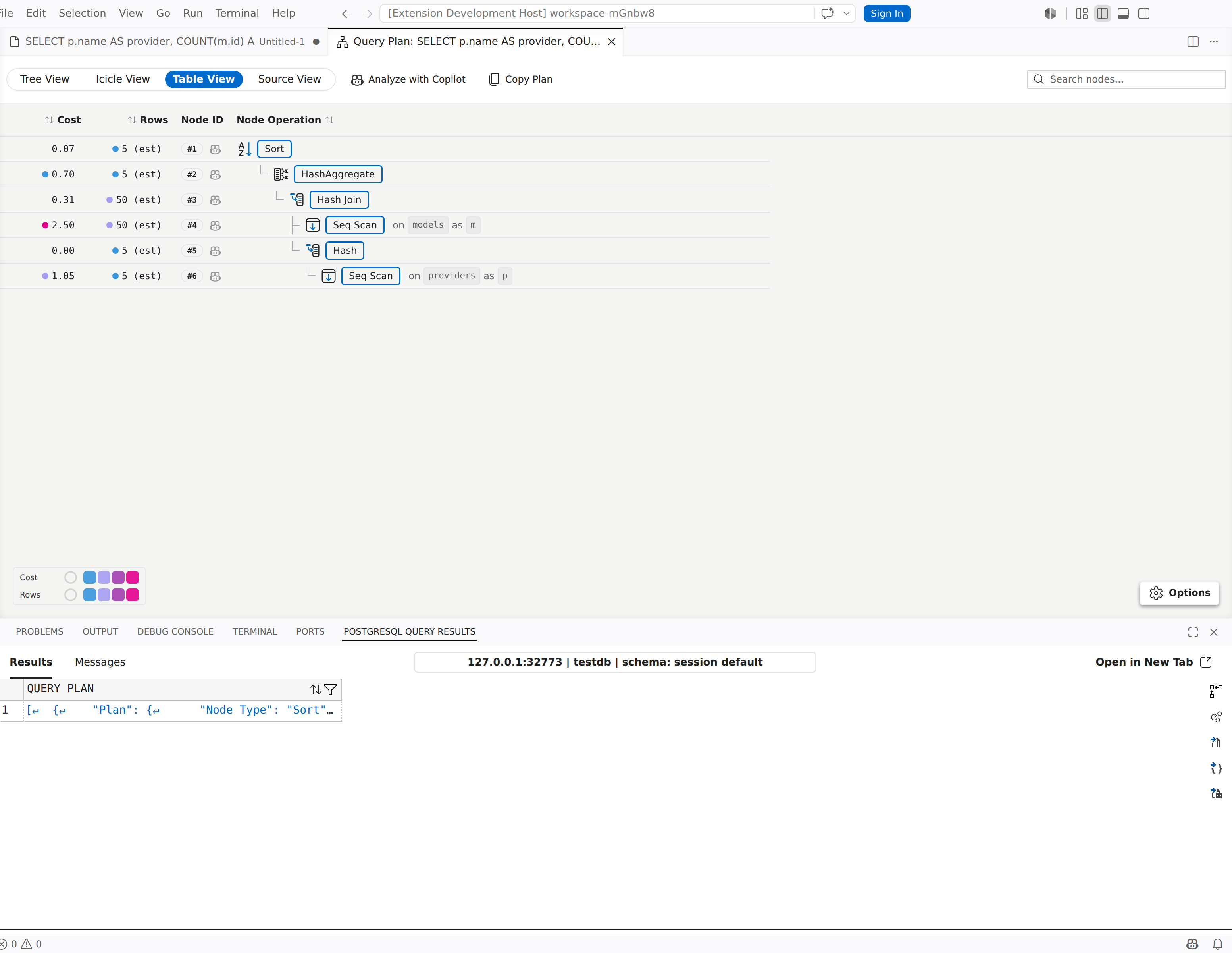
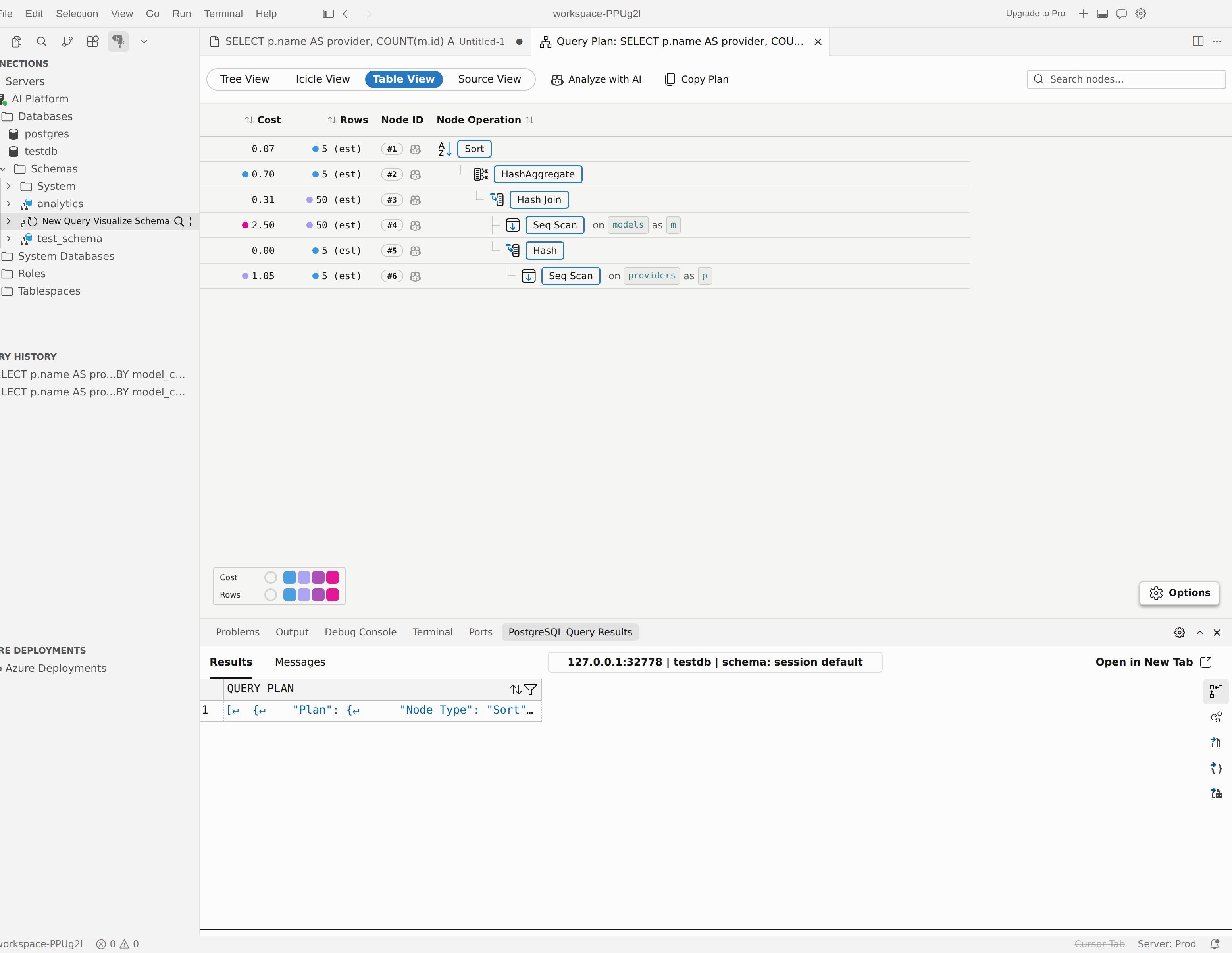
Table View
Use Table View when you want to sort, search, and compare many nodes at once.
- The plan is flattened into a sortable table rather than a collapsible tree.
- The search box appears only in Table View.
- Search matches node type, relation name, index name, alias, filter text, and subplan name.
- Use the preset chooser to focus on Performance, Estimates, Efficiency, or I/O, or customize the visible metric columns.
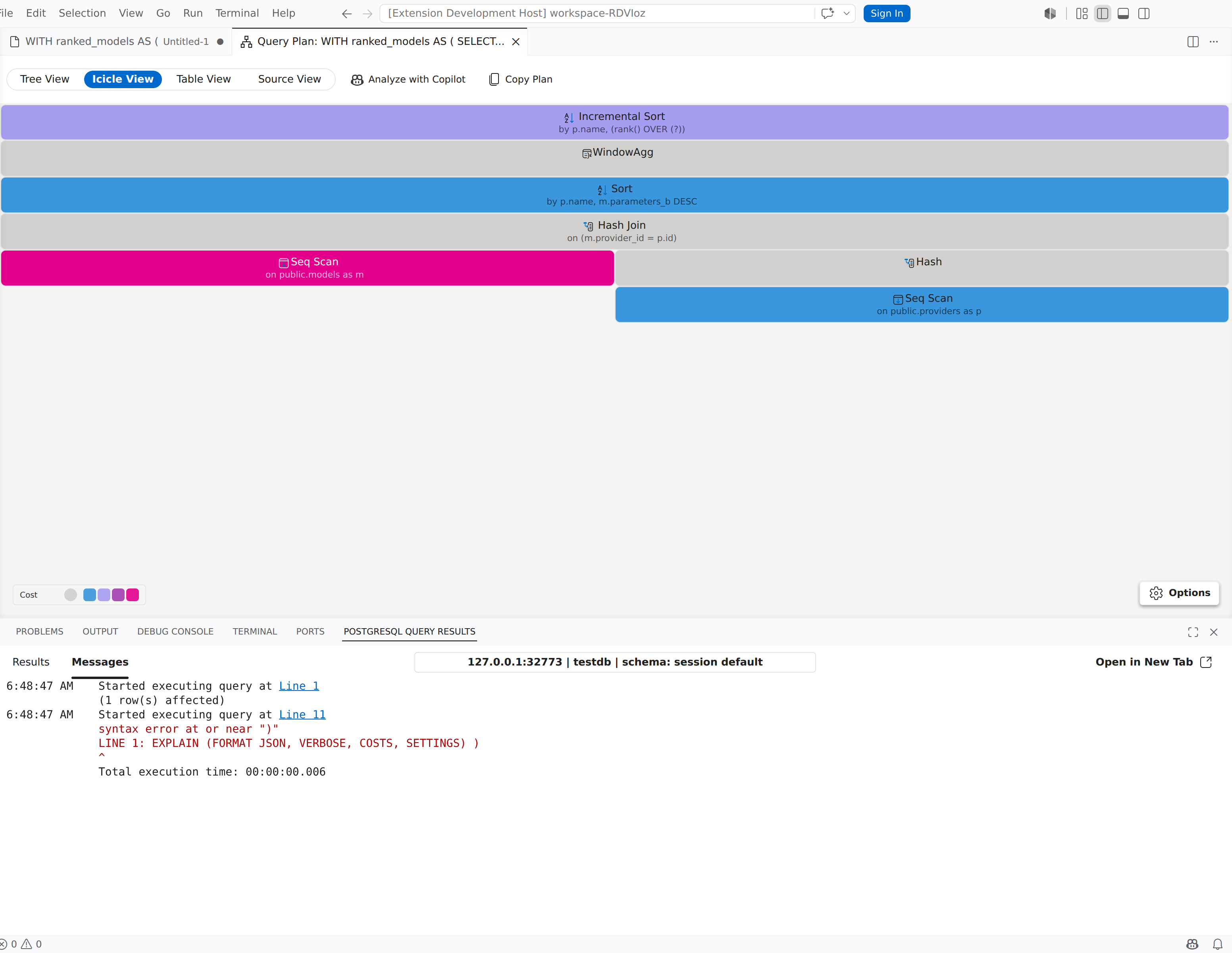
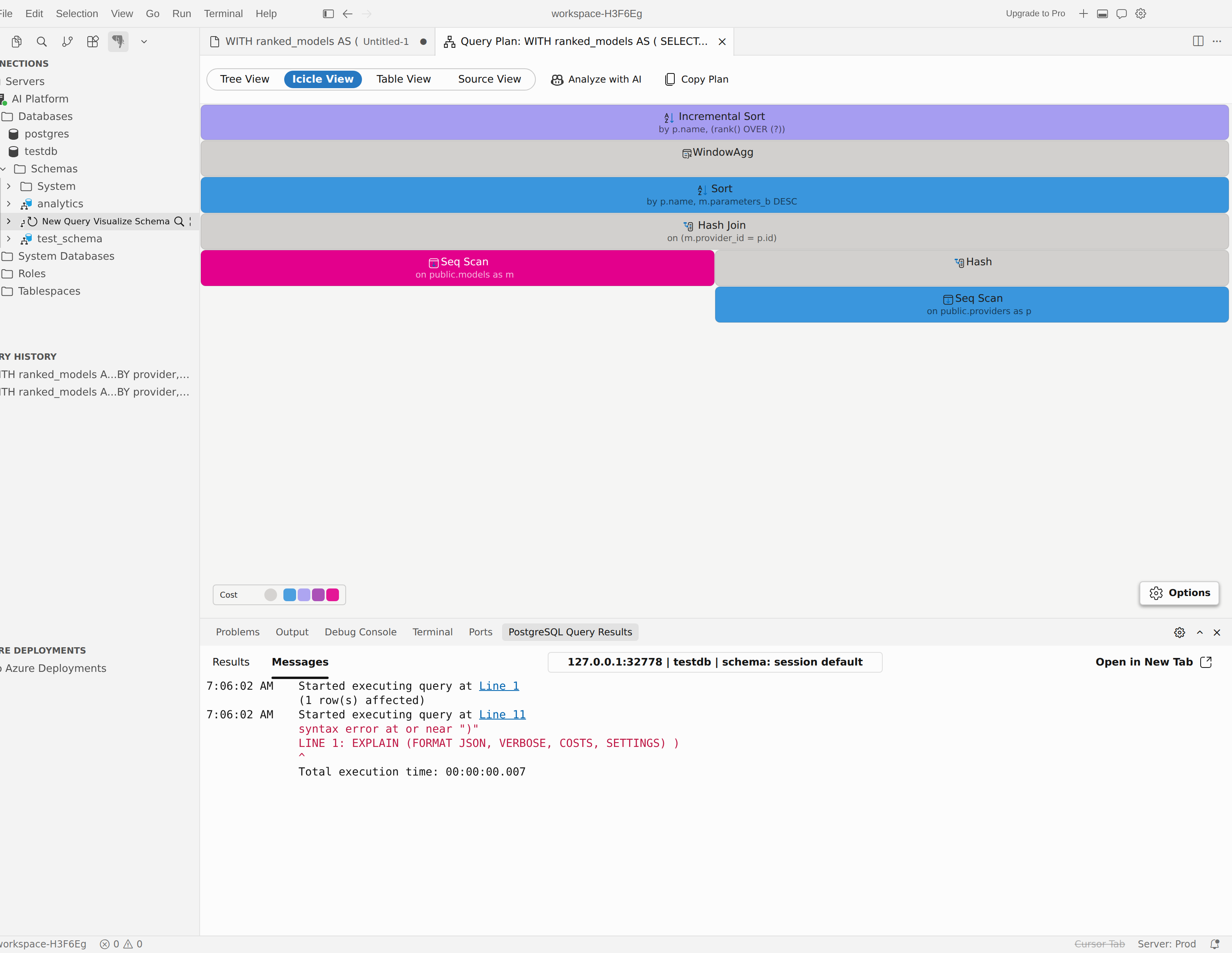
Icicle View
Use Icicle View when you want a full-width visual summary of where cost, time, or buffer usage is concentrated.
- Icicle View is a separate view, not a pane inside Tree View.
- Use the options panel to switch presets, change the width metric, change the color metric, and switch between self and total scope where supported.
- Hover over a block to inspect its metrics, or right-click a block to open details or move to another view.
Source View
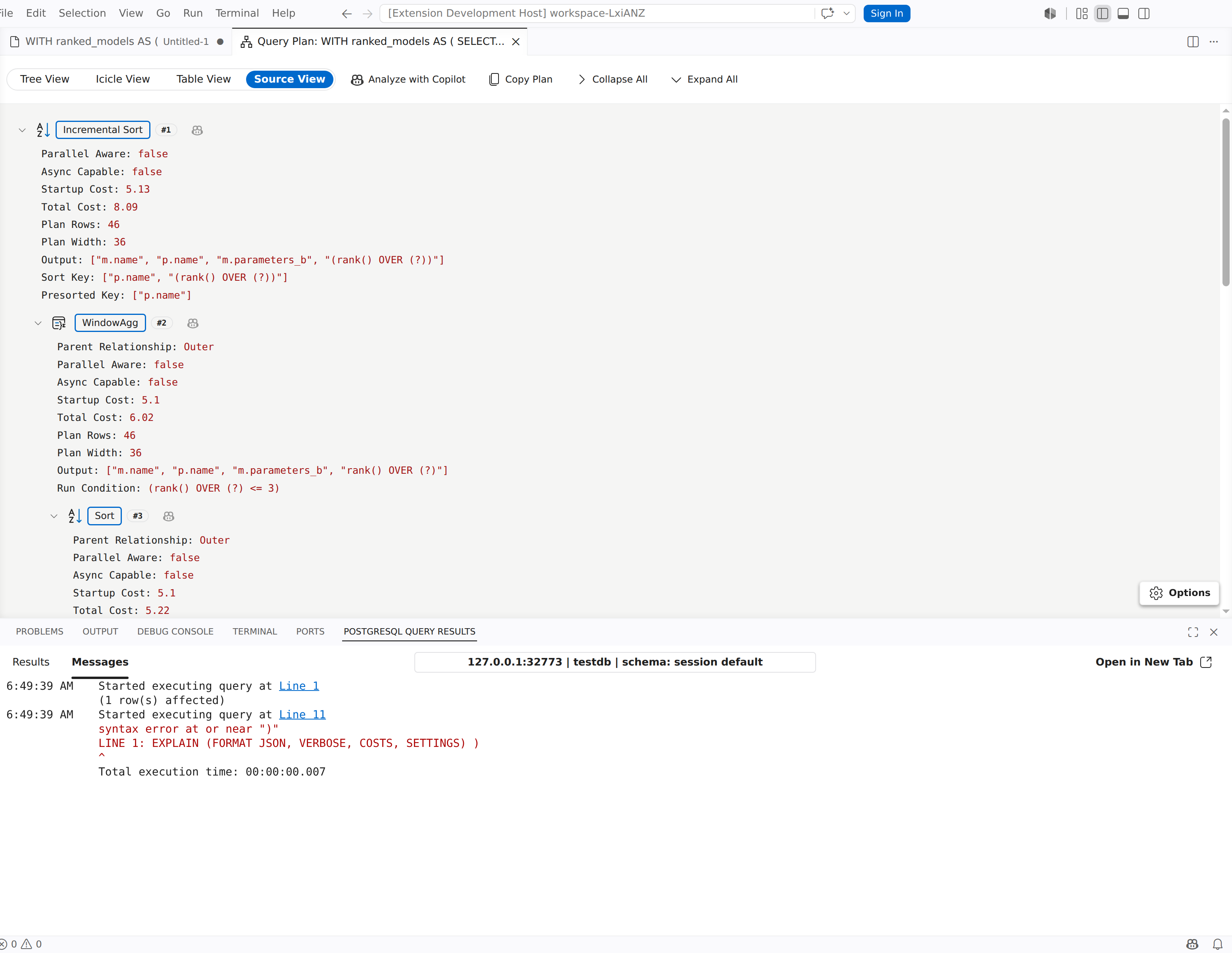
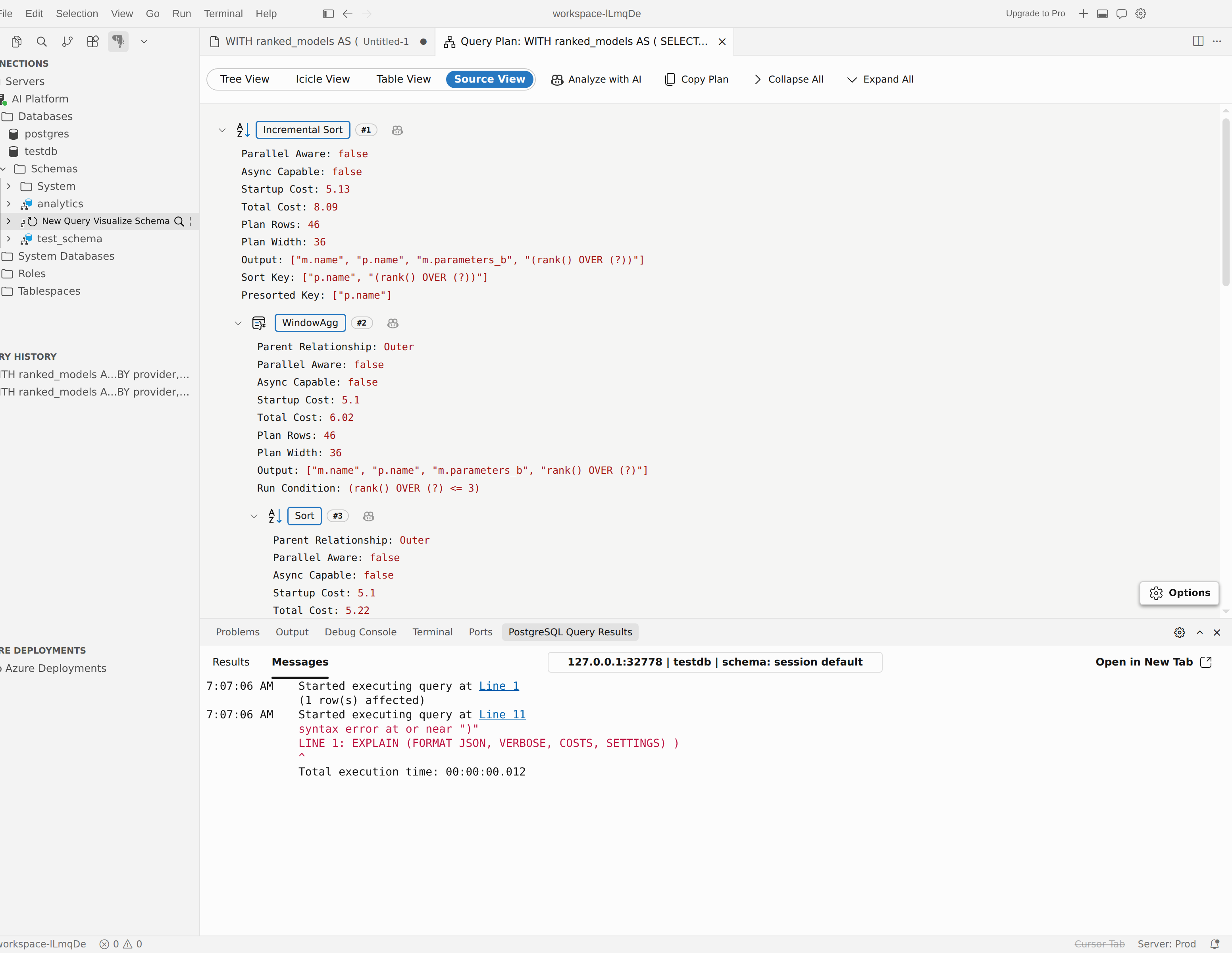
Use Source View when you want the original plan output.
- Select Options to switch between Tree and Text mode.
- The panel shows whether the imported or generated source is JSON or TEXT.
- Expand All and Collapse All appear in the toolbar only while Source View is active.
- In Text mode, the plan opens in a read-only editor. In Tree mode, you can inspect the parsed structure as a collapsible tree.
Select Copy Plan at any time to copy the current plan source to the clipboard. JSON plans are copied in formatted form, and TEXT plans are copied as their original source.
When a plan includes serialization statistics - from EXPLAIN (ANALYZE, SERIALIZE) on PostgreSQL 17 and later - a Serialization button appears in the toolbar. Select it to review the time, output volume, format, and buffer usage spent serializing the query output.
Inspect plan nodes
Select a node in Tree View, Table View, or Icicle View to open the details panel.
- General shows the node type, key metrics, and plan-specific analysis details.
- I/O appears when the plan includes buffer data. For parallel plans, it breaks buffer usage into Node total (includes workers), Leader, and one row per worker. If the plan lacks per-worker buffer data, the tab prompts you to run
EXPLAIN (ANALYZE, VERBOSE, BUFFERS). - Workers appears for parallel nodes that report per-worker data. It shows each worker's Actual Startup, Actual Total, Actual Rows, and Actual Loops.
- Conditions appears when the node exposes filters, join conditions, or similar predicates.
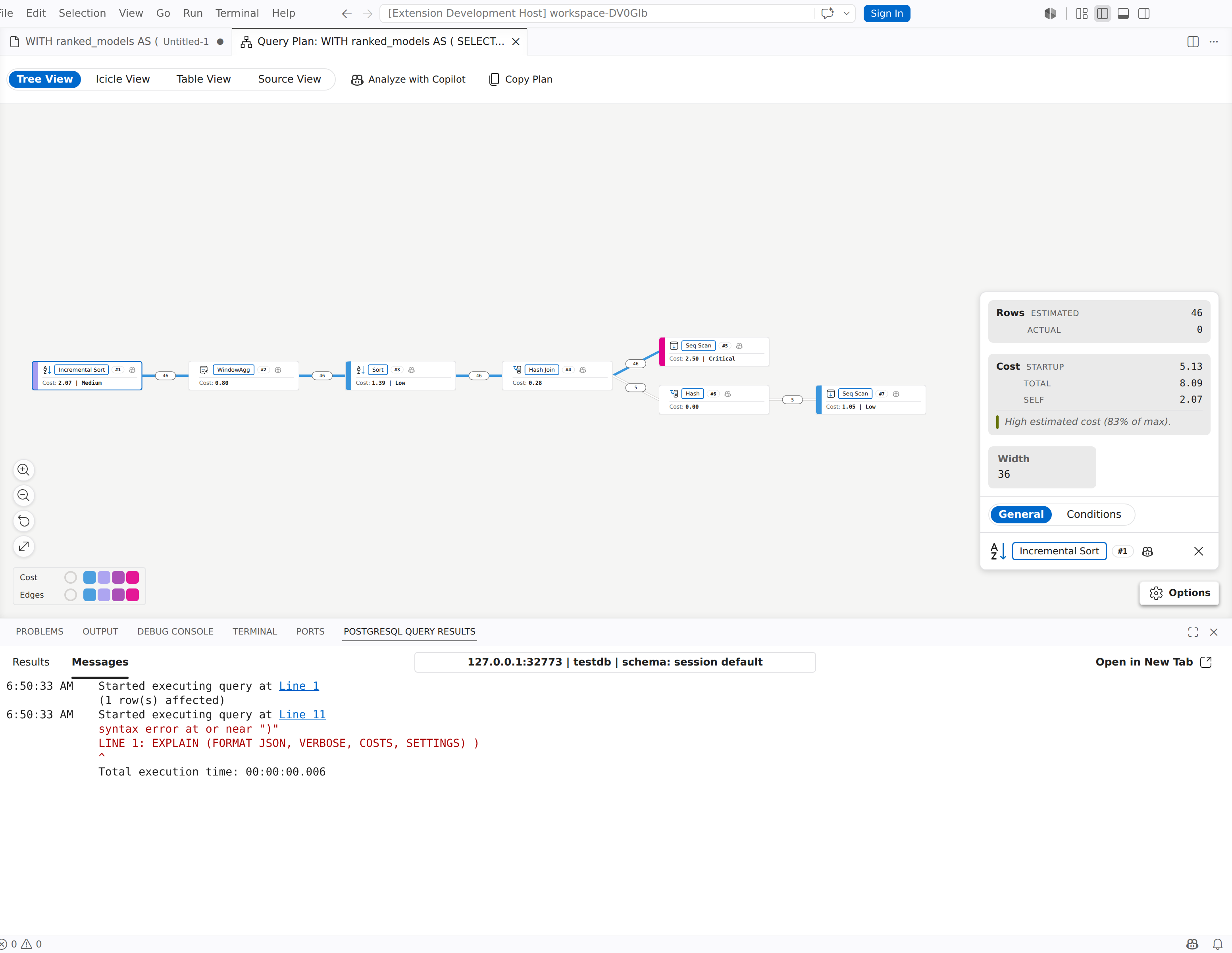
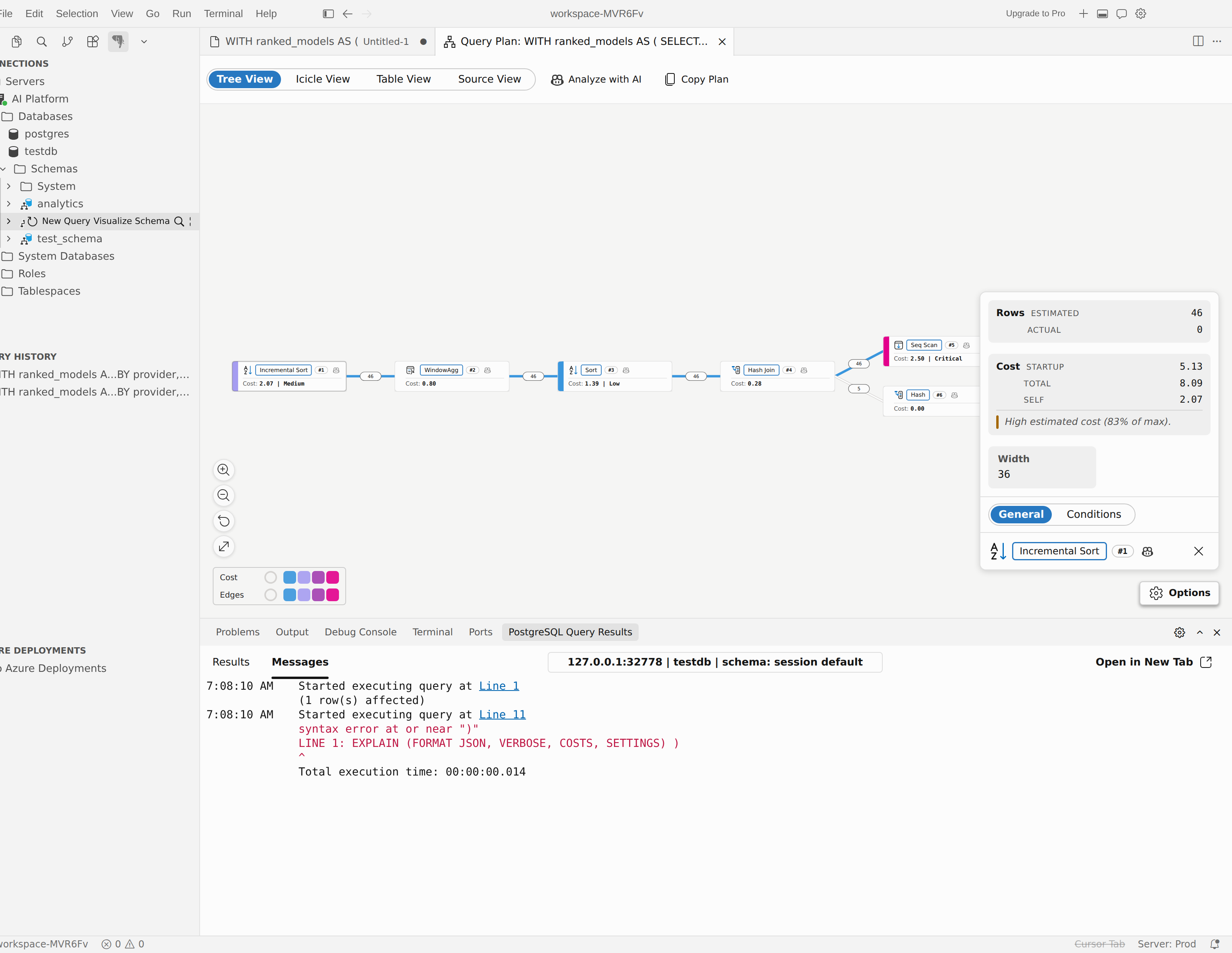
Use this panel to compare estimated versus actual work, inspect buffer-heavy nodes, and confirm which predicates are driving the plan.
Note
A Disabled badge marks a node whose type an enable_* planner setting turns off, but PostgreSQL uses the node anyway because it's still the least-cost valid plan. This badge requires PostgreSQL 17 or later.
Analyze plans with the AI assistant
Use the AI assistant when you want the extension to open an analysis chat with the current plan as context.
Analyze the full plan
- Open the plan in the visualizer.
- Select Analyze with Copilot (or Analyze with AI in Cursor).
- Choose whether to include your SQL query text with the analysis.
- Review the new chat session that opens in Agent mode.
If the plan came from PGSQL: Visualize Query Plan from Editor and there's no useful SQL text yet, the extension can prompt you to enter the query first so the AI has better context.
Analyze one node
- Right-click the node you want to inspect.
- Select Analyze this node with Copilot (or Analyze this node with AI in Cursor).
- Review the new Agent mode chat session for node-specific analysis.
Control whether SQL text is included
The pgsql.copilot.autoAttachQuery setting controls how the extension handles SQL text when it launches AI analysis:
- Ask whether to include SQL each time
- Always include SQL without prompting
- Never include SQL
When you choose to include or exclude SQL from the prompt, the extension can also offer to remember that choice for future sessions.
Use the query plan tool in Agent mode
The visualizer caches the current plan and exposes it to the AI assistant through the pgsql_query_plan tool, or the MCP equivalent on supported hosts. That tool supports these actions:
| Action | Use it for |
|---|---|
get_summary |
Get a plan-wide summary before drilling into details. |
get_node |
Inspect one node by ID. |
get_subtree |
Inspect a node together with its descendants. |
list_nodes |
Find nodes by type or minimum cost. |
If you want the AI to start from the active query instead of the visualizer, use Analyze Query Performance from the editor's AI Query Actions submenu. Use the visualizer when you want to inspect the plan yourself first and then hand that exact plan to the AI.
Tips for performance analysis
- Use ANALYZE when it's safe to run the statement. Estimates alone can hide bad row-count assumptions.
- Compare estimated and actual row counts to spot stale statistics or filter selectivity problems.
- Switch to Table View when the plan is large and you need search or side-by-side metric comparisons.
- Switch to Source View when you need the raw plan for an issue, code review, or discussion with teammates.