Note
Access to this page requires authorization. You can try signing in or changing directories.
Access to this page requires authorization. You can try changing directories.
The Azure Database for PostgreSQL MCP (Model Context Protocol) server enables AI agents in Microsoft Foundry to interact with PostgreSQL databases through natural language queries. This integration supports SQL operations, vector search, schema discovery, and data analysis with enterprise-grade security.
This article shows you how to set up and configure the Azure PostgreSQL Server MCP with Foundry agents for natural language database interactions.
What is MCP and how does it work?
Model Context Protocol (MCP) is an open standard that enables AI applications to securely connect to external data sources and tools. The Azure PostgreSQL MCP Server acts as a bridge between Foundry agents and your PostgreSQL database.
The system uses three main components:
- Microsoft Foundry Agent (Client): Authenticates to the Azure PostgreSQL MCP Server by using its managed identity
- Azure PostgreSQL MCP Server (Server): Runs in Azure Container Apps, using managed identity for PostgreSQL access
- PostgreSQL Database (Target): Azure Database for PostgreSQL with Microsoft Entra ID authentication
This architecture ensures proper security isolation with separate managed identities for client authentication and database access.
Features and capabilities
The Azure PostgreSQL MCP Server provides comprehensive database integration capabilities:
- SQL Operations - Execute queries and manage data. Perform analytics through natural language
- Vector Search - Use AI-powered embeddings for similarity search
- Schema Discovery - Automatic table and column analysis with relationship mapping
- Enterprise Security - Azure managed identity and Microsoft Entra ID authentication
- Natural Language - Query databases by using conversational AI without SQL knowledge
- Easy Deployment - Easy Azure deployment with complete infrastructure setup
Example use cases
With the MCP integration, your AI agents can handle queries like:
- "List all customers who placed orders in the last 30 days"
- "Show me the top five best-selling products by quantity"
- "What's the schema of the orders table?"
- "Calculate average order value by customer segment"
- "Find tables that contain customer information"
Prerequisites
Before you begin, make sure you have the required tools, accounts, and permissions in place to deploy and configure the MCP PostgreSQL Server. Having these prerequisites ready minimizes interruptions and helps ensure a smooth integration with Foundry.
- Azure CLI (latest version)
- Azure Database for PostgreSQL Flexible Server with Microsoft Entra ID authentication enabled
- Foundry project
- Microsoft .NET
- An Azure subscription with appropriate permissions to create resources
Quick start deployment
Deploy the complete Azure MCP PostgreSQL Server infrastructure by using Azure Developer CLI (azd):
Step 1: Deploy with azd up
The fastest way to get started is by using the automated deployment script.
First, clone the repo:
# Clone the repository
git clone https://github.com/Azure-Samples/azure-postgres-mcp-demo
cd azure-postgres-mcp-demo
Open infra/main.parameters.json and update these 2 values
Parameter Description postgresResourceIdResource ID of the Azure Database for PostgreSQL Flexible Server you want to connect to aifProjectResourceIdResource ID of the Azure Foundry project you want to use a. Update the
postgresResourceIdvariable to match the Postgres DB you want to access."postgresResourceId": { "value": "/subscriptions/<subscription-id>/resourceGroups/<postgres-resource-group>/providers/Microsoft.DBforPostgreSQL/flexibleServers/<postgres-server-name>" }Note
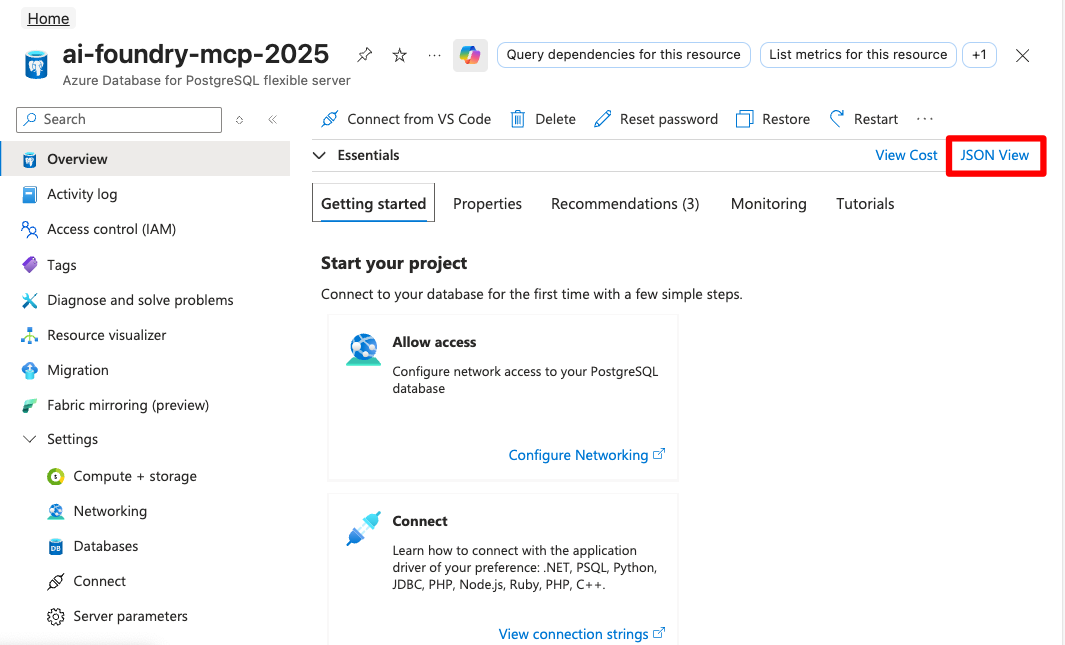
Find your Azure Database for PostgreSQL Resource ID in your Azure portal. JSON View → Resource ID:
b. Update the
aifProjectResourceIdvariable to match the Foundry project resource you want to use"aifProjectResourceId": { "value": "/subscriptions/<subscription-id>/resourceGroups/<aifoundry-resource-group>/providers/Microsoft.CognitiveServices/accounts/<aifoundry-resource-name>/projects/<aifoundry-project-name>" }Note
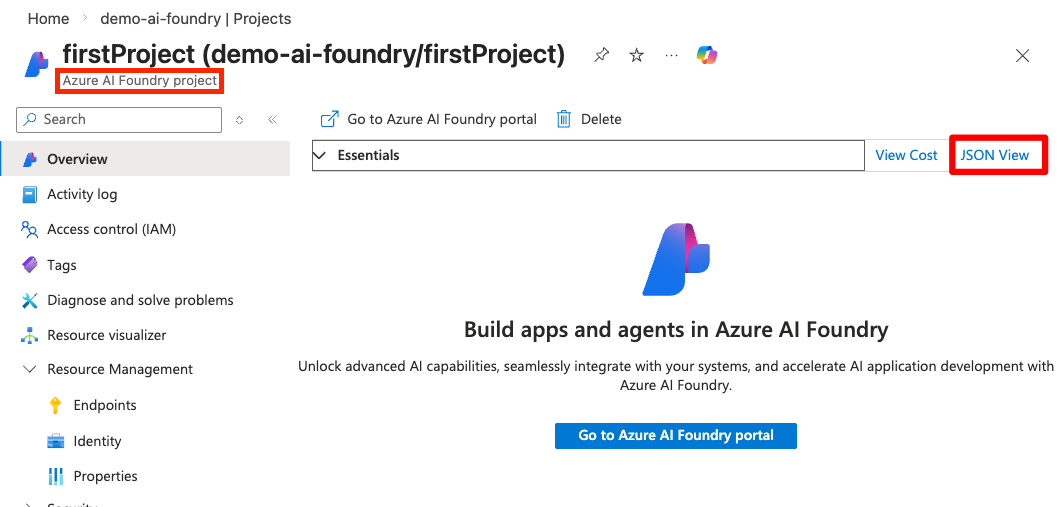
Find your Foundry project Resource ID in your Azure portal. JSON View → Resource ID:
Create a new azd environment and deploy. Make sure you are in the main directory (
azure-postgres-mcp-demo):azd env newazd upThe deployment usually takes 5-8 mins. After deployment completes, azd will output the MCP server URL + Managed Identity info you'll use in the next steps.
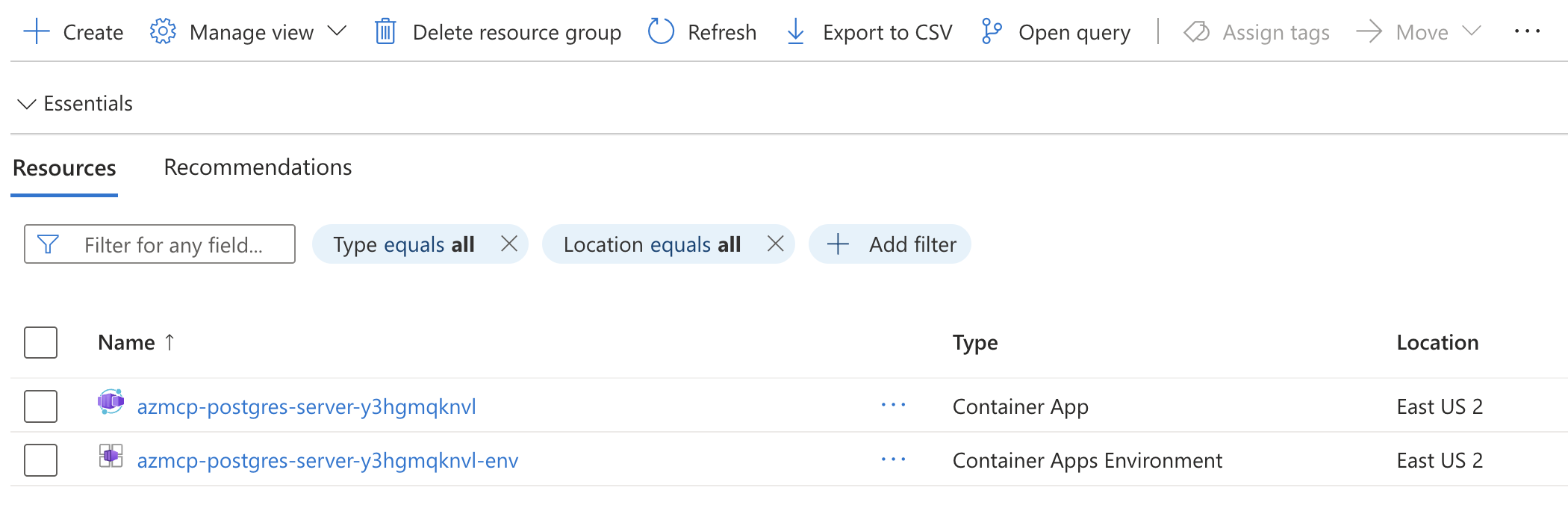
This deployment creates:
- Azure Container App running the MCP server with Managed Identity (Reader access to your PostgreSQL server)
- Entra ID App Registration for MCP server authentication
- Entra ID Role assignment for Foundry to authenticate to the MCP server
Step 2: Configure database access
After deployment completes, grant the MCP server access to your PostgreSQL database:
Connect to your PostgreSQL server using
psqlor your preferred PostgreSQL client:Set the following environment variables by copying and pasting the lines below into your bash terminal (WSL, Azure Cloud Shell, etc.). Find details for your connection in the Connect Tab in your Postgres Resource in the Azure portal:
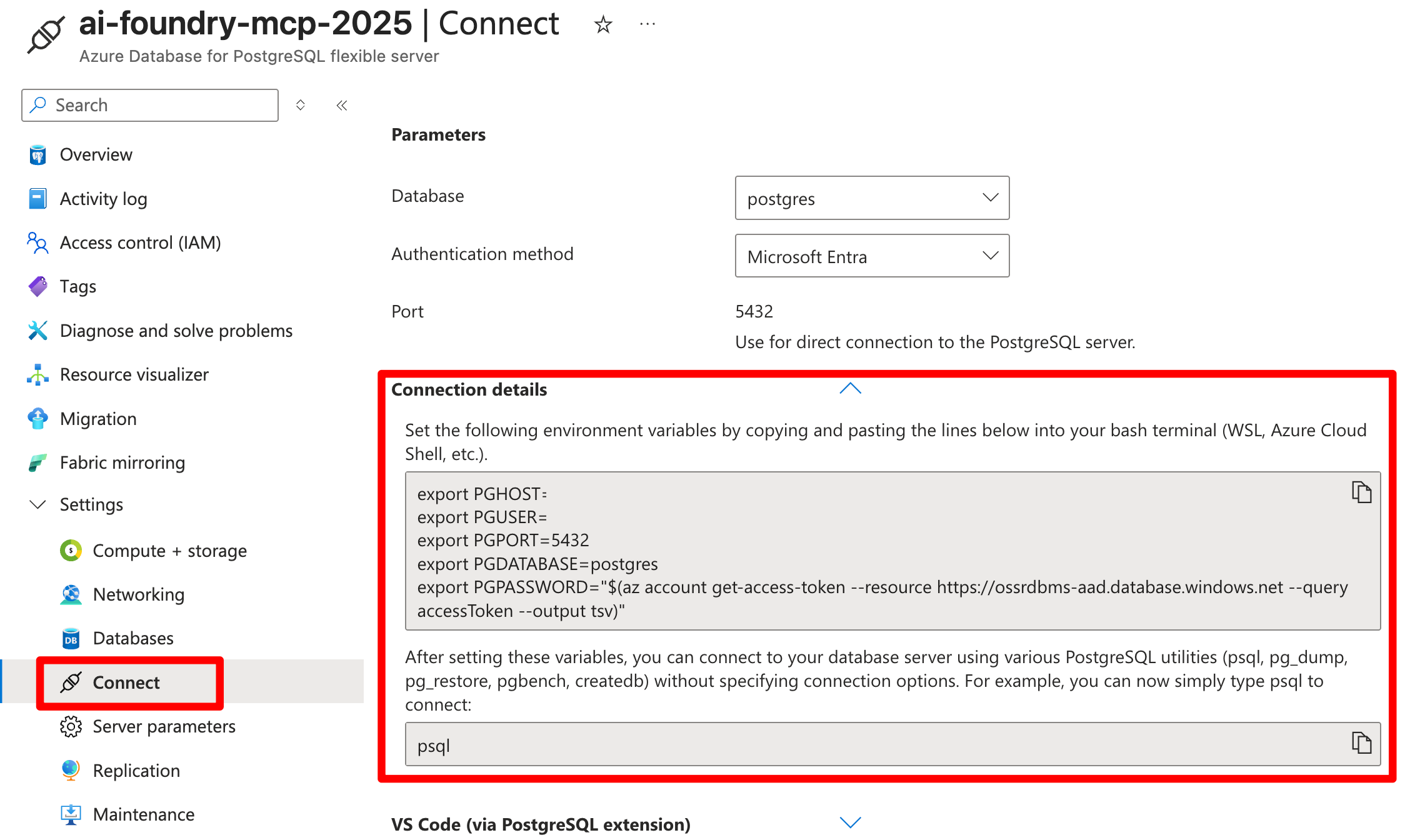
export PGHOST=<your-database-host-name>
export PGUSER=<your-admin-username>
export PGPORT=5432
export PGDATABASE=<your-database-name>
export PGPASSWORD="$(az account get-access-token --resource https://ossrdbms-aad.database.windows.net --query accessToken --output tsv)"
Then run:
psqlAlternatively, you can connect via the Connect and query a database with the PostgreSQL extension for Visual Studio Code.
Create the database principal for the MCP server's managed identity:
SELECT * FROM pgaadauth_create_principal('<CONTAINER_APP_IDENTITY_NAME>', false, false);Replace
<CONTAINER_APP_IDENTITY_NAME>with the managed identity name from your deployment output (e.g.,azmcp-postgres-server-nc3im7asyw).Tip
Use
azd env get-valuescommand to find theCONTAINER_APP_IDENTITY_NAMEvalueGrant appropriate permissions to the managed identity:
-- Grant SELECT on a specific table
GRANT SELECT ON TABLE_NAME TO "<CONTAINER_APP_IDENTITY_NAME>";
To grant permissions to all future and existing tables
-- Grant SELECT on all existing tables
GRANT SELECT ON ALL TABLES IN SCHEMA public TO "<CONTAINER_APP_IDENTITY_NAME>";

-- Grant SELECT on all future tables
ALTER DEFAULT PRIVILEGES IN SCHEMA public GRANT SELECT ON TABLES TO "<CONTAINER_APP_IDENTITY_NAME>";
Configure Foundry integration
After you deploy your MCP server, connect it to Foundry:
Connect via Foundry portal
Go to your Foundry project in the Azure portal.
Go to Build → Create agent.
In the tools section, select + Add.
Select the Custom tab and choose Model Context Protocol.
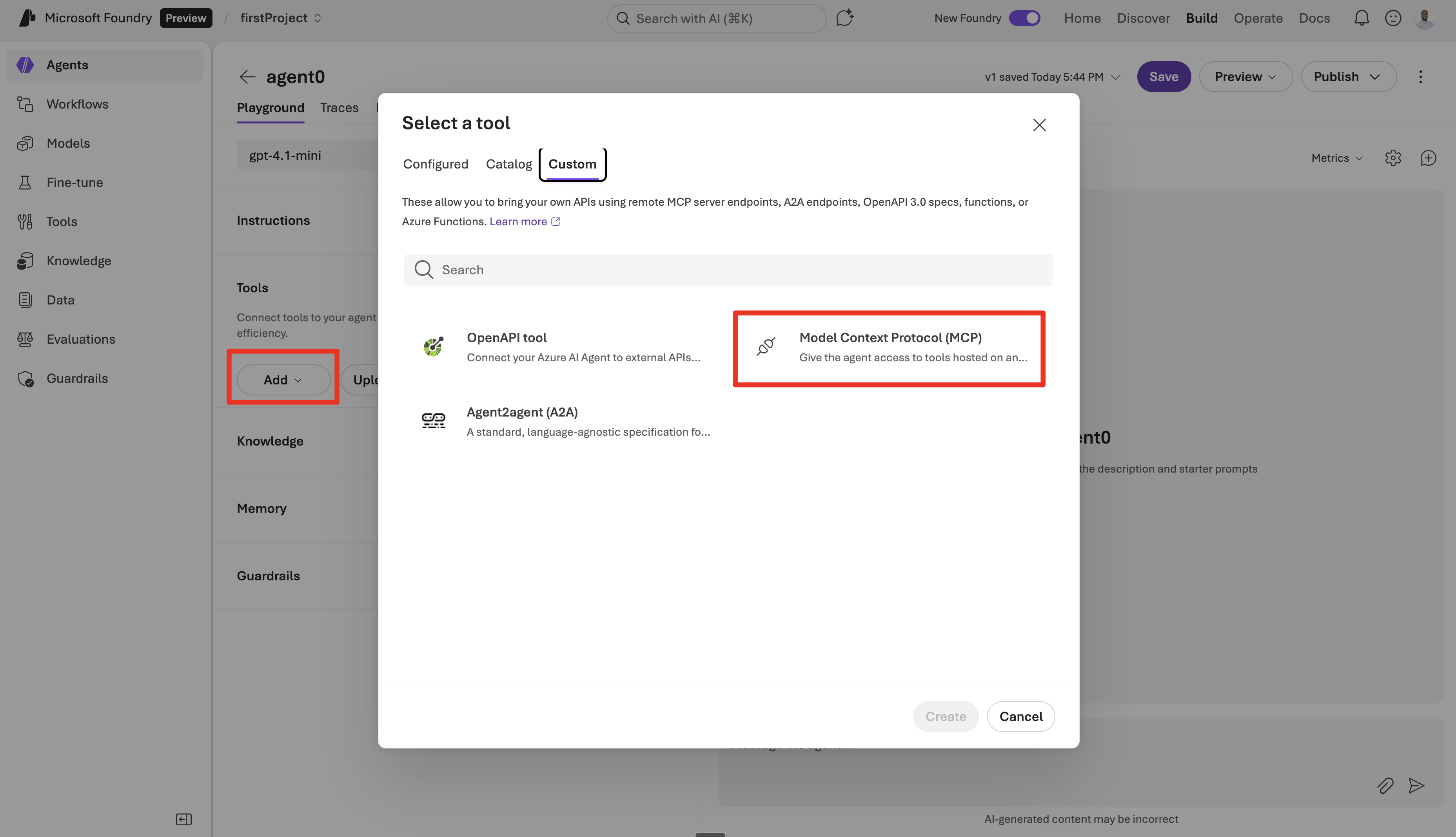
Select Microsoft Entra → Project Managed Identity as the authentication method.

Enter your
ENTRA_APP_CLIENT_IDas the audience (from your deployment output).Tip
Use
azd env get-valuesto find theENTRA_APP_CLIENT_IDvalue.Add instructions to your agent:
You are a helpful agent that can use MCP tools to assist users. Use the available MCP tools to answer questions and perform tasks.

Use these parameters when calling PostgreSQL MCP tools:
- database: <YOUR_DATABASE_NAME>
- resource-group: <YOUR_RESOURCE_GROUP>
- server: <YOUR_SERVER_NAME>
- subscription: <YOUR_SUBSCRIPTION_ID>
- user: <CONTAINER_APP_IDENTITY_NAME>
Test the integration
After you connect, test your MCP integration with natural language queries.
You can discover tables.
List all tables in my PostgreSQL database
You can retrieve records with natural language.
Show me the latest 10 records from the orders table
Find customers who placed orders in the last 30 days
You can do vector search and specify example queries to improve accuracy.
Do a vector search for "product for customer that love to hike"
This is an example of a vector search.
- `SELECT id, name, price, embedding <=> azure_openai.create_embeddings(
'text-embedding-3-small',
'query example'
)::vector AS similarity
FROM public.products
ORDER BY similarity
LIMIT 10;
The AI agent automatically translates these requests into appropriate database operations through the MCP server.
Connect via Foundry SDK
For programmatic access, use the following MCP configuration in your Python code:
Create a
.envfile from the.env.example:cd client cp .env.example .envUpdate all the values to run your agent. All values can be found in your Foundry Project.
Variable Name Example Value Description PROJECT_ENDPOINThttps://example-endpoint.services.ai.azure.com/api/projects/example-projectFoundry project endpoint MODEL_DEPLOYMENT_NAMEexample-modelName of the deployed AI model MCP_SERVER_URLhttps://example-mcp-server.azurecontainerapps.ioMCP server endpoint URL MCP_SERVER_LABELexample-labelLabel for the MCP server AZURE_OPENAI_API_KEYyour-azure-openai-api-keyAzure OpenAI service API key AZURE_OPENAI_ENDPOINThttps://example-openai-endpoint.openai.azure.com/Azure OpenAI service endpoint AZURE_OPENAI_API_VERSIONyour-api-versionAPI version for Azure OpenAI AZURE_SUBSCRIPTION_IDyour-azure-subscription-idAzure subscription identifier CONNECTION_NAMEyour-connection-nameName for the database connection POSTGRES_SERVERyour-postgres-serverPostgreSQL server name POSTGRES_DATABASEyour-postgres-databasePostgreSQL database name POSTGRES_TABLEyour-postgres-tableTarget PostgreSQL table POSTGRES_USERyour-postgres-userPostgreSQL user for authentication, use CONTAINER_APP_IDENTITY_NAME here AZURE_RESOURCE_GROUPyour-azure-resource-groupAzure resource group name Run the Full SDK sample in the
clientfolder in GitHub Repo.Example use of MCP Tools and Config in the sample code.
mcp_tool_config = {
   "type": "mcp",
   "server_url": "<MCP_SERVER_URL>",
   "server_label": "<MCP_SERVER_LABEL>",
   "server_authentication": {
      "type": "connection",
      "connection_name": "<CONNECTION_NAME>",
   }
}

mcp_tool_resources = {
   "mcp": [
      {
            "server_label": "<MCP_SERVER_LABEL>",
            "require_approval": "never"
      }
   ]
}
Security
When using the Azure MCP PostgreSQL Server, be aware of the following security considerations:
Data access and exposure
- Connected AI agents can potentially access any data accessible to the MCP server
- The server can execute SQL queries on accessible databases and tables, however the MCP server is restricted to read only operations.
- Connected agents can request and receive data through natural language queries
Security features
You can use the following security features to protect your data:
- Managed Identity: No credentials stored in container images.
- Microsoft Entra ID Authentication: Secure database authentication.
- RBAC: Role-based access control for database operations.
- Row Level Security: Fine-grained access control at the row level.
Best practices
- Grant database permissions ONLY to specific schemas and tables needed for AI agents.
- Use principle of least privilege - don't grant broad database access.
- Regularly review and audit permissions granted to the MCP server's managed identity.
- Consider using dedicated databases or schemas for AI agent access.
- Start with a test database containing only nonsensitive sample data.
Troubleshoot
If you encounter problems with the MCP PostgreSQL Server integration, this troubleshooting section helps you quickly identify root causes and remediate common issues. Begin with the health check and logs, then verify managed identity authentication, network connectivity, and database permission.
Health check
# Check MCP server status
ping https://your-mcp-server.azurecontainerapps.io
If MCP is up and running:
64 bytes from X.XXX.XXX.X: icmp_seq=0 ttl=108 time=92.748 ms
If MCP is not running:
ping: cannot resolve https://your-mcp-server.azurecontainerapps.io: Unknown host
You will need to re-run azd up.
Limitations and considerations
Cannot validate Microsoft Entra ID ... name isn't unique in the tenant
- Error: Someone in your tenant already deployed a Postgres MCP server with the name
azure-mcp-postgres-serverpostgres=> SELECT * FROM pgaadauth_create_principal('azure-mcp-postgres-server', false, false); ERROR: Cannot validate Microsoft Entra ID user "azure-mcp-postgres-server" because its name isn't unique in the tenant. Make sure it's correct and retry. CONTEXT: SQL statement "SECURITY LABEL for "pgaadauth" on role "azure-mcp-postgres-server" is 'aadauth'" PL/pgSQL function pgaadauth_create_principal(text,boolean,boolean) line 23 at EXECUTE - Solution: Update the acaName in infra/main.parameter.json to a different name, and rerun deployment with
azd up
Authentication errors
- Error:
UnauthorizedorForbidden - Solution: Verify managed identity configuration and PostgreSQL access permissions
Connection issues
- Error:
Connection timeoutorCannot connect to server - Solution: Check PostgreSQL firewall rules and network configuration
Permission errors
- Error:
Permission denied for relation - Solution: Grant appropriate permissions to the MCP server's managed identity:
GRANT SELECT ON my_table TO "<CONTAINER_APP_IDENTITY_NAME>";
Debug with logs
View Container Apps logs for troubleshooting:
# Stream Container Apps logs
az containerapp logs show -n your-mcp-container-name -g your-resource-group

# Check deployment status
az containerapp show -n your-mcp-container-name -g your-resource-group