Note
Access to this page requires authorization. You can try signing in or changing directories.
Access to this page requires authorization. You can try changing directories.
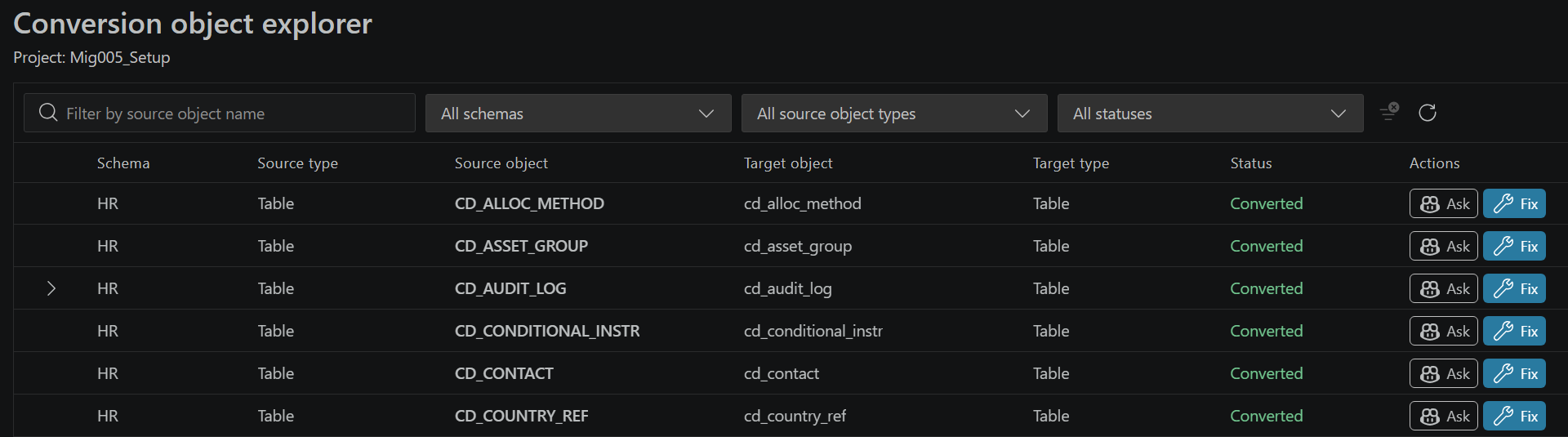
Use Conversion Object Explorer to review and refine Oracle-to-PostgreSQL conversion results. The explorer shows source objects alongside their target names, types, and statuses. Each object opens a source-to-target comparison, with Copilot actions to explain the conversion or help change the generated PostgreSQL file.
For instructions on opening the explorer from a completed conversion, see Review and refine converted objects in the tutorial.
Find and inspect objects
Use the filters above the results table to narrow the objects you want to review:
| Control | Purpose |
|---|---|
| Filter by source object name | Find an object by its Oracle source name. |
| All schemas | Narrow the results to a source schema. |
| All source object types | Narrow the results by Oracle object type. |
| All statuses | Narrow the results by the statuses available for the conversion. |
Read Schema, Source type, and Source object together to identify the Oracle object. Compare Target object and Target type to understand its PostgreSQL mapping. The Status column shows the object's conversion result, and Actions provides Ask and Fix.
Use the page controls below the table when the results span more than one page.
Review packages and other multi-statement objects
Packages and some other source objects can produce multiple PostgreSQL statements. Expand the parent object to inspect the associated entries instead of treating the conversion as a single PostgreSQL statement.
Inspect package members
Use the package hierarchy to work through individual members and their respective PostgreSQL equivalents:
- Locate the package by using the schema and source object name filters above the main table.
- Select the chevron next to the package to expand its member entries.
- Review each member's source-to-target mapping, including its Oracle source type and PostgreSQL target type.
- Select the member you want to inspect, and review its source-to-target comparison and Conversion notes.
Review the members individually to understand the changes made for each one. A package-level view helps you locate the members, but doesn't replace reviewing their generated definitions.
Filter members by source object type
For a package with many members, use the object-type filter within the expanded package to focus on one Oracle source member type at a time. The filter uses the member's Oracle source type, not its PostgreSQL target type.
The two object-type filters serve different purposes:
| Filter location | What it filters |
|---|---|
| All source object types above the main table | Source objects in the main results list. |
| Object-type filter within an expanded package | Members of that package by Oracle source type. |
After reviewing one member type, change or remove the member-type filter to review the remaining members.
Expand and collapse the hierarchy
Use the expand-all and collapse-all controls at the level you're reviewing:
| Level | Purpose |
|---|---|
| Explorer | Expand or collapse expandable objects across the explorer together. |
| Package | Expand or collapse members within that package together. |
Use an expandable object's chevron when you only want to expand or collapse that object.
Compare definitions and read conversion notes
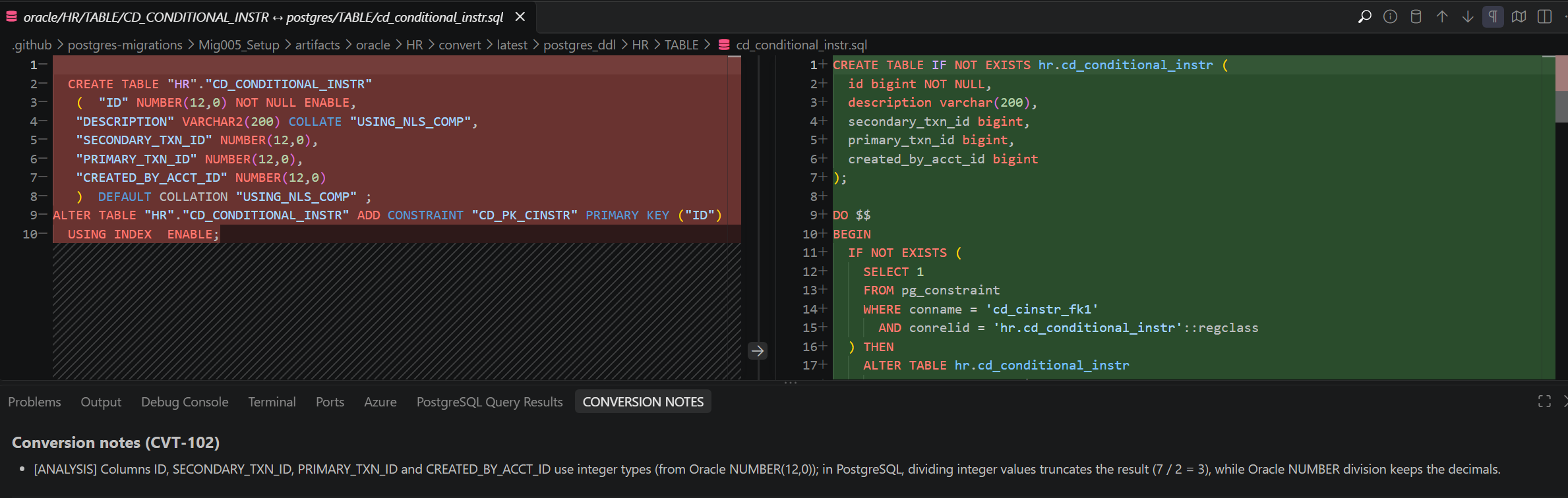
Select an object to open its diff view. The Oracle definition appears on the left, and the generated PostgreSQL definition appears on the right. Review the comparison to understand changes to names, types, parameters, and database-specific constructs.
Read the Conversion notes panel alongside the definitions. The notes provide context about the conversion and differences that need your attention. Review them for converted objects as well as objects that need correction.
Ask Copilot to explain a conversion
Select Ask for an object to ask GitHub Copilot to explain its conversion, including its dependencies. Use the explanation together with the diff view and conversion notes to understand how the PostgreSQL definition relates to the Oracle source.
Review Copilot's explanation against the definitions and your application's requirements before making changes.
Fix an object and compile changes
Fix opens a Copilot prompt with the object's details. Copilot uses that context to help make changes to the PostgreSQL file. Review the resulting edits before compiling them.
You can edit the generated files before deployment. For manual compilation, use a nonproduction database and confirm that the required schemas and dependencies are available. If you need to prepare that database, see the Setup Experience.
To correct and manually compile an object in that nonproduction database:
- Select Fix for the object you want to change.
- Work with Copilot to make the required corrections, and review the updated PostgreSQL definition.
- Open the edited PostgreSQL file in the SQL editor.
- Connect the SQL editor to the nonproduction PostgreSQL server.
- Connect to the database on that server where the converted schema is deployed. Confirm the editor's active database.
- Review the schema references in the SQL, and select the complete statement or statements you want to execute.
- Select the play button in the SQL editor to execute the selected statements and compile the objects. You can also run the selection with Execute PostgreSQL Query.
- Review the execution output. Correct any reported errors and run the updated definition again as needed.
The SQL editor's Execute PostgreSQL Query command runs the selected text. If no text is selected, it runs the entire editor contents. When a file contains definitions for multiple converted members, select complete statements to avoid unintentionally executing unrelated definitions.
Editing a file and compiling it in the database are separate steps. Use the execution results to determine whether the updated definition was applied. Confirm that the generated deployment SQL includes the tested corrections before production deployment; don't assume that editing a per-object file updates deploy.sql.
For steps to connect the editor, select a database, and run SQL, see Query editor and IntelliSense.
Validate beyond compilation
Successful compilation doesn't establish that the converted object behaves the same as its Oracle source. Before production deployment, independently test data handling, business logic, dependencies, and application behavior with the converted schema.
Related content
- Deploy converted schemas with the Setup Experience
- Tutorial: Convert Oracle schemas to Azure Database for PostgreSQL
- Oracle to Azure Database for PostgreSQL schema conversion overview
- View the HTML report for Oracle schema conversion
- Oracle to Azure Database for PostgreSQL schema conversion limitations