Note
Access to this page requires authorization. You can try signing in or changing directories.
Access to this page requires authorization. You can try changing directories.
By default, each user or service principal you add to your Azure Managed Redis cache gets full access to all commands and keys. Starting with API version 2026-05-01-preview, you can assign custom Redis ACL permissions to individual users by specifying an access string on the access policy assignment.
Custom access strings (preview) let you control which commands a user can execute and which keys they can access. This control enables fine-grained, per-user data access control for your cache.
Prerequisites
- An Azure Managed Redis cache. To create one, see Quickstart: Create an Azure Managed Redis instance.
- Access to the REST API with API version
2026-05-01-preview.
Limitations
- Custom access strings require API version
2026-05-01-previewor later. Earlier API versions always assign full access. - Each user can have one access policy assignment per database.
- Access string comparison is case-sensitive because Redis key patterns are case-sensitive.
- Some Redis commands are blocked in Azure Managed Redis regardless of ACL configuration. For more information, see Blocked commands.
Scope of availability
| Tier | Availability |
|---|---|
| Balanced (B series) | Yes |
| Memory Optimized (M series) | Yes |
| Compute Optimized (X series) | Yes |
| Flash Optimized (F series) | Yes |
Redis ACL permissions
Azure Managed Redis uses Redis ACL syntax to define access permissions. An access string combines command permissions and key patterns to control what a user can do.
- Command categories: Use
+@<category>to allow or-@<category>to disallow a group of commands (for example,+@read,+@write,+@all). - Individual commands: Use
+<command>or-<command>to allow or disallow specific commands (for example,+set,-flushall). - Key patterns: Use
~<pattern>to restrict which keys a user can access. Use~*for all keys. You can combine multiple patterns.
For the full list of command categories and syntax details, see the Redis ACL documentation.
Examples
| Access string | Description |
|---|---|
+@all ~* |
Full access to all commands and all keys (default) |
+@all ~user:* |
All commands, but only on keys matching user:* |
+@read ~cache:* |
Read-only access to keys matching cache:* |
+@read +@write ~app:* ~session:* |
Read and write access on keys matching app:* or session:* |
+@read +set +get ~data:* |
Read commands plus SET and GET on keys matching data:* |
Note
Key patterns are case-sensitive. For example, ~User:* and ~user:* match different sets of keys.
Assign custom access permissions
Azure portal
In the Azure portal, go to your Azure Managed Redis instance.
On the Resource menu, select Authentication.
On the Microsoft Entra Authentication tab, select User or service principal, and then select + Select member.
In the Select member panel, search for and select the user or service principal.
Under Access policy, select Custom data access policy (preview) and enter your access string (for example,
+@all -@write ~*).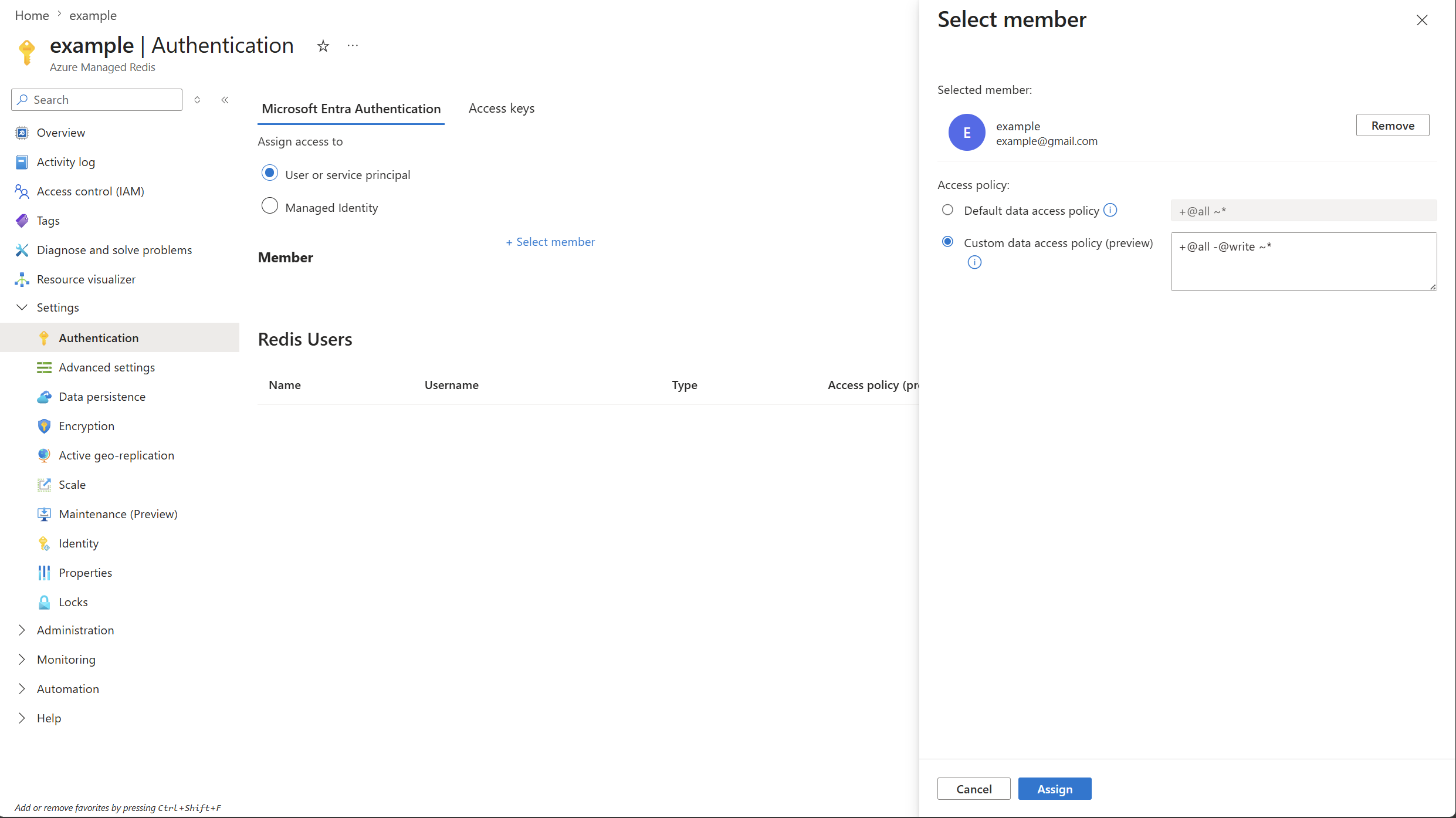
Select Assign.
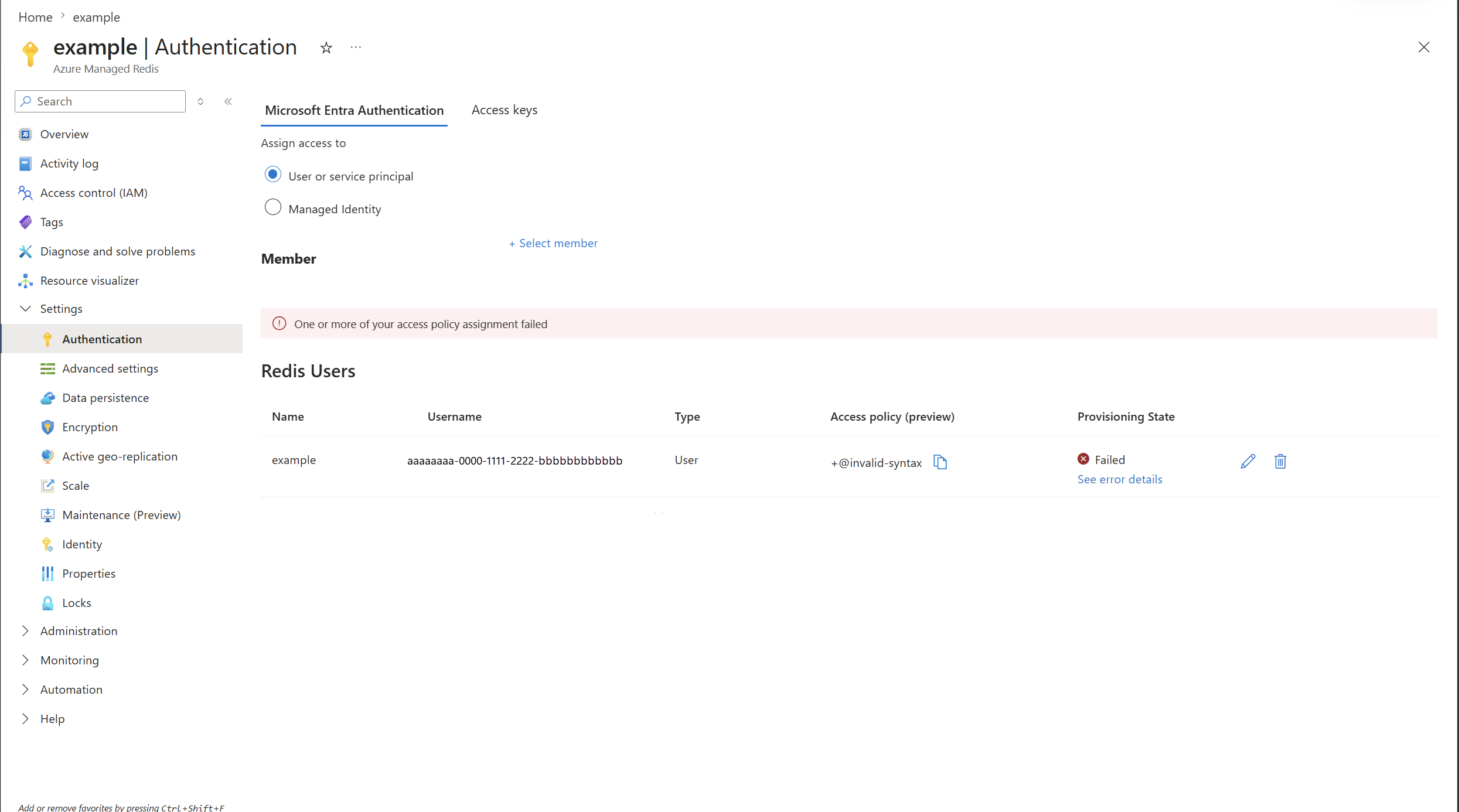
If the access string contains invalid Redis ACL syntax, the assignment fails. The Redis Users list shows a banner indicating the failure, and the user entry shows a Failed provisioning state with a See error details link.
ARM template
Save the following template as AccessPolicyAssignment.json, replacing the parameter values with your own:
{
    "$schema": "https://schema.management.azure.com/schemas/2019-04-01/deploymentTemplate.json#",
    "contentVersion": "1.0.0.0",
    "parameters": {
        "cacheName": {
            "defaultValue": "{CacheName}",
            "type": "String"
        },
        "assignmentName": {
            "defaultValue": "{AssignmentName}",
            "type": "String"
        },
        "objectId": {
            "defaultValue": "{ObjectId}",
            "type": "String"
        },
        "accessString": {
            "defaultValue": "+@all ~*",
            "type": "String"
        }
    },
    "resources": [
        {
            "type": "Microsoft.Cache/redisEnterprise/databases/accessPolicyAssignments",
            "apiVersion": "2026-05-01-preview",
            "name": "[concat(parameters('cacheName'), '/default/', parameters('assignmentName'))]",
            "properties": {
                "accessPolicyName": "default",
                "accessString": "[parameters('accessString')]",
                "user": {
                    "objectId": "[parameters('objectId')]"
                }
            }
        }
    ]
}
Deploy the template by using the az deployment group create Azure CLI command:
az deployment group create \
    --resource-group myResourceGroup \
    --template-file AccessPolicyAssignment.json \
    --parameters cacheName=myCache assignmentName=myAssignment \
        objectId=aaaaaaaa-0000-1111-2222-bbbbbbbbbbbb \
        accessString="+@read ~cache:*"
REST API
You can also use the REST API directly:
PUT https://management.azure.com/subscriptions/{subscriptionId}/resourceGroups/{resourceGroup}/providers/Microsoft.Cache/redisEnterprise/{cacheName}/databases/{databaseName}/accessPolicyAssignments/{assignmentName}?api-version=2026-05-01-preview

{
  "properties": {
    "accessPolicyName": "default",
    "accessString": "+@read ~cache:*",
    "user": {
      "objectId": "aaaaaaaa-0000-1111-2222-bbbbbbbbbbbb"
    }
  }
}
If you omit accessString, the user receives full access (+@all ~*).
Update a user's permissions
To change a user's access permissions, run the same create or PUT command with a different accessString value. The user's role in Redis is updated in place without disconnecting the user. The previous custom ACL and role objects are cleaned up automatically.
Remove a user's access
Delete the access policy assignment to revoke a user's access:
DELETE https://management.azure.com/subscriptions/{subscriptionId}/resourceGroups/{resourceGroup}/providers/Microsoft.Cache/redisEnterprise/{cacheName}/databases/{databaseName}/accessPolicyAssignments/{assignmentName}?api-version=2026-05-01-preview
Deleting one user's assignment doesn't affect other users on the same cache.
Error handling
If you provide an invalid Redis ACL string, provisioning fails with an InvalidAccessString error that includes the Redis error message. For example:
{
  "provisioningState": "Failed",
  "provisioningError": {
    "code": "InvalidAccessString",
    "message": "Failed to provision access string '+@nonexistent ~*': ERR Error in ACL SETUSER modifier '+@nonexistent': Unknown command or category name in ACL",
    "target": "properties.accessString"
  }
}
Existing users on the cache aren't affected when a new assignment fails.