Note
Access to this page requires authorization. You can try signing in or changing directories.
Access to this page requires authorization. You can try changing directories.
This article describes how to define a Zone Down Drill (preview) in Infrastructure Resiliency Manager. This capability simulates an Availability Zone failure and validates application resiliency. It also covers configuring Chaos Workspaces, managing identities, designing faults, and verifying Service Group readiness for zonal failures.
Prerequisites
Before you define a zone down drill, ensure that you review the following prerequisites:
- Verify that your existing service group has the required resources.
- Set up an Azure role-based access control (RBAC) permissions. See the Support Matrix.
- Set up a Recovery Plan for your Service Group.
- Register the
Microsoft.Chaos,Microsoft.Insights,Microsoft.OperationalInsights, andMicrosoft.Automationresource provider namespaces in the subscription where the Chaos Workspace gets created.
Register the resource provider namespaces
The resource provider namespaces allow you to enable drill design, execution, monitoring, and the required monitoring setup creation.
To register a resource provider namespace, follow these steps:
- In the Azure portal, go to Subscriptions and select the subscription where you want to register the resource providers.
- On the Subscriptions pane, select Settings > Resource providers.
- On the Resource providers pane, search the resource provider namespace (for example Microsoft.Chaos), select it from the list, and select Register.
The registration process completes in 15-20 minutes approximately.
Create an Availability Zone Down Drill definition
Drill definition allows you to set parameters for a Zone Down Drill and prepare for execution. You can configure included resources, design faults for supported resources, and confirm readiness before execution.
To define an Availability Zone Down simulation drill, follow these steps:
In the Azure portal, go to Service groups and select the service group for which you want to define the drill.
On the selected service group pane, select Resiliency > Drills.
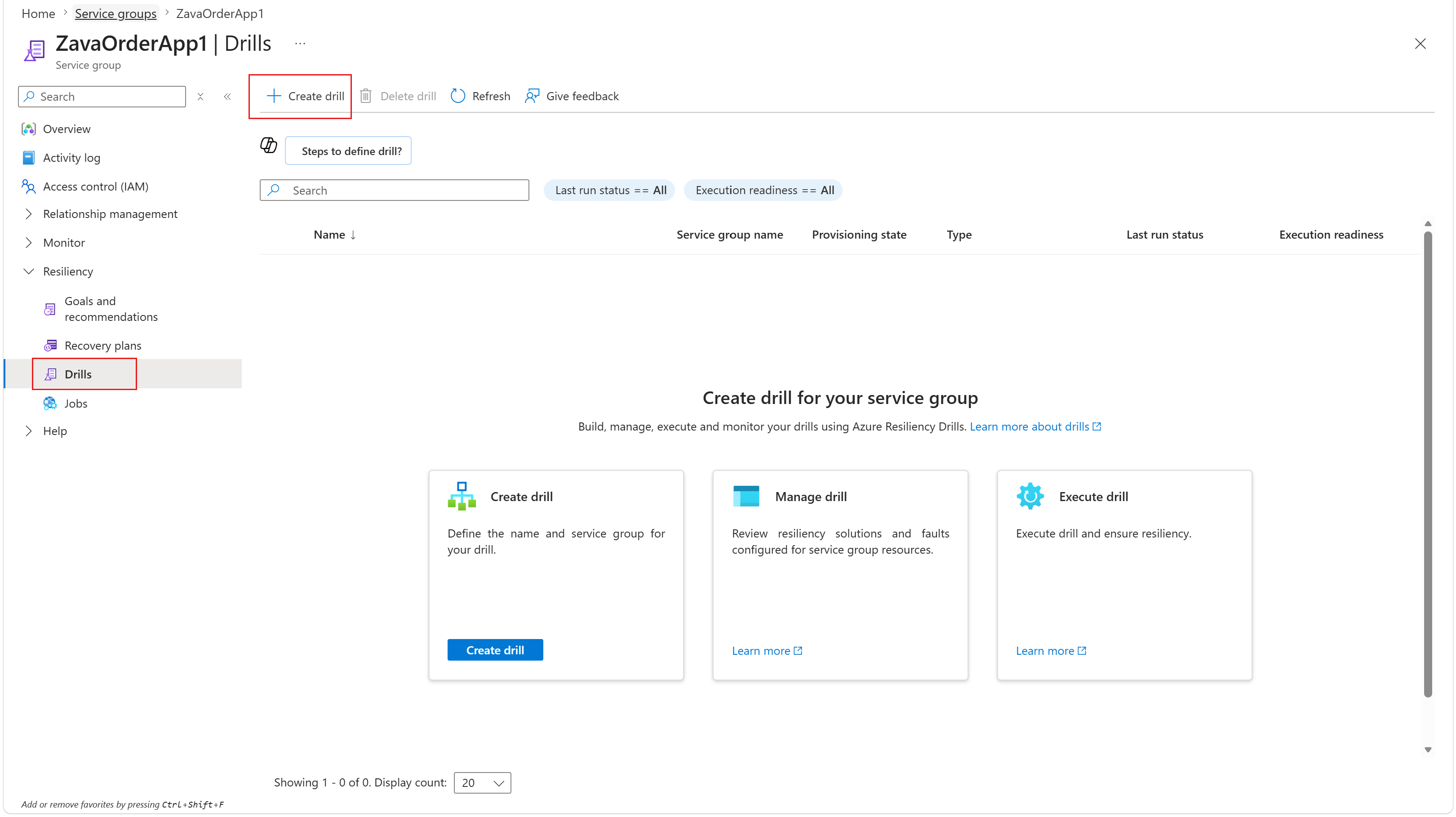
On the Drills pane, select + Create drill.
On the Create Availability Zone Down Drill pane, on the Basics tab, enter a name for the drill instance. Select the Subscription and Region to associate with the Chaos Workspace and Log Analytics Workspace.
The subscription or region of the Availability Zone Down Drill might differ from the Service Group’s subscription or region.
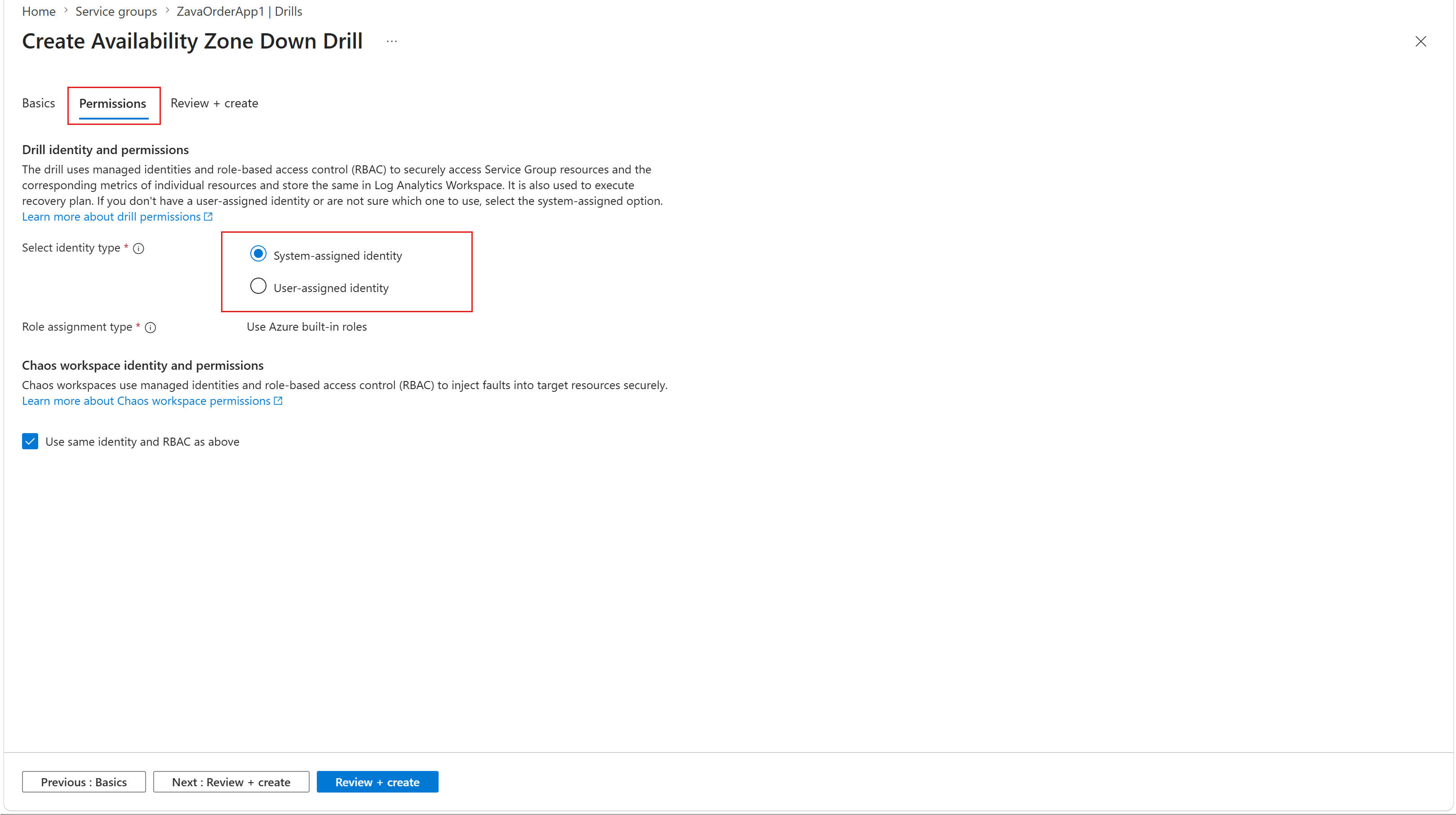
On the Permissions tab, select System-assigned identity or User-assigned identity that allows you to securely fetch Service Group resources, execute Recovery Plans, and manage metrics.
You can use the same identity for fault injection or select a different one.
On the Review + create tab, review the configuration, and select Create to confirm creation of the drill instance.
Note
You can associate each service group with a single drill instance.
Review and configure resources for the drill
You can review permissions, validate resource inclusion, assess metrics readiness, and include required resources to ensure successful drill execution.
To review and configure resources for the drill, follow these steps:
On the selected service group pane, select Resiliency > Drills.
On the Drills pane, select the drill instance you created.
Review drill role assignment status
To review drill role assignment status, follow these steps:
On the selected drill instance pane, select Settings > Identity and permissions.
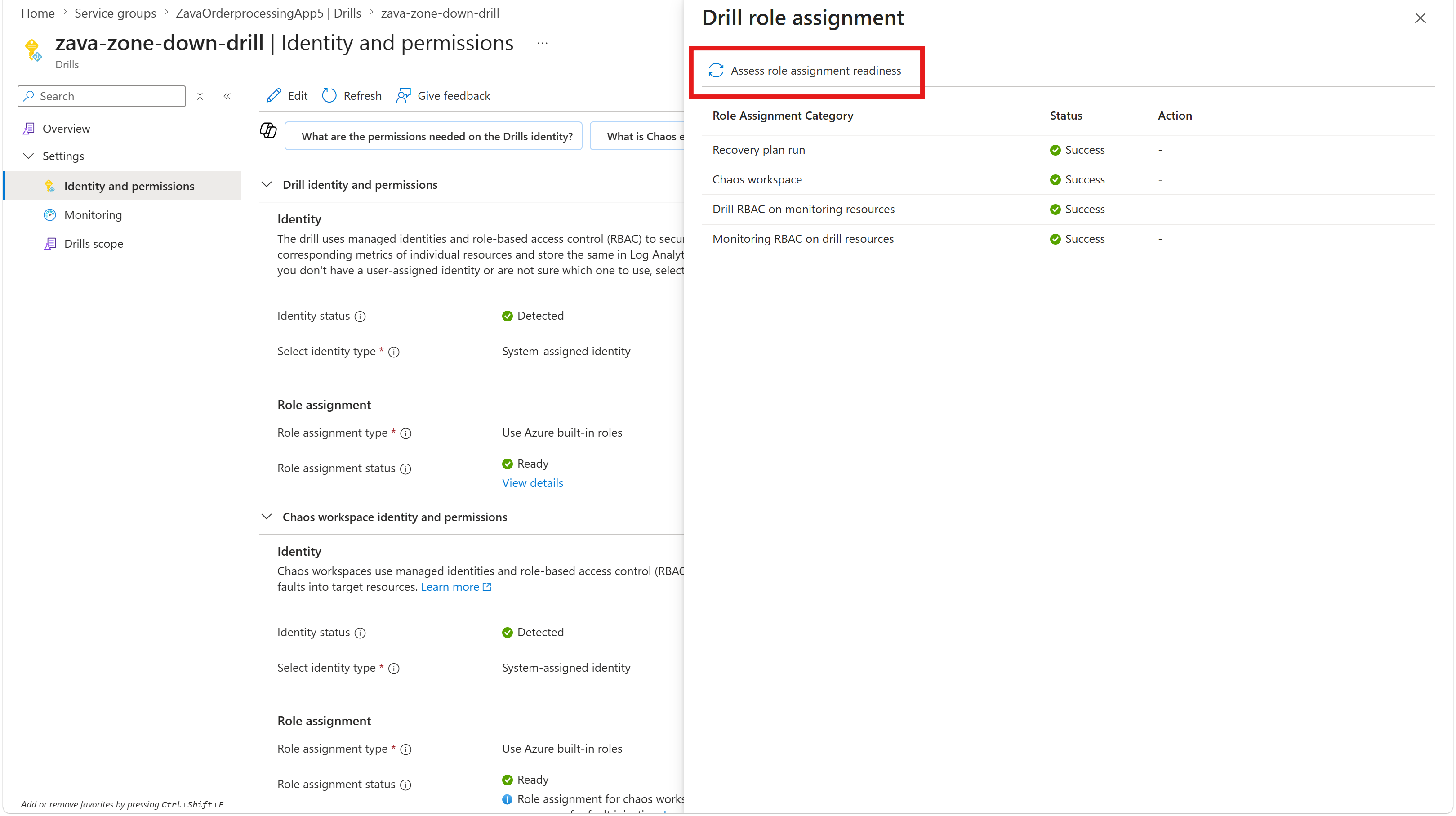
On the Identity and permissions pane, under Role assignment status, select View details.
On the Drill role assignment pane, review the list of identities and their corresponding role assignment status.
Note
If there are errors in Drills Role Assignment status, reassess the status by selecting Assess role assignment readiness.
Review the resources included in the drill
Zone down drill allows you to review the resources included in the drill. The drill does the following actions:
- Includes resources with a native zonal resiliency solution by default; these resources qualify for fault injection.
- Associates a Recovery Plan with the Service Group for resources that require manual failover (for example, Virtual Machines with Azure Site Recovery).
- Excludes resources that lack native zonal resiliency, aren't part of a Recovery Plan, or don't support zonal resiliency detection for the resource type.
To include resources in the drill, follow these steps:
On the selected drill instance pane, select Settings > Drills scope.
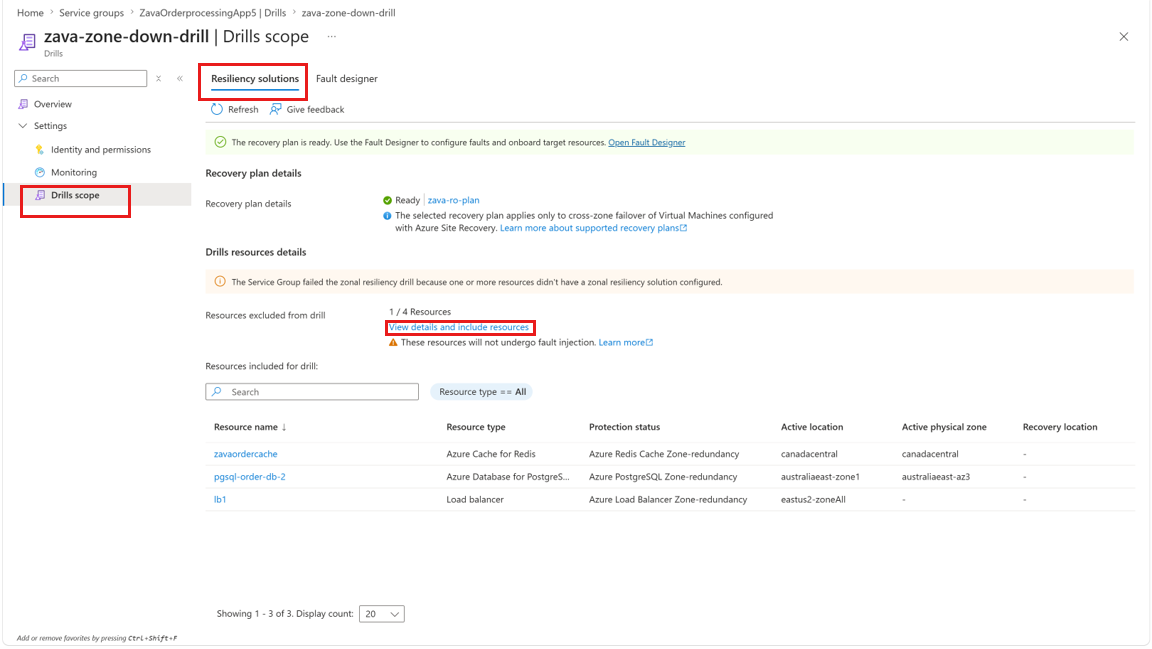
On the Drill scope pane, on the Resiliency solutions tab, under Resources excluded from drill, select View details.
On the View details and include resources pane, to add an excluded resource, select the resource from the list, and select Include resources.
Review the metrics
To review the metrics for drill execution, follow these steps:
- On the selected drill instance pane, select Settings > Monitoring.
- On the Monitoring pane, review the list of resources and their corresponding metrics readiness status for drill execution.
Design faults for supported and unsupported resources
To design faults for supported and unsupported resources in the drill, follow these steps:
On the selected drill instance pane, select Settings > Drills scope.
On the Drills scope pane, on the Fault designer tab, to review or modify the corresponding fault design status of resources, select a resource from the list and select Edit fault.
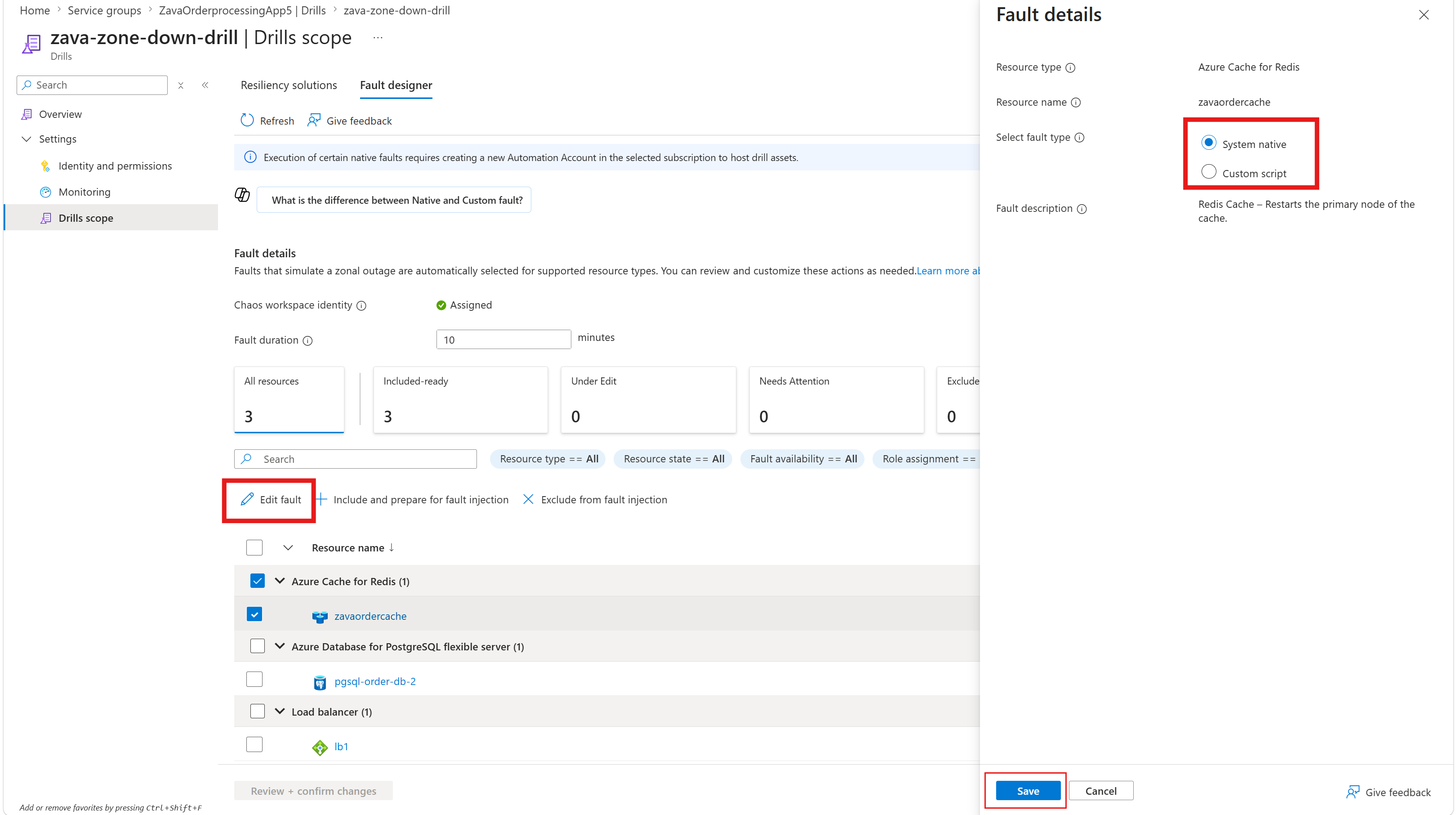
For unsupported resource type fault details configuration, on the Fault details pane, define custom fault logic using Azure Runbooks and select Save.
If you use custom faults via runbooks, include the following mandatory parameters to pass to the runbook:
ResourceIds- Duration
FaultLocation(zone for now)
To complete the role assignment, on the Fault designer tab, select a resource type from the list and select Include and prepare for fault injection or Exclude from fault injection.
All resources appear in the Needs Attention status by default. To troubleshoot readiness issues, select Needs Attention corresponding to each resource. You can set the Fault duration for the fault injection time configuration (default time is 10 minutes).
Verify readiness and fix configuration drifts
After the fault design is complete, review readiness across all summary widgets.
To review and fix configuration drifts, follow these steps:
On the selected drill instance pane, select Overview > Resync and check readiness.
If the Drill execution readiness status shows Not Ready, select the status and view the errors flagged.
On the Drill execution readiness state pane, fix the errors shown and rerun a readiness check. The status changes to Ready.
Refresh the drill instance after every edit operation.
Next step
Execute Availability Zone Down Drill in Infrastructure Resiliency Manager (preview).