Note
Access to this page requires authorization. You can try signing in or changing directories.
Access to this page requires authorization. You can try changing directories.
This article describes how to configure SAP S/4HANA and SAP ECC source systems using Open Mirroring. In this scenario, Business Process Solutions processes the extracted data, while data ingestion is handled by third-party tools. Data extraction should be configured directly within your chosen extraction solution.
Configure SAP S/4 HANA source system with Open Mirroring
Use the following steps to configure your SAP S/4 HANA source system with Open Mirroring.
- On the home screen, click on Configure source system button.
- Click on the New source system button.

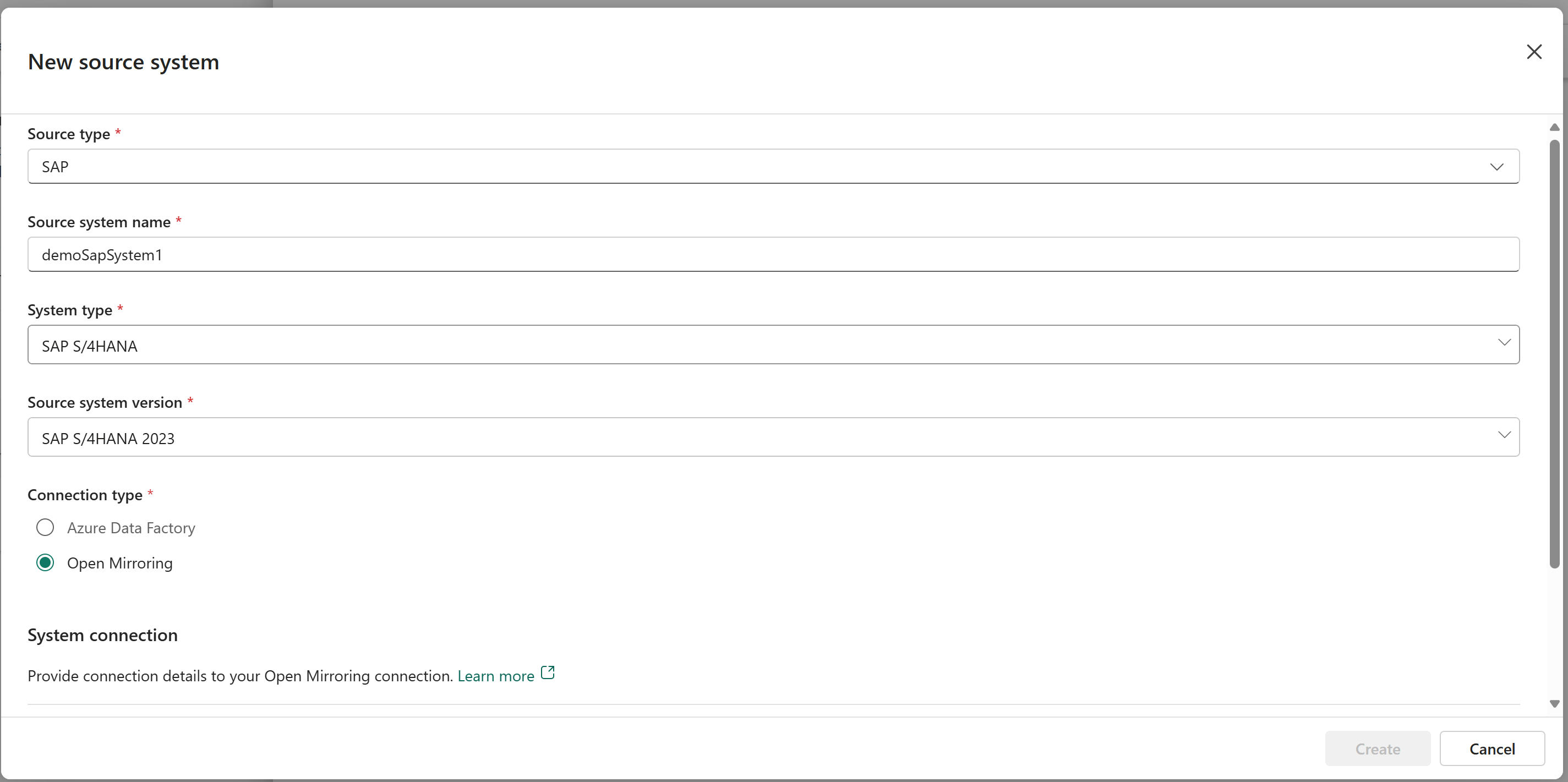
- Provide the inputs for the fields.
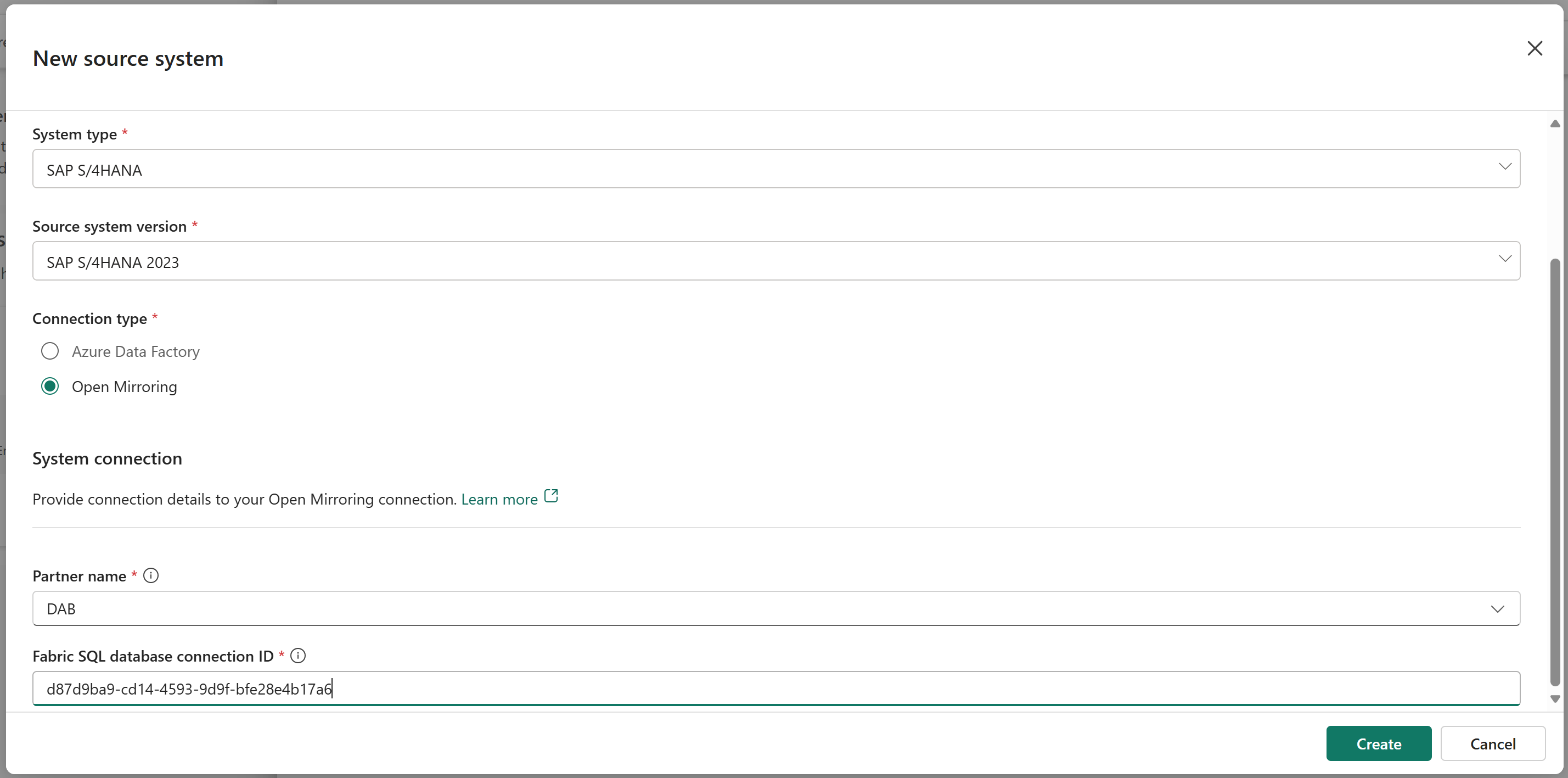
- In the System connection section, Select the name of the mirroring partner, and add the connection ID for the connection we created in the prerequisite step. Finally click on Create button to start the deployment.
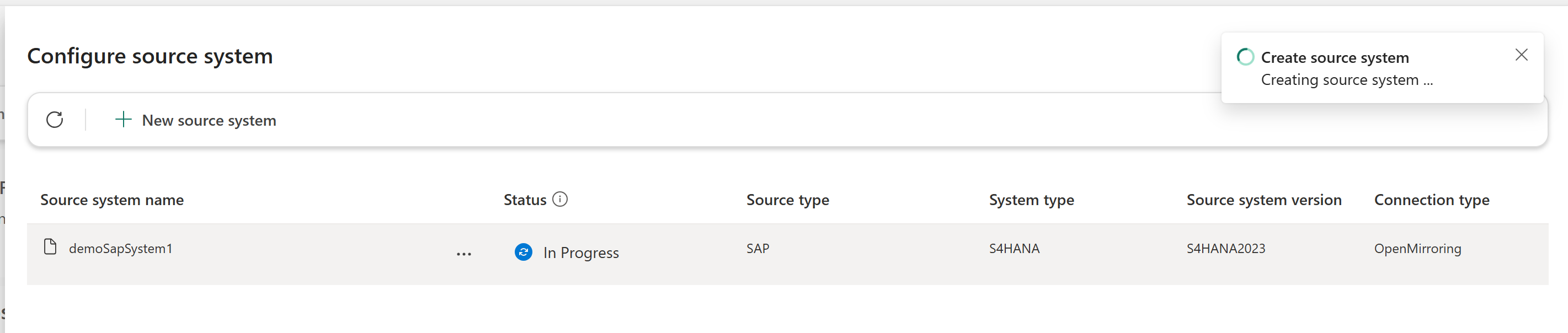
- You can monitor the deployment status by refreshing the page using the refresh button.
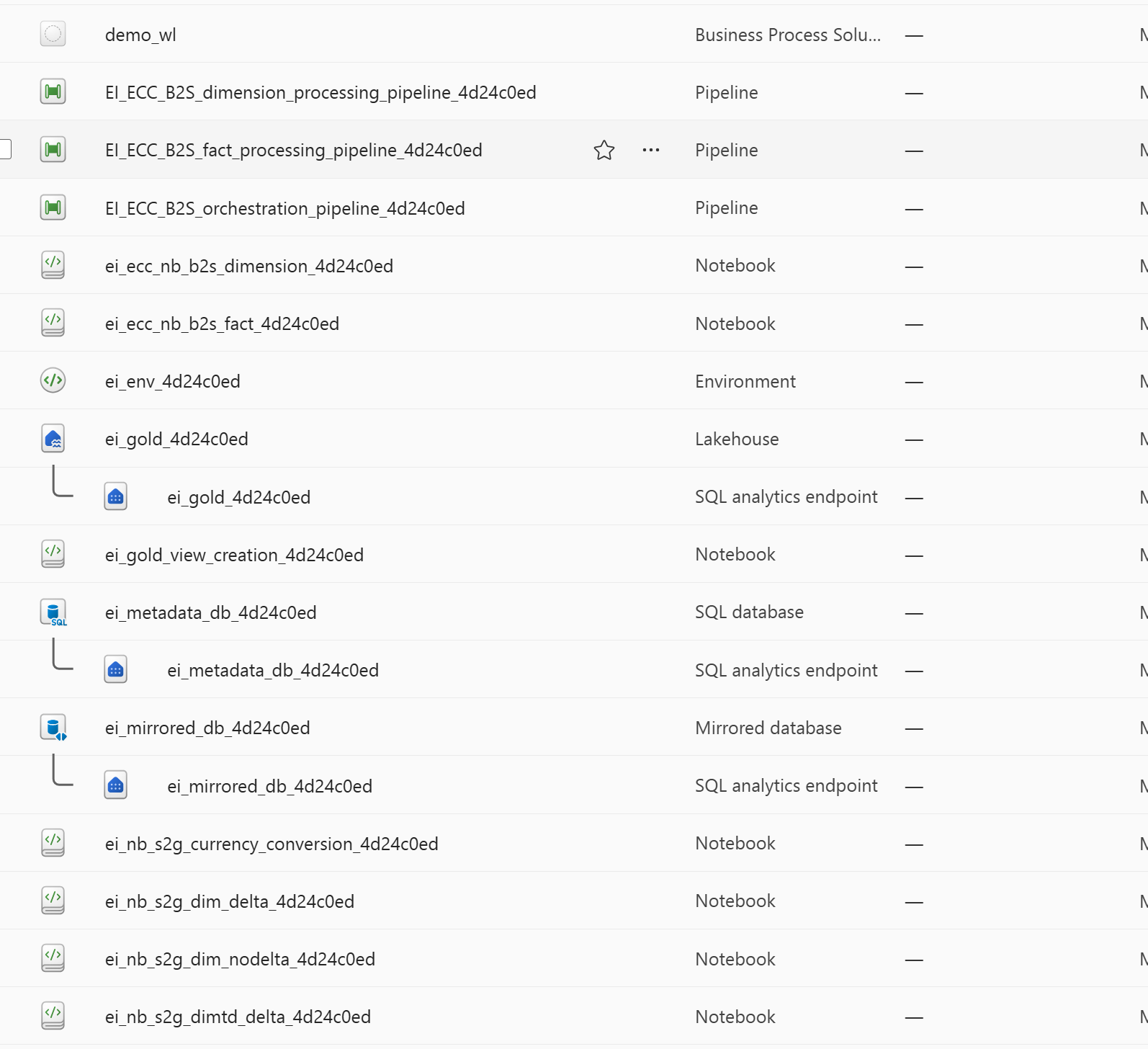
- Once the deployment is done, you should be able to see the resources deployed to your workspace.
Configure SAP ECC source system with Open Mirroring
- On the home screen, click on Configure source system button.
- Click on the New source system button.
- Provide the inputs for the fields.
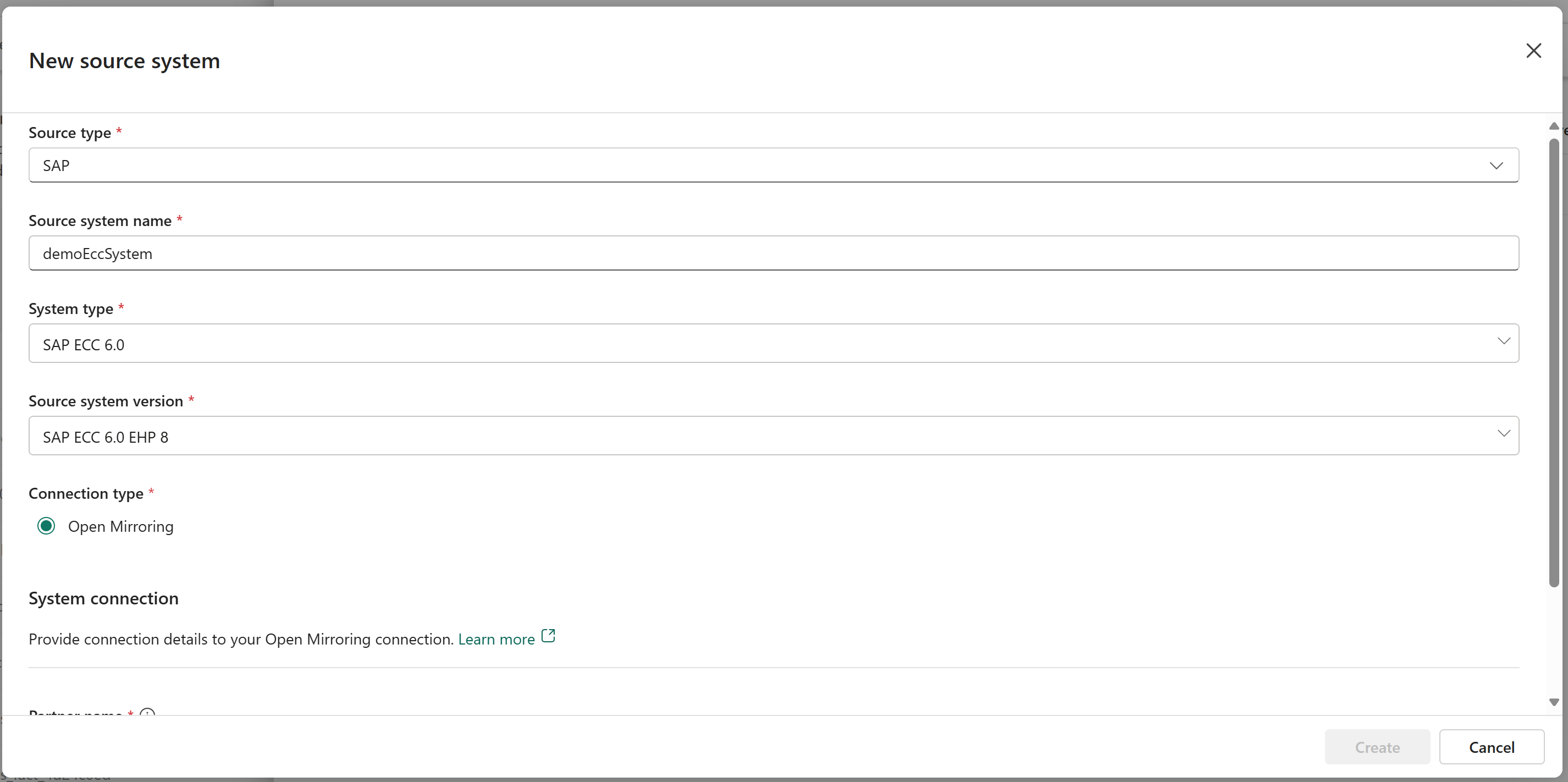
- In the System connection section, Select the name of the mirroring partner, and add the connection ID for the connection we created in the prerequisite step. Finally click on Create button to start the deployment.
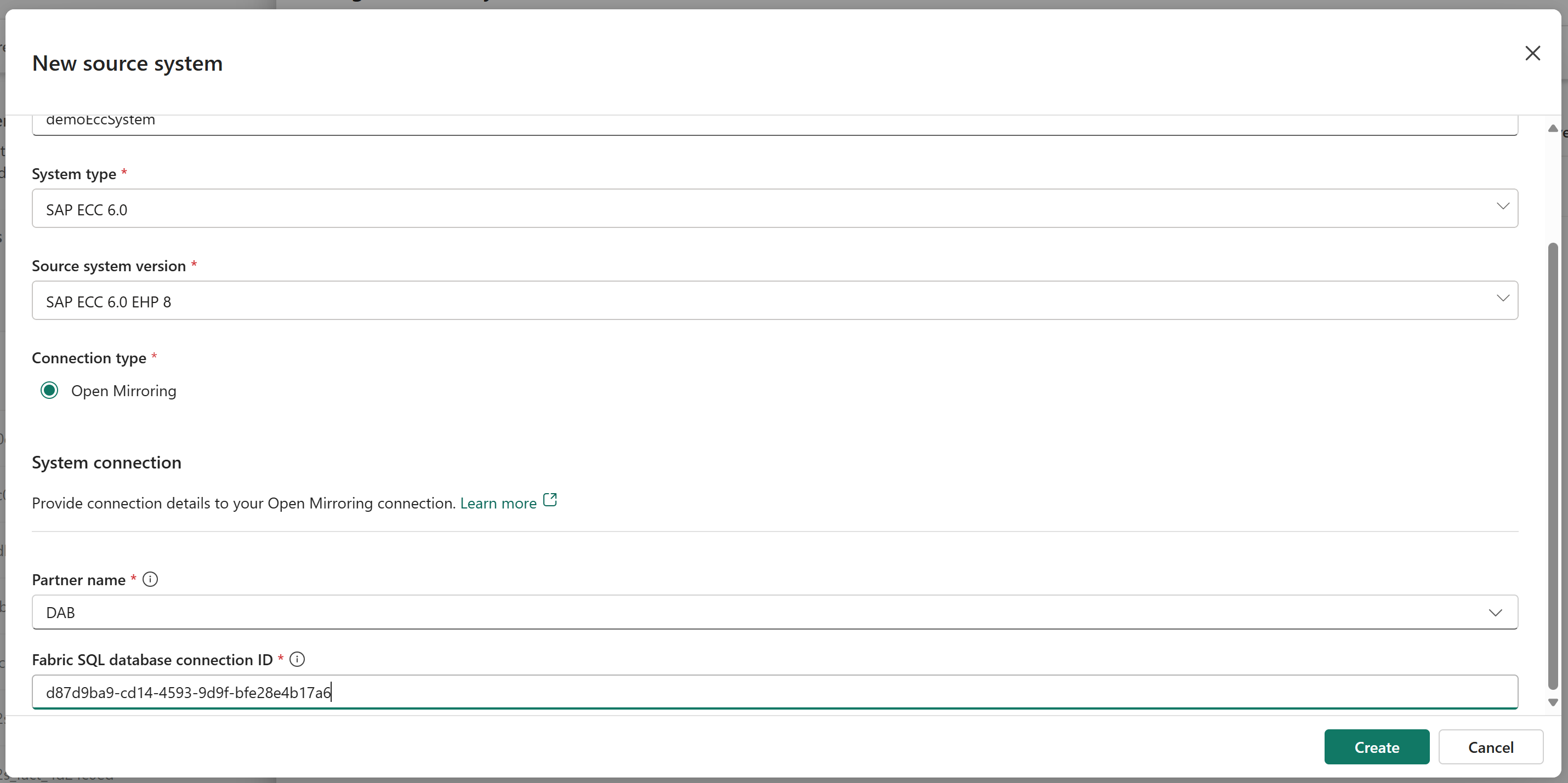
- You can monitor the deployment status by refreshing the page using the refresh button.
- Once the deployment is done, you should be able to see the resources deployed to your workspace.
Next steps
Once this configuration is complete, you can proceed to set up the dataset.