Note
Access to this page requires authorization. You can try signing in or changing directories.
Access to this page requires authorization. You can try changing directories.
After you deploy insights, complete these post-processing tasks to import lakehouse views, reset checkpoints for delta tables, and configure semantic model refresh.
Connection for Semantic Model Refreshes
To refresh the semantic model automatically through pipelines, set up a connection in Microsoft Fabric.
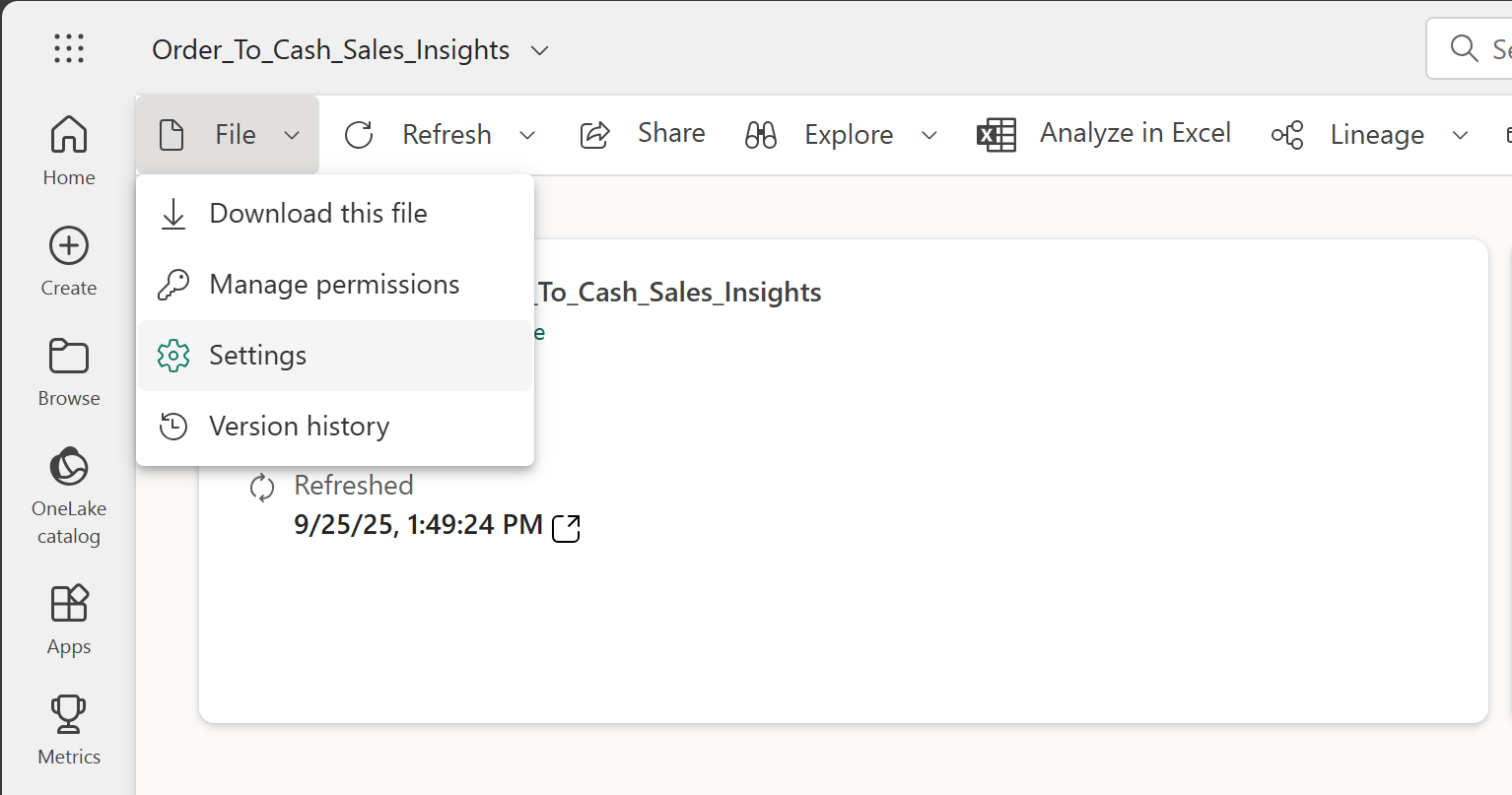
- Open the semantic model item. Select File > Settings.
- Open Gateway and cloud connections. Under Cloud connections, select Create a connection.
- Enter a unique name for your connection. Multiple reports can use this connection. Select OAuth 2.0 as the authentication method.
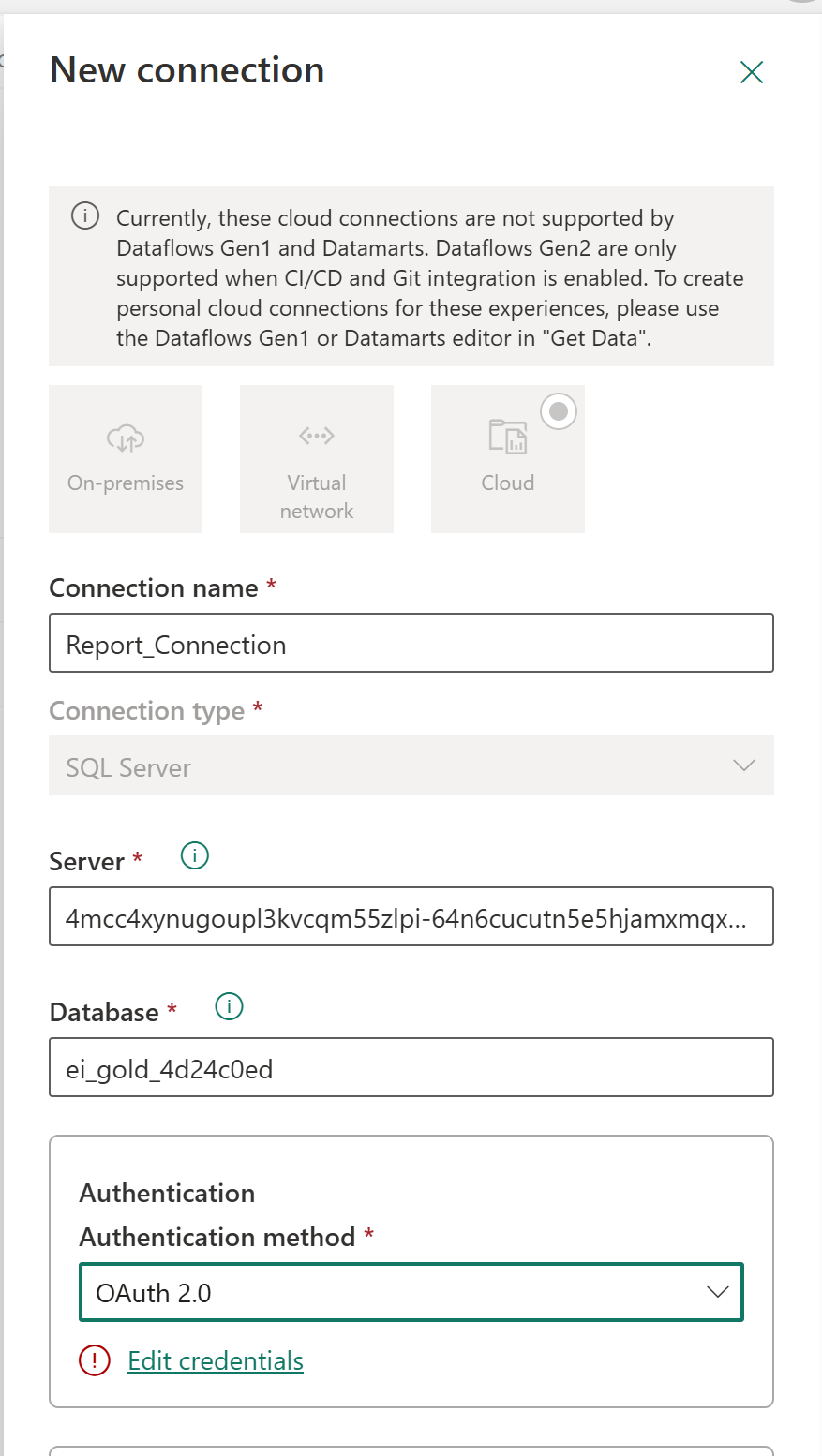
- Select Edit credentials. Provide the credentials. Then select Create.
- After the connection is created, return to the semantic model. Associate the connection.
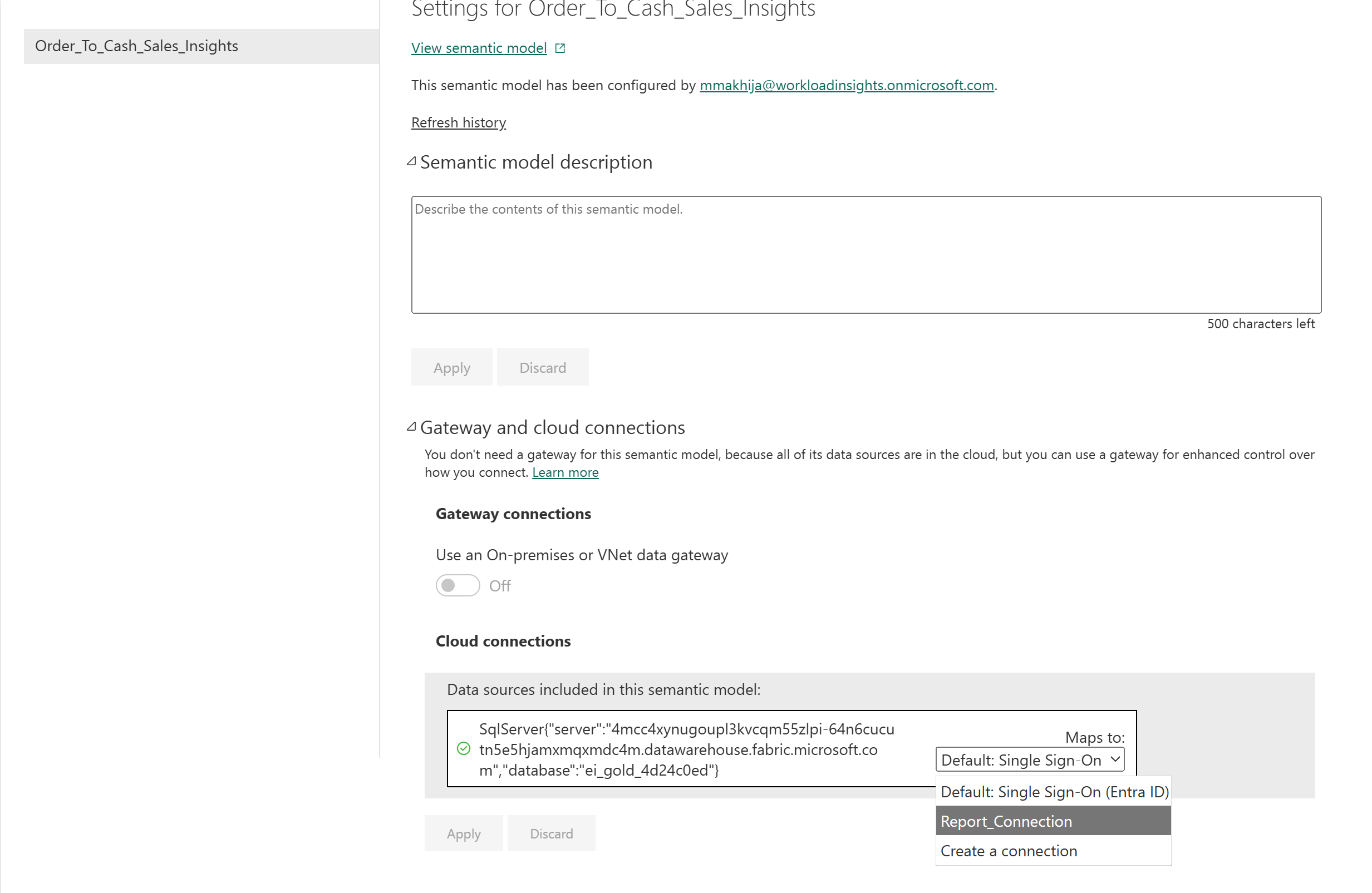
- Refresh the semantic model. Confirm that it completes successfully.
Import Lakehouse Views
Some insights require SQL views on top of the lakehouse. To deploy these views, run the provided notebook from your workspace:
- Navigate to your workspace.
- Open the notebook bps_gold_view_creation.
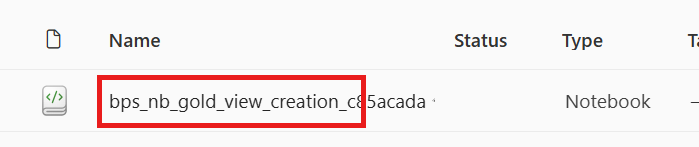
- Select Run all.

- When the notebook run finishes, you should see the SQL views in your gold lakehouse.
Reset Checkpoint for Delta Tables
If you need to reinitialize delta extraction for a table, you can reset its checkpoint from the dataset explorer.
- In Datasets, navigate to the required dataset and select the delta table.
- Select the ellipsis (...) next to the table, and then select Reset Checkpoint.
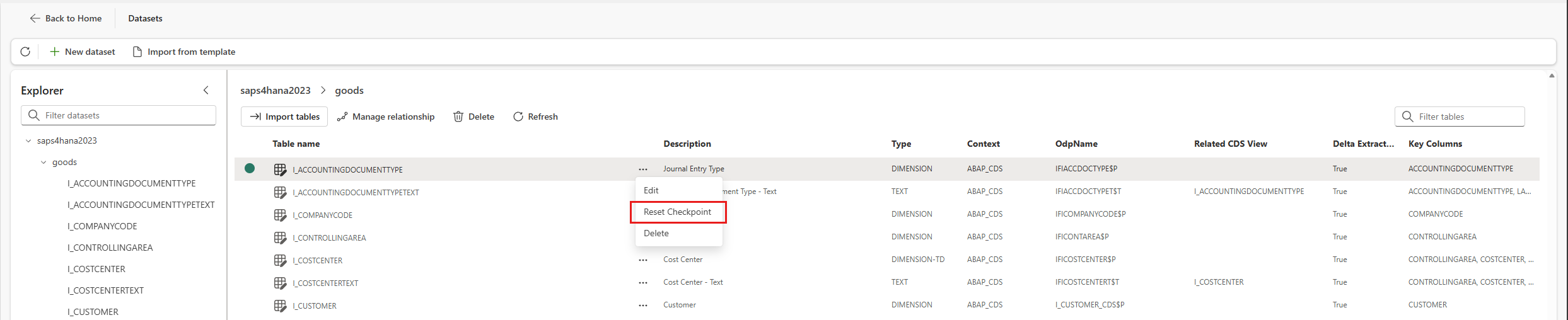
- Confirm that the notification appears showing that the checkpoint reset is in progress.

- Verify that the success notification appears after the operation completes.

- Rerun the relevant extraction or processing pipeline if you want to reload the table after the checkpoint reset.
Summary
This article described the post-processing tasks for insights in Business Process Solutions. You learned how to import lakehouse views, reset checkpoints for delta tables, and configure a connection for semantic model refresh.