Note
Access to this page requires authorization. You can try signing in or changing directories.
Access to this page requires authorization. You can try changing directories.
This article describes how to get help with Business Process Solutions and how to sign up for preview features.
Raise a support request
If you encounter an issue with Business Process Solutions that you can't resolve by using the troubleshooting guide, raise a support request.
Before you submit a request
Before you raise a support request, gather the following information to help the support team investigate your issue efficiently:
- Workspace name and ID: The Microsoft Fabric workspace where Business Process Solutions is deployed.
- Source system type: The type of source system you configured, such as SAP S/4HANA, SAP ECC, or Salesforce.
- Connection type: Whether you use Azure Data Factory or open mirroring for data extraction.
- Error details: The full error message, including any activity IDs, timestamps, or pipeline run IDs.
- Steps to reproduce: A description of the actions that led to the issue.
- Screenshots: Any relevant screenshots that show the error or unexpected behavior.
Submit a support request
To raise a support request for Business Process Solutions, follow these steps:
Open the Power BI portal from Power BI.
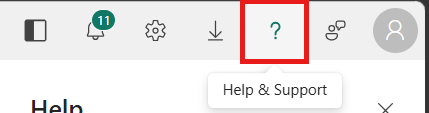
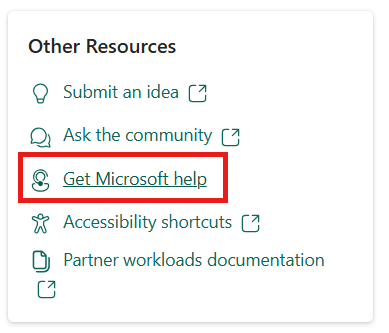
From the top right corner, select Help + support > Get Microsoft help.
Select New support request to start a new support request.
For the question, "What product were you using when the issue occurred?", select Fabric Solutions.
Use the following template to answer the question, "How can we help?"
I am experiencing an issue with Business Process Solutions. Here are the details:
Issue description: [Provide a brief description of the issue]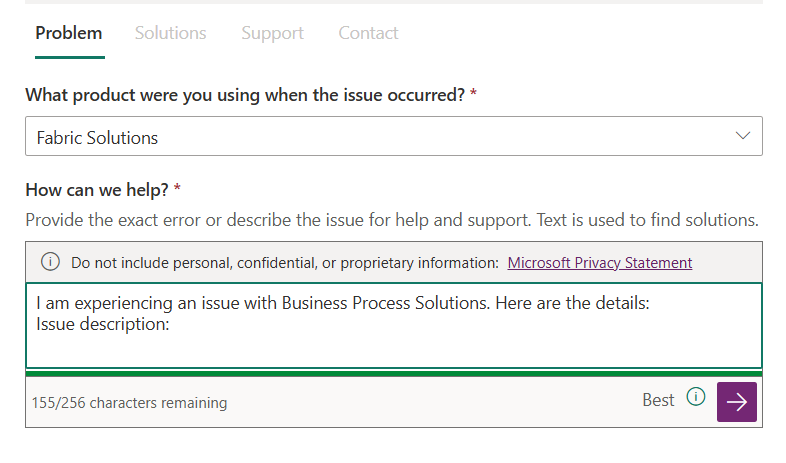
After you enter the details, select Next.
On the Solutions page, select Deploying Business Process Solutions > Deploying or Deleting Capability, and then select Next.
On the Support tab, the issue title is automatically populated. Use the following template for the issue description:
I am experiencing an issue with Business Process Solutions. Here are the details:
Service: Business Process Solutions
Source system type: Select the source system type you configured (for example, SAP S/4HANA, SAP ECC, or Salesforce).
Connection type: Select whether you use Azure Data Factory, open mirroring, or another extraction method.
Summary: Provide a brief description of the issue.
Enter the Issue start time and Severity details. You can also attach relevant screenshots that show the error or unexpected behavior.
For the question, "Allow access to advanced diagnostic information?", select Allow access to diagnostic information, and then select Next.
On the Contact information page, enter your contact details, and then select Submit.
Note
You can also reach out to your Microsoft account team for support with Business Process Solutions.
Get onboarded to preview features
Business Process Solutions periodically releases new capabilities as preview features. A limited set of customers can access preview features for early evaluation and feedback before the features become generally available.
Important
Preview features are subject to change and might not be included in the general availability release. They're provided without a service-level agreement and aren't recommended for production workloads.
Sign up for preview features
To request access to preview features, complete the following steps:
Fill out the Business Process Solutions preview signup form.
Provide the following information in the form:
- Your name and email address.
- Your company name.
- Your source system type.
- The preview features that you're interested in.
After you submit the form, the Business Process Solutions team reviews your request. You receive an email confirmation after your access is approved.
Note
Approval for preview features is subject to capacity and availability. Not all requests might be approved.
After you're approved
After your access is approved, the Business Process Solutions team contacts you with onboarding instructions. These instructions typically include:
- Enabling the feature in your Microsoft Fabric workspace.
- Any prerequisites or configuration steps specific to the preview feature.
- Access to a preview feedback channel.