Note
Access to this page requires authorization. You can try signing in or changing directories.
Access to this page requires authorization. You can try changing directories.
This article describes cross-region resiliency with customer-enabled disaster recovery. It captures the detailed steps for the customer to follow in case the region is down to get their workload onboarded to Azure Monitor for SAP Solutions in a different region. Azure Monitor for SAP Solutions (AMS) supports 3+0 region architecture. So, the service might experience downtime because no paired region exists, and no Microsoft-initiated failover takes place in the event of a region outage. You receive notification about the region outage, and follow the steps provided in this article to get your workload onboard to AMS in a different region.
Customer-enabled disaster recovery readiness (prerequisites)
- Set up the DR story for your SAP workloads in DR region. For example, use ASR for SAP VMs to replicate to DR region.
- Replicate the AMS monitoring telemetry data in Log Analytics workspace to DR region. The following section explains how to replicate AMS telemetry data.
AMS cross-region failover story
Assuming primary Azure region A is unavailable, and you already replicated your SAP VMs to DR region B. You can use AMS from any other available service region to start monitoring SAP systems in DR region B.
You can manually deploy a new AMS in DR region B and start monitoring your replicated SAP system in DR region B. While creating new AMS monitor in DR region B, provide the Log Analytics workspace in region B which has the telemetry data backed up from primary region A, so that you have the historical monitoring telemetry data.
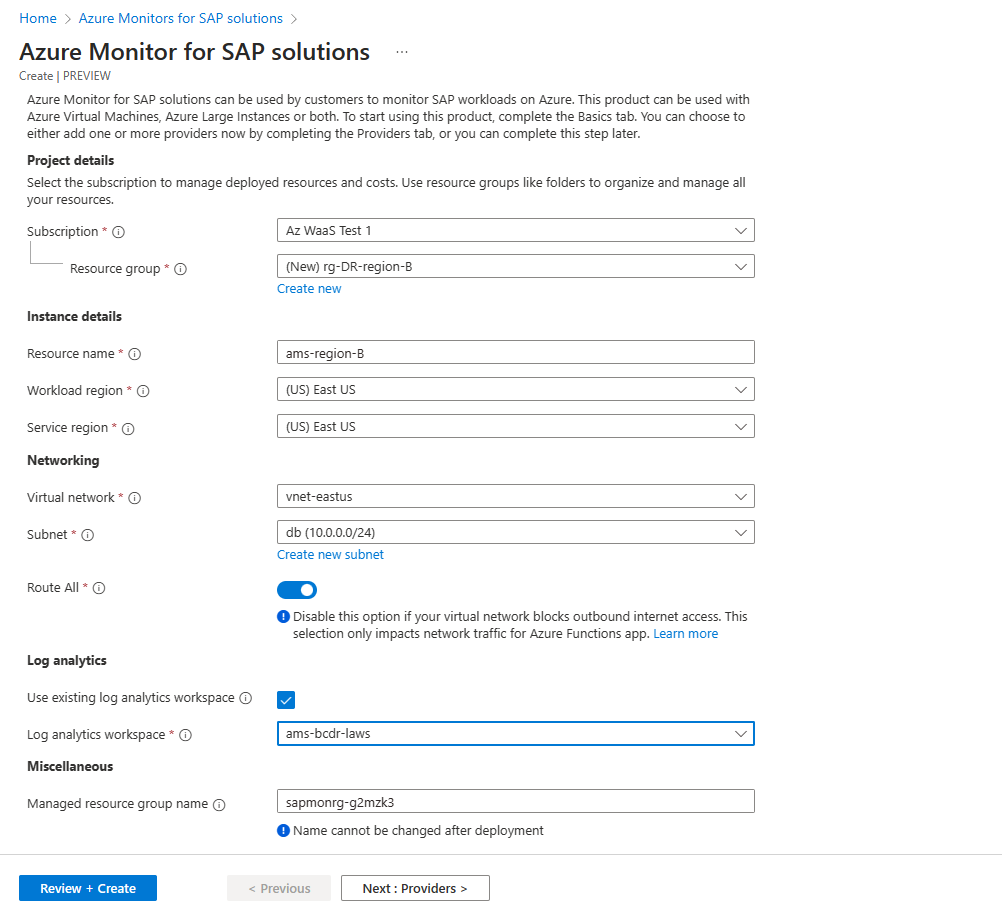
How to replicate AMS telemetry data
To replicate or back up AMS monitor data to a disaster recovery region, follow these steps:
Export the telemetry data from LAWS in the primary region to a storage account. For detailed steps, see this document.
Create a logic app or use an existing one.
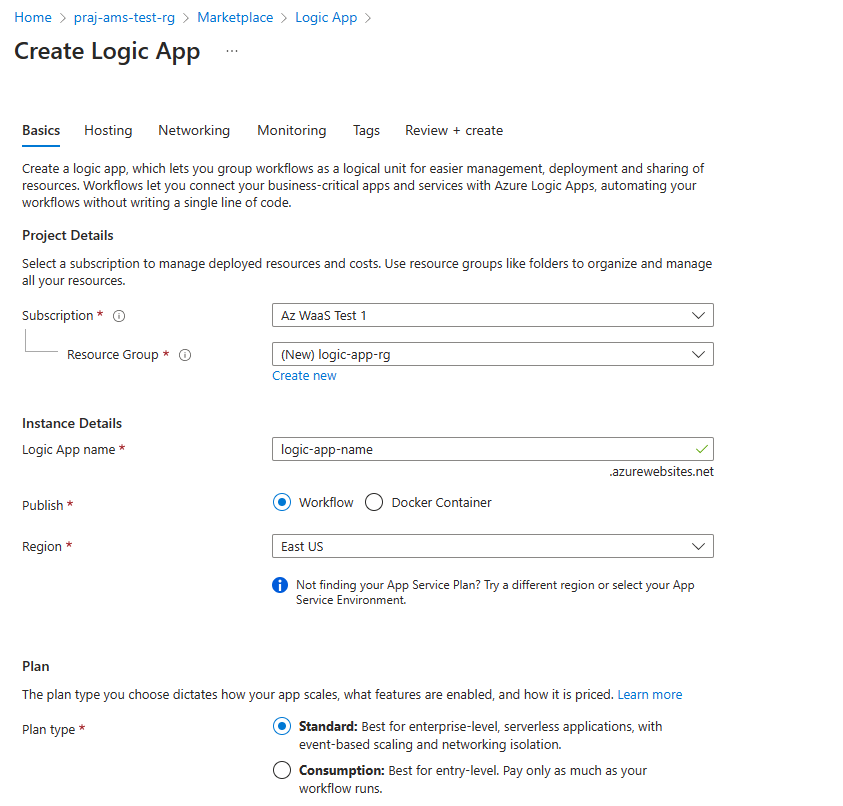
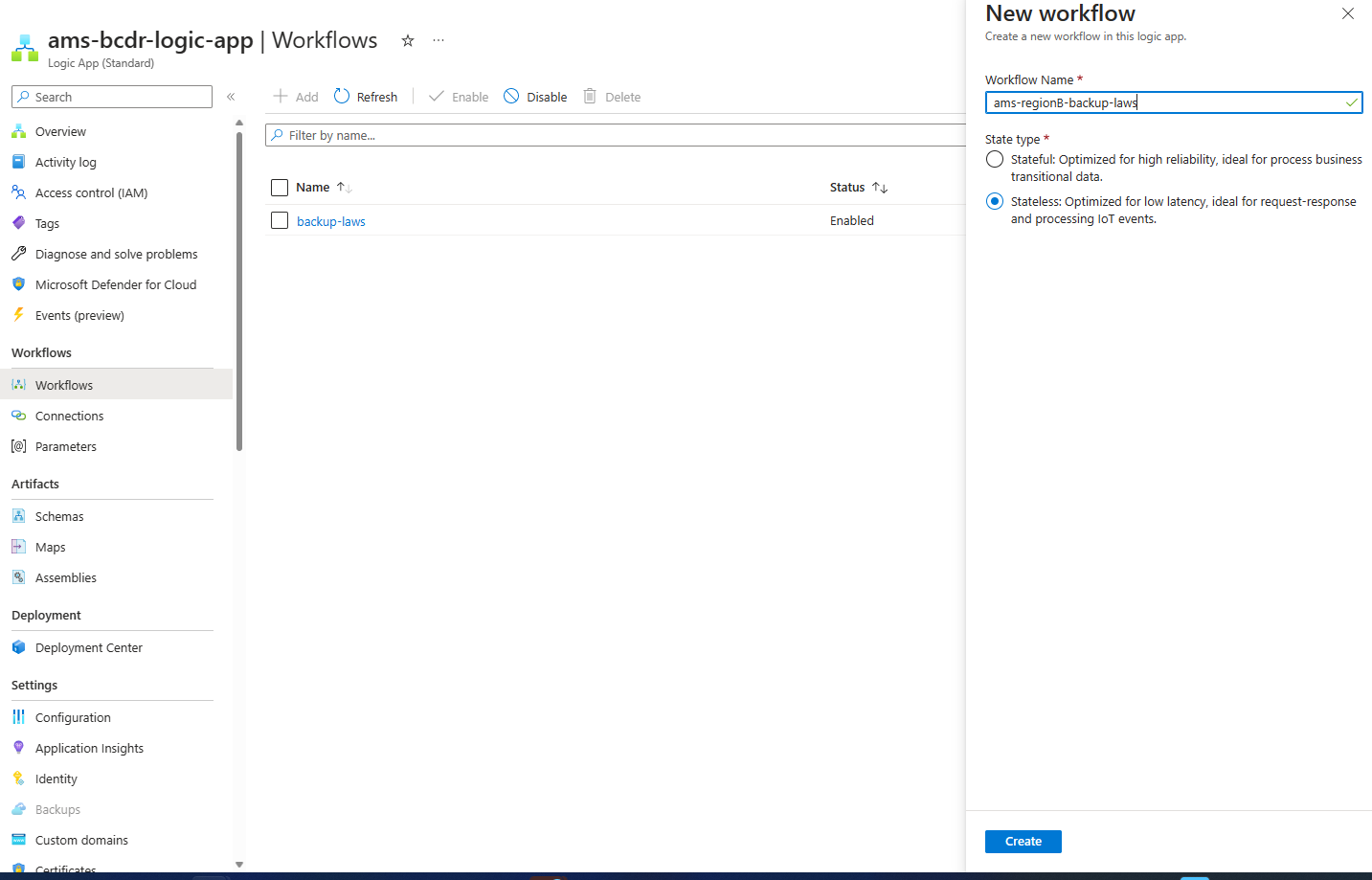
Create a new workflow in the logic app.
To replicate data, follow the steps in the document and use the action "Run query and list results" for each custom logs table present in Log Analytics Workspace. To find all the custom log tables, go to Tables under Settings in Log Analytics Workspace and filter on the Type column to find all Custom Tables.
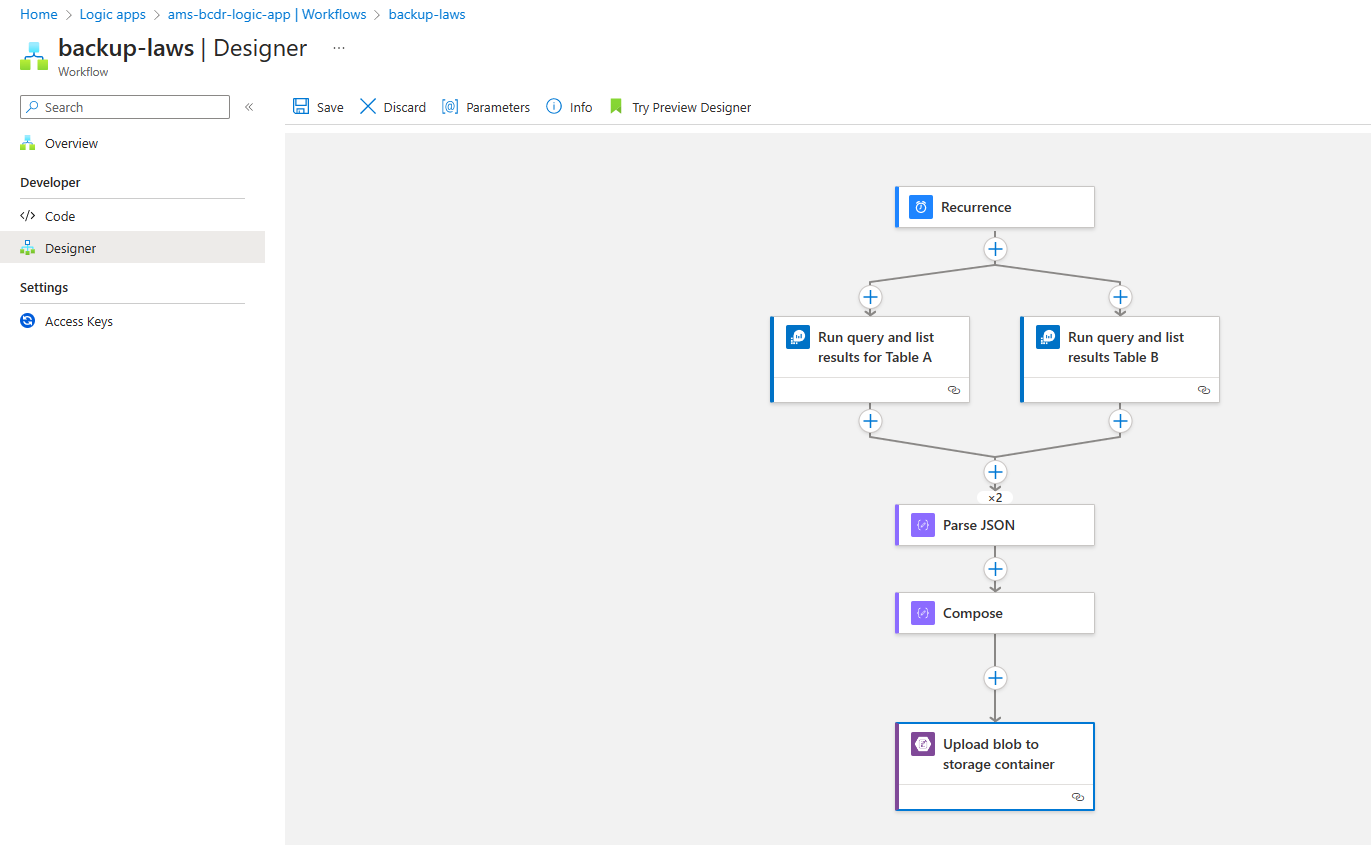
For the Add the create blob action, append the name of the custom table in the blob name input. This step creates respective files for each custom table.
Import the data you collected in the previous step into the LAWS created in the disaster recovery region. To import the data, follow this document and repeat the process for all the files for respective custom tables.
- Follow the document to add a custom table in the secondary Log Analytics.
- Send the data you exported in step 1 in storage blobs to secondary Log Analytics by following this document.
Periodically back up the AMS monitoring telemetry data to the Log Analytics workspace in the disaster recovery region.
Cross-region disaster recovery in multi-region geography
You're responsible for setting up and executing cross-region disaster recovery.
Set up disaster recovery and outage detection
When the service goes down in a region, Azure notifies you through AZCOM. You can also check the service health page in the Azure portal. To configure notifications on service health, see here.