Note
Access to this page requires authorization. You can try signing in or changing directories.
Access to this page requires authorization. You can try changing directories.
Note
Azure AI Search is available through the Azure portal, REST APIs, and Azure SDKs. It also underpins Foundry IQ, the managed knowledge layer that transforms enterprise content into reusable, permission-aware knowledge bases for agents in the Microsoft Foundry portal.
In this tutorial, you'll build a multimodal indexer pipeline that performs these tasks:
- Extract and chunk text and images
- Vectorize text and images for similarity search
- Send cropped images to a knowledge store for retrieval by your app
This tutorial shows multiple skillsets side by side to illustrate different ways to extract, chunk, and vectorize multimodal content. It uses the Document Extraction skill and Document Layout skill for content extraction.
Tip
For new skillsets, we recommend the Azure Content Understanding skill. This skill provides semantic chunking, AI-generated image descriptions, and improved document-embedded table extraction in a single skill. To get started, see Chunk and vectorize content with the Azure Content Understanding skill.
Prerequisites
Azure AI Search, on the basic pricing tier or higher if you want to use the sample data. Configure a managed identity for role-based access to models and data.
Azure Storage, used for storing sample data and for creating a knowledge store.
Microsoft Foundry resource that provides Foundry models and APIs. If you're using Azure AI Vision multimodal, choose one of its supported regions for your Microsoft Foundry resource.
Visual Studio Code with the REST client or the Python extension. If you haven't installed a suitable version of Python, follow the instructions in the VS Code Python Tutorial.
Multimodal indexing is implemented through skills that call AI models and APIs in an indexer pipeline. Model prerequisites vary depending on the skills chosen for each task.
Tip
To complete this tutorial on the free tier, use a smaller document with fewer images. This tutorial uses Foundry models only, but you can create custom skills to use other models.
Configure access
Before you begin, make sure you have permissions to access content and operations in Azure AI Search. This quickstart uses Microsoft Entra ID for authentication and role-based access for authorization. You must be an Owner or User Access Administrator to assign roles. If roles aren't feasible, use key-based authentication instead.
To configure the recommended role-based access:
Enable role-based access for your search service.
Assign the following roles to your user account.
Search Service Contributor
Search Index Data Contributor
Search Index Data Reader
Get endpoint
Each Azure AI Search service has an endpoint, which is a unique URL that identifies and provides network access to the service. In a later section, you specify this endpoint to connect to your search service programmatically.
To get the endpoint:
Go to your search service in the Azure portal.
From the left pane, select Overview.
Make a note of the endpoint, which should look like
https://my-service.search.windows.net.
Prepare data
Sample data is a 36-page PDF document that combines rich visual content, such as charts, infographics, and scanned pages, with original text. Azure Storage provides the sample data and hosts the knowledge store. A search service managed identity needs:
Read access to Azure Storage to retrieve the sample data.
Write access to create the knowledge store. The search service creates the container for cropped images during skillset processing, using the name you provide in an environment variable.
Follow these steps to set up the sample data.
Download the following sample PDF: sustainable-ai-pdf
Sign in to the Azure portal.
In Azure Storage, create a new container named sustainable-ai-pdf.
Assign roles to the search service managed identity:
Storage Blob Data Reader for data retrieval
Storage Blob Data Contributor and Storage Table Data Contributor for creating the knowledge store.
While you have the Azure Storage pages open in the Azure portal, get a connection string for the environment variable.
Under Settings > Endpoints, select the endpoint for Resource ID. It should look similar to the following example:
/subscriptions/00000000-0000-0000-0000-00000000/resourceGroups/rg-mydemo/providers/Microsoft.Storage/storageAccounts/mydemostorage/blobServices/default.Prefix
ResourceId=to this connection string. Use this version for your environment variable.ResourceId=/subscriptions/00000000-0000-0000-0000-00000000/resourceGroups/rg-mydemo/providers/Microsoft.Storage/storageAccounts/mydemostorage/blobServices/defaultFor connections made using a user-assigned managed identity, use the same connection string and provide an
identityproperty set to a predefined user-assigned managed identity."credentials" : { "connectionString" : "ResourceId=/subscriptions/00000000-0000-0000-0000-00000000/resourceGroups/MY-DEMO-RESOURCE-GROUP/providers/Microsoft.Storage/storageAccounts/MY-DEMO-STORAGE-ACCOUNT/;" }, "identity" : { "@odata.type": "#Microsoft.Azure.Search.DataUserAssignedIdentity", "userAssignedIdentity" : "/subscriptions/00000000-0000-0000-0000-00000000/resourcegroups/MY-DEMO-RESOURCE-GROUP/providers/Microsoft.ManagedIdentity/userAssignedIdentities/MY-DEMO-USER-MANAGED-IDENTITY" }
Choose skills for multimodal indexing
The index, data source, and indexer definitions are mostly the same for all scenarios, but the skillset can include a different skill combination depending on how you want to extract, chunk, and vectorize text and images.
Choose skills for extraction and chunking:
- Document Extraction, Text Split
- Document Layout
Choose skills for vectorization:
- GenAI Prompt, Azure OpenAI Embedding
- Azure AI Vision Multimodal Embedding
Most of these skills depend on a deployed model or a Microsoft Foundry resource. The following table identifies the model backing each skill, plus the resource and permissions that provide model access.
| Skill | Usage | Model | Resource | Permissions |
|---|---|---|---|---|
| Document Extraction skill, Text Split skill | Extract and chunk based on fixed size. Text extraction is free. Image extraction is billable. |
None (built-in) | Azure AI Search | See Configure access |
| Document Layout skill | Extract and chunk based on document layout. | Document Intelligence 4.0 | Microsoft Foundry | Cognitive Services User |
| Azure AI Vision skill (preview) | Vectorize text and image content. | Azure AI Vision multimodal 4.0 | Microsoft Foundry | Cognitive Services User |
| GenAI Prompt skill | Call an LLM to generate text descriptions of image content. | GPT-5 or GPT-4 | Microsoft Foundry | Cognitive Services User |
| Azure OpenAI embedding skill | Vectorize text and generated textual image descriptions. | Text-embedding-3 or text-embedding-ada-002 | Microsoft Foundry | Cognitive Services User |
Model usage is billable, except for text extraction and text splitting.
Model deployments can be in any supported region if the search service connects over the public endpoint, a private connection, or if the billing connection is keyless. Otherwise, if the connection is key-based, attach a Microsoft Foundry resource from the same region as Azure AI Search.
Set up your environment
For this tutorial, your local REST client connection to Azure AI Search requires an endpoint and an API key. You can get these values in the Azure portal. For other connection methods, see Connect to a search service.
For authenticated connections that occur during indexer and skillset processing, the search service uses the role assignments you previously defined.
Start Visual Studio Code and create a new file.
Provide values for variables used in the request:
 @searchUrl = PUT-YOUR-SEARCH-SERVICE-ENDPOINT-HERE
 @storageConnection = PUT-YOUR-STORAGE-CONNECTION-STRING-HERE
 @imageProjectionContainer=sustainable-ai-pdf-images
 @token = PUT-YOUR-PERSONAL-IDENTITY-TOKEN HERE
For
@storageConnection, make sure your connection string doesn't have a trailing semicolon or quotation marks. See Prepare your data for connection string syntax.For
@imageProjectionContainer, provide a container name that's unique in blob storage. Azure AI Search creates this container during skills processing.For help getting an access token, see Connect to Azure AI Search. If you can't use roles, see Connect with keys.
Add this variable if you're using the Document Layout skill or the Azure AI Vision skill (uses model version 2023-04-15):
@foundryUrl = PUT-YOUR-MULTISERVICE-AZURE-AI-FOUNDRY-ENDPOINT-HERE
@azureAiVisionModelVersion = 2023-04-15
Add these variables if you're using the GenAI Prompt skill and Azure OpenAI Embedding skill:
 @chatCompletionModelUri = PUT-YOUR-DEPLOYED-MODEL-URI-HERE
 @chatCompletionModelKey = PUT-YOUR-MODEL-KEY-HERE
 @textEmbeddingModelUri = PUT-YOUR-DEPLOYED-MODEL-URI-HERE
 @textEmbeddingModelKey = PUT-YOUR-MODEL-KEY-HERE
Save the file using a
.restor.httpfile extension. For help with the REST client, see Quickstart: Full-text search using REST.
The same Foundry resource can provide Azure AI Vision, Document Intelligence, a chat completion model, and a text embedding model. Just make sure the region supports the models you need. If a region is at capacity, you might need to create a new resource to deploy the necessary models.
Set up a pipeline
An indexer pipeline consists of four components: data source, index, skillset, and indexer.
- Create a data source
- Create an index
- Create a skillset for extraction, chunking, and vectorization
- Create (and run) an indexer
Download REST files
The azure-search-rest-samples GitHub repository has .REST files that create the pipeline and query the index.
Tip
See the azure-ai-search-multimodal-sample GitHub repository for a Python example.
Create a data source
Create Data Source (REST) creates a data source connection that specifies what data to index.
POST {{searchUrl}}/datasources?api-version=2026-08-01-preview   HTTP/1.1
  Content-Type: application/json
  Authorization: Bearer {{token}}

{
   "name":"demo-multimodal-ds",
   "description":null,
   "type":"azureblob",
   "subtype":null,
   "credentials":{
      "connectionString":"{{storageConnection}}"
   },
   "container":{
      "name":"sustainable-ai-pdf",
      "query":null
   },
   "dataChangeDetectionPolicy":null,
   "dataDeletionDetectionPolicy":null,
   "encryptionKey":null,
   "identity":null
}
Send the request. The response should look like:
HTTP/1.1 201 Created
Transfer-Encoding: chunked
Content-Type: application/json; odata.metadata=minimal; odata.streaming=true; charset=utf-8
Location: https://<YOUR-SEARCH-SERVICE-NAME>.search.windows-int.net:443/datasources('demo-multimodal-ds')?api-version=2026-08-01-preview -Preview
Server: Microsoft-IIS/10.0
Strict-Transport-Security: max-age=2592000, max-age=15724800; includeSubDomains
Preference-Applied: odata.include-annotations="*"
OData-Version: 4.0
request-id: 4eb8bcc3-27b5-44af-834e-295ed078e8ed
elapsed-time: 346
Date: Sat, 26 Apr 2026 21:25:24 GMT
Connection: close

{
  "name": "demo-multimodal-ds",
  "description": null,
  "type": "azureblob",
  "subtype": null,
  "indexerPermissionOptions": [],
  "credentials": {
    "connectionString": null
  },
  "container": {
    "name": "sustainable-ai-pdf",
    "query": null
  },
  "dataChangeDetectionPolicy": null,
  "dataDeletionDetectionPolicy": null,
  "encryptionKey": null,
  "identity": null
}
Create an index
Create Index (REST) creates an index on your search service. The index is similar across all skillsets, with the following exceptions:
The
vectorizerssection defines how query text is vectorized at search time. It must use the same embedding provider and model family used by the skillset (Azure AI Vision multimodal or Azure OpenAI text embedding) so query vectors and indexed vectors are compatible.The
content_embeddingfielddimensionsvalue must exactly match the vector size produced by the embedding model (for example,1024for Azure AI Vision multimodal or3072fortext-embedding-3-large). A mismatch can cause indexing or query failures.For complex types, nested field names in the index must exactly match the enrichment output names (including casing). Azure AI Search can't map nested subfields to different names. Use
location_metadata,bounding_polygons, andpage_numberfor fields that accept Text Split outputs, andlocationMetadata,boundingPolygons, andpageNumberfor fields that accept Document Layout outputs.
Here are the index definitions for each skill combination.
- Document extraction & multimodal embedding
- Document extraction & text embedding
- Document layout & multimodal embedding
- Document layout & text embedding
This pattern uses:
Document Extraction skill and Text Split skill for extraction and chunking.
Azure AI Vision multimodal skill for text and image embeddings.
{
   "name":"demo-multimodal-1-index",
   "fields":[
      {
         "name":"content_id",
         "type":"Edm.String",
         "retrievable":true,
         "key":true,
         "analyzer":"keyword"
      },
      {
         "name":"text_document_id",
         "type":"Edm.String",
         "searchable":false,
         "filterable":true,
         "retrievable":true,
         "stored":true,
         "sortable":false,
         "facetable":false
      },
      {
         "name":"document_title",
         "type":"Edm.String",
         "searchable":true
      },
      {
         "name":"image_document_id",
         "type":"Edm.String",
         "filterable":true,
         "retrievable":true
      },
      {
         "name":"content_text",
         "type":"Edm.String",
         "searchable":true,
         "retrievable":true
      },
      {
         "name":"content_embedding",
         "type":"Collection(Edm.Single)",
         "dimensions":1024,
         "searchable":true,
         "retrievable":true,
         "vectorSearchProfile":"hnsw"
      },
      {
         "name":"content_path",
         "type":"Edm.String",
         "searchable":false,
         "retrievable":true
      },
      {
         "name":"location_metadata",
         "type":"Edm.ComplexType",
         "fields":[
            {
               "name":"page_number",
               "type":"Edm.Int32",
               "searchable":false,
               "retrievable":true
            },
            {
               "name":"bounding_polygons",
               "type":"Edm.String",
               "searchable":false,
               "retrievable":true,
               "filterable":false,
               "sortable":false,
               "facetable":false
            }
         ]
      }
   ],
   "vectorSearch":{
      "profiles":[
         {
            "name":"hnsw",
            "algorithm":"defaulthnsw",
            "vectorizer":"demo-vectorizer"
         }
      ],
      "algorithms":[
         {
            "name":"defaulthnsw",
            "kind":"hnsw",
            "hnswParameters":{
               "m":4,
               "efConstruction":400,
               "metric":"cosine"
            }
         }
      ],
      "vectorizers":[
         {
            "name":"demo-vectorizer",
            "kind":"aiServicesVision",
            "aiServicesVisionParameters":{
               "resourceUri":"{{foundryUrl}}",
               "authIdentity":null,
               "modelVersion":"{{azureAiVisionModelVersion}}"
            }
         }
      ]
   },
   "semantic":{
      "defaultConfiguration":"semanticconfig",
      "configurations":[
         {
            "name":"semanticconfig",
            "prioritizedFields":{
               "titleField":{
                  "fieldName":"document_title"
               },
               "prioritizedContentFields":[

               ],
               "prioritizedKeywordsFields":[

               ]
            }
         }
      ]
   }
}
Key points:
content_embeddingis the only vector field and it stores vectors for both text and image content. It must be configured with appropriate dimensions for the embedding model, such as3072for text-embedding-3-large, and a vector search profile.content_pathis the path of each image in the knowledge store.location_metadataorlocationMetadatacaptures bounding polygon and page number metadata for each normalized image, enabling precise spatial search or UI overlays. The field names vary based on how the information is extracted.For content extraction based on the Text Split skill: location metadata is supported only for PDF files. Furthermore, for Text Split skill, you must include a Shaper skill for capturing in-memory location metadata and representing it in the document tree. The Shaper skill is also responsible for adding the knowledge store container name to the
content_path.
Create a skillset for extraction, chunking, and vectorization
Create Skillset (REST) creates a skillset on your search service. A skillset defines the operations that extract, chunk, and vectorize content prior to indexing.
There are four skillset patterns. Each one demonstrates an extraction and chunking strategy, paired with a vectorization strategy. There are two key differences in each pattern: skillset composition and indexProjections. Projections vary based on the outputs of each embedding skill.
All four patterns include the Shaper skill. Output from the Shaper skill creates the normalized path of images in the knowledge store and location metadata (page number and bounding polygons).
- Document extraction & multimodal embedding
- Document extraction & text embedding
- Document layout & multimodal embedding
- Document layout & text embedding
This pattern uses:
Document Extraction skill and Text Split skill for extraction and chunking.
Azure AI Vision multimodal skill for text and image embeddings.
Shaper skill captures location metadata and the container name for the image file path in the knowledge store. This capability is unique to PDF content and Document Extraction.
{
   "name":"demo-multimodal-skillset",
   "description":"A test skillset",
   "skills":[
      {
         "@odata.type":"#Microsoft.Skills.Util.DocumentExtractionSkill",
         "name":"document-extraction-skill",
         "description":"Document extraction skill to extract text and images from documents",
         "parsingMode":"default",
         "dataToExtract":"contentAndMetadata",
         "configuration":{
            "imageAction":"generateNormalizedImages",
            "normalizedImageMaxWidth":2000,
            "normalizedImageMaxHeight":2000
         },
         "context":"/document",
         "inputs":[
            {
               "name":"file_data",
               "source":"/document/file_data"
            }
         ],
         "outputs":[
            {
               "name":"content",
               "targetName":"extracted_content"
            },
            {
               "name":"normalized_images",
               "targetName":"normalized_images"
            }
         ]
      },
      {
         "@odata.type":"#Microsoft.Skills.Text.SplitSkill",
         "name":"split-skill",
         "description":"Split skill to chunk documents",
         "context":"/document",
         "defaultLanguageCode":"en",
         "textSplitMode":"pages",
         "maximumPageLength":2000,
         "pageOverlapLength":200,
         "unit":"characters",
         "inputs":[
            {
               "name":"text",
               "source":"/document/extracted_content",
               "inputs":[

               ]
            }
         ],
         "outputs":[
            {
               "name":"textItems",
               "targetName":"pages"
            }
         ]
      },
      {
         "@odata.type":"#Microsoft.Skills.Vision.VectorizeSkill",
         "name":"text-embedding-skill",
         "description":"Vision Vectorization skill for text",
         "context":"/document/pages/*",
         "modelVersion":"{{azureAiVisionModelVersion}}",
         "inputs":[
            {
               "name":"text",
               "source":"/document/pages/*"
            }
         ],
         "outputs":[
            {
               "name":"vector",
               "targetName":"text_vector"
            }
         ]
      },
      {
         "@odata.type":"#Microsoft.Skills.Vision.VectorizeSkill",
         "name":"image-embedding-skill",
         "description":"Vision Vectorization skill for images",
         "context":"/document/normalized_images/*",
         "modelVersion":"{{azureAiVisionModelVersion}}",
         "inputs":[
            {
               "name":"image",
               "source":"/document/normalized_images/*"
            }
         ],
         "outputs":[
            {
               "name":"vector",
               "targetName":"image_vector"
            }
         ]
      },
      {
         "@odata.type":"#Microsoft.Skills.Util.ShaperSkill",
         "name":"shaper-skill",
         "description":"Shaper skill to reshape the data to fit the index schema",
         "context":"/document/normalized_images/*",
         "inputs":[
            {
               "name":"normalized_images",
               "source":"/document/normalized_images/*",
               "inputs":[

               ]
            },
            {
               "name":"imagePath",
               "source":"='{{imageProjectionContainer}}/'+$(/document/normalized_images/*/imagePath)",
               "inputs":[

               ]
            },
            {
               "name":"dataUri",
               "source":"='data:image/jpeg;base64,'+$(/document/normalized_images/*/data)",
               "inputs":[

               ]
            },
            {
               "name":"location_metadata",
               "sourceContext":"/document/normalized_images/*",
               "inputs":[
                  {
                     "name":"page_number",
                     "source":"/document/normalized_images/*/page_number"
                  },
                  {
                     "name":"bounding_polygons",
                     "source":"/document/normalized_images/*/bounding_polygon"
                  }
               ]
            }
         ],
         "outputs":[
            {
               "name":"output",
               "targetName":"new_normalized_images"
            }
         ]
      }
   ],
   "cognitiveServices":{
      "@odata.type":"#Microsoft.Azure.Search.AIServicesByIdentity",
      "subdomainUrl":"{{foundryUrl}}",
      "identity":null
   },
   "indexProjections":{
      "selectors":[
         {
            "targetIndexName":"demo-multimodal-index",
            "parentKeyFieldName":"text_document_id",
            "sourceContext":"/document/pages/*",
            "mappings":[
               {
                  "name":"content_embedding",
                  "source":"/document/pages/*/text_vector"
               },
               {
                  "name":"content_text",
                  "source":"/document/pages/*"
               },
               {
                  "name":"document_title",
                  "source":"/document/document_title"
               }
            ]
         },
         {
            "targetIndexName":"demo-multimodal-index",
            "parentKeyFieldName":"image_document_id",
            "sourceContext":"/document/normalized_images/*",
            "mappings":[
               {
                  "name":"content_embedding",
                  "source":"/document/normalized_images/*/image_vector"
               },
               {
                  "name":"content_path",
                  "source":"/document/normalized_images/*/new_normalized_images/imagePath"
               },
               {
                  "name":"location_metadata",
                  "source":"/document/normalized_images/*/new_normalized_images/location_metadata"
               },
               {
                  "name":"document_title",
                  "source":"/document/document_title"
               }
            ]
         }
      ],
      "parameters":{
         "projectionMode":"skipIndexingParentDocuments"
      }
   },
   "knowledgeStore":{
      "storageConnectionString":"{{storageConnection}}",
      "identity":null,
      "projections":[
         {
            "files":[
               {
                  "storageContainer":"{{imageProjectionContainer}}",
                  "source":"/document/normalized_images/*"
               }
            ]
         }
      ]
   }
}
Run the indexer
Create Indexer creates an indexer on your search service. An indexer connects to the data source, loads data, runs a skillset, and indexes the enriched content.
### Create and run an indexer
POST {{searchUrl}}/indexers?api-version=2026-08-01-preview   HTTP/1.1
  Content-Type: application/json
  Authorization: Bearer {{token}}

{
  "name": "demo-multimodal-indexer",
  "dataSourceName": "demo-multimodal-ds",
  "targetIndexName": "demo-multimodal-index",
  "skillsetName": "demo-multimodal-skillset",
  "parameters": {
    "maxFailedItems": -1,
    "maxFailedItemsPerBatch": 0,
    "batchSize": 1,
    "configuration": {
      "allowSkillsetToReadFileData": true
    }
  },
  "fieldMappings": [
    {
      "sourceFieldName": "metadata_storage_name",
      "targetFieldName": "document_title"
    }
  ],
  "outputFieldMappings": []
}
Run queries
You can start searching as soon as the first document is loaded. This is an unspecified full-text search query that returns all of the fields marked as retrievable in the index, along with a document count.
Tip
The content_embedding field contains over a thousand dimensions. Use a select statement to exclude that field from the response by explicitly choosing all of the other fields. Adjust the select statement to match the fields (location_metadata vs locationMetadata) in your index. Here's an example: "select": "content_id, text_document_id, document_title, image_document_id, content_text,
### Query the index
POST {{searchUrl}}/indexes/demo-multimodal-index/docs/search?api-version=2026-08-01-preview   HTTP/1.1
  Content-Type: application/json
  Authorization: Bearer {{token}}

  {
    "search": "*",
    "count": true
  }
Send the request. The response should look like:
HTTP/1.1 200 OK
Transfer-Encoding: chunked
Content-Type: application/json; odata.metadata=minimal; odata.streaming=true; charset=utf-8
Content-Encoding: gzip
Vary: Accept-Encoding
Server: Microsoft-IIS/10.0
Strict-Transport-Security: max-age=2592000, max-age=15724800; includeSubDomains
Preference-Applied: odata.include-annotations="*"
OData-Version: 4.0
request-id: 712ca003-9493-40f8-a15e-cf719734a805
elapsed-time: 198
Date: Wed, 30 Apr 2025 23:20:53 GMT
Connection: close

{
  "@odata.count": 100,
  "@search.nextPageParameters": {
    "search": "*",
    "count": true,
    "skip": 50
  },
  "value": [
  ],
  "@odata.nextLink": "https://<YOUR-SEARCH-SERVICE-NAME>.search.windows.net/indexes/demo-multimodal-index/docs/search?api-version=2026-08-01-preview "
}
100 documents are returned in the response.
Query for image-only content
Use a filter to exclude all non-image content. The $filter parameter only works on fields that were marked filterable during index creation.
For filters, you can also use logical operators (and, or, not) and comparison operators (eq, ne, gt, lt, ge, le). String comparisons are case-sensitive. For more information and examples, see Examples of simple search queries.
POST {{searchUrl}}/indexes/demo-multimodal-index/docs/search?api-version=2026-08-01-preview   HTTP/1.1
  Content-Type: application/json
  Authorization: Bearer {{token}}

  {
    "search": "*",
    "count": true,
    "filter": "image_document_id ne null"
  }
Search results containing image-only content don't have text content, so you can exclude text fields.
The content_embedding field contains high-dimensional vectors (typically 1,000 to 3,000 dimensions) for both page text and verbalized image descriptions. Exclude this field from the query.
The content_path field contains the relative path to the image file within the designated image projection container. This field is generated only for images extracted from PDFs when imageAction is set to generateNormalizedImages, and can be mapped from the enriched document from the source field /document/normalized_images/*/imagePath.
For PDF context extracted using the Text Split skill, the Shaper skill adds the container name to the path and the location metadata.
Query for content related to "energy"
Query for text or images with content related to energy, returning the content ID, parent document, and text (only populated for text chunks), and the content path where the image is saved in the knowledge store (only populated for images).
This query is full-text search only, but you can query the vector field for similarity search.
POST {{searchUrl}}/indexes/demo-multimodal-index/docs/search?api-version=2026-08-01-preview   HTTP/1.1
  Content-Type: application/json
  Authorization: Bearer {{token}}


  {
    "search": "energy",
    "count": true
  }
Reset and rerun
Indexers can be reset to clear the high-water mark, which allows a full rebuild. The following POST requests are for reset, followed by rerun.
### Reset the indexer
POST {{searchUrl}}/indexers/demo-multimodal-indexer/reset?api-version=2026-08-01-preview   HTTP/1.1
  Content-Type: application/json
  Authorization: Bearer {{token}}
### Run the indexer
POST {{searchUrl}}/indexers/demo-multimodal-indexer/run?api-version=2026-08-01-preview   HTTP/1.1
  Content-Type: application/json
  Authorization: Bearer {{token}}
### Check indexer status
GET {{searchUrl}}/indexers/demo-multimodal-indexer/status?api-version=2026-08-01-preview   HTTP/1.1
  Content-Type: application/json
  Authorization: Bearer {{token}}
View images in the knowledge store
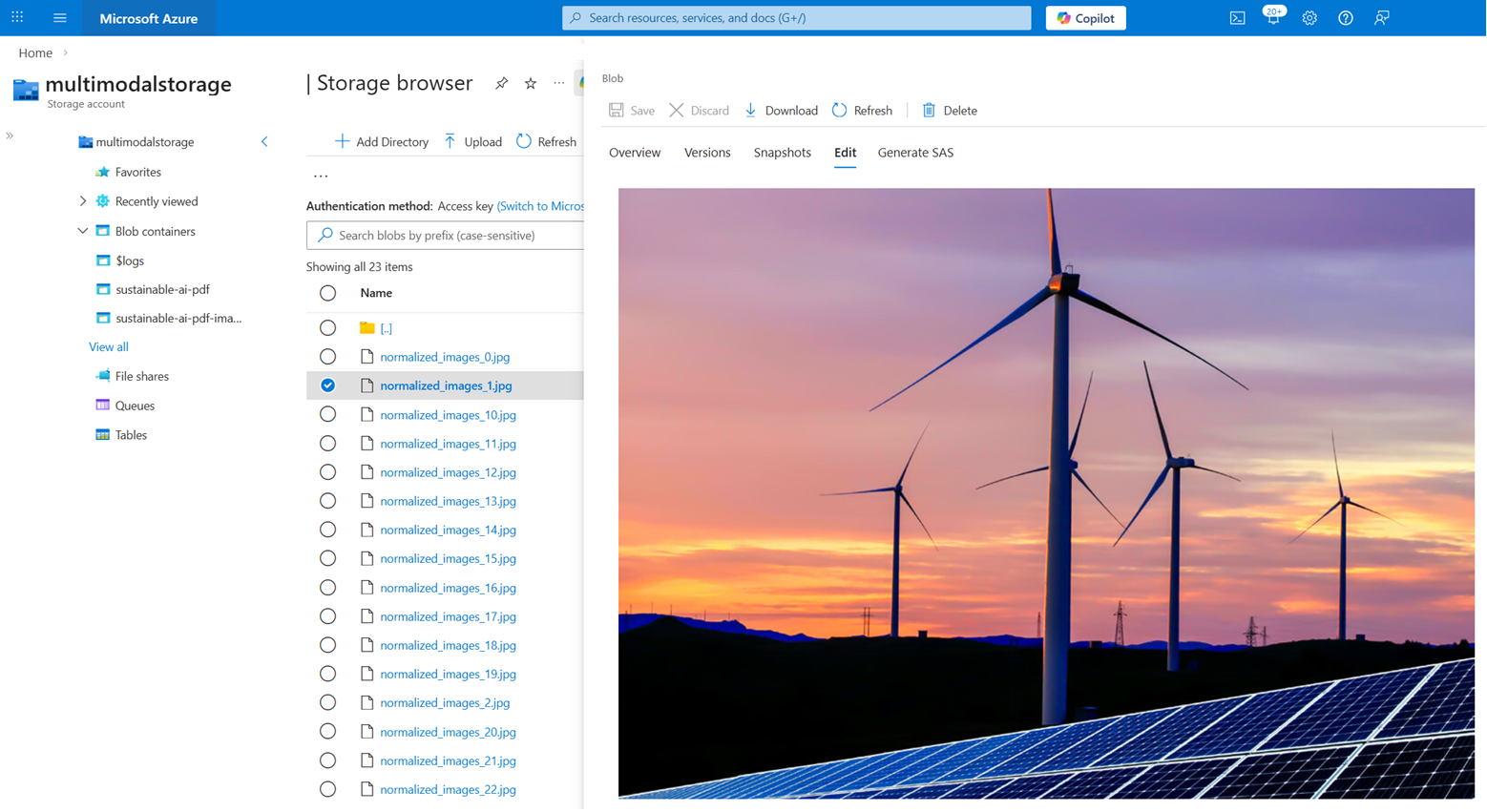
Recall that the skillset in this tutorial creates a knowledge store for image content extracted from the PDF. After the indexer runs, the sustainable-ai-pdf-images container should have approximately 23 images.
You can't return these images in a search query. However, you can write application code that calls the Azure Storage APIs to retrieve the images if you need them for the user experience. The content_path field has the path to each image.
To view the images in the Storage Browser:
Sign in to the Azure portal and navigate to your Storage account.
In Storage Browser, expand the sustainable-ai-pdf-images container.
Select an image.
In the far right menu (...), select View/Edit.
Clean up resources
When you work in your own subscription, it's a good idea to finish a project by removing the resources you no longer need. Resources that are left running can cost you money.
In the Azure portal, select All resources or Resource groups from the left pane to find and manage resources. You can delete resources individually or delete the resource group to remove all resources at once.