Note
Access to this page requires authorization. You can try signing in or changing directories.
Access to this page requires authorization. You can try changing directories.
Configure automation rules to run existing alert-trigger playbooks that were previously invoked directly by analytics rules. The playbooks and their Microsoft Sentinel Alert triggers remain supported; only direct invocation from analytics rules was deprecated. Before you begin, review the Prerequisites.
To run a playbook for alerts from one analytics rule, follow the instructions under Create an automation rule from an analytics rule.
To run a playbook for alerts from multiple analytics rules, follow the instructions under Create a new automation rule from the Automation page.
Important
After March 31, 2027, Microsoft Sentinel will no longer be supported in the Azure portal and will be available only in the Microsoft Defender portal. All customers using Microsoft Sentinel in the Azure portal will be redirected to the Defender portal and will use Microsoft Sentinel in the Defender portal only.
If you're still using Microsoft Sentinel in the Azure portal, we recommend that you start planning your transition to the Defender portal to ensure a smooth transition and take full advantage of the unified security operations experience offered by Microsoft Defender.
Why migrate
Automation rules provide the following capabilities for alert-trigger playbooks:
Automation management from a single display, regardless of type (“single pane of glass”).
Use a single automation rule triggering playbooks for multiple analytics rules, instead of configuring each analytics rule separately.
Define the order in which alert playbooks are to be executed.
Support for scenarios that set an expiration date for running a playbook.
Configuring an automation rule doesn't change the playbook or its Logic Apps trigger. It changes only the mechanism that invokes the playbook.
Direct invocation of playbooks from analytics rules was deprecated. To run these playbooks automatically when an alert is created, use an automation rule.
Prerequisites
You need these roles:
Logic Apps Contributor role to create and edit playbooks.
Microsoft Sentinel Contributor role to attach a playbook to an automation rule.
To learn more, see Microsoft Sentinel playbook prerequisites.
Create an automation rule from an analytics rule
Follow these steps to run a playbook for alerts from one analytics rule. For alerts from multiple analytics rules, use Create a new automation rule from the Automation page.
For Microsoft Sentinel in the Azure portal, select the Configuration > Analytics page. For Microsoft Sentinel in the Defender portal, select Microsoft Sentinel > Configuration > Analytics.
Under Active rules, select the analytics rule whose alerts should run the playbook, and select Edit.
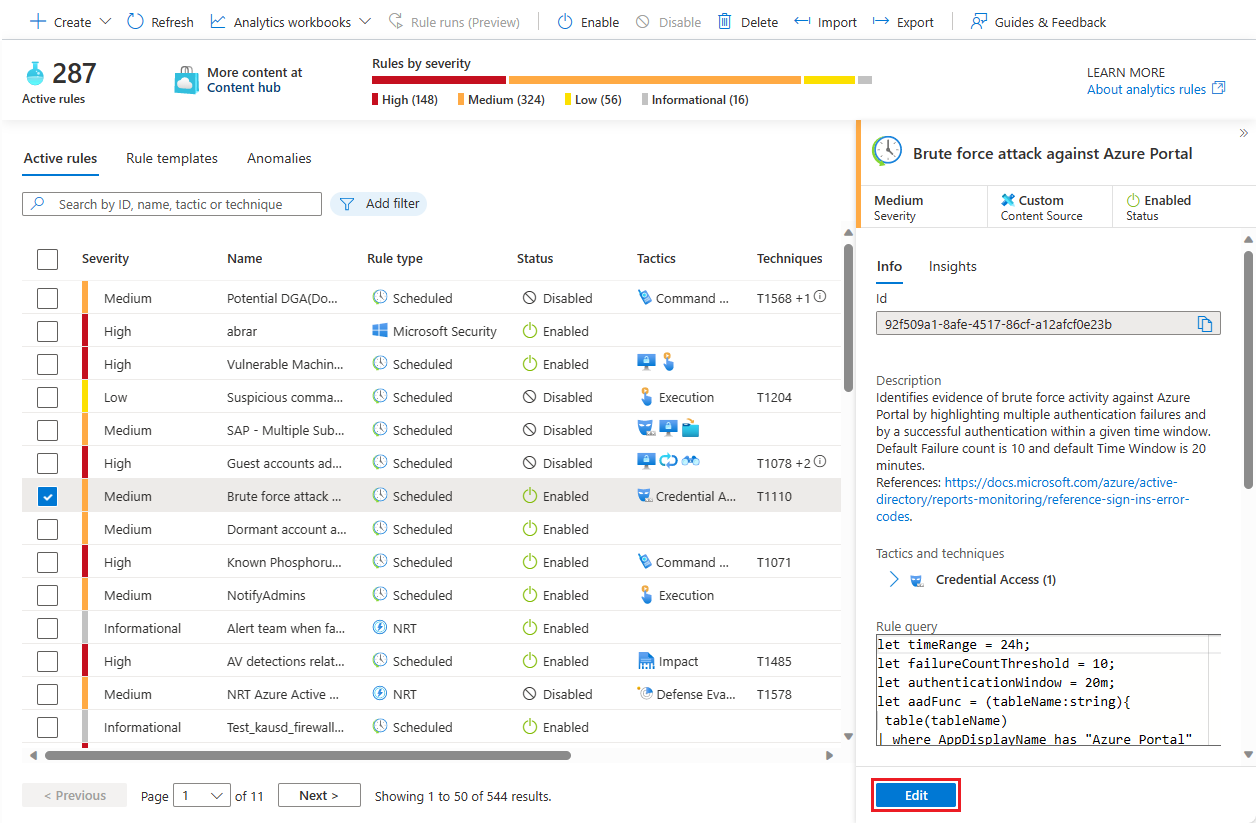
Select the Automated response tab.
Select + Add new under Automation rules to create a new automation rule.
In the Create new automation rule panel, under Trigger, select When alert is created.
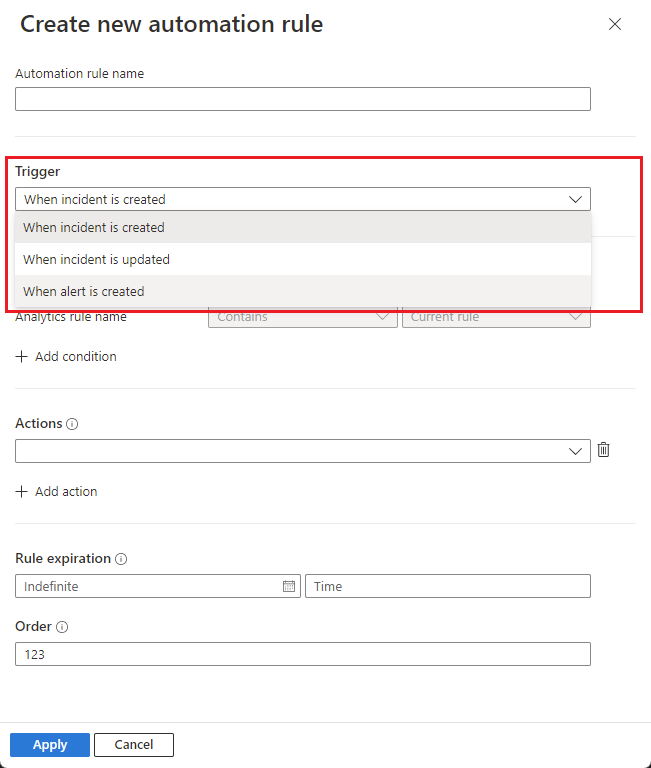
Under Actions, see that the Run playbook action, being the only type of action available, is automatically selected and grayed out. Select your playbook from those available in the drop-down list in the line below.
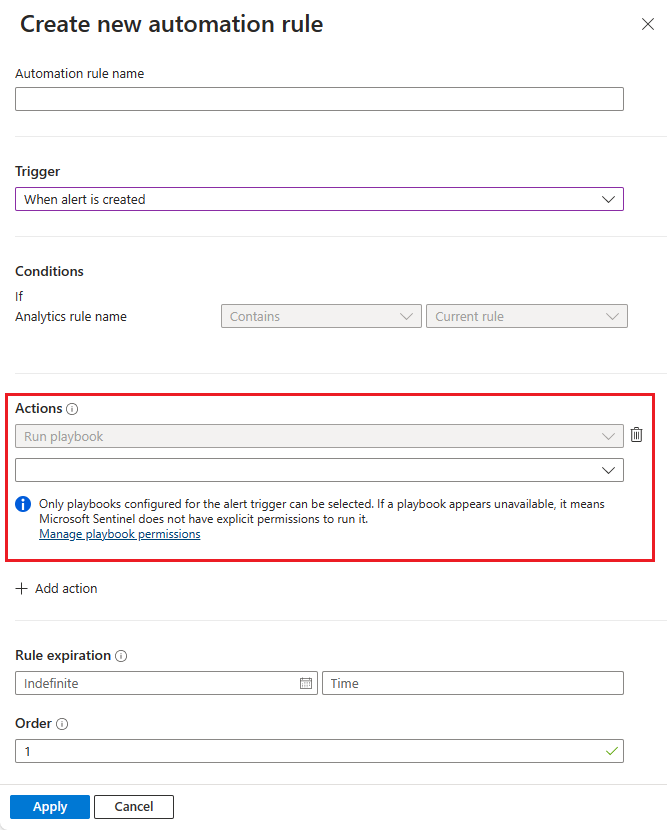
Select Apply. The new rule shows in the automation rules grid.
Review and update the analytics rule to save your changes.
Create a new automation rule from the Automation page
Use this procedure to run a playbook for alerts from multiple analytics rules. For alerts from one analytics rule, use Create an automation rule from an analytics rule.
For Microsoft Sentinel in the Azure portal, select the Configuration > Analytics page. For Microsoft Sentinel in the Defender portal, select Microsoft Sentinel > Configuration > Analytics.
From the top menu bar, select Create -> Automation rule.
In the Create new automation rule panel, in the Trigger drop-down, select When alert is created.
Under Conditions, select the analytics rules you want to run a particular playbook or a set of playbooks on.
Under Actions, for each playbook you want this rule to invoke, select + Add action. The Run playbook action is automatically selected and grayed out.
Select from the list of available playbooks in the drop-down list in the line below. Order the actions according to the order in which you want the playbooks to run by selecting the up/down arrows next to each action.
Select Apply to save the automation rule.