Note
Access to this page requires authorization. You can try signing in or changing directories.
Access to this page requires authorization. You can try changing directories.
Jupyter notebooks provide an interactive environment for exploring, analyzing, and visualizing data in the Microsoft Sentinel data lake and federated tables. With notebooks, you can write and execute code, document your workflow, and view results—all in one place. This makes it easy to perform data exploration, build advanced analytics solutions, and share insights with others. By leveraging Python and Apache Spark within Visual Studio Code, notebooks help you transform raw security data into actionable intelligence.
This article shows you how to explore and interact with data lake data using Jupyter notebooks in Visual Studio Code.
Prerequisites
Onboard to the Microsoft Sentinel data lake
To use notebooks in the Microsoft Sentinel data lake, you must first onboard to the data lake. If you haven't onboarded to the Sentinel data lake, see Onboarding to Microsoft Sentinel data lake. If you have recently onboarded to the data lake, it may take some time until sufficient volume of data is ingested before you can create meaningful analyses using notebooks.
Permissions
Microsoft Entra ID roles provide broad access across all workspaces in the data lake. Alternatively you can grant access to individual workspaces using Azure RBAC roles. Users with Azure RBAC permissions to Microsoft Sentinel workspaces can run notebooks against those workspaces in the data lake tier. For more information, see Roles and permissions in Microsoft Sentinel.
Optionally, Microsoft Sentinel scoping or row-level RBAC can be configured to further restrict data access within a workspace. When enabled, row-level scoping limits the data returned by queries based on the user’s assigned scope. If row-level scoping isn’t configured, the existing workspace-level permission model applies unchanged. For more information, see Configure Microsoft Sentinel scoping (row-level RBAC) (preview).
To create new custom tables in the analytics tier, the data lake managed identity must be assigned the Log Analytics Contributor role in the Log Analytics workspace.
To assign the role, follow the steps below:
- In the Azure portal, navigate to the Log Analytics workspace that you want to assign the role to.
- Select Access control (IAM) in the left navigation pane.
- Select Add role assignment.
- In the Role table, select Log Analytics Contributor, then select Next
- Select Managed identity, then select Select members.
- Your data lake managed identity is a system assigned managed identity named
msg-resources-<guid>. Select the managed identity, then select Select. - Select Review and assign.
For more information on assigning roles to managed identities, see Assign Azure roles using the Azure portal.
Install Visual Studio Code and the Microsoft Sentinel extension
If you don't already have Visual Studio Code, download and install Visual Studio Code for Mac, Linux, or Windows.
The Microsoft Sentinel extension for Visual Studio Code (VS Code) is installed from the extensions marketplace. To install the extension, follow these steps:
- Select the Extensions Marketplace in the left toolbar.
- Search for Sentinel.
- Select the Microsoft Sentinel extension and select Install.
- After the extension is installed, the Microsoft Sentinel
 icon appears in the left toolbar.

Install the GitHub Copilot extension for Visual Studio Code to enable code completion and suggestions in notebooks.
- Search for GitHub Copilot in the Extensions Marketplace and install it.
- After installation, sign in to GitHub Copilot using your GitHub account.
Explore data lake tier tables
After installing the Microsoft Sentinel extension, you can start exploring data lake tier tables and creating Jupyter notebooks to analyze the data.
Sign in to the Microsoft Sentinel extension
Select the Microsoft Sentinel
icon in the left toolbar.A dialog appears with the following text The extension "Microsoft Sentinel" wants to sign in using Microsoft. Select Allow.

Select your account name to complete the sign in.

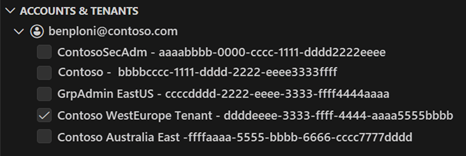
If you have multiple guest accounts associated with your login, you can seamlessly switch between accounts. To switch between accounts, select the account name at the bottom left of the Visual Studio Code window. Only one account can be selected at a time.
Important
Switching between accounts disconnects any active pyspark sessions.


View data lake tables and jobs
Once you sign in, the Sentinel extension displays a list of Lake tables and Jobs in the left pane. The tables are grouped by the database and category. Federated tables are displayed under the Federated tables category under System tables. Select a table to see the column definitions.
For information on Jobs, see Jobs and Scheduling. For more information on federated tables, see Using federated tables in the Microsoft Sentinel data lake.

Create a new notebook
To create a new notebook, use one of the following methods.
Enter > in the search box or press Ctrl+Shift+P and then enter Create New Jupyter Notebook.

Select File > New File, then select Jupyter Notebook from the dropdown.

In the new notebook, paste the following code into the first cell.
from sentinel_lake.providers import MicrosoftSentinelProvider
data_provider = MicrosoftSentinelProvider(spark)

table_name = "EntraGroups"
df = data_provider.read_table(table_name)
df_filtered = df.select("displayName", "groupTypes", "mail", "mailNickname", "description", "tenantId").show(100,   truncate=False)

# Transform the dataframe
df_transformed = df.filter(df.mail.isNotNull()).select("displayName", "groupTypes", "mail", "mailNickname", "description", "tenantId")

write_options = {
     'mode': 'overwrite'
 }
# Save to a new table
data_provider.save_as_table(df_transformed, "EntraGroups_Processed_SPRK", write_options=write_options)


The editor provides intellisense code completion for both the MicrosoftSentinelProvider class and the table names in the data lake.
Select the Run triangle to execute the code in the notebook. The results are displayed in the output pane below the code cell.

Select Microsoft Sentinel from the list for a list of runtime pools.

Select Medium to run the notebook in the medium sized runtime pool. For more information on the different runtimes, see Selecting the appropriate Microsoft Sentinel runtime.


Note
Selecting the kernel starts the Spark session and runs the code in the notebook. After selecting the pool, it can take 3-5 mins for the session to start. Subsequent runs a faster as the session is already active.
When the session is started, the code in the notebook runs and the results are displayed in the output pane below the code cell, for example:

For sample notebooks that demonstrate how to interact with the Microsoft Sentinel data lake, see Sample notebooks for Microsoft Sentinel data lake.
Status bar
The status bar at the bottom of the notebook provides information about the current state of the notebook and the Spark session. The status bar includes the following information:
The vCore utilization percentage for the selected Spark pool. Hover over the percentage to see the number of vCores used and the total number of vCores available in the pool. The percentages represent the current usage across interactive and job workloads for the logged in account.
The connection status of the Spark session for example
Connecting,Connected, orNot Connected.

Set session timeouts
You can set the session timeout and timeout warnings for interactive notebooks. These settings are persisted in the extension settings so they're preserved across sessions.
To change the timeout, select the connection status in the status bar at the bottom of the notebook. Choose from the following options:
Set session timeout period: Sets the time in minutes before the session times out. The default is 30 minutes.
Reset session timeout period: Resets the session timeout to the default value of 30 minutes.
Set session timeout warning period: Sets the time in minutes before the timeout that a warning is displayed that the session is about to time out. The default is 5 minutes.
Reset session timeout warning period: Resets the session timeout warning to the default value of 5 minutes.


Use GitHub Copilot in notebooks
Use GitHub Copilot to help you write code in notebooks. GitHub Copilot provides code suggestions and autocompletion based on the context of your code. To use GitHub Copilot, ensure that you have the GitHub Copilot extension installed in Visual Studio Code.
Copy code from the Sample notebooks for Microsoft Sentinel data lake and save it in your notebooks folder to provide context for GitHub Copilot. GitHub Copilot will then be able to suggest code completions based on the context of your notebook.
The following example shows GitHub Copilot generating a code review.

Microsoft Sentinel Provider class
To connect to the Microsoft Sentinel data lake, use the SentinelLakeProvider class.
This class is part of the access_module.data_loader module and provides methods to interact with the data lake. To use this class, import it and create an instance of the class using a spark session.
from sentinel_lake.providers import MicrosoftSentinelProvider
data_provider = MicrosoftSentinelProvider(spark)
For more information on the available methods, see Microsoft Sentinel Provider class reference.
Select the appropriate runtime pool
There are three runtime pools available to run your Jupyter notebooks in the Microsoft Sentinel extension. Each pool is designed for different workloads and performance requirements. The choice of runtime pool affects the performance, cost, and execution time of your Spark jobs.
| Runtime Pool | Recommended Use Cases | Characteristics |
|---|---|---|
| Small | Development, testing, and lightweight exploratory analysis. Small workloads with simple transformations. Cost efficiency prioritized. |
Suitable for small workloads Simple transformations. Lower cost, longer execution time. |
| Medium | ETL jobs with joins, aggregations, and ML model training. Moderate workloads with complex transformations. |
Improved performance over Small. Handles parallelism and moderate memory-intensive operations. |
| Large | Deep learning and ML workloads. Extensive data shuffling, large joins, or real-time processing. Critical execution time. |
High memory and compute power. Minimal delays. Best for large, complex, or time-sensitive workloads. |
Note
When first accessed, kernel options may take about 30 seconds to load.
After selecting a runtime pool, it can take 3–5 minutes for the session to start.
View messages, logs, and errors
Messages logs and error messages are displayed in three areas in Visual Studio Code.
The Output pane.
- In the Output pane, select Microsoft Sentinel from the drop-down.
- Select Debug to include detailed log entries.

In-line messages in the notebook provide feedback and information about the execution of code cells. These messages include execution status updates, progress indicators, and error notifications related to the code in the preceding cell
A notification pop-up in the bottom right corner of Visual Studio Code, also know as a toast message, provides real-time alerts and updates about the status of operations within the notebook and the spark session. These notifications include messages, warnings, and error alerts such as successful connection to a spark session, and timeout warnings.


Jobs and scheduling
You can schedule jobs to run at specific times or intervals using the Microsoft Sentinel extension for Visual Studio Code. Jobs allow you to automate data processing tasks to summarize, transform, or analyze data in the Microsoft Sentinel data lake. Jobs are also used to process data and write results to custom tables in the data lake tier or analytics tier. For more information on creating and managing jobs, see Create and manage Jupyter notebook jobs.
Service parameters and limits for VS Code Notebooks
The following section lists the service parameters and limits for Microsoft Sentinel data lake when using VS Code Notebooks.
| Category | Parameter/limit |
|---|---|
| Custom table in the analytics tier | Custom tables in analytics tier can't be deleted from a notebook; Use Log Analytics to delete these tables. For more information, see Add or delete tables and columns in Azure Monitor Logs |
| Gateway web socket timeout | 2 hours |
| Interactive query timeout | 2 hours |
| Interactive session inactivity timeout | 20 minutes |
| Language | Python |
| Graph query timeout | 7.5 minutes |
| Notebook job timeout | 8 hours |
| Max concurrent notebook jobs | 3, subsequent jobs are queued |
| Max concurrent users on interactive querying | 8-10 on Large pool |
| Session start-up time | Spark compute session takes about 5-6 minutes to start. You can view the status of the session at the bottom of your VS Code Notebook. |
| Supported libraries | Only Azure Synapse libraries 3.4 and the Microsoft Sentinel Provider library for abstracted functions are supported for querying the data lake. Pip installs or custom libraries aren't supported. |
| VS Code UX limit to display records | 100,000 rows |
Troubleshooting
For common errors and solutions when working with notebooks, see Troubleshoot notebooks on the Microsoft Sentinel data lake.