Note
Access to this page requires authorization. You can try signing in or changing directories.
Access to this page requires authorization. You can try changing directories.
Before developing platform solutions you need to onboard your tenant to the Microsoft Sentinel data lake. Onboard your tenant to the Microsoft Sentinel data lake from the Microsoft Defender portal. Onboarding is a one-time process that takes about 60 minutes and connects a Log Analytics workspace and sets up the data lake for your tenant. After you onboard, you can ingest security telemetry into the data lake and query it in later articles in this series.
Prerequisites
- Access to the Microsoft Defender portal.
- Decide on data lake region. The data lake is onboarded in the same region as your primary Sentinel workspace. Check your workspace's region before you start and ensure that the region is suitable for the data lake. For more information, see Supported regions.
Note
When you onboard to data lake, only Workspaces that are in the same region as your primary Sentinel workspace are attached to the data lake. Once you have onboarded, the region can’t be changed through the Defender portal.
| Operation | Required role |
|---|---|
| Onboarding to the Sentinel data lake | Microsoft Entra ID - Security Administrator or Global Administrator |
| Onboard Sentinel workspace to Defender portal | Subscription Owner, or User Access Administrator at subscription scope and Microsoft Sentinel Contributor at subscription or resource group scope |
| Onboard Sentinel workspace to Data Lake | Subscription Owner or Microsoft Sentinel Contributor at subscription or resource group scope |
Note
These elevated roles are needed only for the one-time onboarding. To follow least-privilege practices, elevate to them just in time with Microsoft Entra Privileged Identity Management (PIM), and use Security Administrator instead of Global Administrator where possible.
Create a Log Analytics workspace
Before you onboard to the data lake, you need to create or identify a Log Analytics workspace to which Microsoft sentinel can be added. If you already have a workspace in a data lake supported region, you can skip workspace creation and move to the next step.
If you don’t have a workspace, follow the steps in Create a Log Analytics workspace to create a workspace. Select the region of your Log Analytics workspace from the supported regions for the data lake, such as East US 2.
Add Sentinel to the Log Analytics Workspace by following the steps in Add Microsoft Sentinel to your Log Analytics workspace.
Connect the workspace to the Defender portal and set it as primary
To connect your Sentinel workspace and set it as primary, complete the following steps:
Sign in to the Microsoft Defender portal.
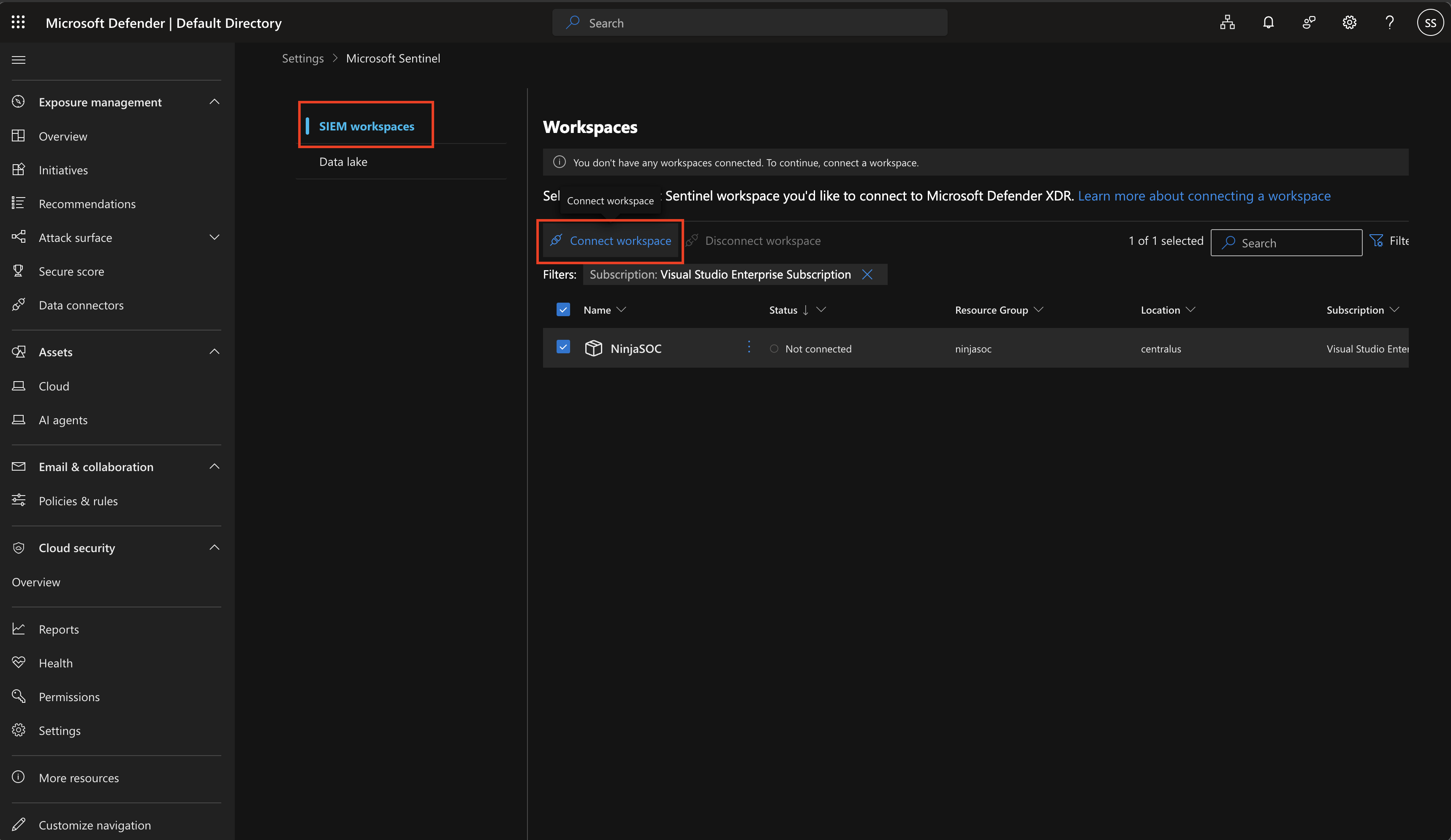
Under System > Settings > Microsoft Sentinel select SIEM workspaces
Select your Sentinel workspace and select Connect workspace.
Set the workspace as Primary.
Note
If your Sentinel workspace doesn't appear in the Defender portal, or the Subscription filter is blank or shows Undefined, you likely have a missing role. Recheck the prerequisites before retrying.
Start onboarding from the Defender portal
After your workspace is connected, start the onboarding process in the Defender portal.
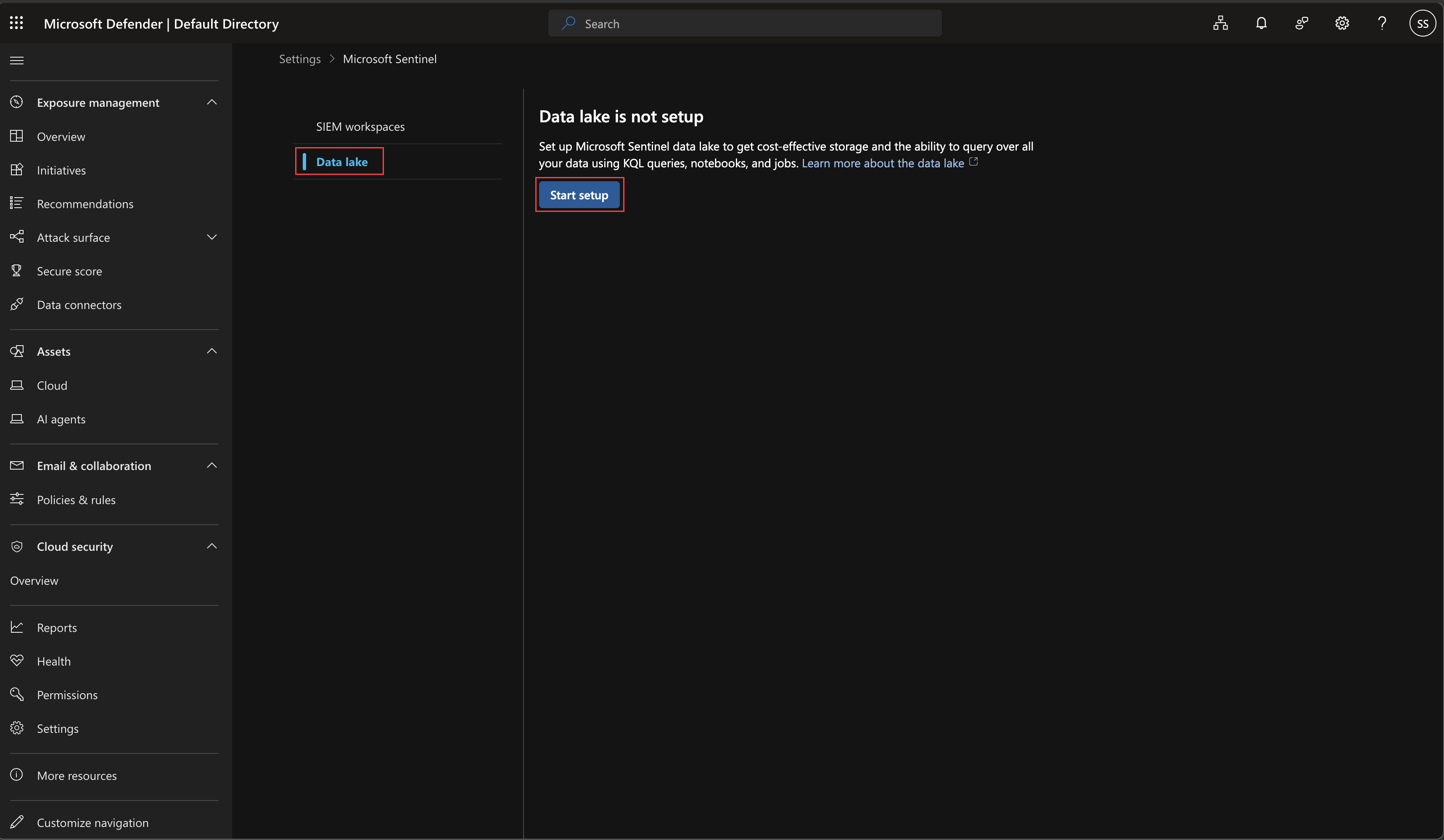
In the Microsoft Defender portal, under System > Settings select Microsoft Sentinel then select Data lake
Select Start setup. If a side panel indicates missing permissions, verify that you have the roles listed in Prerequisites.
Select a subscription and resource group
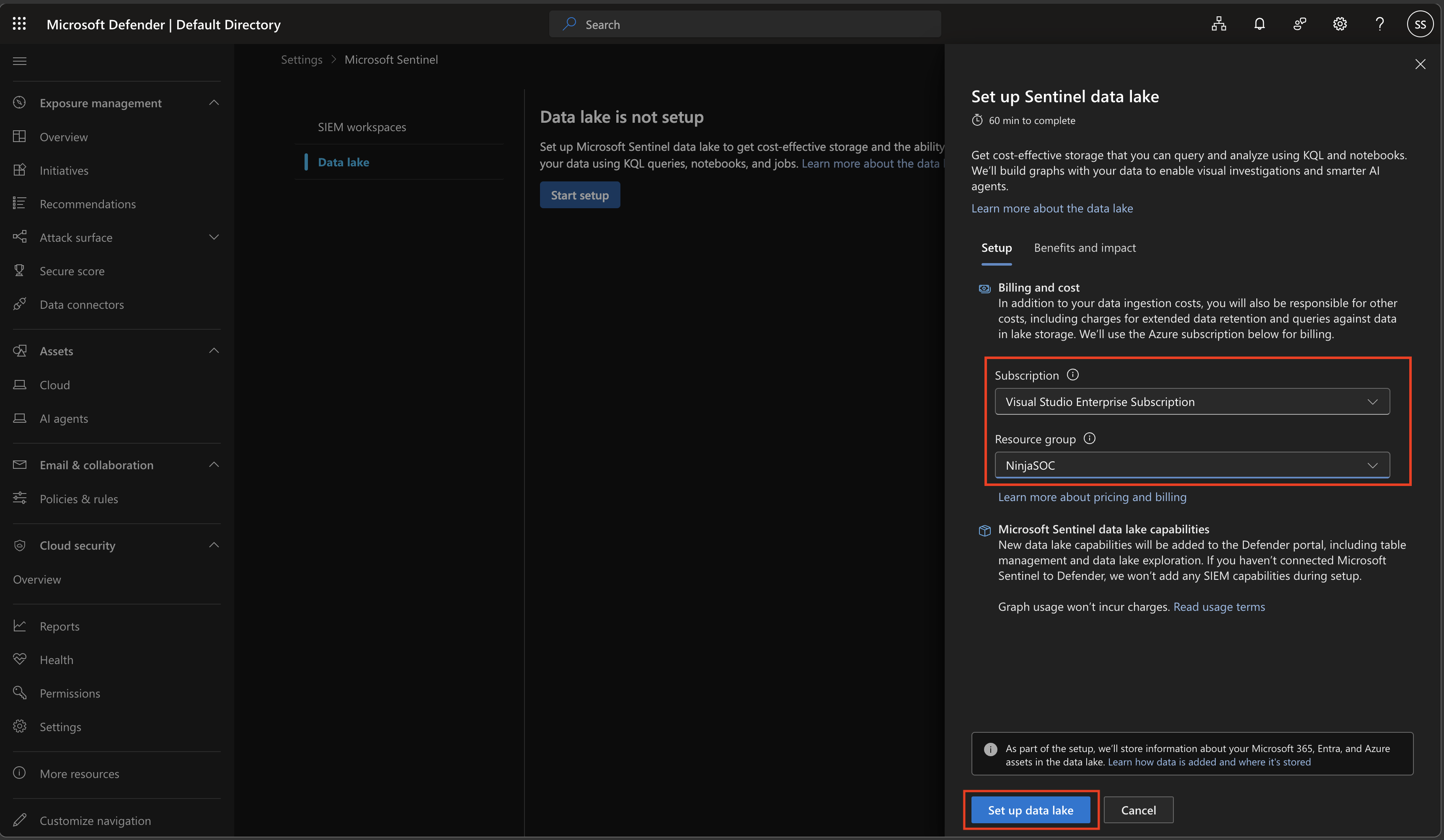
Choose where to enable billing for the data lake.
In the setup side panel, select your target Subscription.
Select the target Resource group to enable billing for the Sentinel data lake.
Select Set up data lake.
Caution
Don't delete the billing subscription or resource group selected during onboarding. Deleting either breaks the data lake setup, and the Defender portal shows Something went wrong, please try again.
If you delete the billing subscription or resource group after onboarding, you'll no longer have access to data lake functions or experiences. If you deleted the billing subscription or resource group, contact Microsoft support for assistance.
Monitor onboarding progress
After you start the setup, a progress panel appears.
- Wait for the onboarding process to finish. Onboarding might take up to 60 minutes to complete.
- You can close the setup panel. The process continues in the background, and a Setup in progress banner appears on the Defender portal home page.
Validate onboarding
After the setup completes, confirm the data lake is ready:
- In the Defender portal > SIEM workspaces, confirm your Sentinel workspace appears as Connected and Primary.
- Confirm the Data lake settings page loads without errors and shows your configured subscription and resource group.
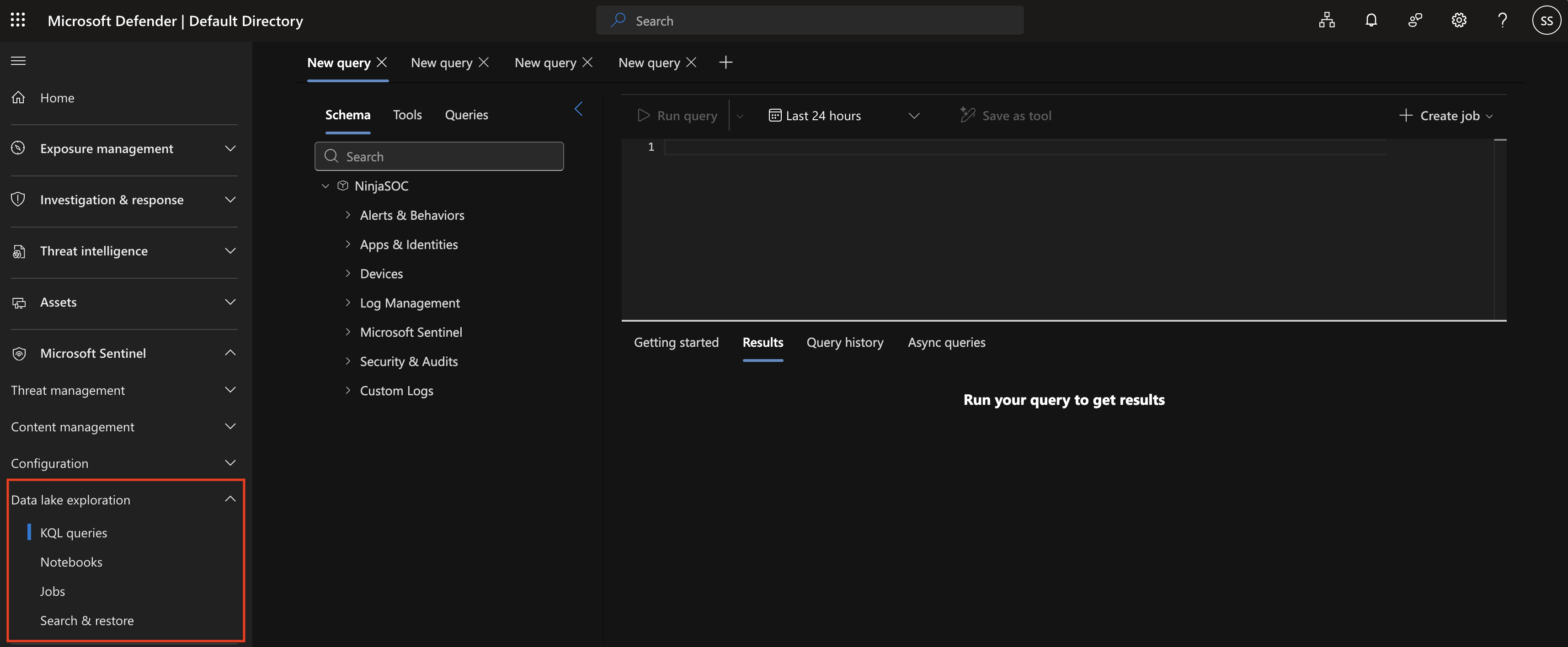
- Under Microsoft Sentinel in the left navigation bar, confirm the Data lake exploration options are available.
For more information, see Onboard to Microsoft Sentinel data lake from the Defender portal.
Verify the onboarding
Confirm that your data lake is ready to use.
When onboarding finishes, a new banner appears with cards that describe how to use your data lake.
Confirm that Data lake exploration is available under Microsoft Sentinel.