Note
Access to this page requires authorization. You can try signing in or changing directories.
Access to this page requires authorization. You can try changing directories.
Use the migration tool in Microsoft Defender SOC optimization to convert eligible Microsoft Sentinel analytics rules to custom detections. Migrate one rule, selected rules, or all eligible rules in a recommendation, then compare the results before completing migration.
The original analytics rules remain enabled during migration and evaluation. You can edit custom detections while they're being evaluated; you don't need to complete migration to edit them. Complete migration only after the custom detections and dependent automation meet your requirements.
Before you begin, review the access and validation prerequisites.
Prerequisites
- Access to the relevant SOC optimization recommendation in the Microsoft Defender portal.
- Permissions to view recommendations, migrate analytics rules, manage custom detections, and update dependent automation.
- A review of the affected analytics rules, automation, and other dependencies before changing data ingestion or retention.
- A plan to compare alert volume, timing, severity, titles, entities, scheduling, and downstream automation during evaluation.
- Follow Tune alerts from custom detections under evaluation.
Review the migration stages and statuses
The migration process has three stages:
- Migration: Create custom detections from eligible analytics rules.
- Validation: Compare the custom detections with their original analytics rules. Edit the custom detections as needed and validate the changes while the originals remain enabled.
- Completion: Complete migration and disable the original analytics rules. Completion isn't required to edit the custom detections.
The portal displays each rule's eligibility or progress:
| Status | Meaning | Next action |
|---|---|---|
| Ready to migrate | The analytics rule is eligible for automatic migration. | Select the rule and start migration. |
| Under evaluation | Migration eligibility is being reassessed. | Wait for evaluation to finish, then select Refresh. |
| Migration isn't available | The current migration flow can't convert the rule. | Download the report and follow Resolve migration blockers. |
| In progress | The tool is creating the custom detection. | Wait for processing to finish and refresh the status. |
| Validating | The custom detection generates evaluation alerts while the original analytics rule stays enabled. | Compare behavior, edit the custom detection if needed, and validate before completion. |
| Completed | Migration is complete, and the original analytics rule is disabled. | Confirm detection results and review remaining dependencies. |
Under evaluation refers to migration eligibility checks. Validating refers to the period when you evaluate a migrated custom detection.
Open a SOC optimization recommendation
Use the recommendation for the table whose ingestion you plan to change.
Sign in to the Microsoft Defender portal.
Go to SOC optimization.
Open the relevant Stop ingesting recommendation.
Select the Analytic rules tab.
Review the migration summary and each rule's status.
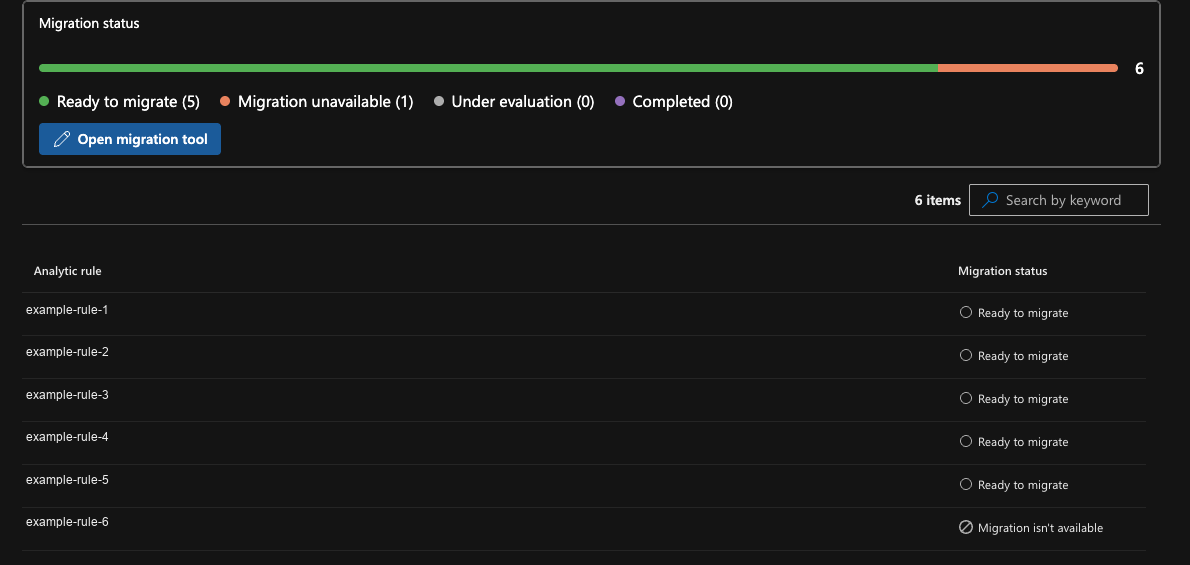
For a rule marked Migration isn't available, select Download report. Use Resolve migration blockers to match the report code to its resolution, validate any changes, and refresh eligibility. If no safe migration path is available, retain the original rule.
Migrate analytics rules
Choose the migration scope that matches the rules you want to evaluate.
Some JSON columns, including DeviceEvents.AdditionalFields and DeviceNetworkInfo.ConnectedNetworks, are dynamic in Log Analytics but JSON-formatted strings in advanced hunting. Parse the column with todynamic() before accessing a property or array element, for example, todynamic(AdditionalFields).Property or todynamic(ConnectedNetworks)[0]. Use tostring() when comparing extracted values with text. Migration applies this conversion automatically for scheduled analytics rules. For streaming (NRT) rules, direct nested access to affected columns is an eligibility blocker: update the source analytics-rule query, then reassess eligibility. Apply the same parsing when manually running the original query in advanced hunting. Validate changes against representative data in both environments; other schema differences and migration blockers can still require changes.
The following table lists the affected JSON columns.
| Table | Affected columns |
|---|---|
DeviceNetworkInfo |
ConnectedNetworks, DefaultGateways, DnsAddresses, IPAddresses |
DeviceNetworkEvents |
AdditionalFields |
DeviceProcessEvents |
AdditionalFields |
DeviceInfo |
AdditionalFields, LoggedOnUsers |
DeviceFileEvents |
AdditionalFields |
DeviceLogonEvents |
AdditionalFields |
DeviceEvents |
AdditionalFields |
AlertEvidence |
AdditionalFields |
EmailEvents |
AdditionalFields |
Other columns can also have different schemas or query requirements.
Migrate a single rule
Select one eligible analytics rule from the recommendation.
- In the recommendation's Analytic rules tab, find a rule marked Ready to migrate.
- Select its checkbox, or open its side panel.
- Select Migrate rules or Migrate rule, depending on the entry point.
- Review the migration confirmation.
The tool creates a custom detection. After successful creation, the rule moves to Validating, and the original analytics rule stays enabled.
Migrate all eligible rules
Use the migration tool to migrate all eligible rules in the recommendation.
Important
Migrate now starts migration for all eligible rules in the recommendation. Filtering the rule list doesn't narrow this scope. Rules marked Migration isn't available aren't included.
- Open the relevant Stop ingesting recommendation.
- Select Open migration tool.
- On Get started, review the migration, validation, and completion stages.
- Select Migrate now.
Monitor migration
Check creation progress before evaluating the custom detections.
- Return to the recommendation where you started migration.
- Review each rule's status.
- Select Refresh to check the latest progress.
During creation, the status is In progress. After successful creation, it changes to Validating. The custom detection generates evaluation alerts, and the original analytics rule remains enabled.
Creating a custom detection doesn't complete migration. You explicitly complete migration for each rule after evaluation.
Evaluate and edit custom detections
Compare each migrated custom detection with its original analytics rule over a representative period.
Tip
Initial 30-day run: When a custom detection is first created, it runs against the previous 30 days of data. This initial run can generate multiple alerts from historical matches. Account for these historical results when comparing alerts during evaluation.
In the recommendation, select Manage rules under validation, or open the migration tool and select Rules being validated.
Select the custom detections you want to evaluate.
Compare alert volume, timing, severity, titles, entities, scheduling, and downstream automation.
Edit a custom detection during evaluation if changes are needed.
Validate the edited detection and its dependent automation before completing migration.
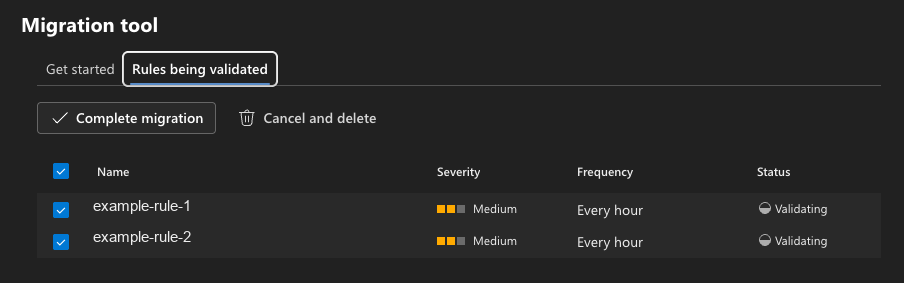
Custom detections are editable during evaluation. Leave a rule in Validating while you investigate or test changes. Rules in a bulk migration can be evaluated and completed independently.
Evaluation alerts contain #EVAL in their titles. Use Tune alerts from custom detections under evaluation to auto-resolve only alerts that match both Detection source = Custom detection and Alert title contains #EVAL. Validate the tuning rule's scope and incident behavior before relying on it.
Important
Don't complete migration until detection results and downstream automation meet your requirements. Revalidate any edits made during evaluation.
Complete migration
Complete migration only for custom detections that have passed evaluation, including any edits made during that period.
- In the recommendation, select Manage rules under validation.
- Select the custom detections that passed evaluation.
- Select Complete migration.
- Review the updated statuses.
You can also complete migration from the custom detection page.
When migration is complete:
- The custom detection is enabled, and its migration status is Completed.
- The original Microsoft Sentinel analytics rule is disabled.
When validation is complete for all detections using the temporary tuning rule, disable or delete the alert tuning rule.
Important
Completing migration disables the original analytics rule. Verify the replacement and its dependent automation before proceeding.
Cancel migration
If a custom detection isn't ready for completion, leave it in Validating while you investigate or edit it. To cancel its migration instead:
- Open Manage rules under validation in the recommendation.
- Select the custom detection.
- Select Cancel and delete.
The migrated custom detection is deleted, and the original analytics rule remains enabled.
Verify migration results
Confirm completed migrations and identify any remaining dependencies.
Return to the recommendation and select Analytic rules.
Confirm that successfully migrated rules show Completed.
Review rules still marked Ready to migrate, Under evaluation, Validating, or Migration isn't available.
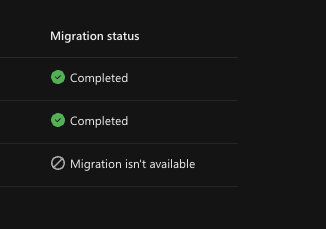
Resolve remaining rule and automation dependencies before changing ingestion or retention for the affected table.
Important
Completing some migrations doesn't mean all dependencies have been addressed. Check all analytics rules, automation, and other dependencies before reducing or stopping ingestion.
Compare alert properties after migration
Alerts from migrated custom detections include compatibility values for existing Microsoft Sentinel flows. Some values differ between the Defender and Sentinel views.
Both value columns below describe the Sentinel view for workspaces onboarded to the Defender portal. Optional properties depend on the information available for each alert. Use the table during evaluation and when updating downstream automation.
| Property name | Change | Value for new custom detections | Value for custom detections migrated from analytics rules | Notes |
|---|---|---|---|---|
ProviderName |
Changed | MicrosoftThreatProtection (Defender XDR); MDATP (MDE-native) |
Microsoft Sentinel |
|
ProductComponentName |
Added | Not populated | ASI Scheduled Alerts (scheduled); ASI NRT Alerts (NRT) |
|
ProductName |
Changed | Microsoft Defender XDR (XDR); Microsoft Defender for Endpoint (MDE-native); or a custom product name |
Azure Sentinel |
The migrated rule's product name is also Azure Sentinel in Defender for analytics rule alerts. |
AlertType |
Changed | The custom detection detector ID | <sourceWorkspaceId>_<sourceAnalyticRuleId> |
|
ExtendedProperties["Analytic Rule Ids"] |
Added | Not populated by default | Same value as in the matching analytics rule | Identifies the original analytics rule, not the custom detection rule or detector. |
ExtendedProperties["Analytic Rule Name"] |
Added | Not populated by default | Same value as in the matching analytics rule | Separate from the generated alert title. |
ExtendedProperties["MigratedAnalyticRule"] |
Added | Not populated by default | "true" |
|
ExtendedProperties["Correlation Id"] |
Added | Not populated by default | The rule execution (run) ID | Identifies an execution, not an alert ID. |
ExtendedProperties["Query Start Time UTC"] / ExtendedProperties["Query End Time UTC"] |
Added | Not populated by default | Same value as in the matching analytics rule | Different from the alert's activity start and end times. |
ExtendedProperties["Query Period"] |
Added | Not populated by default | Same value as in the matching analytics rule | |
ExtendedProperties["Trigger Operator"] / ExtendedProperties["Trigger Threshold"] |
Added | Not populated by default | Same value as in the matching analytics rule | |
ExtendedProperties["Event Grouping"] |
Added | Not populated by default | Same value as in the matching analytics rule | Describes how alerts are generated, not how incidents are grouped. |
ExtendedProperties["Search Query Results Overall Count"] |
Added | Not populated by default | Same value as in the matching analytics rule | Don't assume a total result count is available for grouped alerts. |
ExtendedProperties["Data Sources"] |
Added | Not populated by default | Same value as in the matching analytics rule | |
ExtendedProperties["Query"] |
Not yet available | Not populated by default | Not available yet | This field isn't available on alerts from migrated custom detections. |
ExtendedProperties["OriginalQuery"] |
Not yet available | Not populated by default | Not available yet | This field isn't available on alerts from migrated custom detections. |
Troubleshoot migration
Use the status and report to choose the next action.
| Issue | Next action |
|---|---|
| Migrate rules is unavailable. | Select at least one rule marked Ready to migrate. If eligibility checks are running, wait and select Refresh. |
| A rule shows Migration isn't available. | Select Download report and follow Resolve migration blockers. Preserve detection intent when editing or redesigning the rule. |
| Migration remains In progress. | Select Refresh. If migration fails, review the reported error before retrying. |
| A custom detection needs changes. | Edit it during evaluation, then validate the detection and dependent automation again. You don't need to complete migration to edit it. |
| A custom detection isn't ready for completion. | Leave it in Validating, or use Cancel and delete. The original analytics rule remains enabled until completion. |