Note
Access to this page requires authorization. You can try signing in or changing directories.
Access to this page requires authorization. You can try changing directories.
In this tutorial, you build a working Python tool that calculates SLA compliance for your Azure SRE Agent. You describe the tool's purpose in plain English, let AI generate the code, test the result, and deploy the tool for your agent to use.
In this tutorial, you learn how to:
- Describe tool functionality in plain English
- Generate Python code using AI
- Test the tool with real inputs before deploying
- Save the tool for your agent to use
Estimated time: 10 minutes
Prerequisites
Before you begin, make sure you have the following resources and permissions:
- An Azure SRE Agent. For more information, see Create an agent.
- Builder permissions on the agent.
- Access to the SRE Agent portal.
Open the Python tool dialog
Go to the Agent Canvas and start creating a Python tool.
- Open the SRE Agent portal and select your agent.
- Select Builder in the left navigation.
- Expand Builder and select Agent Canvas.
- Select Create > Tool > Python tool.
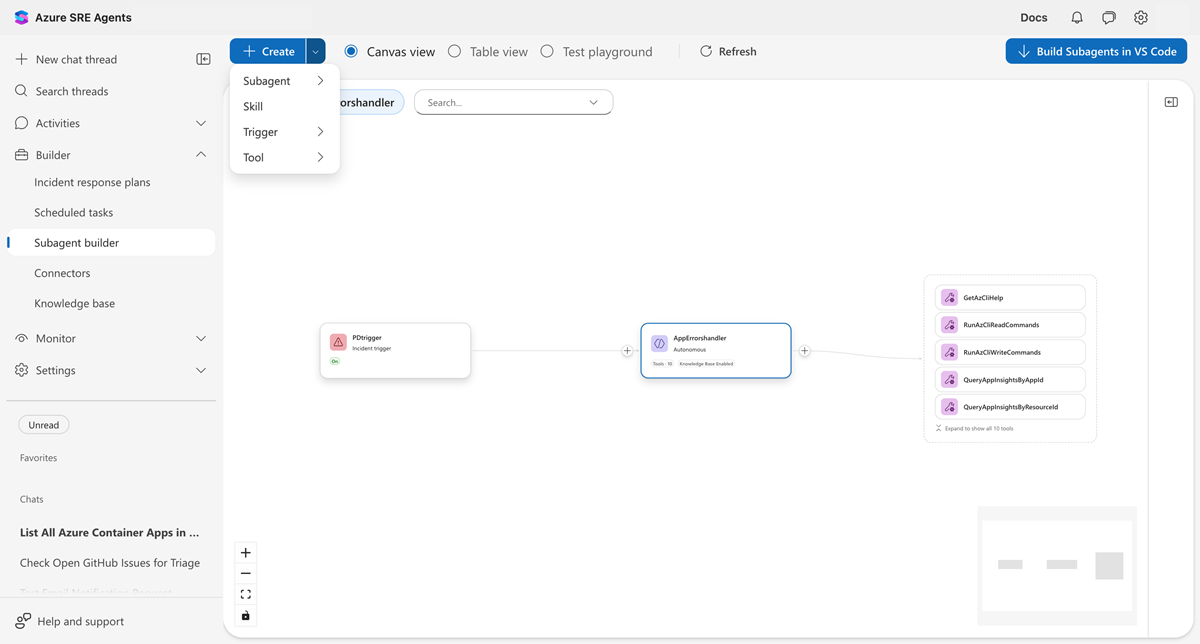
The Python tool dialog opens with three tabs: Code, Test playground, and Identity.
Describe what the tool should do
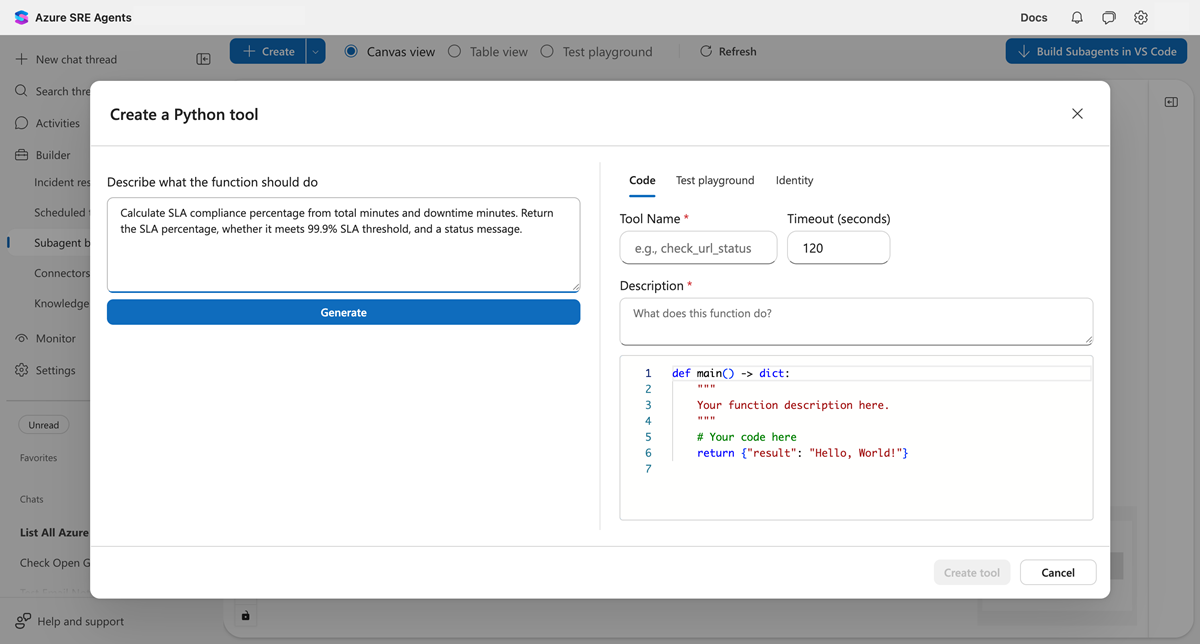
In the description field, write what you want the tool to do in plain English. Be specific about inputs, outputs, and logic.
Enter the following description:
Calculate SLA compliance percentage from total uptime minutes and downtime
minutes. Return whether the SLA meets a target threshold (default 99.9%).
Include the calculated percentage and a status message.
Tip
For best results, specify input parameters and their types, describe the calculation or logic, state what the output should include, and mention default values when applicable.
Generate the code
Select Generate to have AI create the Python function from your description.
The AI analyzes your description and creates a Python function with:
- Typed parameters matching your inputs
- A docstring explaining the logic
- Error handling for edge cases
- A JSON-serializable return value
The following example shows the generated code:
def main(total_uptime_minutes: int, total_downtime_minutes: int,
         target_sla_percent: float = 99.9) -> dict:
    """Calculate SLA compliance from uptime and downtime minutes.

    Computes SLA as (uptime / (uptime + downtime)) * 100.
    Returns the SLA percentage, whether it meets the target,
    and a status message.
    """
    total_minutes = total_uptime_minutes + total_downtime_minutes

    if total_minutes == 0:
        sla_percent = 100.0
    else:
        sla_percent = (total_uptime_minutes / total_minutes) * 100

    meets_target = sla_percent >= target_sla_percent

    return {
        "sla_percent": round(sla_percent, 4),
        "target_sla_percent": target_sla_percent,
        "meets_target": meets_target,
        "status": "Meets SLA" if meets_target else "Below SLA"
    }
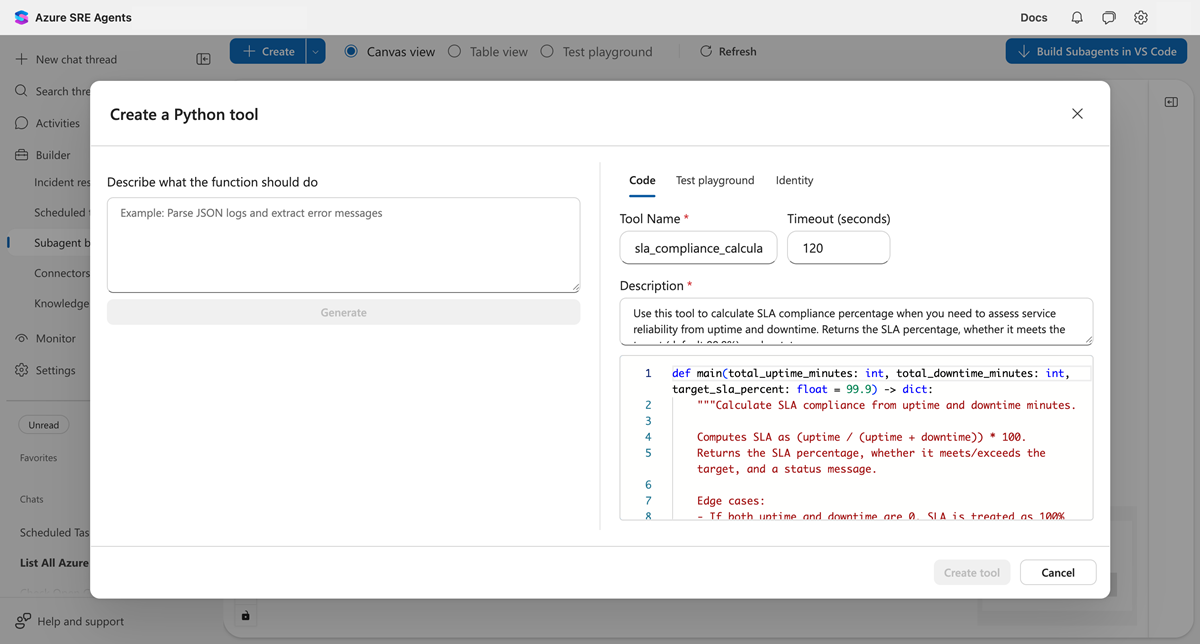
The Code tab shows a main() function with typed parameters. The tool name comes from your description.
Test with real inputs
Before you create the tool, test it by using actual values.
- Select the Test playground tab.
- Enter the following test values:
- total_uptime_minutes:
43185 - total_downtime_minutes:
15 - target_sla_percent:
99.9
- total_uptime_minutes:
- Select Test.
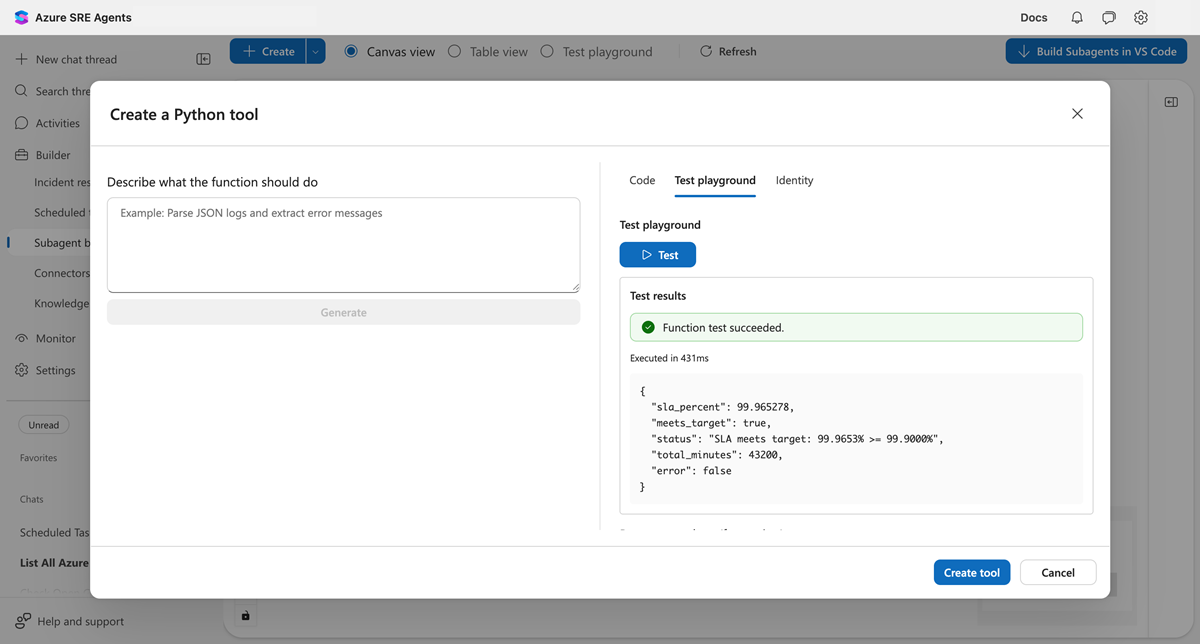
The following example shows the expected result:
{
  "sla_percent": 99.9653,
  "target_sla_percent": 99.9,
  "meets_target": true,
  "status": "Meets SLA"
}
The test shows a green success indicator, and the JSON output matches the expected values.
Create the tool
After the tests pass, select Create tool.
Your tool is now available. The agent can call it automatically when a task matches the tool's description.
Verify the tool
In a new chat thread, ask your agent a question that triggers the tool:
What's my SLA for last month? We had 43185 minutes of uptime and 15 minutes of downtime.
The agent recognizes this question matches your tool and calls it to calculate the result.
Troubleshooting
Use the following information to resolve common problems.
Test button is disabled
The Test button requires:
- Valid Python code with a
main()function - All required parameter fields filled in
Check that your code has no syntax errors and all parameters have values.
Code doesn't match your intent
Select the description field, refine your text, and select Generate again. Be more specific about:
- Parameter names and types
- Calculation logic
- Expected output format
Test returns an error
Check the error message in the results panel. Common problems include:
- Division by zero (add handling for edge cases)
- Incorrect parameter types (ensure inputs match expected types)
- Import errors (check that libraries are available)
Edit or delete a tool
You can modify or remove tools directly from the Agent Canvas.
Edit
- On the Agent Canvas, select the tool node to open the info panel.
- Select the edit (pencil) icon in the panel header.
- The edit dialog opens. Modify the description, code, or parameters.
- Select Save.
Delete
- Select the tool node to open the info panel.
- Select the ⋯ (more actions) menu in the panel header.
- Select Delete tool.
- Confirm the deletion in the dialog.