Note
Access to this page requires authorization. You can try signing in or changing directories.
Access to this page requires authorization. You can try changing directories.
Your agent works with Azure services, Kusto, GitHub, and Azure DevOps. But your team also uses Jira for incident tracking, Slack for communication, GitLab for code, Salesforce for customer cases, and Google Drive for documentation. You want your agent to work with these services too.
When the agent operates against external services, you need governance. You need to control which operations the agent can call, what values it uses for sensitive fields like email recipients or project keys, and whether certain actions require your approval first. This access control is the same kind you'd set up for any service account or automation that touches production systems.
What are managed connectors in Azure SRE Agent?
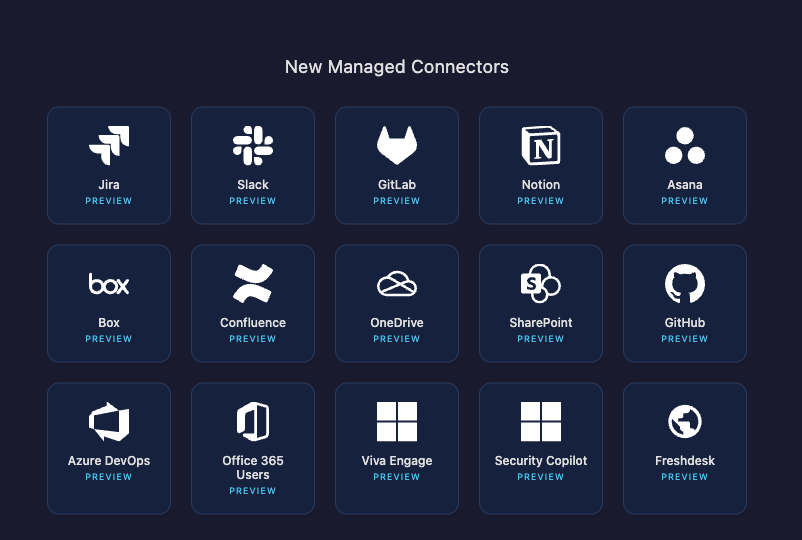
Managed connectors are a set of SaaS connectors: Jira, Slack, GitLab, Salesforce, OneDrive, Google Drive, Notion, Confluence, and more. Each connector exposes operations as tools your agent can call. You control which operations are available, what values are locked, and which operations require your approval before the agent executes them.
Select which connector operations the agent can call
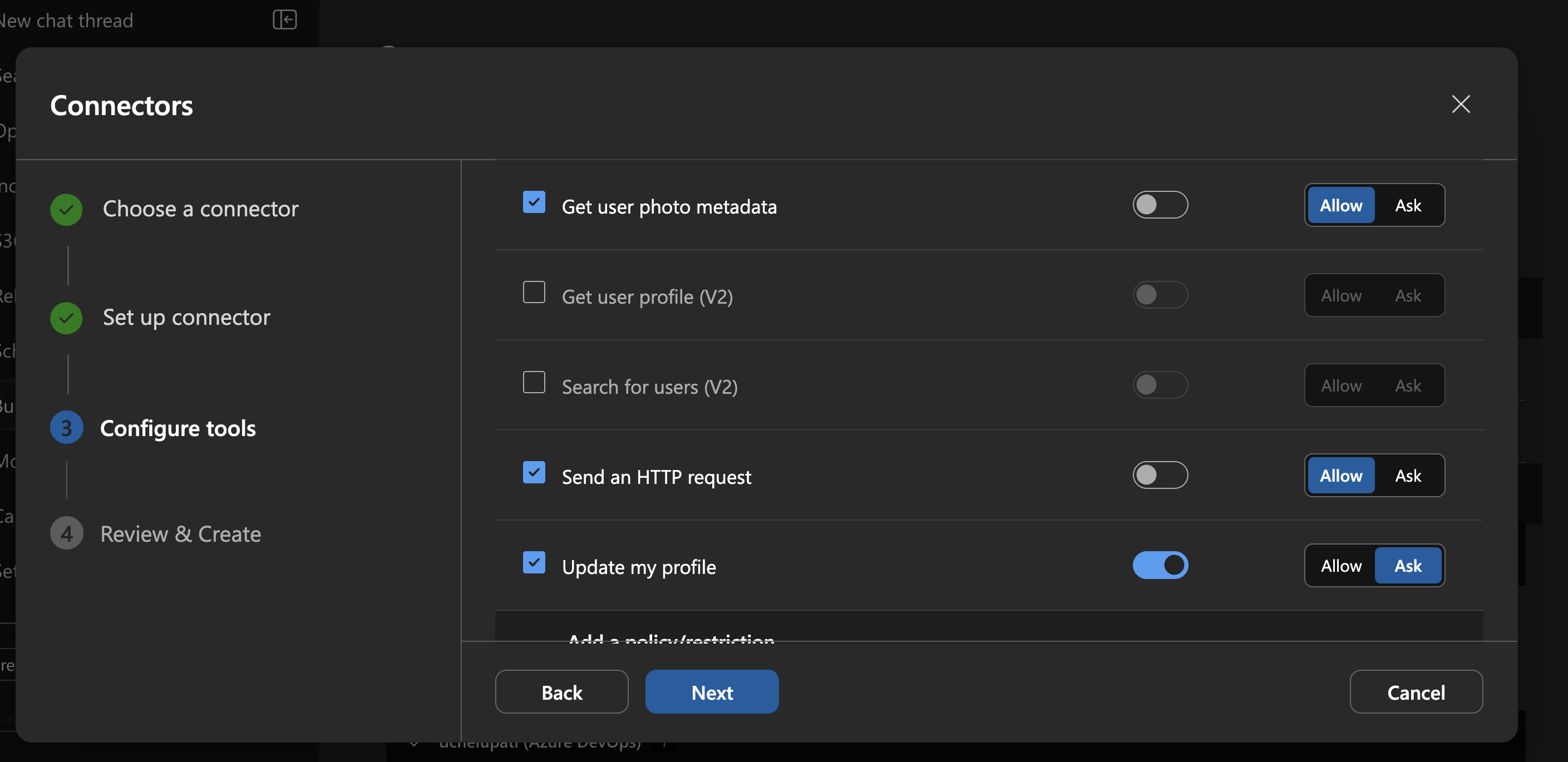
Each connector comes with a set of operations. During setup, you select which ones your agent can use. The agent can't see operations you don't select.
For example, a Jira connector has operations like Get Issue, Create Issue, Search Issues, and Add Comment. You might enable Get Issue and Search Issues for read access, but leave Create Issue disabled so the agent can't create tickets.
Lock values in tool calls
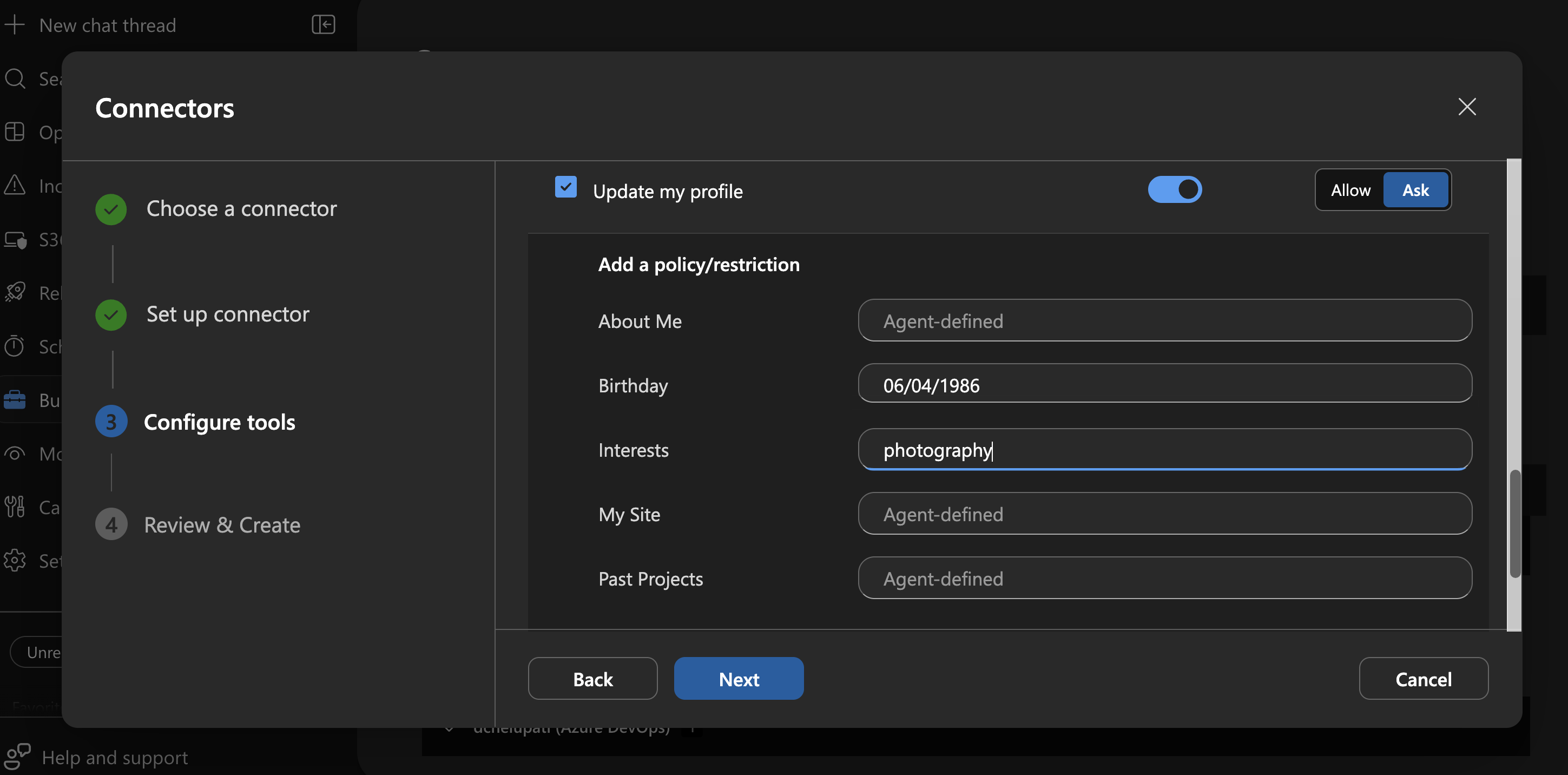
For each operation, mark parameters as User-defined (locked to a value you set) or Agent-defined (the agent fills in at runtime). Locked parameters are fixed. The agent uses your exact value every time and can't change it.
For example, on the OneDrive "Copy file" tool, you could lock File to Root and Overwrite to No, while leaving Destination File Path for the agent to fill. The agent can copy files into a folder you chose, but it can't change the source or overwrite existing files.
| Parameter | Role | What happens at runtime |
|---|---|---|
| To (email) | User-defined = oncall@contoso.com |
Agent always sends to this address |
| Subject | Agent-defined | Agent writes the subject based on context |
| Body | Agent-defined | Agent writes the body based on context |
Require approval before execution
For each operation, set the permission to Allow or Ask. When set to Allow, the agent executes the operation on its own. When set to Ask, the agent pauses and shows you what it plans to do. You approve or reject before it runs.
For example, on a OneDrive connector you might set "Find files in folder" to Allow since it's read-only, but set "Delete file" to Ask so you confirm before anything is removed.
Warning
When the agent runs in Autonomous mode (scheduled tasks, HTTP triggers, incident auto-response), every tool set to Ask executes without human approval. This setting completely bypasses the approval guardrail. Only enable Autonomous mode for workflows where you trust all enabled operations to run unreviewed. Consider creating separate connector configurations for autonomous workflows with only trusted read operations. See Run modes.
Credential isolation
When you connect your agent to a service, you sign in with your own account (OAuth, API key, or credentials). The connection resource in Azure stores your credentials separately from the agent runtime. The agent uses this connection to call external services but doesn't have direct access to your stored credentials.
The connector gateway enforces locked parameter values. The agent can't bypass locked values because the server modifies the agent's request before it reaches the external service.
Note
The connection uses the configuring user's credentials for all agent users. Any user who can chat with the agent can invoke the enabled operations by using the connection owner's credentials. Select operations carefully and enable only what the team needs.
To revoke the agent's access, delete the connector from the Connectors list. This action removes the connection and its stored credentials without affecting your personal account.
Get started
Start with a connector your team already uses. The tutorial walks through the setup wizard step by step.
For more information, see Set up a managed connector.