Note
Access to this page requires authorization. You can try signing in or changing directories.
Access to this page requires authorization. You can try changing directories.
Your agent becomes more effective over time by remembering what worked in past incidents and referencing your documentation.
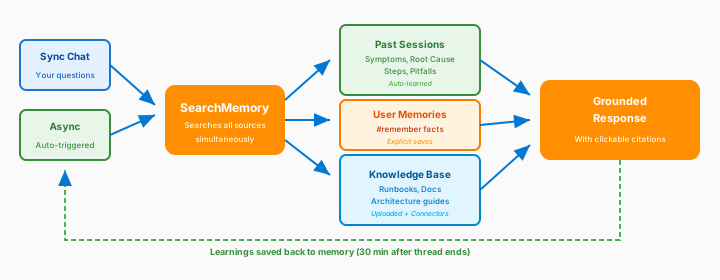
How memory works
When you ask a question, your agent searches across all knowledge sources simultaneously.
| Source | What it finds | Best for |
|---|---|---|
| Past incidents | Steps that resolved similar problems | "How did we fix this before?" |
| User memories | Facts you explicitly save | "Remember my environment uses..." |
| Knowledge base | Your uploaded runbooks and docs | "Follow our standard procedure" |
The agent returns a grounded response with clickable citations that show exactly where the information came from.
Automatic learning
Your agent learns from every conversation. It doesn't need any manual training.
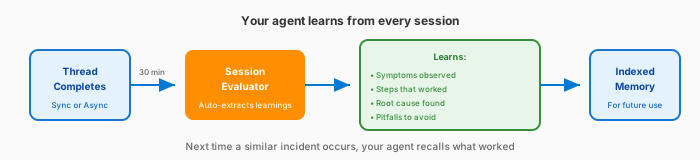
After each thread finishes, the agent captures the following information.
| What | Description |
|---|---|
| Symptoms observed | Error messages, behaviors, patterns |
| Steps that worked | The resolution path that succeeded |
| Root cause | What caused the issue |
| Pitfalls to avoid | What didn't work, dead ends |
This process happens automatically. Thirty minutes after a thread goes quiet, the agent evaluates the conversation and indexes the learnings.
Same-resource priority
When investigating a resource problem, the agent prioritizes past sessions on the exact same resource.
"App Service app-prod-01 is returning 503 errors"
Your agent first checks whether it saw problems on app-prod-01 before. If yes, those learnings appear first because they're the most relevant.
Proactive knowledge persistence
Beyond learning from completed threads, your agent actively saves what it discovers during conversations. When your agent encounters something important (a tricky configuration, a nonobvious dependency, or a debugging gotcha), it records the insight in persistent knowledge files that carry across sessions.
How it works
Your agent keeps a knowledge directory at memories/synthesizedKnowledge/. The agent automatically loads a special file, overview.md, into the system prompt at the start of every conversation. This approach gives your agent immediate access to the most important context about your environment.
| Component | What it does |
|---|---|
overview.md |
Service summary and index. Always loaded into context (about 2,000 character budget). |
| Topic files | Detailed notes on specific subjects (for example, aks-networking-gotchas.md). |
| Links from overview | overview.md links to topic files so your agent knows what detailed knowledge exists. |
What your agent saves
Your agent proactively records insights during conversations.
| Category | Examples |
|---|---|
| Problem constraints | "This service can't scale past 10 replicas due to quota limits." |
| Strategies that worked | "Restarting the pod with --grace-period=0 resolved the stuck deployment." |
| Strategies that failed | "Increasing memory limit didn't help. The issue was CPU throttling." |
| Non-obvious dependencies | "app-frontend depends on a sidecar proxy that must start first." |
| Configuration details | "Production uses custom TLS certificates stored in Key Vault." |
Knowledge organization
Your agent organizes knowledge semantically by topic, not chronologically. Each file is a self-contained reference.
| File | What it captures |
|---|---|
overview.md |
Service summary, key links, index of topic files (~2,000 characters) |
team.md |
Team members, roles, expertise (~500 characters) |
architecture.md |
Components, connections, environments (~1,500 characters) |
logs.md |
Log sources, tables, key fields, useful queries (~1,500 characters) |
deployment.md |
Pipeline details, version lookup, rollback procedures (~1,000 characters) |
auth.md |
Auth mechanisms, identity flows (~800 characters) |
debugging.md |
Common issues, troubleshooting guides, runbook links (~1,000 characters) |
queries/*.md |
Extracted queries organized by topic (~1,000 characters each) |
When updating existing knowledge, your agent reads the current file, merges new information, and removes anything that becomes outdated or incorrect.
Tip
You can ask your agent to save knowledge too
Beyond automatic persistence, you can explicitly ask your agent to save information to its knowledge files:
Save this to your knowledge: our Redis cache uses Premium tier with 6GB,
and failover takes about 90 seconds.
Your agent creates or updates the appropriate knowledge file and links it from overview.md.
This approach is different from #remember commands (described in the next section), which save discrete facts to a separate memory store. Knowledge files are structured, persistent references that your agent consults at the start of every conversation. User memories are individual facts searchable via #retrieve.
User memories
Beyond what your agent learns and persists automatically, you can explicitly save discrete facts for your agent to remember. User memories are ideal for environment-specific details that might not come up in incidents but are important for context.
The following table describes good candidates for user memories.
| Category | Examples |
|---|---|
| Environment facts | "Production uses three AKS clusters in West US 2" |
| Team preferences | "We prefer CLI over portal for deployments" |
| Architecture details | "app-service-01 depends on sql-prod" |
| Escalation paths | "PagerDuty, then Teams channel, then phone" |
Memory commands
Manage user memories by using these chat commands.
| Command | What it does | Example |
|---|---|---|
#remember |
Save a fact for future reference | #remember our Redis cache uses Premium tier |
#retrieve |
Search your saved memories | #retrieve what's our caching setup? |
#forget |
Remove a saved memory | #forget the outdated Redis info |
The following example shows a typical memory workflow.
Save important context:
#remember Production uses 3 AKS clusters in West US 2
#remember Our escalation path: PagerDuty, then Teams channel, then phone
#remember Database failover takes approximately 15 minutes
Retrieve later:
#retrieve how long does database failover take?
The agent responds based on the saved memory: "Database failover takes approximately 15 minutes."
Knowledge base
Upload your documentation and connect external sources to give your agent a broader reference library.
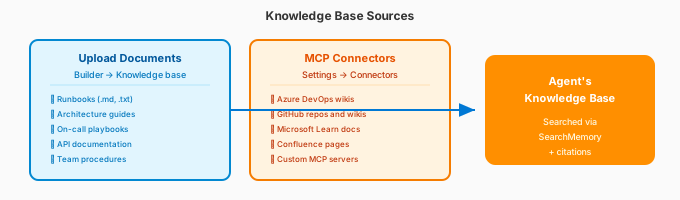
Upload documents
Go to Builder > Knowledge base to upload your documentation. For full details on supported formats, limits, and how your agent creates knowledge automatically, see Upload knowledge documents.
| Document type | Good for |
|---|---|
| Runbooks | Step-by-step incident procedures |
| Architecture guides | Understanding your environment |
| On-call playbooks | Escalation and response procedures |
| API documentation | Service-specific knowledge |
| Team procedures | Workflow and process docs |
Supported formats: Markdown, plain text, PDF, Word, PowerPoint, Excel, images, and more. The maximum size is 16 MB per file. For the full list, see Upload knowledge documents.
Connect external sources
Access knowledge directly from external systems by using connectors. For the full list of supported sources, see Connectors.
| Connector | What it provides |
|---|---|
| Azure DevOps | Query your ADO wiki pages |
| GitHub | Search repos, wikis, issues |
| Custom MCP | Any knowledge source you configure |
Configure connectors in Builder > Connectors. For more information, see Connectors.
Use knowledge in conversations
Your agent automatically searches knowledge when it's relevant to the question.
How should I handle a database failover?
If you upload a runbook, the agent responds with a grounded answer:
Based on your Database Runbook (citation link), here are the failover steps:
- Verify the health of the secondary replica...
Select the citation links to view the full source document.
Session insights
After every thread (a synchronous chat conversation or an asynchronous autotriggered task), your agent generates a session insight. Session insights are how your agent gets smarter over time.
What gets captured
Each session insight extracts structured learnings that become searchable memory.
| Component | What it captures | Example |
|---|---|---|
| Symptoms observed | Error patterns, behaviors | "HTTP 503 errors, memory at 95%" |
| Resolution steps | What worked | "Scaled up App Service SKU" |
| Root cause | Why it happened | "Memory leak in deployment v2.3" |
| Pitfalls to avoid | What didn't work | "Restarting didn't help" |
When the system generates insights
The following table describes when the system generates session insights.
| Thread type | When | Auto or manual |
|---|---|---|
| Sync chat | 30 minutes after last message | Automatic |
| Async tasks | 30 minutes after completion | Automatic |
| User feedback | When you rate a response | You trigger it |
View session insights
Go to Monitor > Session insights to see:
- Timeline of agent actions
- Evaluation scores
- Key learnings extracted
- Source thread links: each insight card links back to the threads that generated it, so you can trace any insight to its original conversation
For detailed metrics and management, see Monitor agent usage.
Best practices
Follow these recommendations to get the most value from your agent's memory and knowledge capabilities.
Choose what to upload vs. connect
| Upload | Connect via connector |
|---|---|
| Incident runbooks | Live wiki pages (ADO, GitHub) |
| Architecture diagrams | Source code repositories |
| Escalation procedures | Real-time monitoring data |
| Static API docs | Frequently updated docs |
Keep knowledge current
Outdated documents cause incorrect responses. Review your knowledge base quarterly. To see what documents your agent currently has, ask:
What knowledge documents do you have?
Remove outdated documents in Builder > Knowledge base.
Name documents clearly
Use descriptive file names to help your agent and your team find the right documentation quickly.
| Don't use | Use instead |
|---|---|
| doc1.txt | production-database-failover.md |
| runbook.md | aks-cluster-scaling-runbook.md |
| notes.txt | escalation-procedures-2026.txt |
Related content
| Resource | Why it matters |
|---|---|
| Upload knowledge documents | Detailed file format support, limits, and agent-generated knowledge |
| Connectors | How connectors bring external data to your agent |
| Custom agents | How custom agents use knowledge in workflows |