Note
Access to this page requires authorization. You can try signing in or changing directories.
Access to this page requires authorization. You can try changing directories.
Connect your agent to GitHub by using a Bring Your Own GitHub App, a service identity that your organization registers with Key Vault-backed credentials.
Important
This tutorial sets up app-based access to your GitHub repositories by using a BYO GitHub App with Key Vault-backed credentials. All operations are attributed to your app identity, not an individual user.
When to use BYO App
Use BYO App when:
- Your organization requires app-based authentication and key custody controls.
- You're connecting to
*.ghe.comrepositories (required). - You want installation-token based access rather than user tokens.
Prerequisites
- Running agent with Administrator or Standard User role
- A GitHub App created on your target host (
github.comor*.ghe.com) - GitHub org or repository admin access (to create, install, or verify GitHub App scope)
- App private key stored in Azure Key Vault as a secret
- Agent managed identity with Key Vault Secrets User role on that vault
Step 1: Create a GitHub App
If you already have a GitHub App with the right permissions, skip to Step 2.
- Go to your GitHub host:
github.com: Go to your org, then select Settings > Developer settings > GitHub Apps > New GitHub App.<tenant>.ghe.com: Same path on your GHE instance.
- Fill in the app details:
- GitHub App name: For example,
contoso-sre-agent-reader(prefix with your org name to avoid conflicts). - Homepage URL:
https://sre.azure.com. - Webhook: Uncheck Active (the agent doesn't use webhooks).
- GitHub App name: For example,
- Under Permissions, set:
- Repository permissions > Contents: Read-only (required).
- Repository permissions > Metadata: Read-only (auto-selected).
- Optionally add Issues and Pull requests read access.
- Under Where can this GitHub App be installed?, select Only on this account.
- Select Create GitHub App.
- Note the Client ID shown on the App settings page (starts with
Iv..., this is different from the numeric App ID).
Install the GitHub App
- On the GitHub App settings page, select Install App in the left sidebar.
- Select your organization.
- Choose All repositories or select specific repos.
- Select Install.
Step 2: Generate a private key
- On the GitHub App settings page, scroll to Private keys.
- Select Generate a private key.
- A
.pemfile downloads. This file is the RSA private key the agent uses to authenticate.
Warning
Keep the PEM safe. You upload this key to Key Vault in the next step. Don't commit it to a repository or share it.
Step 3: Store private key in Key Vault
- Open the Azure portal and go to your Key Vault.
- Go to Secrets > Generate/Import.
- Set Name (for example,
sre-agent-github-app-key) and paste the full PEM content as the Value (including-----BEGIN RSA PRIVATE KEY-----and-----END RSA PRIVATE KEY-----headers). - Select Create.
- Open the secret, select the current version, and copy the Secret Identifier URI:
https://myvault.vault.azure.net/secrets/my-github-app-key/<version>
Tip
Use the versioned URI (with /<version> suffix) to pin to a specific key version, or omit the version to always use the latest. Unversioned is recommended. When you rotate the key, the agent automatically picks up the new version without updating the URI.
Step 4: Grant Key Vault access to agent identity
- In Azure portal, open your Key Vault and go to Access control (IAM).
- Assign Key Vault Secrets User to the agent managed identity.
- Wait for role assignment propagation.
Step 5: Configure BYO App in Code Access
- Open your agent.
- Go to Builder > Code Access.
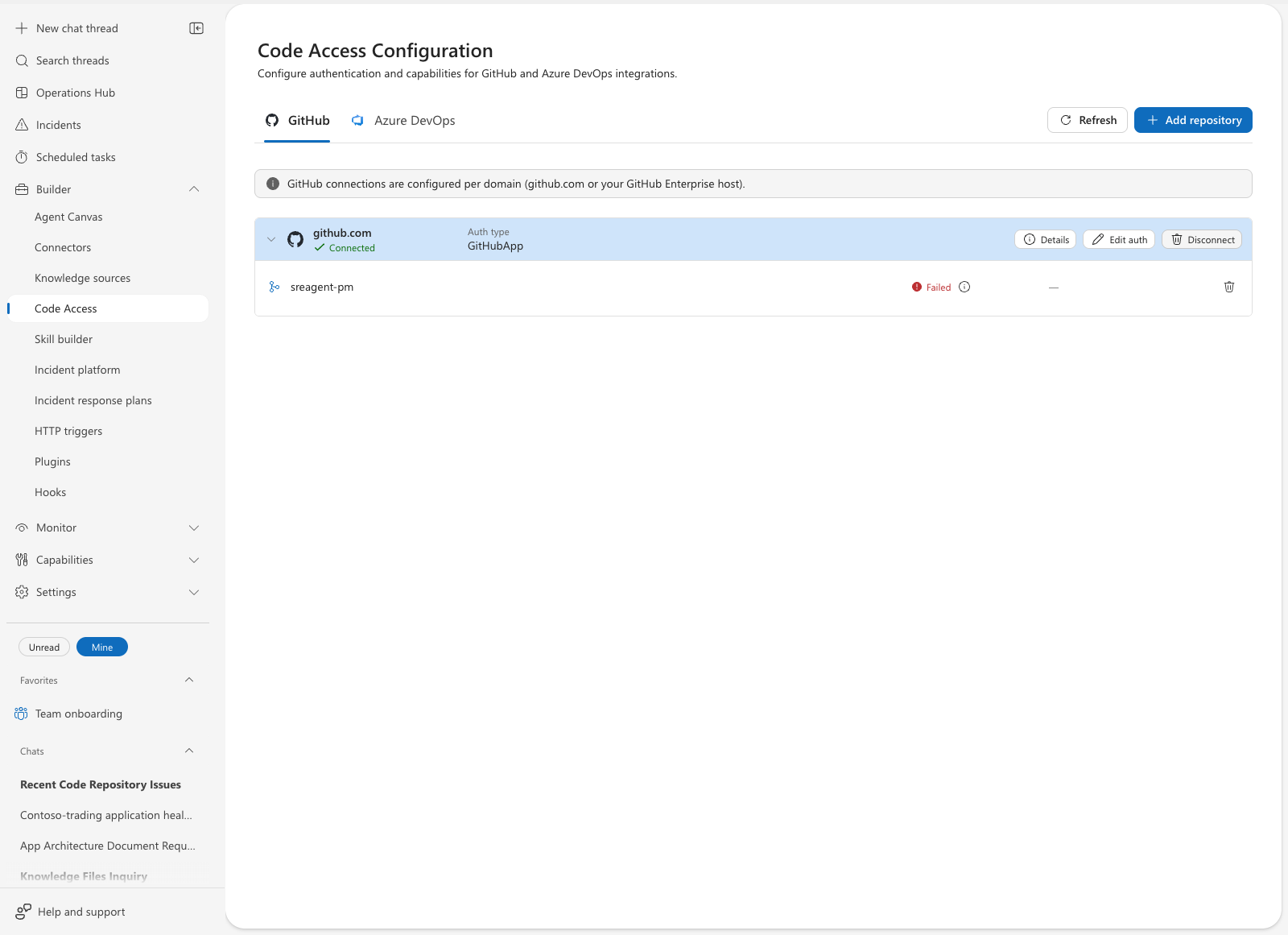
Select Add repositories.
Choose GitHub and enter the host:
github.comfor public GitHub.<tenant>.ghe.comfor Enterprise Cloud.
Continue to Authenticate.
Select Bring your own GitHub App.
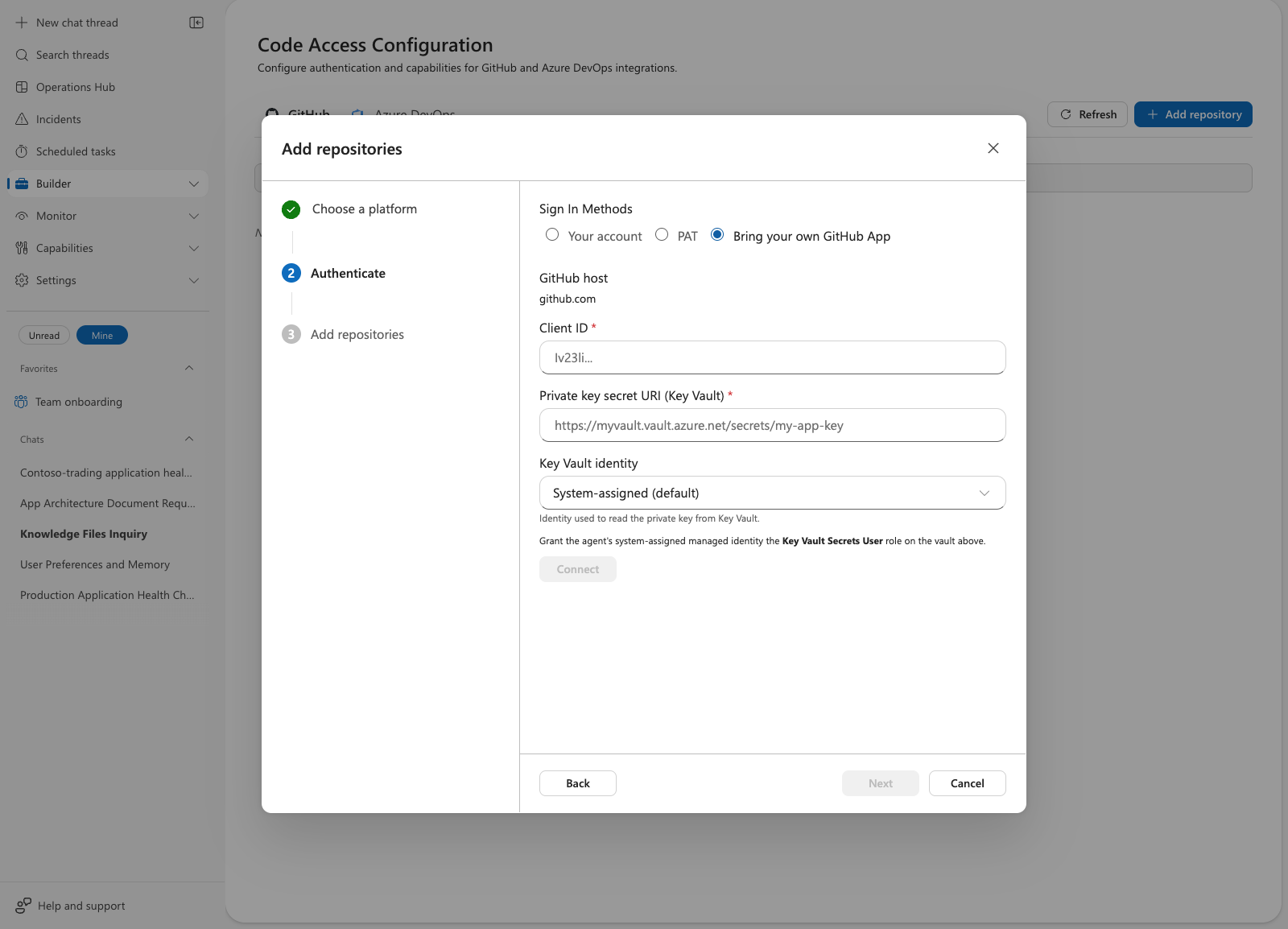
Enter:
- Client ID
- Private key secret URI (Key Vault)
- Optional Key Vault identity (or keep system-assigned)
Select Connect.
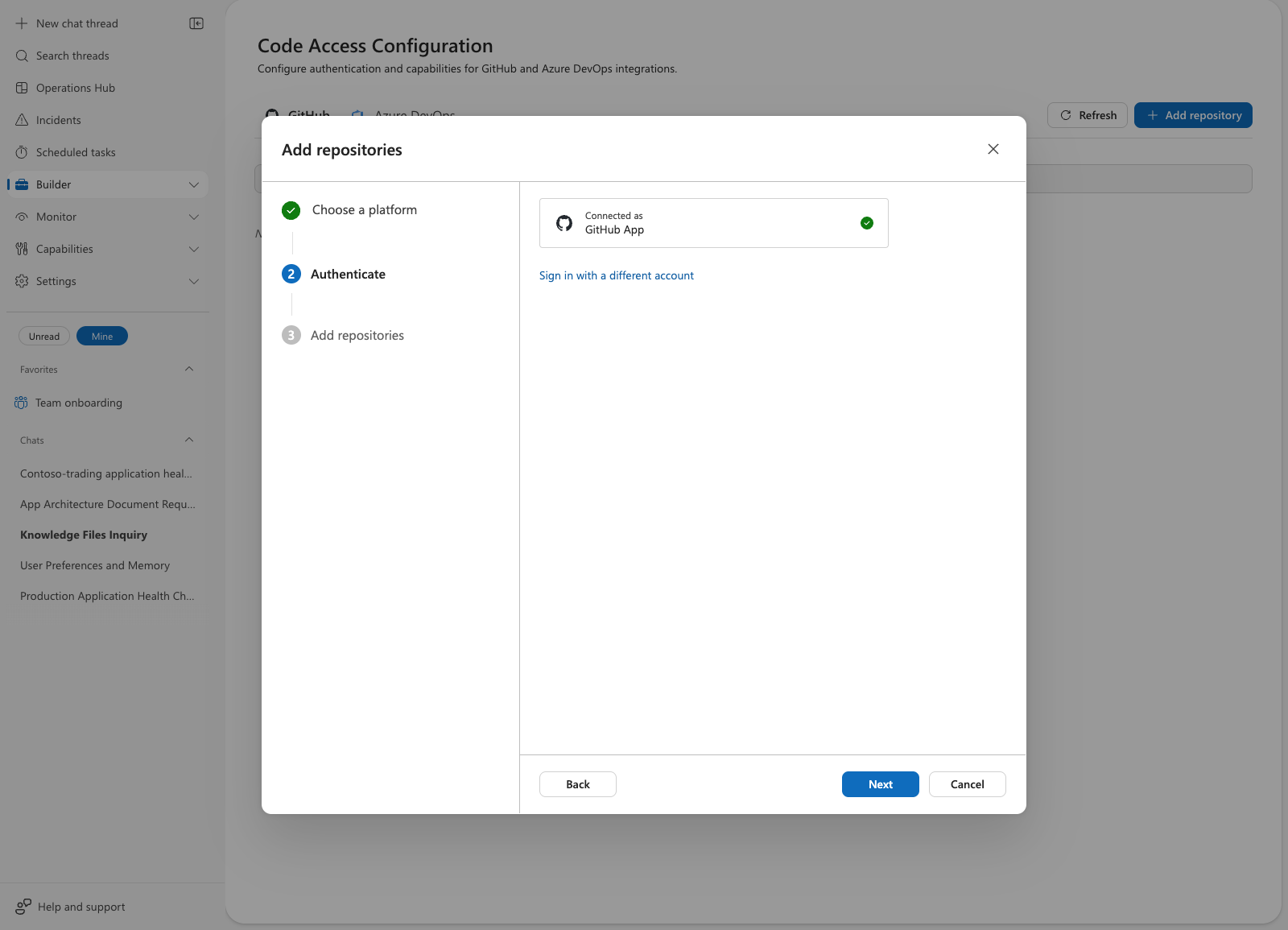
The wizard validates your credentials. When successful, you see Connected as GitHub App with a green checkmark.
Note
If you see the green checkmark and Connected as GitHub App, your credentials are valid. If Connect fails, verify your Client ID, Key Vault URI, and managed identity permissions.
If Code Access doesn't open from left navigation, refresh the agent page, expand Builder again, and retry.
Important
When you enter a *.ghe.com domain as the host, the wizard automatically selects Bring your own GitHub App. OAuth and PAT aren't available for GHE hosts.
Step 6: Add repositories and verify
Select repositories and save.
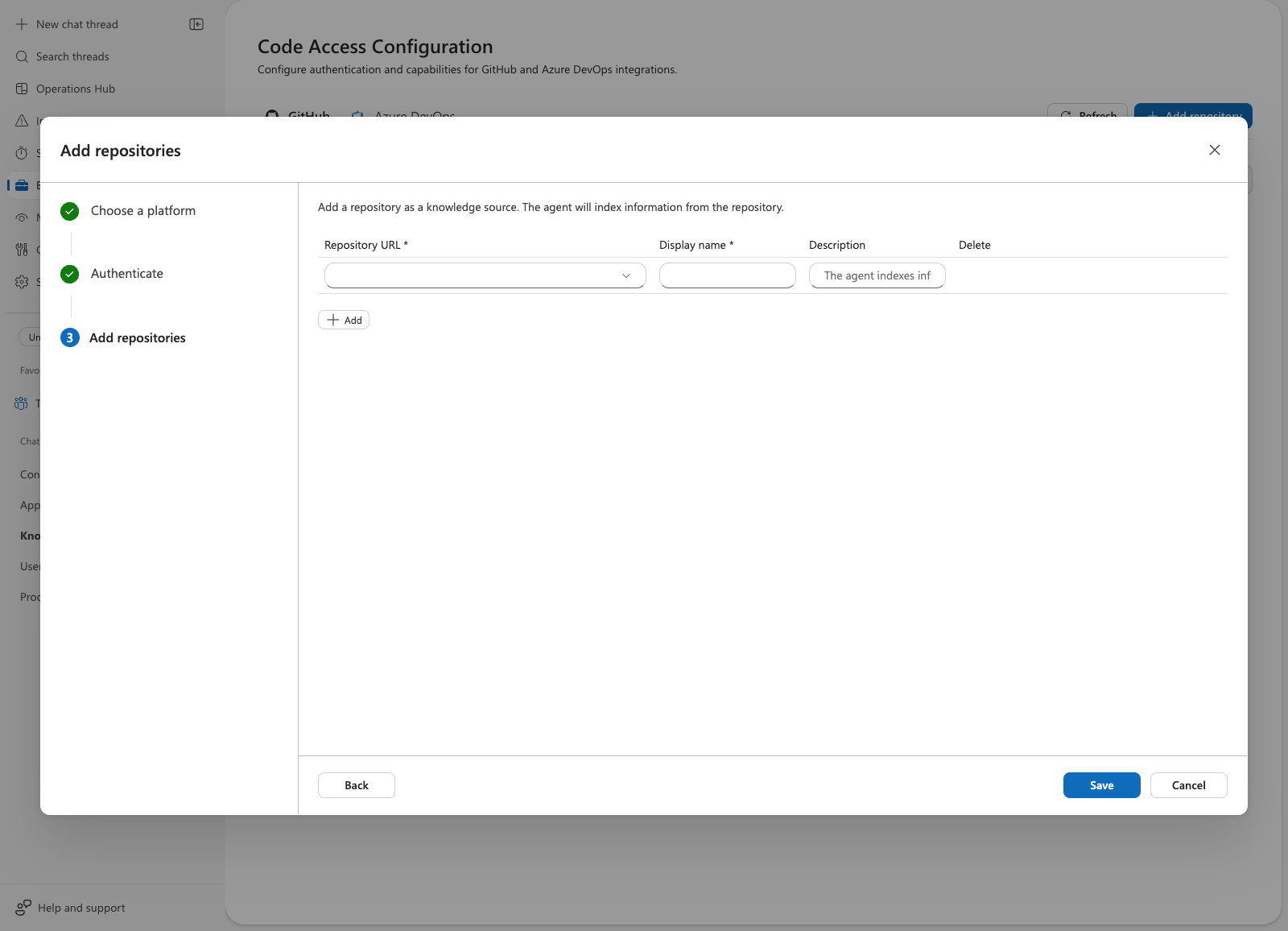
Confirm the Code Access card shows connected host and auth type
GitHubApp.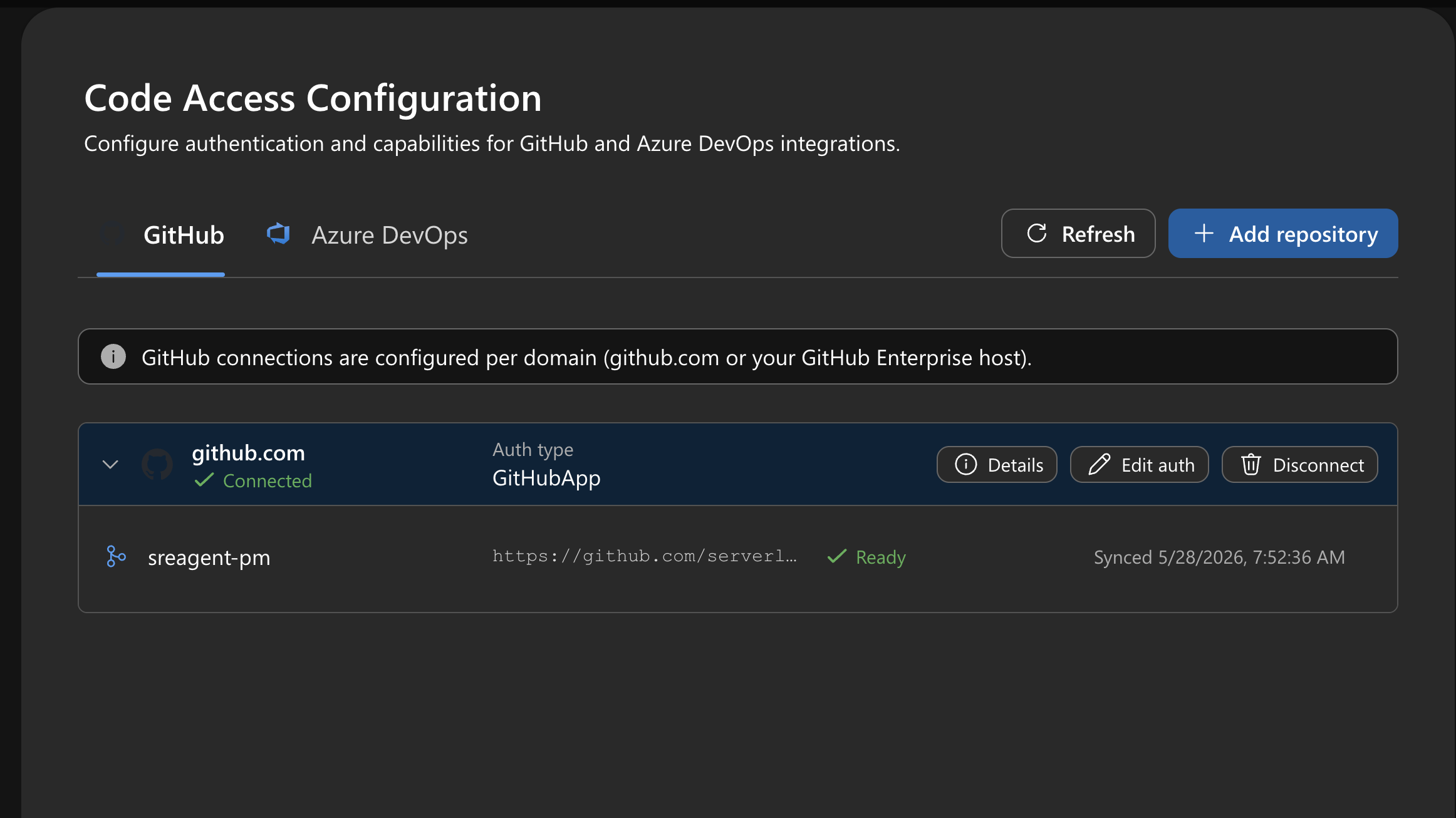
Test code access in chat:
What files are in the root of owner/repo?
If you also granted Issues permission to your GitHub App, verify issue operations:
List recent issues from owner/repo.
Per-app managed identity
By default, the agent uses its system-assigned managed identity to read the private key from Key Vault. If you manage multiple GitHub Apps (for example, one per GHE instance), assign a different user-assigned managed identity to each app. This approach provides security isolation because each identity only has access to its own Key Vault secret.
Select the identity in the Key Vault identity dropdown during Step 5.
Multi-host support for GitHub connectors
You can connect multiple GitHub hosts to the same agent. Each host has independent auth:
github.com: OAuth, PAT, or BYO Appcontoso.ghe.com: BYO Appengineering.ghe.com: BYO App (with a different GitHub App)
Disconnecting one host doesn't affect others.
Troubleshooting
| Symptom | Likely cause | Fix |
|---|---|---|
| Auth validation fails | Wrong Client ID or wrong host | Verify app was created on the same host entered in Code Access. |
| Secret read fails | Missing Key Vault RBAC or access policy | Grant Key Vault Secrets User to agent identity. If using Key Vault access policies, grant Get permission on secrets. |
| Repo shows Failed in Code Access | Missing app permissions or install scope | Verify Metadata: Read + Contents: Read and installation scope. |
| Chat issues work but Code Access fails | Endpoint/path checks differ | Rerun connection test and verify metadata permission. |