Note
Access to this page requires authorization. You can try signing in or changing directories.
Access to this page requires authorization. You can try changing directories.
A thread is a conversation with your agent. Each time you start a new investigation or ask a question, you create a thread that maintains context throughout the conversation.
Thread sources
Your agent creates threads from several different sources.
| Source | Description |
|---|---|
| Conversation | You start a chat in the portal. |
| Incident | An incident from PagerDuty, ServiceNow, or Azure Monitor triggers an investigation. |
| Scheduled task | A scheduled task runs and creates a thread for its output. |
| Teams | You tag your agent in a Teams channel or direct message. |
| Alert | A webhook or alert triggers your agent. |
| Daily report | Automated daily summary of your agent's activity. |
| Best practices | Security and operational recommendations from your agent. |
| Playground | Test threads created in the test playground. |
| Welcome message | Initial welcome thread when you first access an agent. |
| Agent | The agent proactively creates a thread (for example, for monitoring alerts). |
Thread organization
The sidebar shows threads organized into two categories.
| Section | Purpose |
|---|---|
| Favorites | Threads you pinned for quick access. |
| Chats | All other conversations. |
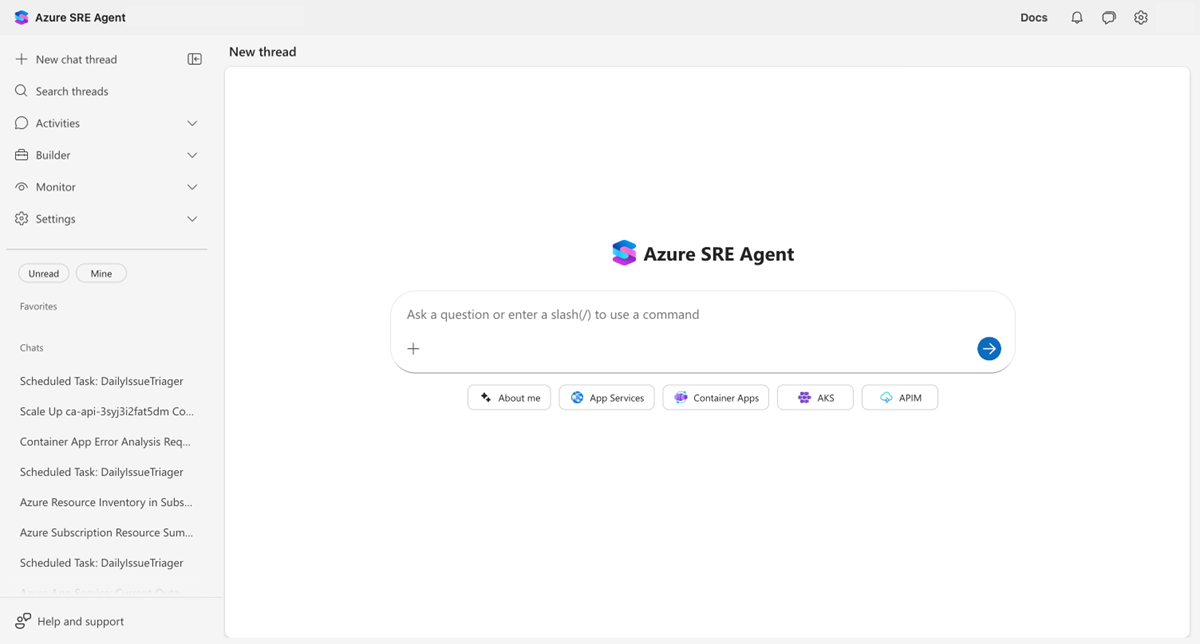
Each thread in the sidebar displays its title. You can easily spot unread threads because they appear in bold text.
Filter threads
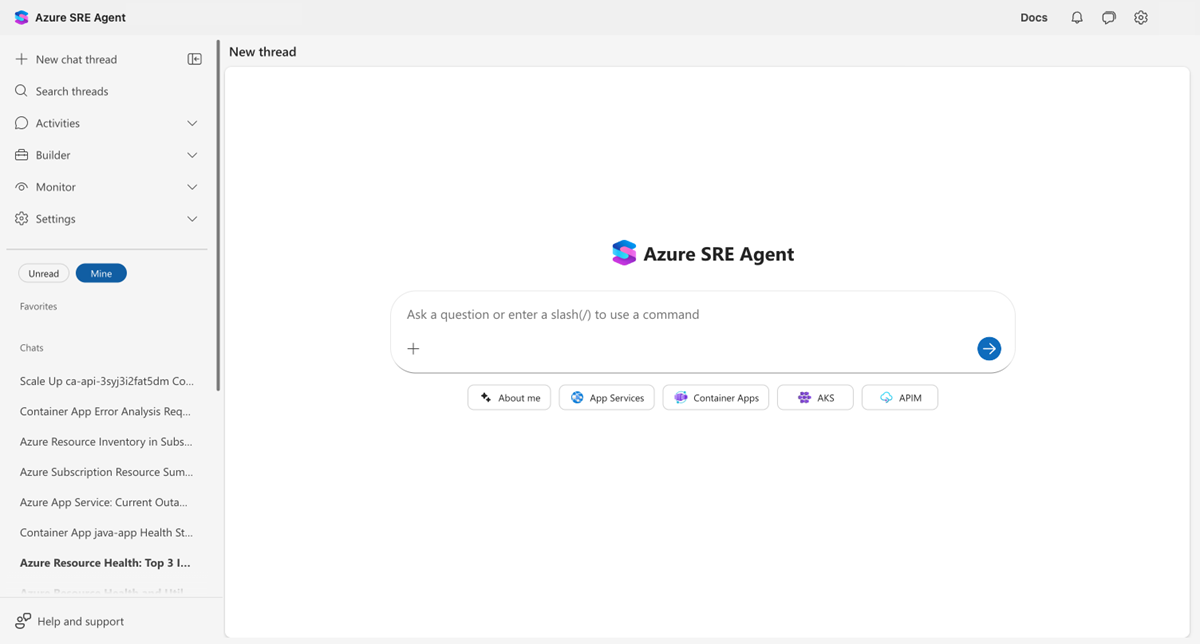
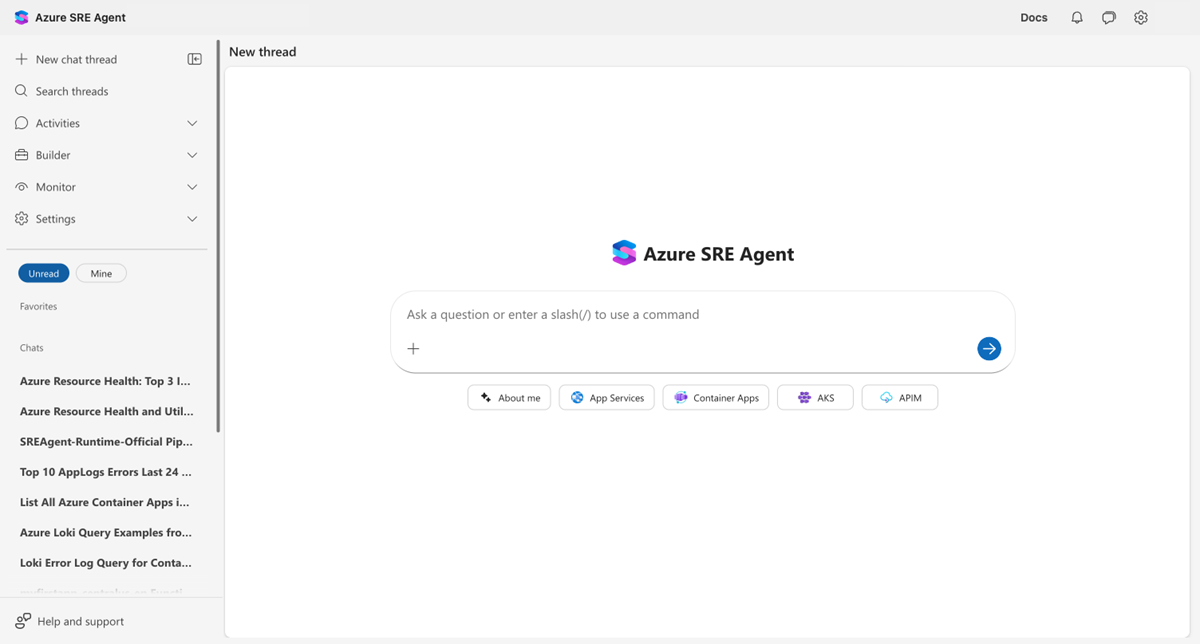
Use the two filter buttons at the top of the thread list to find relevant conversations.
| Filter | What it shows |
|---|---|
| Unread | Only threads you didn't read yet. |
| Mine | Only threads you started (excludes scheduled tasks and agent-initiated threads). |
The Mine filter is active by default. When you open the sidebar, you see your own threads first. Toggle it off to see all threads on the agent.
When active, a filter button appears filled (blue). You can activate both filters at the same time so that only threads matching both conditions appear.
Thread status
Each thread has a status that indicates its current state.
| Status | Meaning |
|---|---|
| In Progress | The agent is actively working. |
| Pending User Input | The agent is waiting for your response or approval. |
| Complete | The investigation finished. |
Manage threads
Right-click any thread in the sidebar, or select the ... (More options) menu, to access thread actions.
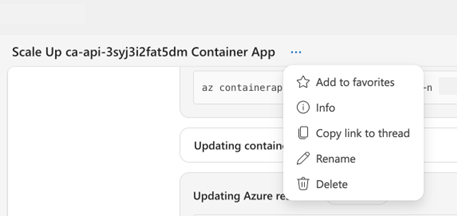
| Action | Description |
|---|---|
| Add to favorites | Pin the thread to the Favorites section for quick access. |
| Info | View thread details including thread ID, creation date, and source. |
| Copy link to thread | Copy a deep link to share with teammates. |
| Rename | Change the thread title. |
| Delete | Permanently remove the thread. |
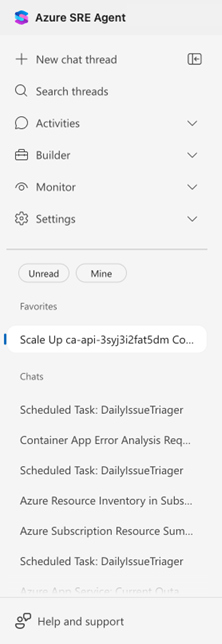
View thread details
Select a thread to open it. The title bar shows the thread name, a ... (More options) menu, and a View trace button when you configure Application Insights.
Search threads
Select Search threads in the sidebar to open the search dialog. Type any part of a thread title, or paste a full or partial thread ID, to find a specific conversation.
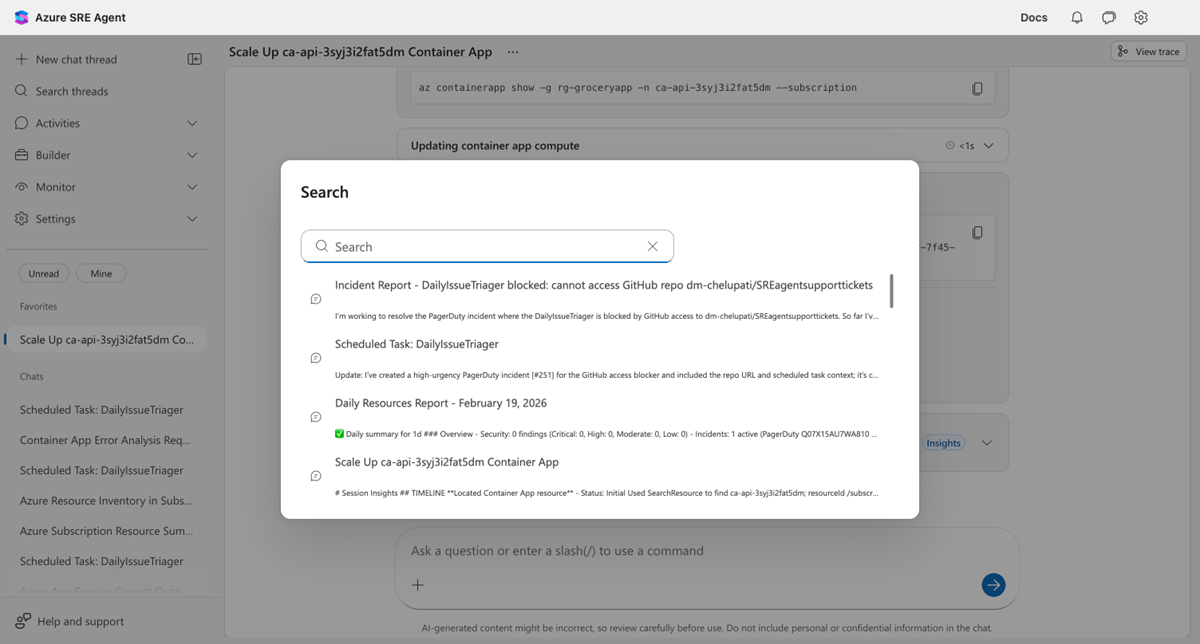
Search results display each thread's title, unique ID, and a preview of the last message. The search text is highlighted wherever it matches, in the title, the ID, or both.
The following table describes scenarios where searching by thread ID is helpful.
| Scenario | How it helps |
|---|---|
| Debugging | Paste a thread ID from logs or monitoring tools to jump directly to the conversation. |
| Collaboration | A teammate shares a thread ID for you to review. |
| Cross-referencing | Navigate to a thread linked from an incident report or support ticket. |
Tip
To find a thread's ID, right-click any thread in the sidebar and select Info. The dialog displays the thread ID with a Copy button, making it easy to share with teammates or reference in documentation.
Image zoom
When your agent generates or displays images in the chat (charts, diagrams, screenshots), select any image to open it in a fullscreen overlay.
| Interaction | How |
|---|---|
| Zoom in/out | Scroll the mouse wheel, press +/- keys, or use the toolbar buttons. |
| Pan | Select and drag when zoomed in. |
| Reset view | Press 0 or select the reset button in the toolbar. |
| Close | Press Escape, select the x button, or select outside the image. |
A scale indicator in the toolbar shows the current zoom percentage (zoom range: 25% to 500%).
Keyboard shortcuts
The following keyboard shortcuts help you navigate threads quickly.
| Shortcut | Action |
|---|---|
| Alt+N | Start a new chat thread. |
| Alt+S | Open the thread search dialog. |
Shortcut hints appear next to the corresponding buttons in the sidebar. The app ignores shortcuts when focus is inside a text input field or when modifier keys (Ctrl, Shift) are held.
Chat commands
Type / or # in the chat input to access quick commands.
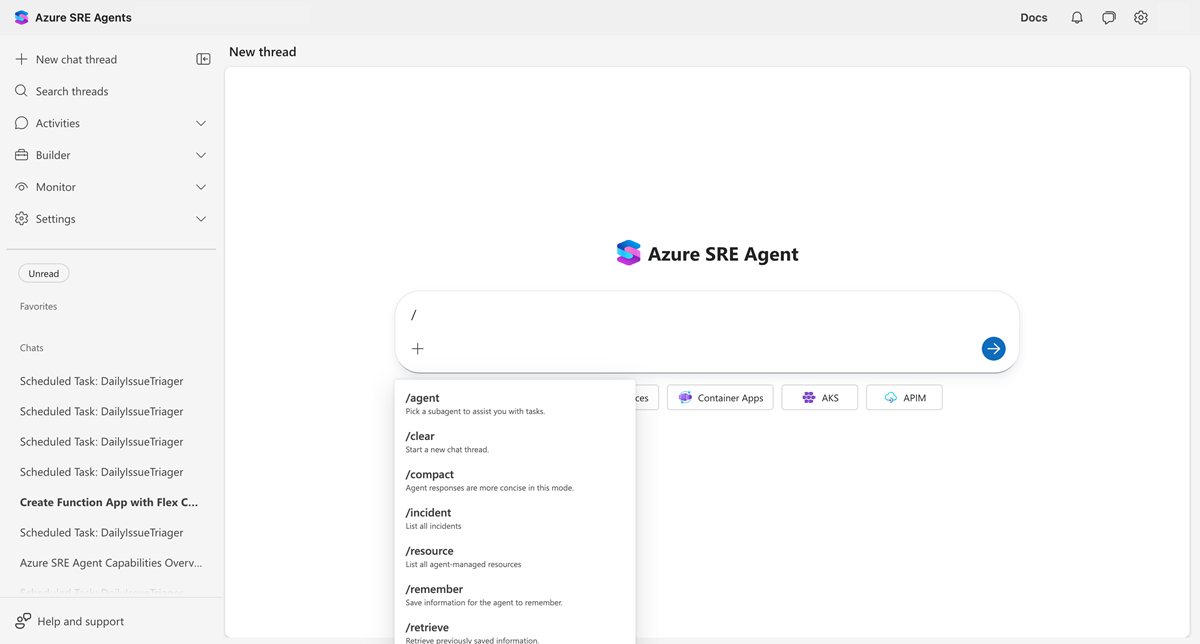
| Command | Description | Learn more |
|---|---|---|
/agent |
Switch to a specific custom agent. | Custom Agents |
/clear |
Start a fresh thread. | |
/compact |
Summarize and compress conversation history. | |
/incident |
List all incidents. | Incident response |
/resource |
List agent-managed resources. | |
#remember |
Save information to agent memory. | Memory |
#retrieve |
Recall saved information from memory. | Memory |
#forget |
Remove information from agent memory. | Memory |
Conversation compaction
Long conversations automatically compact to stay within token limits. When this process happens, you see a "Compacting conversation..." message in the chat, similar to tool execution feedback.
Compaction preserves key context while reducing token usage. Your agent continues to remember important facts and decisions from earlier in the conversation.
You can also manually trigger compaction by using the /compact command to summarize the current conversation.
Tip
Markdown tables with numeric columns sort numerically (1, 2, 12) rather than lexicographically (1, 12, 2).
Test threads
When you test your agent configuration in the test playground, you create test threads that run in read-only mode. Test threads:
- Are separate from production threads in the sidebar.
- Don't execute real actions against your Azure resources.
- Let you validate prompt changes, tool configurations, and agent behavior safely.
Test threads appear with a distinct label so you can tell them apart from real conversations.
Related content
| Resource | Why it matters |
|---|---|
| Memory and knowledge | How your agent remembers information |
| Incident response | Threads created from incidents |