Note
Access to this page requires authorization. You can try signing in or changing directories.
Access to this page requires authorization. You can try changing directories.
This article explains how to require and use encryption in transit for Azure Files. Each protocol has its own encryption mechanism and settings:
- SMB: SMB 3.x channel encryption. See SMB.
- NFS: TLS encryption through the AzNFS mount helper. See NFS.
- FileREST: HTTPS with TLS. See FileREST.
For an overview of encryption in transit for each protocol, see Azure Files networking considerations. For Microsoft.FileShares file shares, you set the encryption in transit requirement on each file share. See Create a file share and Modify a file share. Microsoft.FileShares doesn't support FileREST.
Encryption in transit settings
Classic file shares have a separate encryption in transit setting for each protocol. Secure transfer required was the original setting for all three protocols. For backward compatibility, it still controls SMB and NFS encryption until you configure the setting for that protocol.
| Setting | Protocol | When the setting is not selected |
|---|---|---|
| Require Encryption in Transit for SMB | SMB | Secure transfer required controls SMB encryption. |
| Require Encryption in Transit for NFS | NFS | Secure transfer required controls NFS encryption. |
| Secure transfer required | FileREST. This setting applies to all HTTPS requests to the storage account, including Blob, Queue, and Table requests (HDD pay-as-you-go storage accounts only). | Not applicable. |
The SMB and NFS settings start as Not selected for:
- Existing storage accounts.
- Storage accounts created by using Azure PowerShell, Azure CLI, or the Azure Storage resource provider REST API.
For storage accounts created by using the Azure portal, both settings are enabled by default.
After you configure the SMB or NFS setting, it takes precedence over Secure transfer required for that protocol. You can change the setting between Enabled and Disabled, but you can't return it to Not selected.
SMB
Azure Files encrypts SMB traffic by using SMB 3.x channel encryption. The Require Encryption in Transit for SMB setting controls whether Azure Files requires encryption for SMB access to the file shares in a storage account. When this setting is enabled, Azure Files allows only SMB 3.x mounts that use channel encryption. Azure Files rejects mounts from clients that don't support SMB 3.x with channel encryption. SMB 2.1 doesn't support encryption, so Azure Files rejects all SMB 2.1 mounts. For the default value and how this setting works with Secure transfer required, see Encryption in transit settings.
For the supported SMB channel encryption algorithms and the other SMB security settings, see SMB security settings.
To configure Require Encryption in Transit for SMB by using the Azure portal, follow these steps:
Go to your storage account.
From the service menu, select Data storage > Classic file shares.
Under Classic file share settings, select the value associated with Security.

For Require Encryption in Transit for SMB, select Enabled or Disabled.
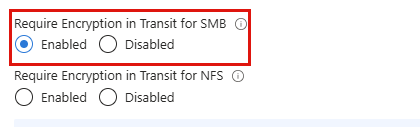
Select Save.
You can also configure Require Encryption in Transit for SMB on the Advanced tab when you create a storage account.
NFS
Azure Files NFSv4.1 file shares support encryption in transit through a TLS tunnel. TLS protects data in transit from interception, including man-in-the-middle attacks. To install the AzNFS mount helper and mount a file share with encryption in transit, see Mount NFS Azure file shares on Linux.
How encryption in transit works
Azure Files uses stunnel, an open-source TLS wrapper, to encrypt the TCP connection between the NFS client and Azure Files. With the AzNFS mount helper, the connection uses TLS 1.2 or TLS 1.3 with AES-256-GCM encryption. You don't need Kerberos or an external authentication system such as Active Directory.
The AzNFS mount helper package installs and configures stunnel on the client. AzNFS is available from packages.microsoft.com. It creates a local endpoint that forwards NFS client requests over an encrypted connection. AzNFS has these components:
AzNFS mount helper: Mounts NFSv4.1 file shares through a TLS tunnel.
Stunnel process: One process for each storage account. It listens for NFS client traffic on a local port and forwards the traffic over TLS to Azure Files.
AzNFS watchdog: A background service that keeps stunnel processes running, restarts terminated tunnels, and removes unused processes after all associated NFS mounts are unmounted.
Enforce encryption in transit
The Require Encryption in Transit for NFS setting controls whether Azure Files requires encryption for NFS access to the file shares in a storage account. To allow both TLS and non-TLS mounts on the same storage account, disable the setting. For the default value and how this setting works with Secure transfer required, see Encryption in transit settings.
To configure Require Encryption in Transit for NFS by using the Azure portal, follow these steps:
Go to your storage account.
From the service menu, select Data storage > Classic file shares.
Under Classic file share settings, select the value associated with Security.
For Require Encryption in Transit for NFS, select Enabled or Disabled.
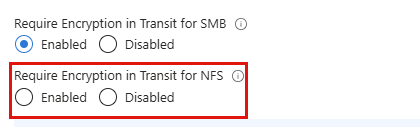
Select Save.
You can also configure Require Encryption in Transit for NFS on the Advanced tab when you create a storage account.
FileREST
FileREST requests use HTTPS to encrypt data in transit. Two storage account settings control FileREST encryption for classic file shares:
- Secure transfer required: When this setting is enabled, the storage account rejects FileREST requests made over HTTP. New storage accounts have this setting enabled by default. Keep it enabled. The option to disable it exists for backward compatibility with older applications that use HTTP to access other data in the storage account. Before the SMB and NFS settings existed, disabling Secure transfer required was also the only way to allow unencrypted SMB or NFS access. To allow unencrypted SMB or NFS access now, disable the setting for that protocol instead. See Encryption in transit settings.
- Minimum TLS version: Azure Files accepts TLS 1.2 and TLS 1.3 for HTTPS. Azure Storage no longer accepts TLS 1.0 or TLS 1.1 for HTTPS requests, so TLS 1.2 is the lowest minimum version you can set. You can't set TLS 1.3 as the minimum. A FileREST request that uses an earlier TLS version than the minimum fails with HTTP status code 400 (Bad Request). Clients negotiate TLS 1.3 when they support it.
Azure Policy has built-in policy definitions that audit or require these settings for storage accounts. See the Storage section in Azure Policy built-in policy definitions.
Current versions of the Azure Storage client libraries, Azure PowerShell, and Azure CLI use TLS 1.2 or later. If an application that targets an older version of .NET Framework can't connect, see Transport Layer Security (TLS) best practices with .NET Framework.
Configure FileREST encryption settings
The following steps require secure transfer and set the minimum TLS version to TLS 1.2 for a storage account.
To configure these settings by using the Azure portal, follow these steps:
Go to your storage account.
From the service menu, select Settings > Configuration.
For Secure transfer required, select Enabled.

For Minimum TLS version, select Version 1.2.

Select Save.