Note
Access to this page requires authorization. You can try signing in or changing directories.
Access to this page requires authorization. You can try changing directories.
Several partners provide application delivery solutions to Azure Virtual Desktop via integration with App Attach. This article provides links to those partners where you can read more about connecting to Azure Virtual Desktop. You can also use our native App Attach solution to dynamically deliver applications to your session hosts.
Partner application delivery
The following partners have application delivery solutions that have been approved to use with Azure Virtual Desktop. Visit their documentation to learn how to deliver applications to Azure Virtual Desktop.
| Partner | Partner documentation | Partner support |
|---|---|---|
| Liquidware | Liquidware FlexApp documentation | Liquidware support |
| Numecent | Numecent Cloudpager documentation | Numecent support |
| Omnissa | Omnissa App Volumes documentation | Omnissa support |
Important
If you encounter an issue when trying to deliver applications to Azure Virtual Desktop session hosts, you must verify whether it's unique to your approved partner. You can verify whether this is a unique issue by trying to reproduce it on App Attach overview. If you can't reproduce the issue on first-party App Attach, then you must contact your client's provider for support.
Third party integration instructions
Overview
These instructions cover two integration areas:
- Control plane: The interactions between the third-party control plane and the Azure Virtual Desktop (AVD) control plane.
- Agent: The interactions between the third-party agent and the AVD agent.
The third-party control plane creates proxy objects in the AVD control plane. The admin then assigns those objects to AVD host pools and users. When a user signs in, AVD passes the proxy objects that the user has permission to use on the assigned host pool to the AVD agent at or shortly before sign-in time. The AVD agent then sends that information over a named pipe to the third-party agent, which makes the apps available to the user.
Control plane flow
Prerequisites
The third-party control plane must provide a way for the admin to authorize it to create and read app attach package objects in AVD on their behalf. Options include a service principal, Azure Lighthouse, or other authorization methods. To grant the third-party control plane permissions to make CRUD calls for app attach packages, assign the built-in RBAC role Desktop Virtualization App Attach Contributor to the third-party service principal. The third party must also have an offering in the Azure Marketplace.
Creating packages
The third party calls the AVD App Attach Package - Create Or Update REST API to create an AppAttachPackage. The name set in the REST API call can't be changed and must be unique within a resource group. Fill out the fields on the object as follows:
| App attach package stored data | Equivalent third party field |
|---|---|
| DisplayName [filterable] | Alternative name visible to admin in azure portal |
| PackageRelativePath [filterable] | Path to executable to run applications for remote apps |
| Path to executable to run applications for remote apps | Determines if a package is ready for use |
| Version | Open for use |
| LastUpdated | Date package was last updated by third party (Azure default last updated date could be changed by admin adding a hostpool to the package) |
| FailHealthCheckOnStagingFailure | Indicates whether an issue preparing the package should fail the health check |
| KeyVaultURL | Open for use |
| ImagePath [filterable] | Open for use |
| PackageFullName [filterable] | Open for use |
| PackageName [filterable] | Open for use |
| PackageFamilyName [filterable] | This field plus the appid in the application object field need to uniquely identify an app for a user (required for remote app creation) |
| PackageApplications | Used by third parties for same purpose |
| PackageApplications:AppUserModelId | Command line arguments to run application as remote app |
| PackageApplications:AppId | In conjunction with package family name, should uniquely identify an app |
| PackageApplications:Description | Description of application |
| PackageApplications:FriendlyName | Friendly name of application |
| PackageApplications:IconImageName | Name of icon file |
| PackageApplications:RawIcon | Not required |
| PackageApplications:RawPng | This can be created using the code snippet below |
| PackageDependencies | These will be visible to the admin but AVD will not use this information |
| PackageDependencies:DependencyName | Name of dependency |
| PackageDependencies:Publisher | Publisher of dependency |
| PackageDependencies:MinVersion | Version of dependency |
| IsRegularRegistration [filterable] | Open for use |
| HostPoolReferences [filterable] | Still used by AVD |
| CertificateExpiryDate | Open for use |
| CertificateName [filterable] | Open for use |
| PackageOwnerName [filterable] | Name of third party |
| PackageLookbackUrl | URL of third party control plane where package is stored |
| CustomData [filterable] | Field where custom data can be stored |
The value for the RawPng fields in the application objects can be extracted from an icon file by using the following code:
using (MemoryStream iconInStream = new MemoryStream(iconByteArray))
            {
                using (Icon ic = new Icon(iconInStream, iconSize, iconSize))
                {
                    using (Bitmap bitmap = ic.ToBitmap())
                    {
                        using (MemoryStream pngOutStream = new MemoryStream())
                        {
                            bitmap.Save(pngOutStream, System.Drawing.Imaging.ImageFormat.Png);
                            pngOutStream.Close();
                            return new PngIcon(bitmap.Height, bitmap.Width, pngOutStream.ToArray());
                        }
                    }
                }
            }
If a package with all the raw PNGs would be too large, create the applications with null PNGs. Then update the applications one at a time by calling the update API with a single application image. Repeat until all images are populated.
Keeping packages up to date
Third parties are responsible for keeping the packages in the AVD control plane in sync with the packages in the third-party control plane. Use the App Attach Package - Update REST API to update packages. The fields are the same as the create API.
Remote apps
An admin can create remote apps that point to third-party app attach packages. The admin specifies the package family name and the app ID in the remote app. This approach allows the admin or third party to update to a new version without changing the feed. When the user selects the app in the feed, the executable specified in the PackageRelativePath field runs on the machine with the parameters specified in the AppUserModelId field for the chosen application.
Agent flow
Prerequisites
An admin installs the third-party agent into the image.
Overview
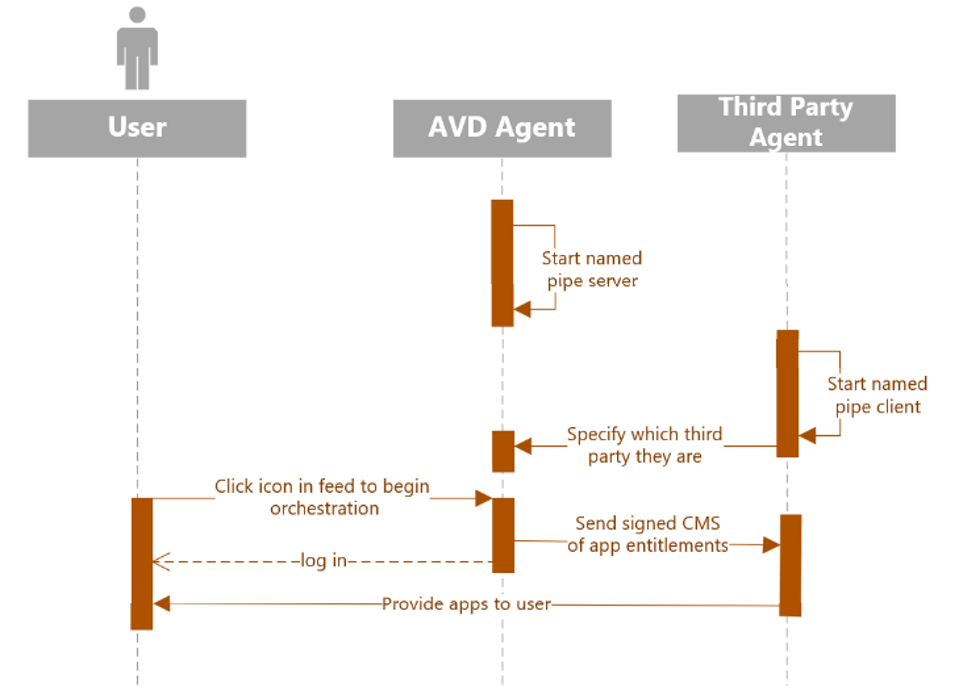
When AVD chooses what host the user will log in to (orchestration), AVD will write a map of user-to-packages to a named pipe as a signed CMS. The third party agent will be the named pipe client and AVD’s agent will be the server. When the third party agent starts, they will send a message to AVD's agent with their package owner name and a host specific identifier. The host specific identifier is used to prevent replay attacks—a bad actor could use the entitlements message and replay it on another host, allowing it to bypass host pool level entitlements. AVD will include this identifier in the signed CMS when communicating entitlements to the third party agent. AVD will then send entitlements during orchestration, which happens shortly before login. The sent map will indicate the entitlement of packages at the time of user login, but we encourage the third parties to also revalidate this with Azure RBAC, and the host pool references on the App Attach Package object if they want to do any package changes during the user session.
Boot
First, the third-party agent determines if it's in an AVD scenario by checking these two things:
A process named
RDAgentBootLoader.exeis running on the machine. This service runs as SYSTEM on the session host and starts the named pipe server on boot.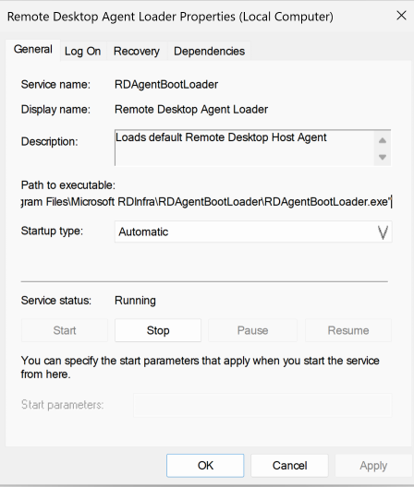
Presence of this registry key:
Computer\HKEY_LOCAL_MACHINE\SOFTWARE\Microsoft\RDAgentBootLoader
The third-party agent sends a message to the AVD agent over the named pipe. The message identifies the agent by the package owner name specified on the package objects that the third party created.
a) Pipe name: “AppAttachThirdPartyServer_Pipe”
b) Connecting to named pipe: NamedPipeClientStream.ConnectAsync Method (System.IO.Pipes) | Microsoft Learn
for (int attemptNumber = 1; attemptNumber <= _numberOfAttempts; attemptNumber++)
{
    try
    {
        _logger.LogInformation($"Connecting to Named pipe server - Attempt: #{attemptNumber}");
        await ConnectAsync(_pipe, _connectTimeoutMilliseconds, cancellationToken).ConfigureAwait(false);

    }
    catch (TimeoutException)
    {
        if (attemptNumber >= _numberOfAttempts)
        {
            _logger.LogError($"Failed to connect to the named pipe server in {_numberOfAttempts} attempts.");
            throw;
        }

        continue;
    }
    catch (Exception ex)
    {
        _logger.LogError($"Exception occurred: {ex}");
    }

    break;
}
Message format sent by third party to AVD during boot (in JSON format).
Use PipeStream.WriteAsync Method (System.IO.Pipes) | Microsoft Learn to write data from the named pipe client stream.
{
  "PackageOwnerName": "packageOwnerName",
  "HostIdentifier": "hostIdentifier",
  "Version": "version"
}
PackageOwnerName – Must match the PackageOwnerName field on the app attach package object.
HostIdentifier – Any identifier (max 100 characters) that uniquely identifies the host. Used to prevent replay attacks.
Version – Version of the communication protocol, currently 1.
User orchestration and sign-in flow
When a user signs in, the AVD agent sends a message to the named pipe as a CMS signed by the AVD RDP certificate to specify which packages the user has permission to use. If the user is using a remote app, the selected app appears first in the list. The third party should make all applications included in the message available because a user can open multiple remote apps in the same session. If the user has no app permissions, AVD sends an empty list.
{
   "createdData": "date orchestration request was sent, older requests should be ignored",
   "scenario": "Remote", // can be “Remote” or “Desktop” depending on if the user invoked a remote app or using the session desktop
   “Version”: 1, // version of the data that AVD sends to third parties. We’ll increment this in case anything changes and communicate accordingly.
   "pageNumber": 1,
   "totalPages": 1,
    HostIdentifier”: “<hostidentifier>” // third party agent sends this to AVD agent during bootup. We relay that information to you so a replay attack can be prevented.
   "PackageSignature": “<signed cms byte array>”
}
Currently, pageNumber and totalPages are static because the 64 KB limit for named pipes only applies to earlier versions of Windows.
PackageSignature is the signed CMS byte array. When decoded, it has the following format:
{
  "UPN": "user@domain.com",
  "HostIdentifier": "hostidentifier",
  "Packages": [
    {
      "OnDemandRegister": false,
      "FailHealthCheckOnStagingFailure": 1,
      "FamilyName": "Mozilla.MozillaFirefox_gmpnhwe7bv6081",
      "PackageName": "Mozilla.MozillaFirefox1",
      "PackageOwnerName": "packageownername",
      "CustomData": "",
      "ImagePath": ""
    },
    {
      "OnDemandRegister": false,
      "FailHealthCheckOnStagingFailure": 1,
      "FamilyName": "b0413c83-dbce-420e-8905-4444",
      "PackageName": "PuTTY",
      "PackageOwnerName": "packageownername",
      "CustomData": "",
      "ImagePath": ""
    }
  ]
}
The third party can validate and decode the signed CMS byte array with the following code:
// a) Validate certificate

// Build certificate from response
X509Certificate2 cert = new X509Certificate2(System.Text.Encoding.UTF8.GetBytes(payload), new SecureString(), X509KeyStorageFlags.EphemeralKeySet);

// Build certificate chain
X509Chain chain = new X509Chain();
chain.Build(cert);

foreach (X509ChainElement element in chain.ChainElements)
{
    // Here you could validate that the issuer is AVD.
    logger.LogInformation($"{funcName}: Element issuer: {element.Certificate.Issuer};");
    logger.LogInformation($"{funcName}: Element subject: {element.Certificate.Subject}");
    logger.LogInformation($"{funcName}: Element certificate valid until: {element.Certificate.NotAfter}");
    logger.LogInformation($"{funcName}: Element certificate is valid: {element.Certificate.Verify()}");

    if (!element.Certificate.Verify())
    {
        return false;
    }
}

// b) Decode the encoded bytes only if the certificate is valid

byte[] blob = Convert.FromBase64String(payload);
SignedCms signedCms = new SignedCms();
signedCms.Decode(blob);

string result = Encoding.UTF8.GetString(signedCms.ContentInfo.Content);

EntitlementJSONData data = JsonConvert.DeserializeObject<PackagesJSONData>(result);
DateTime utcNow = DateTime.UtcNow;
Telemetry
The first-party App Attach solution reports registration errors and checkpoints in the context of a connection. This reporting helps admins track connection failures caused by an issue with App Attach. Third-party apps should report errors the same way so that admins have visibility into failures.
Third parties report the following event types:
App invocation
App exit
Installation (registration) success or failure
Third parties use Event Trace Logging (ETL) to write events with the TraceLoggingWriteActivity macro. AVD consumes those events and sends diagnostic information in the context of the user's connection that the admin can access.
Third-party ETW provider information
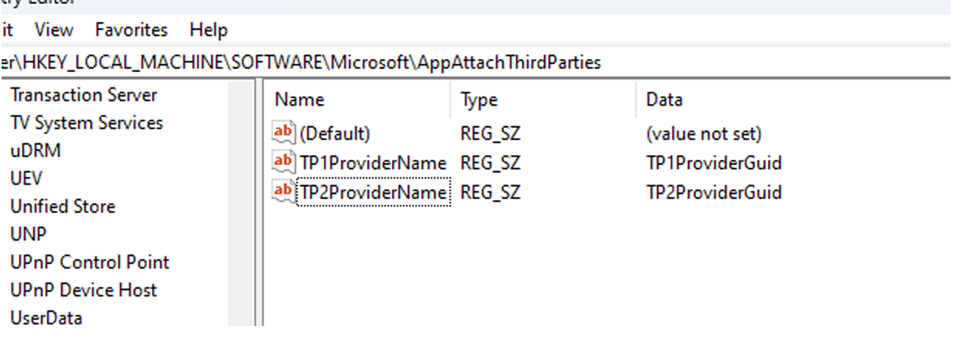
The third party provides the ETW provider name and GUID in the following registry location on boot. When the third-party agent is installed, it creates this registry path if it doesn't exist and adds provider information as a key-value pair. AVD's agent handles callbacks on the events emitted by the third-party ETW providers.
By default, AVD doesn't consume telemetry from the third-party agent. AVD needs the provider name and provider GUID from the third party so it can be tested before deployment in production.
Information reported by third party through ETL events
| Information required | Description | Required |
|---|---|---|
| SessionID | The user's session ID. AVD needs it to reverse-look up the activity ID for diagnostics. | Yes |
| Event name | AVD's parsers handle callbacks on these events from the third-party provider. | Yes |
| Parameters | See below for each type of event. | Yes |
Registration failure
The error message needs to be actionable for the admin.
The error code should be documented in the third party's documentation so that admins can diagnose the issue.
TraceLoggingWriteActivity(
           hProvider,
            "Error",
           "{AnyGuid}", // Use Guid.NewGuid() to generate this
           NULL, // The related activity ID for the event, or NULL for no related activity ID.
           TraceLoggingString("SessionID", "SessionID"),
           TraceLoggingString("RegistrationFailure", "Operation "),
           TraceLoggingString("{ThirdPartyName}", "Source"),
           TraceLoggingString("{PackageName}", "PackageName"),
    TraceLoggingString({errorMessage}, "ErrorMessage"),
    TraceLoggingUInt32({code}, "ErrorCode"),
    TraceLoggingBool({InternalOrExternal}, "IsInternalErrorCode"),
)
Registration success
TraceLoggingWriteActivity(
         hProvider,
         "Checkpoint",
         "{AnyGuid}", // Use Guid.NewGuid() to generate this
         NULL, // The related activity ID for the event, or NULL for no related activity ID.
         TraceLoggingString("SessionID", "SessionID"),
         TraceLoggingString("RegistrationSuccess", "Operation"),
         TraceLoggingString("{ThirdPartyName}", "Source"),
         TraceLoggingString("{PackageName}", "PackageName"),
    );
App invocation
TraceLoggingWriteActivity(
         hProvider,
         "Checkpoint",
         "{AnyGuid}", // Use Guid.NewGuid() to generate this
         NULL, // The related activity ID for the event, or NULL for no related activity ID.
         TraceLoggingString("SessionID", "SessionID"),
         TraceLoggingString("RegistrationSuccess", "Operation"),
         TraceLoggingString("{ThirdPartyName}", "Source"),
         TraceLoggingString("{PackageName}", "PackageName"),
    );
App exit
 TraceLoggingWriteActivity(
          hProvider,
          "Checkpoint",
          "{AnyGuid}", // Use Guid.NewGuid() to generate this
          NULL, // The related activity ID for the event, or NULL for no related activity ID.
   TraceLoggingString("SessionID", "SessionID"),
          TraceLoggingString("AppExit", "Operation"),
          TraceLoggingString("{ThirdPartyName}", "Source"),
          TraceLoggingString("{AppName}", "AppName"),
  );
Next steps
Learn more about Remote Desktop clients at App Attach overview.