Note
Access to this page requires authorization. You can try signing in or changing directories.
Access to this page requires authorization. You can try changing directories.
Customers using Multimedia Redirection (MMR) at scale, should consider deploying the insider extension for the purposes of testing and validation to a pilot group of users. Likewise partners should be validating against the insider extension to catch issues quickly. This document describes the process to do this in a centralized manner using Intune policies, as well as a one off manual installation.
Note
You should have either the MMR (Insider) extension, or the MultiMedia Redirection extension installed and enabled. You should ensure that both aren't enabled simultaneously.
Manually install the Insider Extension
To install the Insider extension manually, use one of the following stores:
The Insider extension can install alongside the production extension, but you should enable only one MMR extension at a time. To manage this setting, open edge://extensions in Microsoft Edge or chrome://extensions in Google Chrome.
Deploy the Insider Extension – Microsoft Edge
You can use Edge policies within Intune to switch from the production version of the MMR Extension to the Insider version.
Sign in to the Microsoft Intune admin center.
Create or edit a configuration profile for Windows 10 and later devices, with the Settings catalog profile type.
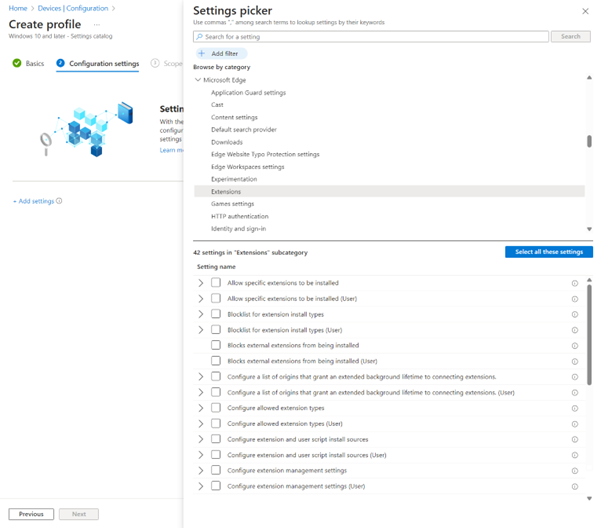
In the settings picker, browse to Microsoft Edge > Extensions.
Check the box for
a. Configure extension management settings, and
b. Control which extensions cannot be installed
Expand the Microsoft Edge category, then toggle the switch for Configure extension management settings to Enabled
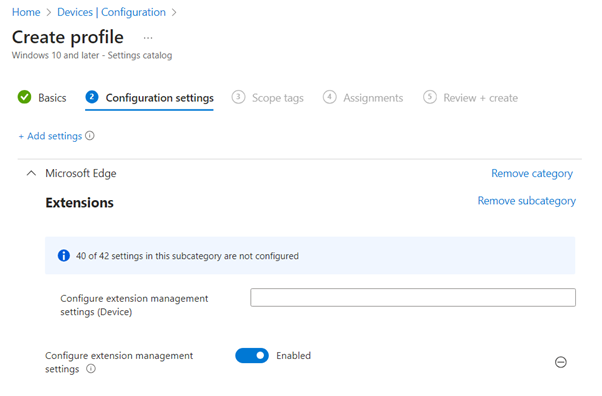
In the box that appears for Configure extension management settings (Device), enter the following JSON as a single line string. This example installs the extension with the required update URL:
{ "hgkghohaegidbmhhikkljpdcmdinodmi": { "installation_mode": "force_installed", "update_url": "https://edge.microsoft.com/extensionwebstorebase/v1/crx", "toolbar_state": "default_shown" } }For Extension IDs the user should be prevented from installing, provide the following ID (Without the quotes)
a. “Joeclbldhdmoijbaagobkhlpfjglcihd”
Select Next.
Optional: On the Scope tags tab, select a scope tag to filter the profile. For more information about scope tags, see Userole-based access control (RBAC) and scope tags for distributed IT.
On the Assignments tab, select the group containing the computers providing a remote session you want to configure, then select Next.
On the Review + create tab, review the settings, then select Create.
After the policy applies to the computers providing a remote session, restart them for the settings to take effect.
The completed policy should look like this:
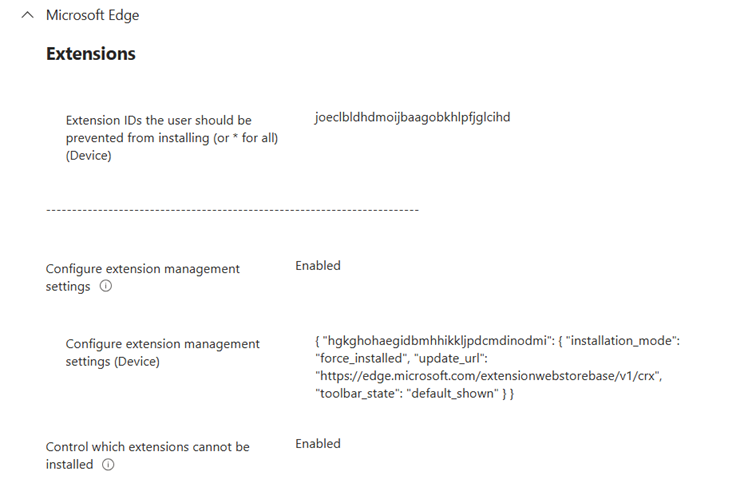
This results in the production MMR extension being disabled, and the insider extension being automatically installed and enabled.
Note
Any custom reg keys need to be redeployed using the new extension ID of the insider extension “Hgkghohaegidbmhhikkljpdcmdinodmi”
Return to the Production Version of the Extension - Edge
To return to the production version of the extension, we can remove the Cloud PCs from this policy, and deploy a new policy with the extension IDs being reversed. Follow the steps previously listed, with the following changes:
In Step 6, deploy the Production Extension with the following ID
{ "Joeclbldhdmoijbaagobkhlpfjglcihd": { "installation_mode": "force_installed", "update_url": "https://edge.microsoft.com/extensionwebstorebase/v1/crx", "toolbar_state": "default_shown" } }In Step 7, prevent the use of the insider extension ID “Hgkghohaegidbmhhikkljpdcmdinodmi”
Tip
Extension IDs for Edge
Production: joeclbldhdmoijbaagobkhlpfjglcihd
Insider: hgkghohaegidbmhhikkljpdcmdinodmi
Deploy the Insider Extension – Chrome
You can use Chrome policies within Intune to switch from the production version of the MMR Extension to the Insider version.
Sign in to the Microsoft Intune admin center.
Create or edit a configuration profile for Windows 10 and later devices, with the Settings catalog profile type.
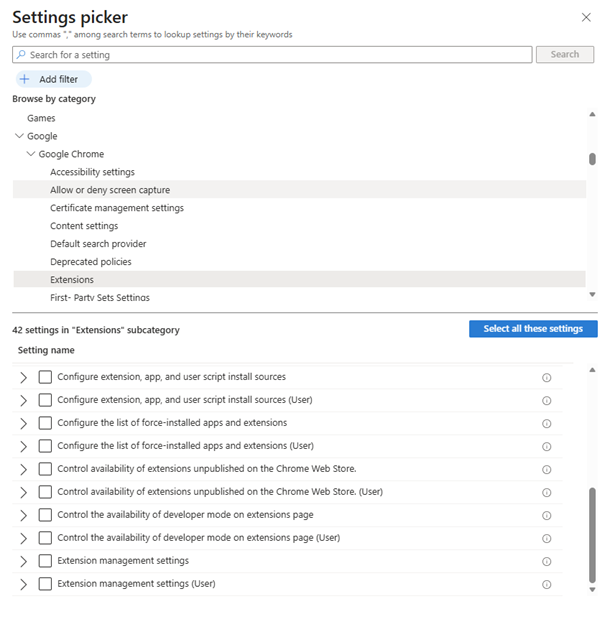
In the settings picker, browse to Google > Google Chrome > Extensions.
Check the box for
a. Extension management settings, and
b. Configure Extension Installation Blocklist
Expand the Google Chrome > Extensions category, then toggle the switch for extension management settings to Enabled
In the box that appears for Configure extension management settings (Device), enter the following JSON as a single line string. This example installs the extension with the required update URL:
{ "epelolcdlfhaeglopakiikiljnfbpnak": { "installation_mode": "force_installed", "update_url": "https://clients2.google.com/service/update2/crx" } }
For Extension IDs the user should be prevented from installing, provide the following ID (Without the quotes)
a. “lfmemoeeciijgkjkgbgikoonlkabmlno”
Select Next.
Optional: On the Scope tags tab, select a scope tag to filter the profile. For more information about scope tags, see Userole-based access control (RBAC) and scope tags for distributed IT.
On the Assignments tab, select the group containing the computers providing a remote session you want to configure, then select Next.
On the Review + create tab, review the settings, then select Create.
After the policy applies to the computers providing a remote session, restart them for the settings to take effect.
The completed policy should look like this:
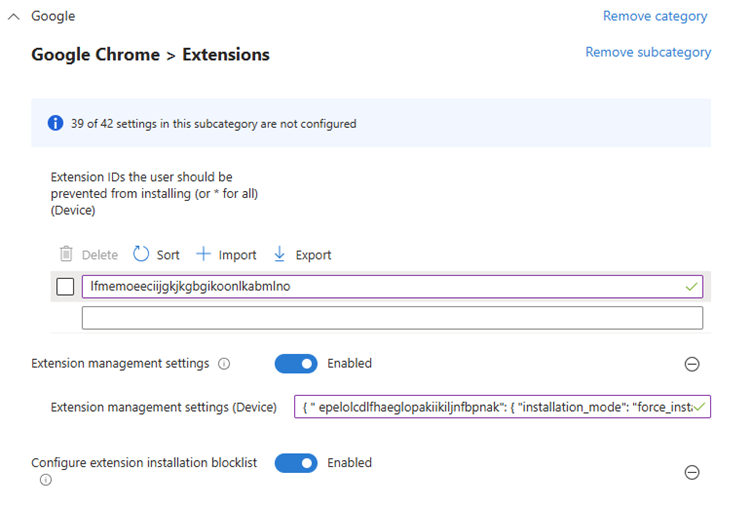
This results in the production MMR extension being disabled, and the insider extension being automatically installed and enabled.
Note
Any custom reg keys need to be redeployed using the new extension ID of the insider extension “epelolcdlfhaeglopakiikiljnfbpnak”
Return to the Production Version of the Extension - Chrome
To return to the production version of the extension, we can remove the Cloud PCs from this policy, and deploy a new policy with the extension IDs being reversed. Follow the steps previously listed, with the following changes:
In Step 6, deploy the Production Extension with the following ID
{ "lfmemoeeciijgkjkgbgikoonlkabmlno ": { "installation_mode": "force_installed", "update_url": "https://clients2.google.com/service/update2/crx" } }In Step 7, prevent the use of the insider extension ID “epelolcdlfhaeglopakiikiljnfbpnak”
Tip
Extension IDs for Chrome
Production: lfmemoeeciijgkjkgbgikoonlkabmlno
Insider: epelolcdlfhaeglopakiikiljnfbpnak