Note
Access to this page requires authorization. You can try signing in or changing directories.
Access to this page requires authorization. You can try changing directories.
You can configure MSP in inline and advanced configuration using CLI. MSP supports CLI version >= 2.74.0
Note
Before using CLI to configure MSP, ensure that you're registered with Azure Feature Exposure Control (AFEC) flag. If not, follow instructions here.
Deploy a Virtual Machine (VM) with MSP
For a new VM, use the command az vm create. You must specify enable-proxy-agent, wire-server-mode (Audit, Enforce, Disabled), and imds-mode (Audit, Enforce, Disabled)
Example of inline configuration
az vm create -g <Resource Group Name> --image Win2022DataCenter --enable-proxy-agent --wire-server-mode Audit --imds-mode Enforce --size Standard_DS1_v2 --name <VMName>
Example of advanced configuration
The main difference between inline and advanced configuration is that you provide a link to the SIG artifact that contains the allowlist for a more granular control over which applications or services can communicate with which endpoints. Instead of using wire-server-mode, use wire-server-profile-id. Similarly, instead of using imds-mode, use imds-profile-id.
az vm create -g <Resource Group Name> --image Win2022DataCenter --enable-proxy-agent --wire-server-profile-id <SIG artifact link> --imds-profile-id Enforce --size Standard_DS1_v2 --name <VMName>
Note
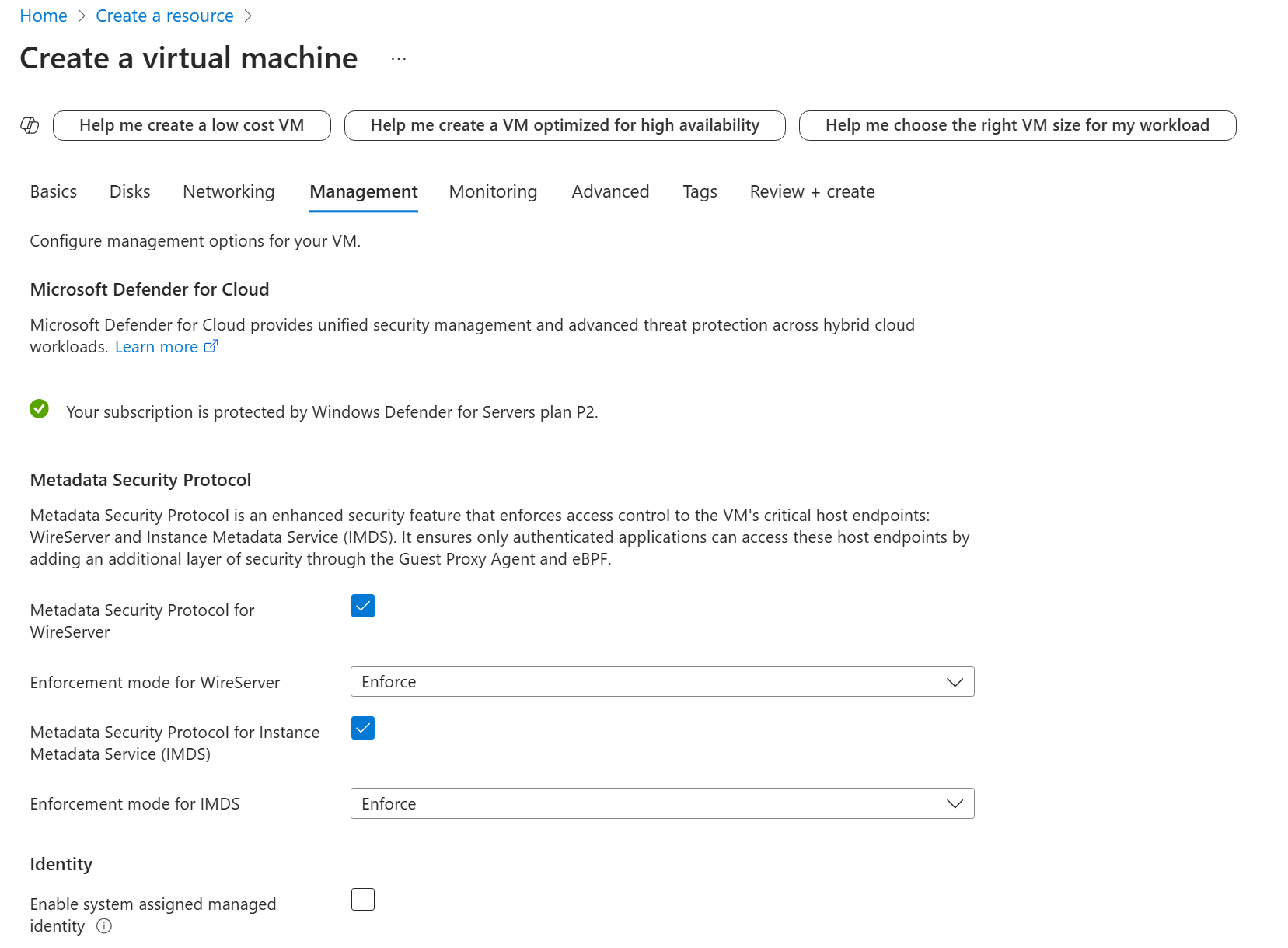
Portal currently only supports inline configuration.
Enable MSP on an existing VM with CLI
For an existing VM, use the command az vm update. You must specify enable-proxy-agent, wire-server-mode (Audit, Enforce, Disabled), and imds-mode (Audit, Enforce, Disabled)
Example of inline configuration
az vm update -g <Resource Group Name> --image Win2022DataCenter --enable-proxy-agent --wire-server-mode Audit --imds-mode Enforce --size Standard_DS1_v2 --name <VMName>
Example of advanced configuration
The main difference between inline and advanced configuration is that you'll provide a link to the SIG artifact that contains the allowlist for a more granular control over which applications/services can communicate with which endpoints. Instead of using wire-server-mode, use wire-server-profile-id. Similarly, instead of using imds-mode, use imds-profile-id.
az vm update -g <Resource Group Name> --image Win2022DataCenter --enable-proxy-agent --wire-server-profile-id <SIG artifact link> --imds-profile-id Enforce --size Standard_DS1_v2 --name <VMName>