Note
Access to this page requires authorization. You can try signing in or changing directories.
Access to this page requires authorization. You can try changing directories.
Important
Compute templates are in Limited preview. Your subscription must be enabled for the preview. See the Supplemental Terms of Use for Microsoft Azure Previews for legal terms that apply to Azure features that are in beta, in preview, or otherwise not yet released into general availability.
Compute templates let you define a reusable virtual machine (VM) configuration in Azure Compute Gallery and reference it when you create a VM. Azure stores each compute template as a versioned instance profile resource in a gallery within your subscription.
Instead of repeating settings such as the OS, storage, network, and security profiles in each deployment request, define a baseline configuration in an instance profile. You can then reference a specific version when you create a VM and provide deployment-specific values or supported overrides in the create request.
In this preview, compute templates support single-instance VMs and VMs with adaptive placement. Virtual Machine Scale Sets and Azure Compute Fleet aren't supported.
Key benefits
- Standardization: Use the same baseline configuration across your VMs.
- Simpler deployment requests: Reduce the size and complexity of VM create requests and reduce configuration drift.
- Reusability and sharing: Share configurations across subscriptions, teams, and regions through gallery sharing capabilities.
- Versioning: Maintain multiple versions of your configuration to control how you update your VMs.
Prerequisites
Before you use compute templates, make sure that you meet these requirements:
- Feature registration: Register your subscription for
Microsoft.Compute/InstanceProfileandMicrosoft.Compute/InstanceProfilesas part of preview enrollment. - API version: Use API version
2026-03-03or later for instance profile resources. - Region access: Use a region enabled for the preview: East US 2 EUAP (
eastus2euap), West US 3, Central US, South Central US, or East Asia. - Azure Compute Gallery: Create a gallery to store your instance profile definitions and versions.
Register resource providers
Register the required resource providers and verify that registration completes:
In the Azure portal, open your subscription, and then select Settings > Resource providers.
Register the following providers:
Microsoft.Compute.Microsoft.Storage.Microsoft.Network.
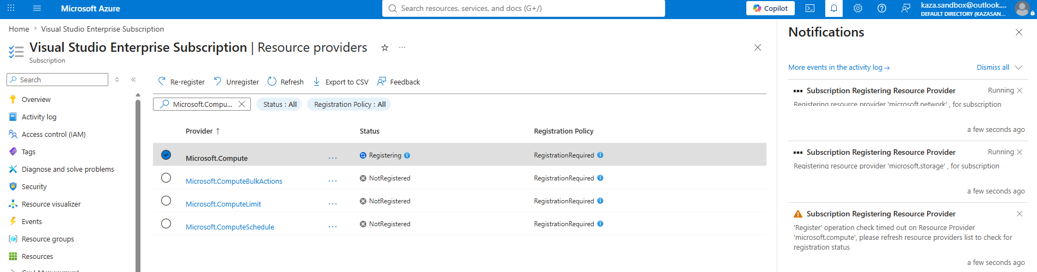
If your deployment uses managed identities, Azure Key Vault, or monitoring, also register the applicable providers:
Microsoft.ManagedIdentity.Microsoft.KeyVault.Microsoft.Insights.
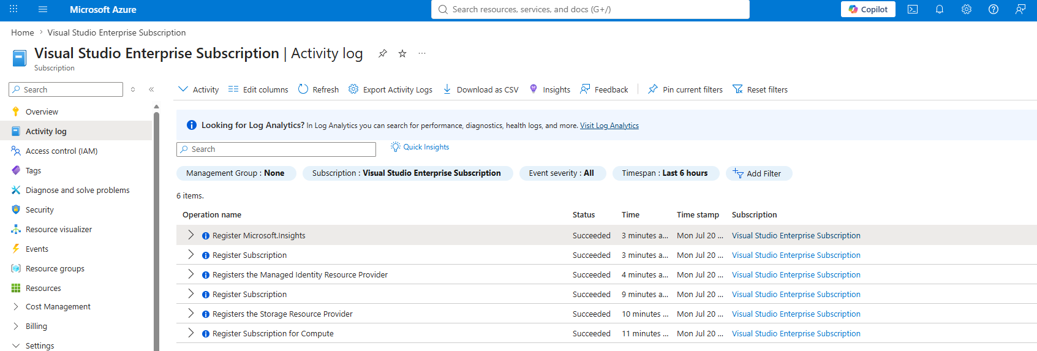
Open Activity log for your subscription and verify that the registrations succeeded.
Instance profile supported properties
Azure stores each compute template as a versioned instance profile resource in your Azure Compute gallery. This instance profile resource can define the following configuration sections. Some properties have additional restrictions during the preview, as described in Limitations for limited preview.
| Section | Description |
|---|---|
hardwareProfile |
VM size and vCPU configuration. |
storageProfile |
OS disk, data disks, image reference, and disk controller type. |
osProfile |
Admin credentials, patch settings, SSH keys, and Windows or Linux configuration. |
networkProfile |
Network configuration template. |
securityProfile |
Trusted launch, confidential VM, ProxyAgent, and encryption at host. |
diagnosticsProfile |
Boot diagnostics. |
additionalCapabilities |
Ultra Disk Storage, hibernation, and FIPS encryption. |
scheduledEventsProfile |
Terminate and OS image notifications. |
scheduledEventsPolicy |
Event Grid publishing and auto-approve policies. |
applicationProfile |
Gallery applications. |
capacityReservation |
Capacity reservation group reference. |
placement |
Zone placement policy. |
priority |
Regular or Spot priority. |
evictionPolicy |
Deallocate or Delete for Spot VMs. |
billingProfile |
Maximum price for Spot VMs. |
licenseType |
Azure Hybrid Benefit for Windows. |
userData |
Base64-encoded user data. |
tags |
Resource tags. |
zones |
Availability zones. |
extendedLocation |
Edge zone configuration. |
proximityPlacementGroup |
Proximity placement group reference. |
hostGroup |
Dedicated host group reference. |
plan |
Marketplace plan information. |
Properties not in instance profiles
Provide the following values in the VM create request rather than the reusable instance profile:
osProfile.computerName, which is unique to each VM.- Specific network interface resource IDs, because each network interface can be attached to only one VM.
- Specific managed disk resource IDs, which identify per-instance storage.
availabilitySet, which binds a VM to a specific availability set.platformFaultDomain, which specifies a per-instance assignment.
Limitations for limited preview
The following limitations apply during the limited preview:
| Limitation | Details |
|---|---|
| Supported resources | Only single-instance VMs and VMs with adaptive placement are supported. Virtual Machine Scale Sets, Azure Kubernetes Service (AKS), and Azure Compute Fleet aren't supported. |
| Supported clients | Use the REST APIs. The quickstarts use az rest to call these APIs; dedicated SDK, PowerShell, Azure CLI, and Azure portal support isn't available in this preview. |
| Create only | Reference an instance profile when you create a VM. You can't add, remove, or change the instance profile version on an existing VM. See Create-only behavior and VM updates for supported update scenarios. |
| Overrides | You can override instance profile properties in the inline VM create request. Examples (not exhaustive):
|
| Extensions | VMs can't consume instance profiles that contain extensions. |
| Immutable versions | You can't change an instance profile version after you create it. |
| Single version | A VM references one specific instance profile version. |
| Region access | The feature must be enabled in the target region. See Prerequisites for supported regions. |
| Subscription registration | Enroll in the preview and register each subscription that needs access. |
| Azure Policy | Applying policies to VM PUT requests that reference an instance profile isn't supported. |
| Encrypted security fields | Instance profiles don't support the encrypted security fields listed below. Provide these values in the inline VM create request instead. |
Create-only behavior and VM updates
You can reference an instance profile only when you create a VM. You can't add an instance profile reference to an existing VM, remove the reference, or change the referenced version.
Keep these points in mind when you update a VM:
- If you create VM1 with version 1.0.0 of instance profile IP1, you can't change the reference to version 2.0.0 for that VM.
- You can still update VM1 while retaining its reference to version 1.0.0 of IP1.
The following table summarizes the supported instance profile reference scenarios for updates to VM1:
| Virtual Machine | Instance Profile | Version of Instance Profile | Comments |
|---|---|---|---|
| VM1 | IP1 | IP1 | Supported |
| VM1 | IP1 | IP2 | Not supported |
| VM1 | IP1 | Without IP | Not supported |
| VM1 | No IP | IP1 | Not supported |
Encrypted security fields
Don't include these fields in an instance profile during the preview:
osProfile.adminPassword.osProfile.customData.extensionProfile.extensions[].protectedSettings.windowsConfiguration.additionalUnattendContent[].content.
Properties that require special handling
For the following properties, use the inline VM create request for values that the instance profile doesn't support:
| Property | Values supported in an instance profile | Guidance |
|---|---|---|
storageAccountType |
Standard_LRS, Premium_ZRS, and StandardSSD_ZRS. |
Provide other values, such as Premium_LRS, in the inline VM create request. For Premium_LRS, you can also use a Premium SKU without specifying the storage account type. |
WindowsVMGuestPatchMode |
None. | Use the inline VM create request. |
HostEndpointSettings.mode |
Audit. |
Provide other values in the inline VM create request. |
Disk.ForceDiskDetachOption |
None. | Use the inline VM create request. |