Note
Access to this page requires authorization. You can try signing in or changing directories.
Access to this page requires authorization. You can try changing directories.
The Spot rebalance recommendation is a feature that provides an early alert when a Spot Instance faces a heightened risk of interruption. When you receive this recommendation, proactively save your state and shift your workload to another Spot Instance to mitigate potential disruptions. Scheduled events deliver rebalance recommendations. You can consume them in two ways: as an in-VM notification or as an out-of-VM notification.
To receive these notifications for Spot Plus, register Microsoft.Compute/SpotPlus by using Feature Registration.
Note
This feature makes a best-effort attempt and doesn't always emit a signal before eviction.
In-VM rebalance notifications
In-VM rebalance notifications are a scheduled event delivered to the virtual machine via the metadata service. The metadata service provides this information through a REST endpoint that you can access from inside the VM.
Important
This endpoint uses the same endpoint for preempt notifications, but it uses a different version.
Rebalance notifications are only advisory. Unlike preempt notifications, acknowledging them has no effect. To onboard to Scheduled Events and listen to these events, follow Scheduled Events for Windows VMs in Azure or Scheduled Events for Linux VMs in Azure.
Out-of-VM rebalance notifications
The following steps explain the onboarding experience for out-of-VM rebalance notifications.
Create a system topic by using the Azure CLI
For the full command reference, see az eventgrid system-topic.
Set the account to the Azure subscription where you want to create the system topic. Replace the placeholders in the commands with your values.
az account set -s <subscription-id>Create the system topic. For more information, see az eventgrid system-topic.
az eventgrid system-topic create --name spotRebalanceTopic --resource-group sampletestrg --source /subscriptions/<subscription-id> --topic-type microsoft.resourcenotifications.MaintenanceResources --location GlobalCreate the event subscription. For more information, see az eventgrid system-topic event-subscription create.
az eventgrid system-topic event-subscription create --name firstEventSubscription --resource-group sampletestrg --system-topic-name spotRebalanceTopic --included-event-types Microsoft.ResourceNotifications.MaintenanceResources.ScheduledEventEmitted --endpoint <event-hub-endpoint> --endpoint-type eventhubNote
If you don't specify
--included-event-types, the command includes all event types by default. Ensure that the entity creating the event subscription has read permissions on the entire Azure subscription.To delete the event subscription:
az eventgrid system-topic event-subscription delete --name firstEventSubscription --resource-group sampletestrg --system-topic-name spotRebalanceTopicTo delete the system topic:
az eventgrid system-topic delete --name spotRebalanceTopic --resource-group sampletestrg
Create and validate system topics by using the Azure portal
After you create a system topic by using the Azure CLI or PowerShell, use the Azure portal to create event subscriptions and configure filters.
For more information, see Create, view, and manage system topics.
Follow the preceding steps to create the system topic by using the CLI.
In the portal, in the search box at the top, type Event Grid System Topics, and then press ENTER.
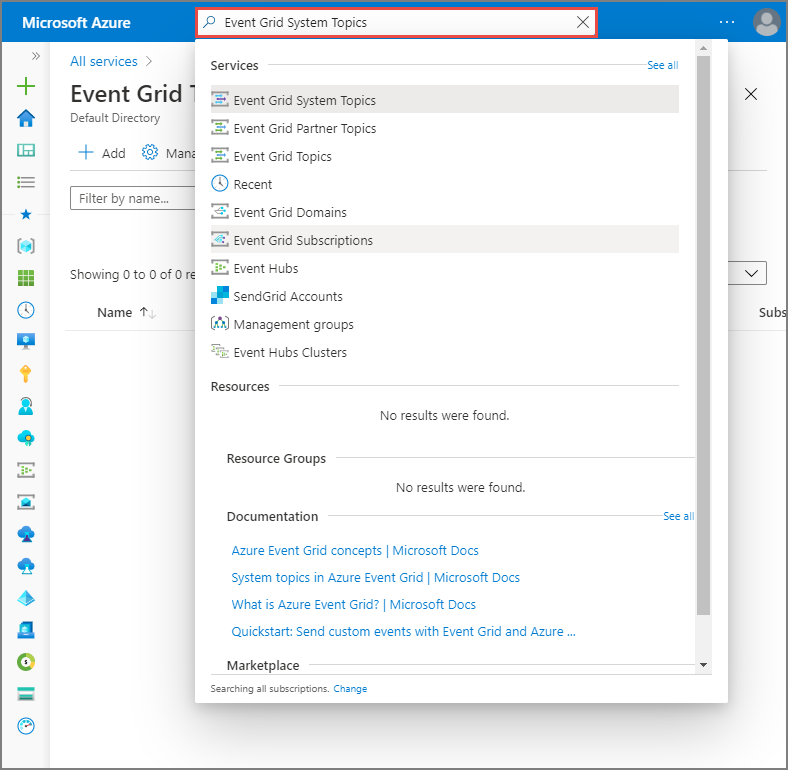
On the Event Grid System Topics page, view the list of system topics.

Select a system topic from the list to see details about it.
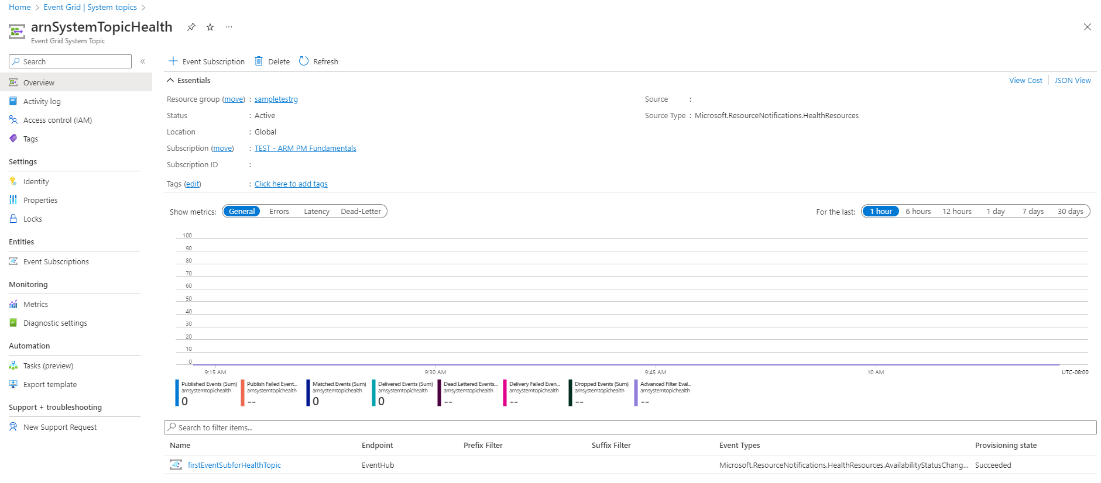
This page shows you details about the system topic, such as the following information:
- Source: Name of the resource on which the system topic was created.
- Source type: Type of the system topic resource. For example: microsoft.resourcenotifications.MaintenanceResources, Microsoft.ResourceNotifications.HealthResources, Microsoft.ResourceNotifications.Resources, Microsoft.Storage.StorageAccounts, Microsoft.EventHub.Namespaces, and Microsoft.Resources.ResourceGroups.
- Any subscriptions created for the system topic.
This page allows operations such as the following ones:
- Create an event subscription: select + Event Subscription on the toolbar.
- Delete an event subscription: select Delete on the toolbar.
On the Event Grid System Topic page, select + Event Subscription from the toolbar.

Confirm that the Topic Type, Source Resource, and Topic Name are automatically populated. Enter a name for the event subscription, select the event types, and specify the endpoint details.
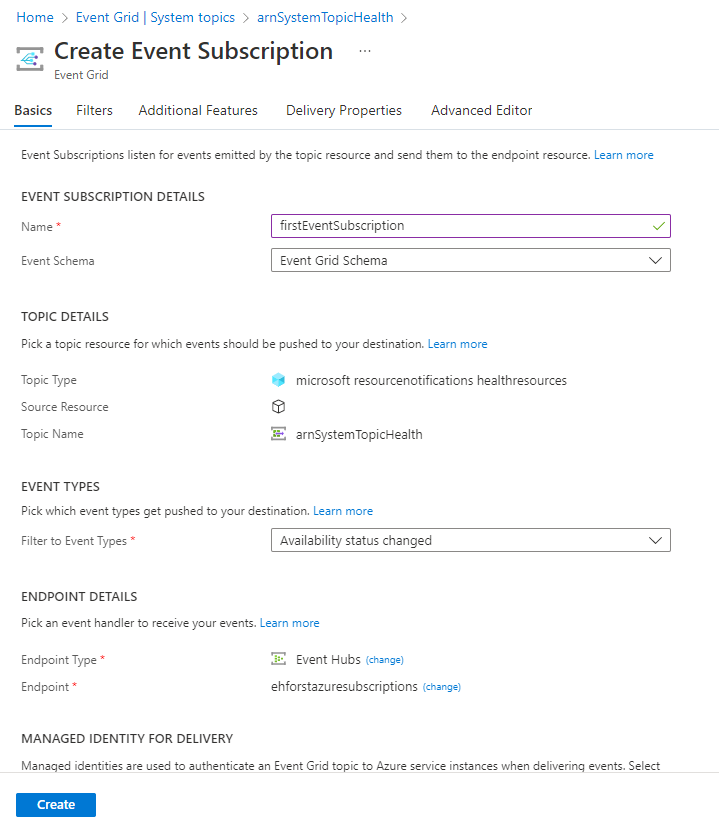
Select the Filters tab to provide subject or advanced filtering for your scenario.
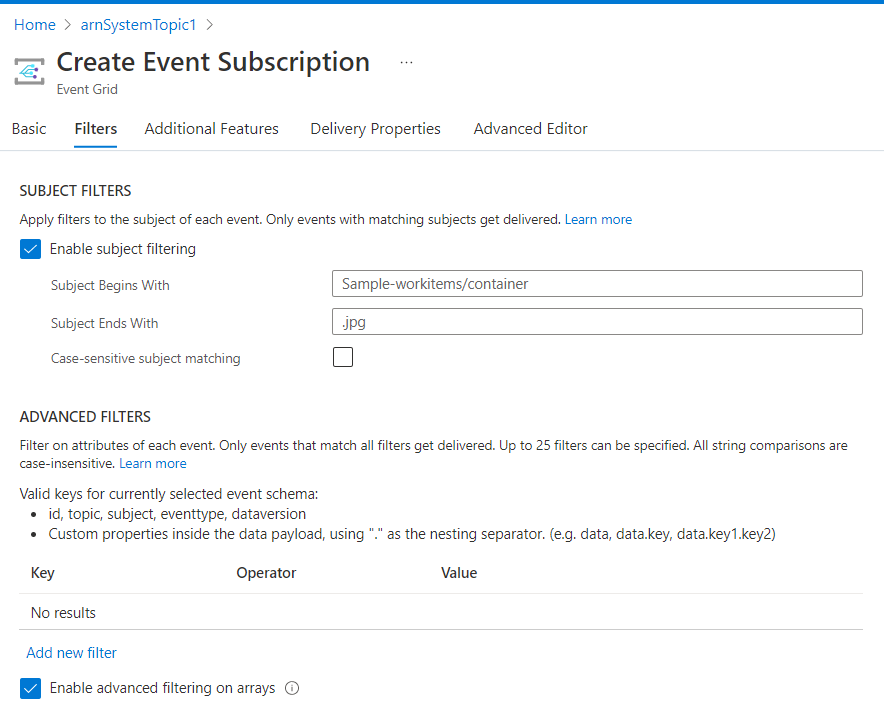
Example scenario: Subscribe to rebalance signals for a particular resource group
Azure portal
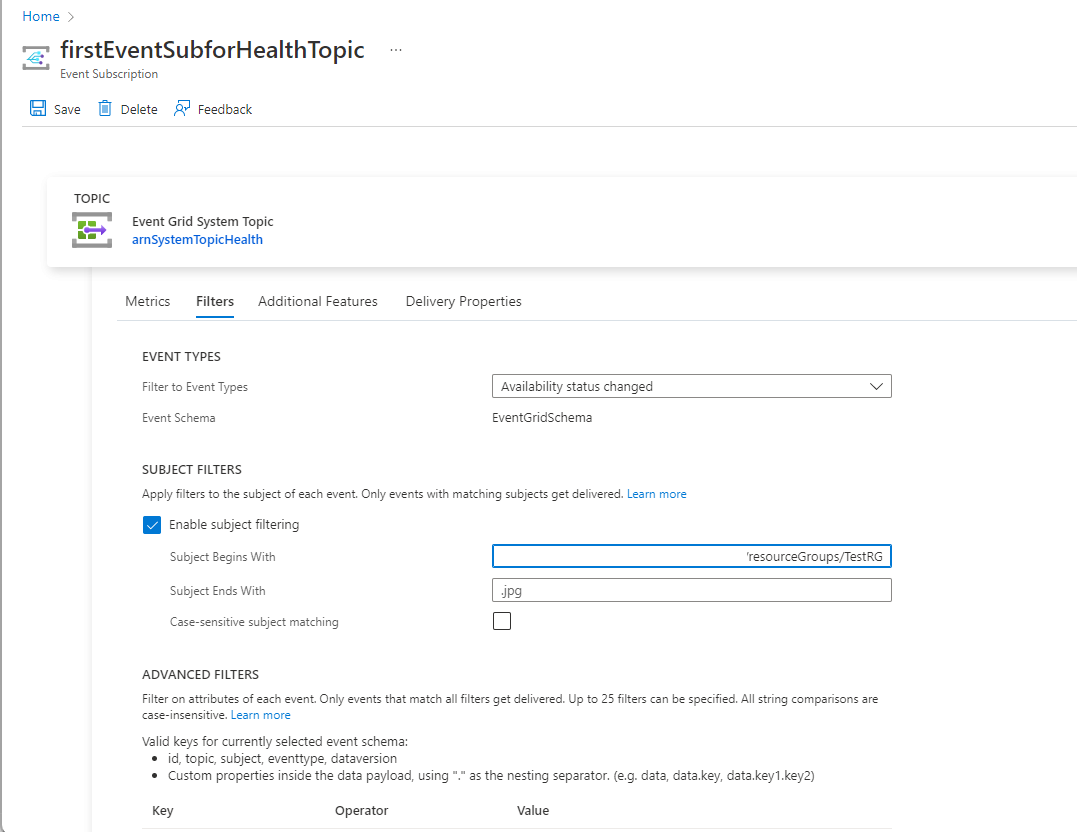
Select Enable subject filtering under Subject Filters. For Subject Begins With, enter the value of the resource group in this format: /subscriptions/{subscription-id}/resourceGroups/{resourceGroup-id}.
For example, set Subject Begins With to /subscriptions/<subscription-id>/resourceGroups/TestRG.
Azure CLI
az eventgrid system-topic event-subscription create --name firstEventSubForRebalance --resource-group sampletestrg --system-topic-name spotRebalanceTopic --included-event-types Microsoft.ResourceNotifications.MaintenanceResources.ScheduledEventEmitted --endpoint <event-hub-endpoint> --endpoint-type eventhub --subject-begins-with /subscriptions/<subscription-id>/resourceGroups/TestRG/