Note
Access to this page requires authorization. You can try signing in or changing directories.
Access to this page requires authorization. You can try changing directories.
SAP Information Lifecycle Management (ILM) provides a broad range of capabilities. These capabilities manage data volumes, provides Retention Management, and the decommissioning of legacy systems while balancing total cost of ownership, risks, and legal compliance. SAP ILM Store (a component of ILM) would enable storing of these archive files and attachments from SAP system into Microsoft Azure Blob storage, thus enabling cloud storage.
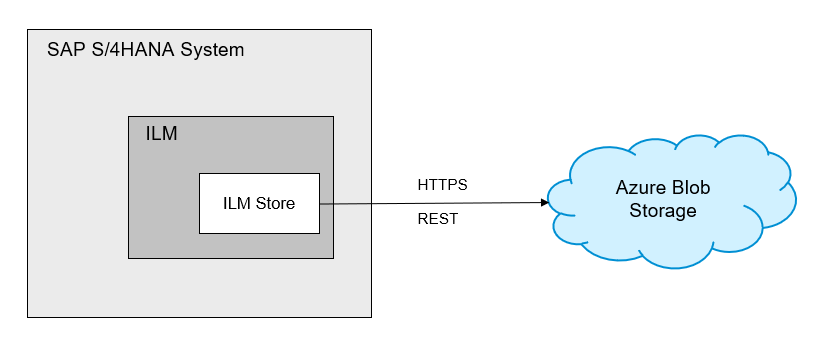
This document covers creation and configuration of Azure blob storage account to be used with SAP ILM. This account is used to store archive data from S/4HANA System.
The steps to be followed to create a storage account are:
- Register a new application with your subscription.
- Create a Blob storage account.
- Create a new custom role or use an existing (built-in or custom) role.
- Assign the role to application to allow access to the storage account.
Note
Steps 2, 3 and 4 can either be done manually or by using the Microsoft QuickStart template.
QuickStart template approach
The QuickStart template is an automated approach to create the Azure account. You can find the template in the Azure Quickstart Templates library.
Manual configuration approach
Azure blob storage account can be configured manually. The steps to be followed are:
Register a new application. The details are available at Register an application in Microsoft Entra ID.
Note
Make sure that Client secret is added. To learn more, see Add and manage application credentials in Microsoft Entra ID.
Create a Blob Storage account. Refer to steps in the page Create a storage account.
Ensure Enable secure transfer is set. We recommend you set the following property values:
- Enable blob public access = false
- Minimum TLS Version = 1.2
- Enable storage account key access = false
Maintain Access Control (IAM) for the account.
In the IAM setting, go to Role Assignments and add Role assignment for the App created with the role of Storage Blob Data Contributor. In the App dialog, choose User, group or Service Principal for Assign Access to field.
Note
Ensure no other user has access to this storage account apart from the registered application.
During the process of the account setup and configuration, refer to Security recommendations for Blob Storage. With the completion of this setup, we're ready to use this blob storage account with SAP ILM to store archive files from S/4 HANA System.