Note
Access to this page requires authorization. You can try signing in or changing directories.
Access to this page requires authorization. You can try changing directories.
When you disable peering route propagation, you suppress system-generated IPv4 and IPv6 peering routes for supported workloads on subnets associated with a route table. This article shows you how to configure the public preview capability by using the Azure portal, Azure CLI, or Azure PowerShell.
Before you configure this setting, review how disable peering route propagation works, its benefits, and its limitations.
Prerequisites
- An Azure account with an active subscription. Create an account for free.
- An existing route table associated with the subnets where you want to suppress peering routes. For more information, see Associate a route table to a subnet.
- The required UDRs and an Azure Firewall or NVA next hop in the same virtual network as the source workload's network interface.
- The
Microsoft.Network/AllowDisablePeeringRoutespreview feature registered for the subscription that contains the route table. For registration steps and required permissions, see Set up preview features in an Azure subscription.
Sign in to the Azure portal.
Disable peering route propagation
- In the search box at the top of the Azure portal, enter Route tables. Select Route tables in the search results.
- Select the route table associated with the subnets where you want to suppress peering routes.
- Under Settings, select Configuration.
- Clear Enable peering routes (Preview).
- Select Save.
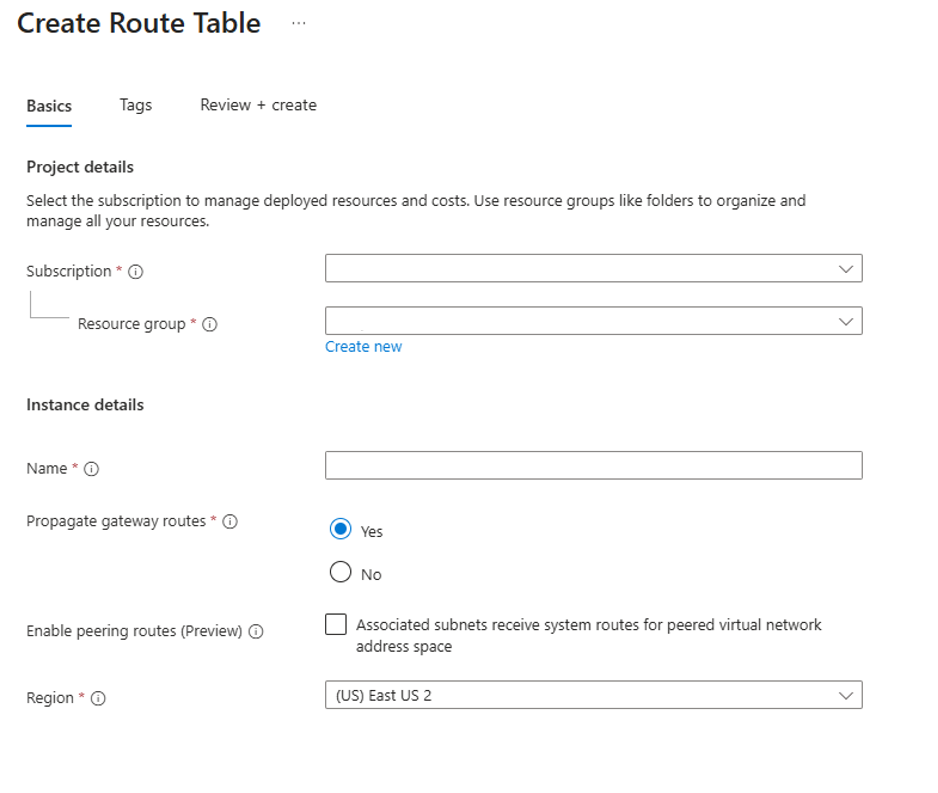
To restore system-generated peering routes, select Enable peering routes (Preview), and then select Save.
When you use REST, Azure Resource Manager templates, or Bicep, use API version 2025-07-01 or later for the route table. For the property definition, see Microsoft.Network/routeTables.
Verify route suppression
Check the effective routes for a network interface in a subnet associated with the route table. The routes with next hop type Virtual network peering should be suppressed for supported workloads. Confirm that the required UDRs direct traffic to the intended next hop.
For more information, see Diagnose a virtual machine routing problem.