Note
Access to this page requires authorization. You can try signing in or changing directories.
Access to this page requires authorization. You can try changing directories.
An IPv6-only virtual network peering connects two dual-stack Azure virtual networks and exchanges only their IPv6 address spaces. The peering doesn't include IPv4 address spaces in address-space validation or routing.
Use IPv6-only peering when the virtual networks:
- Have overlapping IPv4 address spaces.
- Have unique, nonoverlapping IPv6 address spaces.
- Need connectivity over IPv6 without exchanging IPv4 routes.
A standard peering between dual-stack virtual networks exchanges both IPv4 and IPv6 routes. IPv6-only peering differs by suppressing IPv4 route exchange, which allows virtual networks with overlapping IPv4 ranges to communicate through IPv6.
Important
IPv6-only virtual network peering is currently in public preview. Preview features are provided without a service-level agreement and aren't recommended for production workloads. Certain features might not be supported or might have constrained capabilities. For more information, see Supplemental Terms of Use for Microsoft Azure Previews.
Prerequisites
Before you configure IPv6-only peering, verify the following requirements:
- You have two dual-stack Azure virtual networks. Both virtual networks have IPv4 address spaces and at least one IPv6 address prefix.
- The IPv6 address spaces of the virtual networks don't overlap. The IPv4 address spaces can overlap because IPv4 address-space validation is skipped for IPv6-only peering.
- You have permissions to register subscription features and create virtual network peerings. For feature registration permissions, see Set up preview features in an Azure subscription. For peering permissions, see Permissions.
- Both directions of the peering use the same mode. Configure both directions as IPv6-only peering.
- For the CLI procedure, use Bash in Azure Cloud Shell or install the latest Azure CLI and sign in by using az login. The examples use Bash syntax.
Register the preview feature
Register the AllowVnetIPv6OnlyPeering feature once for each subscription that contains a participating virtual network. Select the subscription before you register the feature:
az account set --subscription "<subscription-id>"

az feature register \
  --namespace Microsoft.Network \
  --name AllowVnetIPv6OnlyPeering

az provider register --namespace Microsoft.Network
Check the feature registration state:
az feature show \
  --namespace Microsoft.Network \
  --name AllowVnetIPv6OnlyPeering \
  --query properties.state \
  --output tsv
The command returns one of the following values:
| Output | Meaning |
|---|---|
Registering |
Registration is in progress. Wait, and then check the state again. |
Registered |
The feature is registered for the subscription. You can continue with the peering configuration. |
NotRegistered |
Run the feature registration command. |
Wait until the feature registration state is Registered before you continue.
If the virtual networks are in different subscriptions, repeat these steps for each subscription.
Create an IPv6-only peering by using the Azure CLI
A virtual network peering is a two-way connection. Create one peering from the first virtual network to the second virtual network, and create another peering in the reverse direction.
The following example uses two existing virtual networks in the same subscription and resource group. Replace the subscription ID, resource group name, and virtual network names with your values. For virtual networks in different subscriptions or resource groups, use the subscription and resource group of the virtual network that each command acts on.
subscriptionId="<subscription-id>"
resourceGroupName="<resource-group-name>"
vnet1Name="VNet1"
vnet2Name="VNet2"

vnet1Id=$(az network vnet show \
  --subscription "$subscriptionId" \
  --resource-group "$resourceGroupName" \
  --name "$vnet1Name" \
  --query id \
  --output tsv)

vnet2Id=$(az network vnet show \
  --subscription "$subscriptionId" \
  --resource-group "$resourceGroupName" \
  --name "$vnet2Name" \
  --query id \
  --output tsv)
Create the peering from VNet1 to VNet2:
az network vnet peering create \
  --subscription "$subscriptionId" \
  --name "VNet1-to-VNet2" \
  --resource-group "$resourceGroupName" \
  --vnet-name "$vnet1Name" \
  --remote-vnet "$vnet2Id" \
  --enable-only-ipv6 true \
  --allow-vnet-access true
Create the reverse peering from VNet2 to VNet1:
az network vnet peering create \
  --subscription "$subscriptionId" \
  --name "VNet2-to-VNet1" \
  --resource-group "$resourceGroupName" \
  --vnet-name "$vnet2Name" \
  --remote-vnet "$vnet1Id" \
  --enable-only-ipv6 true \
  --allow-vnet-access true
The --enable-only-ipv6 true parameter configures IPv6-only peering. If you omit the parameter, or set it to false, Azure creates a standard peering.
Create an IPv6-only peering in the Azure portal
- In the Azure portal, open two existing dual-stack virtual networks.
- Confirm that each virtual network has both IPv4 and IPv6 address spaces.
- Open the first virtual network.
- Under Settings, select Peerings.
- Select Add.
- Enter names for the peering links and select the second virtual network as the remote virtual network.
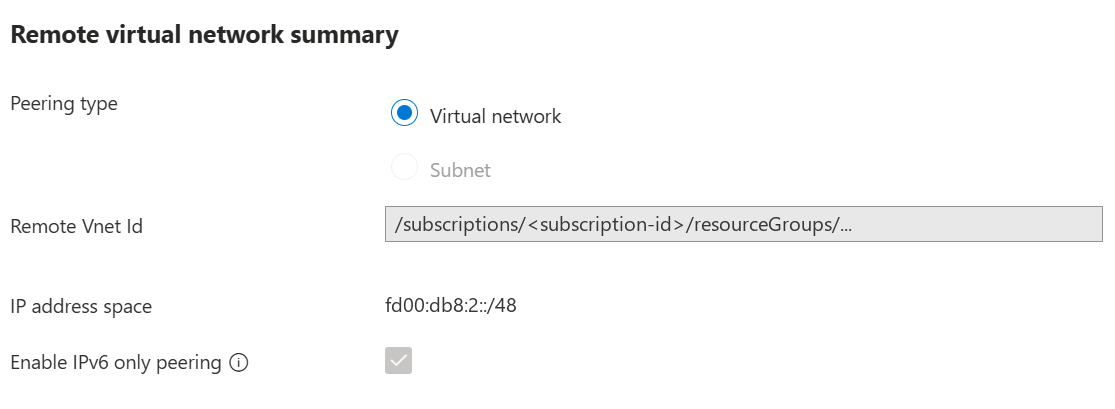
- For Peering type, select Virtual network, and select Enable IPv6 only peering for both directions of the peering.
- Configure any other required peering settings.
- Select Add to create the peerings.
After deployment, confirm that both peering directions show a connected state and use IPv6-only peering. The following screenshot shows the IPv6-only option enabled in the remote virtual network summary:
Validate the peering
From a virtual machine in one peered virtual network, test connectivity to a virtual machine in the remote virtual network over IPv6. The destination service must be listening on the selected TCP port, and network security groups and guest firewalls must allow the test traffic.
The following PowerShell example uses TCP port 3389. Replace the example IPv6 address and port with values for your environment:
Test-NetConnection fd00:db8:1:1::4 -Port 3389
The IPv6 connection should succeed when the peering and the destination service are configured correctly.
IPv6-only peering doesn't provide IPv4 connectivity between the virtual networks. You can compare the IPv6 test with an IPv4 test:
Test-NetConnection 10.1.1.4 -Port 3389
Note
An IPv4 test can reach a local resource or use another route, especially when IPv4 address spaces overlap. Confirm the destination and network path before interpreting the result. An IPv4 test alone doesn't prove whether the IPv6-only peering is configured correctly.
Don't use ping as the only validation method. Windows can block ICMPv6 echo requests by default. Use Test-NetConnection against a known listening TCP port.
You can also inspect each direction of the peering configuration:
az network vnet peering show \
  --subscription "$subscriptionId" \
  --resource-group "$resourceGroupName" \
  --vnet-name "$vnet1Name" \
  --name "VNet1-to-VNet2" \
  --query "{peeringState:peeringState, enableOnlyIpv6:enableOnlyIpv6}" \
  --output table

az network vnet peering show \
  --subscription "$subscriptionId" \
  --resource-group "$resourceGroupName" \
  --vnet-name "$vnet2Name" \
  --name "VNet2-to-VNet1" \
  --query "{peeringState:peeringState, enableOnlyIpv6:enableOnlyIpv6}" \
  --output table
Confirm that both peerings report Connected and enableOnlyIpv6 is true.
Limitations and considerations
Consider the following points before you use IPv6-only peering:
- You can't change an existing peering between standard and IPv6-only modes. Delete and recreate both directions of the peering to change the mode.
- Both directions must use the same IPv6-only setting.
- IPv6-only peering doesn't currently support connectivity through Azure VPN Gateway, Azure Virtual WAN, or Azure Route Server.
Troubleshoot common errors
| Error code | Cause | Resolution |
|---|---|---|
VNetDoesNotHaveIPv6AddressPrefix |
A virtual network doesn't have an IPv6 address prefix. | Add a valid IPv6 address prefix to both virtual networks, and then recreate or retry the peering. |
EnableOnlyIPv6PeeringFlagMismatch |
The two directions use different IPv6-only settings. A missing value is treated as false. |
Delete the mismatched peering if necessary, and configure both directions with the same setting. |
ChangingIPv6OnlyFlagNotAllowed |
An update attempted to change the mode of an existing peering. | Delete both directions of the peering, and recreate them with the required mode. |
VnetAddressSpacesOverlap |
A standard peering was attempted between virtual networks with overlapping address spaces. | Create an IPv6-only peering if the IPv6 spaces are unique and nonoverlapping, or change the overlapping address spaces. |
Clean up resources
To remove the peerings, delete both directions:
az network vnet peering delete \
  --subscription "$subscriptionId" \
  --resource-group "$resourceGroupName" \
  --vnet-name "$vnet1Name" \
  --name "VNet1-to-VNet2"

az network vnet peering delete \
  --subscription "$subscriptionId" \
  --resource-group "$resourceGroupName" \
  --vnet-name "$vnet2Name" \
  --name "VNet2-to-VNet1"