Note
Access to this page requires authorization. You can try signing in or changing directories.
Access to this page requires authorization. You can try changing directories.
Applies to: ✔️ Application Gateway v2
Important
The IPv6 geo-based custom rules feature for Azure Application Gateway Web Application Firewall (WAF) is currently in preview. See the Supplemental Terms of Use for Microsoft Azure Previews for legal terms that apply to Azure features that are in beta, preview, or otherwise not yet released into general availability.
Geomatch custom rules let you restrict access to your web applications by country or region. The IPv6 geo-based custom rules feature for Azure Application Gateway WAF extends this protection to IPv6 traffic.
To use this feature, register AllowAppGwWafIpv6Geo in your Azure subscription. For more information, see Set up preview features in Azure subscription.
When feature registration is required
Register the AllowAppGwWafIpv6Geo feature only in the following scenario:
- You want to create or use geo-based custom rules that apply to IPv6 traffic in Application Gateway WAF.
You don't need to register the feature for:
IPv6 inspection using managed rule sets
Non-geo custom rules for IPv6, such as rules based on IPv6 addresses or ranges
Logging, diagnostics, and monitoring of IPv6 traffic
Requirements
To use IPv6 geo-based custom rules:
The Application Gateway must support IPv6 and be deployed in a dual-stack configuration.
Both public and private IP configurations must be dual-stack.
To evaluate IPv6 traffic by using geo-based custom rules, you must associate the WAF policy with at least one IPv6-capable, dual-stack Application Gateway.
Workflow for enabling IPv6 geo-based custom rules
To evaluate IPv6 traffic by using geo-based custom rules, complete the following steps:
Register the
AllowAppGwWafIpv6Geofeature in your Azure subscription.Deploy or update your Application Gateway to a dual-stack configuration that supports IPv6. You can't update or convert an existing IPv4-only Application Gateway to dual-stack. For more information, see Configure Application Gateway with a frontend public IPv6 address.
Note
IPv6-only Application Gateways aren't supported.
Create or update a WAF policy with geo-based custom rules for IPv6 traffic. For more information, see Geomatch custom rules.
Associate the WAF policy with the IPv6-capable Application Gateway. For more information, see Associate a WAF policy with an existing Application Gateway.
Validate enforcement by using WAF logs and diagnostics. For more information, see Resource logs for Azure Web Application Firewall.
Enforcement behavior and validation
To prevent unsupported configurations, the platform blocks the following actions:
Associating a policy: You can't associate a WAF policy that contains geo-based custom rules for IPv6 traffic with an incompatible dual-stack Application Gateway that doesn't support IPv6 geo evaluation.
Creating a rule: You can't create geo-based custom rules in a WAF policy that is already associated with a dual-stack Application Gateway that doesn't support IPv6.
Note
IPv4-only Application Gateways aren't affected by this validation. Validation applies only when you associate dual-stack Application Gateways that participate in IPv6 traffic evaluation.
These checks remain in effect after you register the feature, which ensures predictable behavior during the preview.
Register the feature
The following table lists the details you need to register the feature:
| Property | Value |
|---|---|
| Feature name | AllowAppGwWafIpv6Geo |
| Display name | Enable IPv6 Geo Custom Rules for WAF |
| Provider namespace | Microsoft.Network |
| Description | Enables geo-based custom rules with IPv6 traffic in Application Gateway WAF |
To register the feature, follow these steps:
In the search box at the top of the Azure portal, enter subscriptions and select Subscriptions.
Select your subscription.
Under Settings, select Preview features to see a list of all available features and the current registration status.
On the Preview features page, use the search box to search for AllowAppGwWafIpv6Geo.
Select the feature and then select Register.
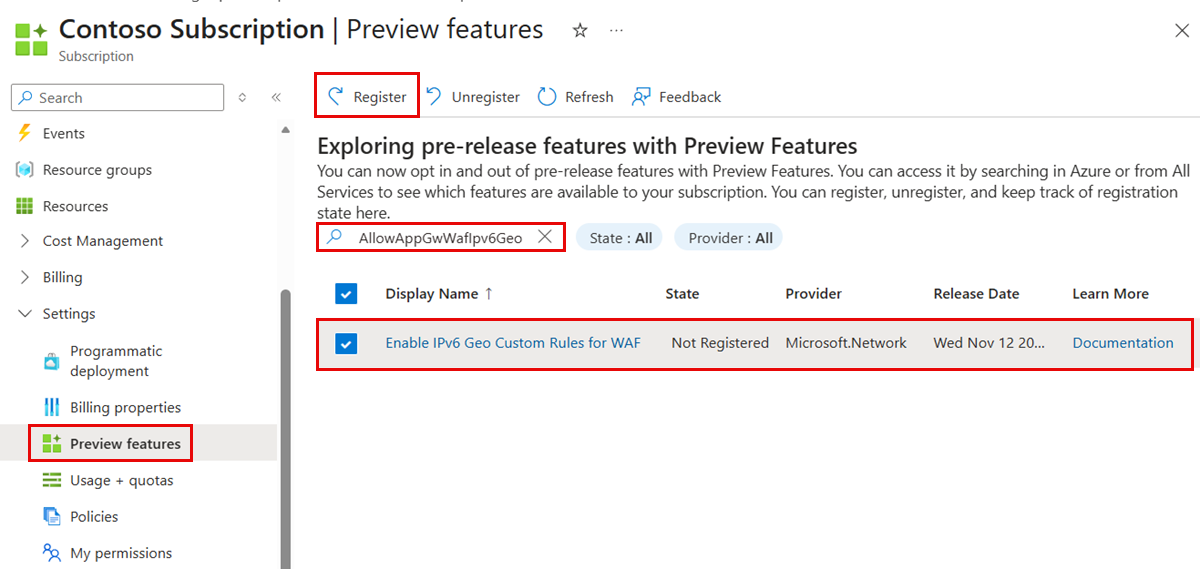
In the confirmation message, select OK to register the feature in your subscription.
Unregister the feature
To unregister the feature, follow these steps:
In the search box at the top of the Azure portal, enter subscriptions and select Subscriptions.
Select your subscription.
Under Settings, select Preview features to see a list of all available features and the current registration status.
On the Preview features page, use the search box to search for AllowAppGwWafIpv6Geo.
Select the feature and then select Unregister.
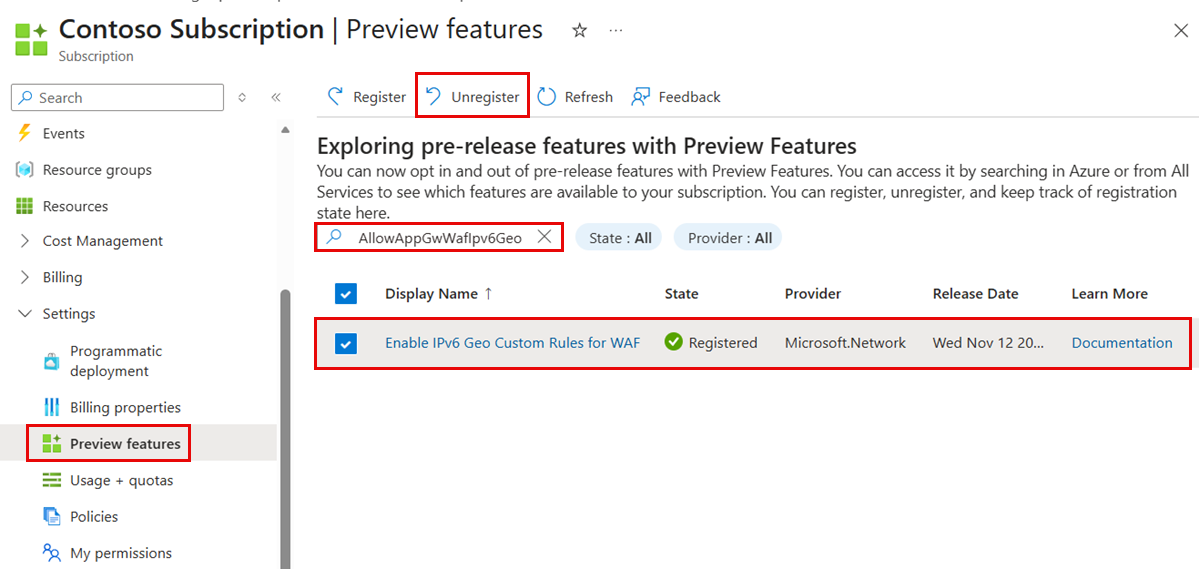
In the confirmation message, select OK to unregister the feature from your subscription.