Note
Access to this page requires authorization. You can try signing in or changing directories.
Access to this page requires authorization. You can try changing directories.
[This article is prerelease documentation and is subject to change.]
Use embeddable widgets to help contact center representatives use Microsoft AI capabilities from Contact Center Intelligence in the desktop they already work in. The widget is hosted in the representative's workspace and uses context from ongoing customer interactions to load the right AI-powered guidance.
In Genesys Cloud CX, the widget is added to the Genesys agent workspace as an Interaction Widget. For voice scenarios, Genesys passes conversation and customer context to the widget, while AudioHook streams call audio to Contact Center Intelligence for voice-biometric operations.
For the authentication and anti-fraud agent widget, representatives can enroll customers for voice authentication, authenticate enrolled customers, view suspected-fraud indications, and process voice-biometric opt-out requests during live voice interactions.
Important
- This is a preview feature.
- Preview features aren’t meant for production use and might have restricted functionality. These features are subject to supplemental terms of use, and are available before an official release so that customers can get early access and provide feedback.
Prerequisites
- Contact Center Intelligence organization is provisioned.
- Authentication and anti-fraud agent, including voice biometrics, are configured.
- You have system administrator access to Contact Center Intelligence admin hub, Power Platform admin center, Microsoft 365 admin center, and Genesys Cloud CX.
- Genesys AudioHook is enabled for streaming call audio to Contact Center Intelligence.
- Representatives have the Dynamics 365 Contact Center licenses and can be added to the target environment.
Review the widget framework and data model
The widget framework separates authoring, hosting, context exchange, and service processing. You author the widget in Contact Center Intelligence, it stores the configuration in Dataverse, and the generated widget URL is deployed into the host desktop.
At runtime, Genesys loads the widget, passes the active conversation and customer context, and opens the configured representative assist experience. For voice scenarios, Genesys AudioHook streams call audio to the voice services in Contact Center Intelligence, and not to the widget. Contact Center Intelligence correlates visible widget operation and the audio stream by using the active Genesys conversation context, such as conversation ID.
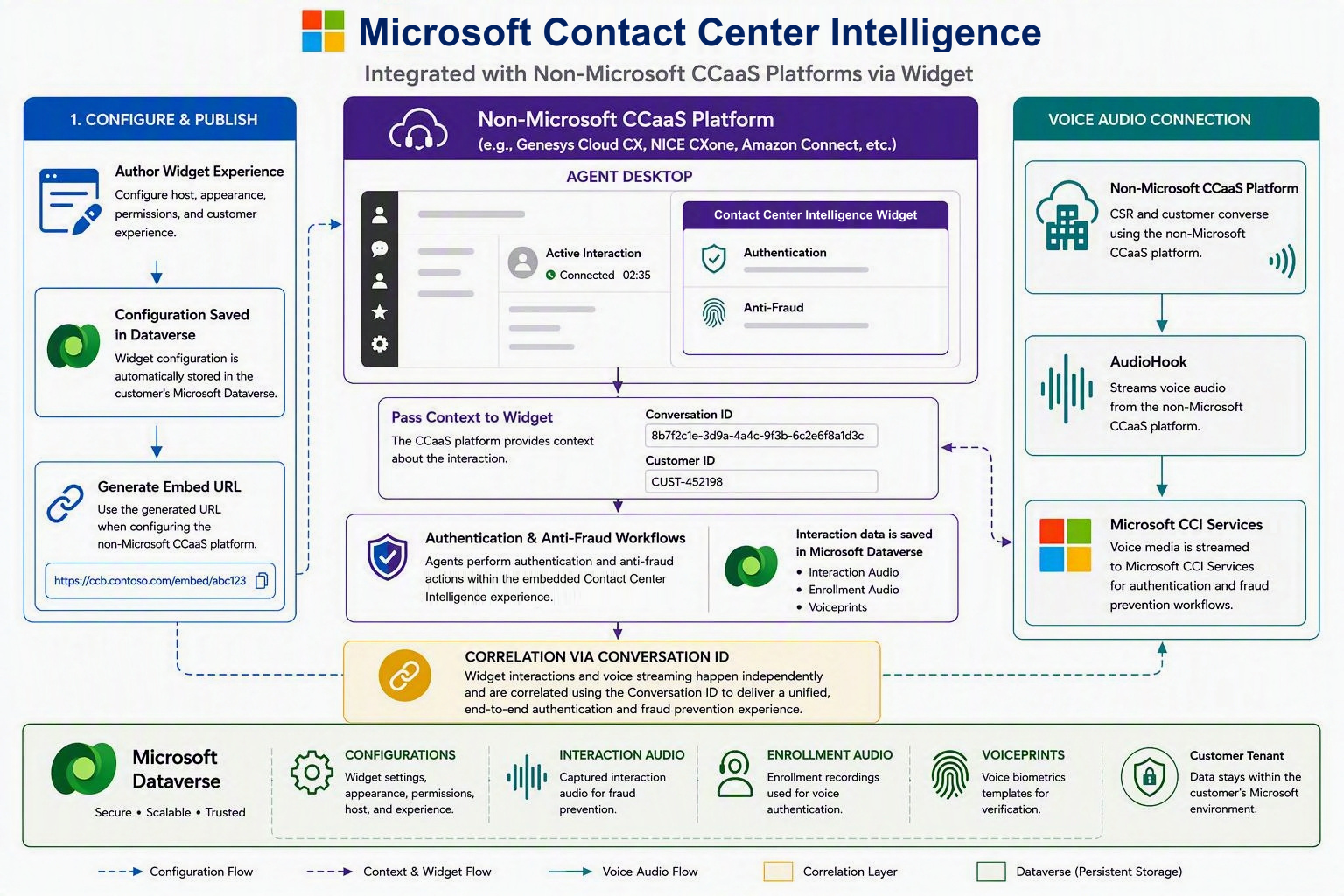
| Data or component | What it does |
|---|---|
| Widget configuration | Defines the widget and generated URL. |
| Organization URL | Identifies the Dynamics 365 or Dataverse organization connected to the widget. |
| Widget configuration ID | Identifies the saved widget configuration to load. |
| Conversation ID | Associates representative actions with the active Genesys conversation. |
| Customer ID or External Customer ID | Identifies the customer record used for enrollment, authentication, and opt-out. |
| Host origin and target environment | Provide Genesys hosting context to the widget in runtime. |
| AudioHook session | Streams call audio and provides audio-session metadata for voice-biometric operations. |
Author the widget in Contact Center Intelligence
By authoring the widget, you define the representatives experience in Genesys. The system generates the URL that the Genesys administrator uses during integration. In Contact Center Intelligence admin hub, connection and widget authoring is available under Contact Center Intelligence in the site map.
Create connections
Use Connections to make sure a representative-facing connection exists.
- On the Connections tab, confirm that Genesys Cloud CX is available.
- Select + and create a Genesys connection.
- Enter a unique Connection name.
- Select a Contact center platform, such as Genesys Cloud CX or Universal.
- Agent type:
- Customer-facing: Select an AI agent.
- Representative-facing: For an agent that assists service representatives. A message indicates that you can create one connection only.
- Select Next, and then provide the credentials and configuration that the selected platform requires.
- Map the agent, channels, events, and context required by your scenario.
- Review the details, and select Create connection.
Create a voice authentication widget
A widget embeds voice authentication in a representative-facing contact center experience. You must have at least one active representative-facing connection before you can embed a widget.
Select the Widgets tab.
Under Get started with widgets, select Create voice authentication widget. You can also select Create widget from the Your widgets list.
Under Properties, enter a Widget name and select a Language.
Under Appearance, configure:
- A light or dark Theme.
- Whether to show the widget header.
- The header style, graphic, and color.
Review the Live preview.
Select Create widget.
In Your widgets, copy the generated embed URL and add it to the approved contact center experience.
Test enrollment, authentication, opt-out, locked voiceprints, errors, and recovery before you make the widget available to representatives.
The embed URL contains configuration data. Share it with authorized application owners. Apply your organization's access, content security, and change-management controls.
Design the widget experience
Use the available widget settings to fit the authentication and anti-fraud experience into the Genesys desktop before production rollout.
- Use a short widget name that administrators can recognize on the Widgets page and in Genesys.
- Keep the most important representative action visible without excessive scrolling.
- Use theme, header, header style, icon, color, language, pagination, and pop-out settings to fit the widget into the Genesys desktop.
- Use Live preview while authoring so you can see how the authentication and anti-fraud experience appears before you create the widget.
- Don't design very small iframe sizes. Make sure that the content remains readable at the minimum recommended size of 320 by 400 pixels.
- Avoid placing the widget where it competes with call controls or critical customer information.
- Validate the design with representative accounts and realistic call-flow context before rollout.
Configure OAuth in Genesys
Configure OAuth in Genesys so the widget can authenticate and use the conversation scopes.
- In Genesys Cloud CX, go to Admin > OAuth and create an OAuth client.
- Enter a short, descriptive name for the client application.
- Select Authorization Code with PKCE as the grant type.
- Set the authorized redirect URI to the redirect URL supplied during Contact Center Intelligence widget setup.
- Grant the required OAuth scopes: conversations and conversations.read.
- Save the OAuth client and copy the Client ID.
Install and configure the interaction widget
Configure the Genesys interaction widget so the widget can be loaded in the representative workspace, receive conversation and customer context, and correlate with the Genesys AudioHook stream for voice operations.
- Copy the widget URL in Contact Center Intelligence.
- In Genesys Cloud CX, go to Admin > Integrations.
- Add an integration, search for Interaction Widget, and install it.
- Enter a short name that describes the widget.
- Append the Genesys OAuth Client ID to the widget URL, based on the format provided by Contact Center Intelligence widget setup.
- Open the Configuration tab and paste the widget URL with the appended Client ID.
- Preserve the Genesys runtime variables in the URL:
{{pcConversationId}},{{gcHostOrigin}}, and{{gcTargetEnv}}. - Save the integration and set the status to Active.
- Optionally use Genesys filters to control visibility by agent group, queue, or communication type.
Configure the Architect flow
Configure the Genesys Architect flow to pass customer and conversation context to the widget.
- In Genesys Architect, create or update the relevant call flow.
- Retrieve the customer identifier from the CRM system or another source used by the flow.
- Set participant data to include the customer identifier, such as Customer ID or External Customer ID.
- Ensure the flow passes Conversation ID and Customer ID to the widget.
- Associate the active Interaction Widget integration with the intended flow and representative groups.
- Verify that the widget receives the Conversation ID and Customer ID values and loads the correct customer context.
Enable representative access
Representatives need the required licenses and security roles before they can use the widget in the target environment.
- In Microsoft 365 admin center, go to Users > Active users, and add or select the representative.
- Assign the required license.
- In Power Platform admin center, open the target environment.
- Go to Settings > Users + permissions > Users and add the representative by name or email.
- Select the user, choose Manage security roles, and assign Basic User and Omnichannel agent.
- Save the role assignment.
Validate the Genesys deployment
Validate the deployment with representative accounts and realistic call-flow context before use and confirm the following details:
- The widget loads in the Genesys agent workspace.
- Microsoft Entra sign-in page opens and completes successfully.
- The widget receives Conversation ID and Customer ID.
- The AudioHook stream is active and correlates to the same Genesys conversation.
- A representative can complete enrollment after recording customer consent.
- A representative can authenticate an enrolled customer.