Note
Access to this page requires authorization. You can try signing in or changing directories.
Access to this page requires authorization. You can try changing directories.
[This article is prerelease documentation and is subject to change.]
This article describes how to use templates with the Variance analysis agent. Templates save your variance analysis selections to increase efficiency and support the autonomous capabilities provided by agents.
You can create templates after submitting criteria during the process. You can apply saved templates while actively performing an analysis with the Variance analysis agent. The agent can use templates to perform the reconciliation process autonomously. To create and store templates, you must be signed into a Microsoft Dataverse connected environment.
Create a template
To create a template, follow these steps:
In the top right corner of the Variance analysis agent sidecar, select the Help and more menu.
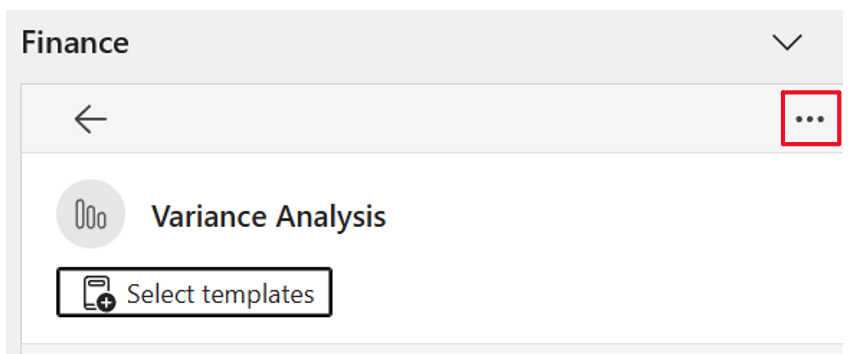
Select Sign into environment.
From the Select your environment dropdown, select the appropriate environment.
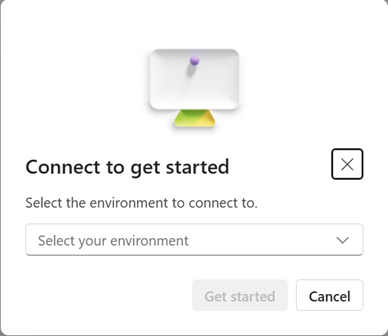
Select Get started.
- If successful, a banner message appears stating that the sign-in was successful and all features are now available.
- If unsuccessful, or if the No environments available message displays, contact your administrator.
To change environments or sign out of an environment, select the Help and more menu, then select the displayed environment. Options to sign out and switch environments are presented.
Perform an analysis with the Variance analysis feature.
After you complete the analysis, select Save as template in the lower left corner of the sidecar.
Enter a name for the template in the Template name field.
Select Save. After you save the template, a badge for the newly created template appears at the top of the Finance Agent sidecar. You can dismiss this badge by selecting the X next to its name.

Load a template
To load a template, follow these steps:
- Select Select templates at the top of the Variance analysis sidecar.
- Select a template from the list provided and select Select.
- To perform the variance analysis, select the submit icon for each individual criteria.
Modify a template
You can modify a template after you apply the template and complete the variance process. When you finish, save the newly updated variance selections.
To modify a template, follow these steps:
- Select Select templates at the top of the Variance analysis sidecar.
- Select a template from the list provided, and select Select.
- Make the necessary modifications. To discard all modifications and return to the original template, select the Reset button located next to the Rename button.
- Submit the modified criteria change.
- To save changes to the template or save with a new name (save as), select + and choose the appropriate option.
- Enter a name for the template in the Template name field.
- Select Save. If you choose "save as," a badge for the newly created template appears at the top of the Finance Agent sidecar. You can dismiss the badge by selecting the X next to its name.